
Zavedení
This manual provides detailed instructions for the safe and efficient use of your Plimpton PlimPad P3 10.1-inch Android 12 Tablet. Please read this manual thoroughly before operating the device and keep it for future reference.
Konec produktuview
The Plimpton PlimPad P3 is a 10.1-inch tablet featuring the Android 12 operating system. It is designed for general use, offering a balance of performance and portability.
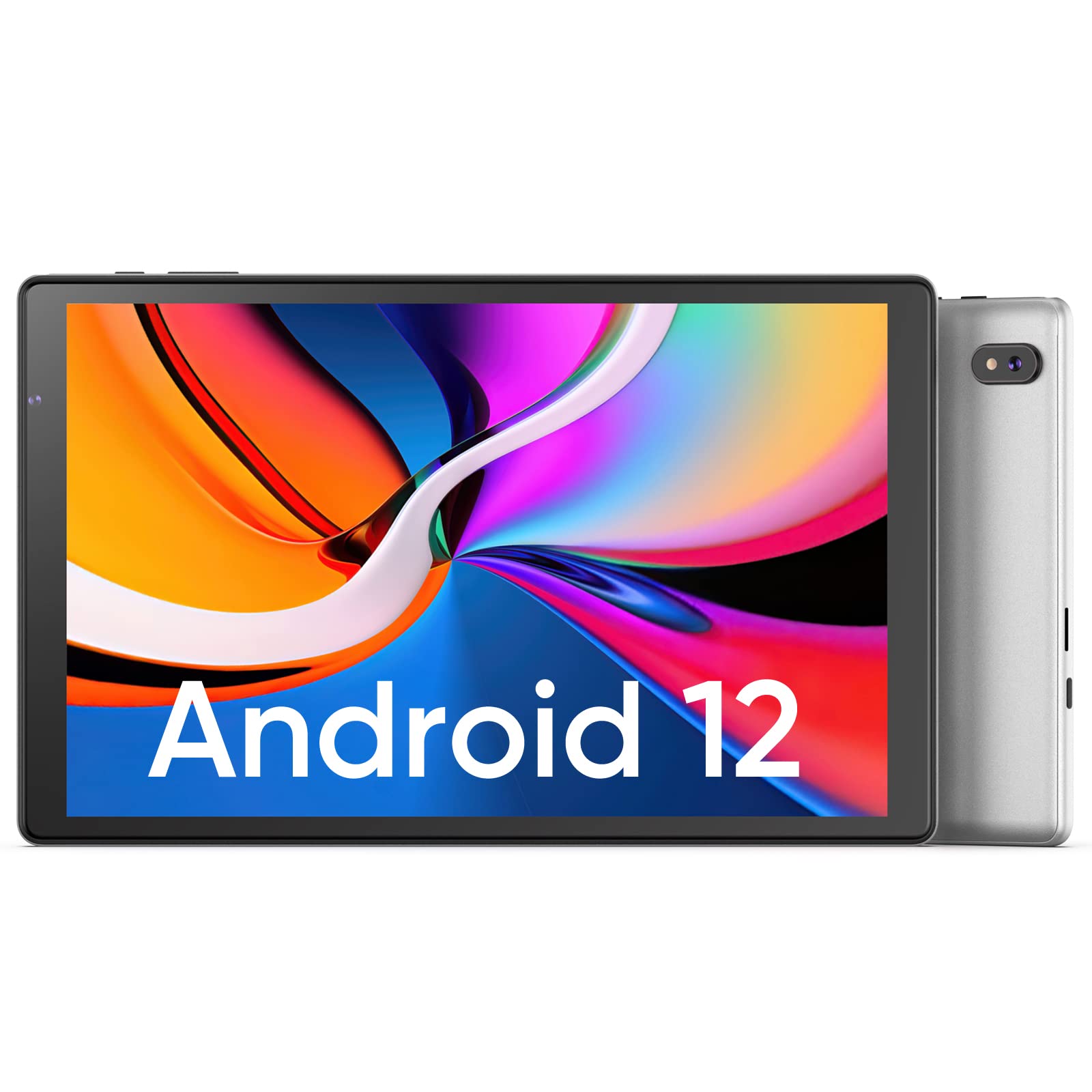
Obrázek: Přední a zadní strana view of the Plimpton PlimPad P3 Tablet.
Klíčové vlastnosti:
- Operační systém: Android 12 for a personalized and secure user experience.
- Zobrazit: 10.1-inch HD IPS LCD with 1280x800 resolution for clear visuals.
- Výkon: Powered by an Allwinner A133 1.5GHz 4-core CPU with 4GB RAM for smooth operation.
- Skladování: 64GB interní úložiště, rozšiřitelné až na 1TB pomocí microSD karty.
- Konektivita: Dual-band Wi-Fi 6 (5GHz+2.4GHz) and Bluetooth 5.0.
- Zvuk: Dual speakers for an enhanced audio experience.
- Baterie: Baterie s kapacitou 6000 mAh pro delší používání.
- Design: Premium silver metal body for efficient heat dissipation and a slim profile.

Image: Visual representation of key features including metal body, 10.1-inch screen, split screen functionality, and 6000mAh battery capacity.
Průvodce nastavením
1. Počáteční nabíjení
Before first use, fully charge the tablet using the provided USB charger and 1.8M USB Type-C cable. Ensure the tablet is powered off during initial charging. Using non-original chargers may lead to compatibility issues.

Image: Details on battery capacity, charging port, and cable length.
2. Zapnutí/vypnutí
- Zapnutí: Stiskněte a podržte tlačítko napájení na boku tabletu, dokud se obrazovka nerozsvítí.
- Vypnutí: Stiskněte a podržte tlačítko napájení a poté z možností zobrazených na obrazovce vyberte možnost „Vypnout“.
3. Připojení Wi-Fi
The tablet supports Wi-Fi 6 with dual-band (5GHz and 2.4GHz) connectivity for stable internet access. To connect to Wi-Fi:
- Přejít na Nastavení.
- Vybrat Síť a internet.
- Klepněte Wi-Fi a zapněte jej.
- Vyberte požadovanou síť ze seznamu a v případě potřeby zadejte heslo.

Obrázek: Overview of Wi-Fi 6, Bluetooth 5.0, and dual-band network support.
4. Připojení Bluetooth
Chcete-li připojit zařízení Bluetooth:
- Ujistěte se, že je vaše zařízení Bluetooth v režimu párování.
- Přejít na Nastavení na tabletu.
- Vybrat Připojená zařízení, pak Předvolby připojenía klepněte na Bluetooth.
- Turn Bluetooth on and select your device from the list to pair.
5. SD Card Installation and Initialization
The tablet supports microSD cards up to 1TB. Always insert or remove the SD card when the tablet is powered off to prevent data corruption.
- Vypněte tablet.
- Locate the microSD card slot on the tablet.
- Kartu microSD opatrně vkládejte, dokud nezacvakne na místo.
- Zapněte tablet.
- For the tablet to recognize a new SD card, it may require initialization. Refer to the on-screen prompts or the detailed instructions in the included Japanese manual for the initialization procedure.
6. Installing a Protective Case
To protect your tablet, you may wish to install a compatible protective case. The following video demonstrates how to install a tablet into a case and utilize its stand function.
Video: Demonstration of installing a tablet into a protective case and using the stand function.
Návod k obsluze
1. Funkce operačního systému Android 12
The PlimPad P3 runs on Android 12, offering an optimized and user-friendly interface with enhanced privacy controls.
- Přizpůsobené uživatelské rozhraní: Customize your desktop display style with new UI designs.
- Správa ochrany osobních údajů: New privacy features allow you to manage your data and permissions easily.
- Google Services & Apps: Access stable Google services and install popular third-party applications like LINE, YouTube Kids, Yahoo, and Twitter.
- Přístupnost: Features include automatic text-to-speech and an eye protection mode.

Image: Highlights of Android 12 OS features such as improved UI, privacy management, and simplified data transfer.
2. Nastavení displeje
- Rezoluce: The 10.1-inch IPS LCD offers a 1280x800 resolution for vivid colors and wide viewing úhly.
- Režim ochrany očí: Activate this mode in settings to reduce eye strain during prolonged use.
3. Nastavení zvuku
The tablet is equipped with dual speakers for surround sound. Adjust volume using the physical volume buttons or through the sound settings in the Android OS.

Image: Illustration of the tablet's dual stereo speakers and Bluetooth 5.0 connection for reduced interference.
4. Bezdrátová projekce
The tablet supports wireless projection to compatible smart TVs. Refer to your smart TV's manual for instructions on enabling screen mirroring or casting, then initiate the connection from your tablet's display settings.
Údržba
1. Péče o baterie
- To maximize battery life, close unnecessary applications running in the background.
- Nevystavujte tablet extrémním teplotám.
- For optimal performance, use the original charger and cable.
2. Správa úložiště
- Pravidelně mazejte mezipaměť a nepotřebné files to maintain smooth operation.
- While the tablet has 4GB RAM and 64GB ROM, it is not designed for memory-intensive applications such as high-end games or professional photo editing software (e.g., Photoshop).
- Využijte slot pro kartu microSD pro další ukládání médií files a dokumenty.
Odstraňování problémů
Běžné problémy a řešení:
- Pomalý výkon:
- Zavřete aplikace na pozadí.
- Clear app caches.
- Zajistěte dostatek volného úložného prostoru.
- Note that this tablet is not optimized for demanding games or applications like Genshin Impact.
- Problémy s nabíjením:
- Use only the original Plimpton charger and USB Type-C cable.
- Ujistěte se, že nabíjecí port je čistý a bez nečistot.
- Other Type-C chargers may not be compatible.
- SD karta nebyla rozpoznána:
- Ensure the tablet is powered off when inserting or removing the SD card.
- A new SD card may require initialization. Refer to the included manual for steps.
- Poškození obrazovky:
- In case of a cracked or damaged screen, please contact customer support for the best resolution.
- Consider using a P3 Pro dedicated reinforced glass screen protector for added durability.
- No SIM Card Compatibility:
- This is a Wi-Fi model tablet and is not compatible with SIM cards for cellular data.
Specifikace
| Funkce | Detail |
|---|---|
| Značka | plimpton |
| Název modelu | PlimPad P3 |
| Operační systém | Android 12 |
| CPU | Allwinner ARM Cortex A133, 1.8 GHz 4-core |
| BERAN | 4 GB |
| Interní úložiště | 64 GB |
| Rozšiřitelné úložiště | MicroSD až do 1 TB |
| Velikost obrazovky | 10.1 palců |
| Typ zobrazení | IPS LCD |
| Rozlišení displeje | 1280x800 |
| Poměr stran | 16:10 |
| Dotyková obrazovka | Ano |
| Wi-Fi | Wi-Fi 6 (Dual-band 5GHz+2.4GHz) |
| Bluetooth | Bluetooth 5.0 |
| Přední kamera | Ano |
| Zadní kamera | 8 MP |
| Kapacita baterie | 6000 mAh (Lithium Ion) |
| Hmotnost | 520 gramů |
| Barva | Stříbro |
Záruka a podpora
Informace o záruce
Your Plimpton PlimPad P3 tablet comes with a 24-month free exchange warranty from the date of purchase. If any defects occur within this period, a new product exchange will be provided.
Zákaznická podpora
For any inquiries or support needs, please contact us through Amazon:
- On the product page, locate the store name "Plimpton Direct" below the "Add to Cart" button.
- Klikněte na "Plimpton Direct".
- In the upper right corner of the store page, click on "Ask a question" odeslat zprávu.
Obsah balení
The following items are included in your Plimpton PlimPad P3 package:
- PlimPad P3 Tablet
- USB nabíječka
- 1.8M USB Type-C Cable
- Japonský návod k obsluze