
1. Úvod
This manual provides essential information for the proper installation, operation, and maintenance of your SUNMI T2s Lite 15.6-inch Android Point of Sale (POS) system. Please read this manual thoroughly before using the device to ensure optimal performance and safety. Keep this manual for future reference.
2. Bezpečnostní informace
- Nevystavujte zařízení extrémním teplotám, vlhkosti nebo přímému slunečnímu záření.
- Zabraňte pádu zařízení nebo jeho vystavení silným nárazům.
- Používejte pouze napájecí adaptér dodaný se zařízením. Použití nesprávného adaptéru může způsobit poškození nebo požár.
- Nepokoušejte se zařízení rozebírat ani opravovat sami. Obraťte se na kvalifikovaný servisní personál.
- Udržujte zařízení mimo dosah vody nebo jiných kapalin.
- Během provozu zajistěte dostatečné větrání v okolí zařízení.
3. Obsah balení
Ověřte, zda jsou v balení přítomny všechny položky:
- SUNMI T2s Lite POS Terminal
- Napájecí adaptér
- Napájecí kabel
- Stručný průvodce (pokud je k dispozici)
- Záruční list (pokud existuje)
Pokud některé položky chybí nebo jsou poškozené, ihned kontaktujte svého prodejce.
4. Konec produktuview
The SUNMI T2s Lite is an integrated Android-based POS system designed for retail environments. It features a 15.6-inch capacitive touchscreen display and various connectivity options.
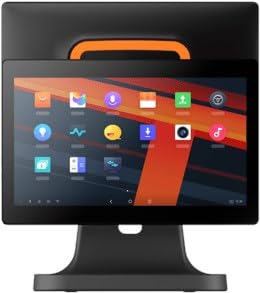
Obrázek 4.1: Přední view of the SUNMI T2s Lite POS system. This image displays the main 15.6-inch touchscreen, which is the primary interface for operating the device. The design is compact and suitable for various retail settings.
4.1 klíčové komponenty
- 15.6palcový dotykový displej: High-resolution (1920x1080) capacitive touch interface.
- Vypínač: Located typically on the side or rear for turning the device on/off.
- USB porty: For connecting peripherals such as barcode scanners, external printers, or cash drawers.
- Ethernetový port: Pro připojení k kabelové síti.
- Příkon: Pro připojení napájecího adaptéru.
- Přední kamera: For specific applications requiring image capture.
5. Nastavení
5.1 Vybalení a umístění
- Opatrně vyjměte zařízení a veškeré příslušenství z obalu.
- Place the POS terminal on a stable, flat surface in a well-ventilated area.
- Ensure there is sufficient space around the device for cable connections and heat dissipation.
5.2 Připojení napájení
- Připojte napájecí kabel k napájecímu adaptéru.
- Plug the power adapter into the power input port on the back of the SUNMI T2s Lite.
- Zapojte druhý konec napájecího kabelu do uzemněné elektrické zásuvky.
5.3 Initial Boot and Network Connection
- Press and hold the power button until the screen lights up. The device will boot into the Android operating system.
- Postupujte podle pokynů na obrazovce pro počáteční nastavení, včetně výběru jazyka a časového pásma.
- Wi-Fi připojení: Přejít na Nastavení > Síť a internet > Wi-Fi, vyberte svou síť a zadejte heslo.
- Ethernetové připojení: Connect an Ethernet cable from your router/switch to the Ethernet port on the device. The device should automatically connect to the wired network.
5.4 Připojení periferních zařízení
- Zařízení USB: Plug USB peripherals (e.g., barcode scanner, external printer, cash drawer) into the available USB ports. The system will typically recognize them automatically.
- Zařízení Bluetooth: Přejít na Nastavení > Připojená zařízení > Bluetooth, enable Bluetooth, and pair with your desired device.
6. Návod k obsluze
6.1 Zapnutí/vypnutí
- Zapnutí: Stiskněte a podržte tlačítko napájení, dokud se nerozsvítí obrazovka.
- Vypnutí: Press and hold the power button until a power menu appears. Select "Power off" and confirm. Alternatively, a short press of the power button will put the device to sleep.
6.2 Používání dotykové obrazovky
- Klepněte na: Výběr položky nebo aktivace tlačítka.
- Klepnutí a podržení: To open context menus or drag items.
- Výpad: Pro procházení seznamů nebo navigaci mezi obrazovkami.
- Přiblížení/zvětšení prsty: Pro přiblížení nebo oddálení obrázků nebo web stránky.
6.3 Navigace v operačním systému Android
- Domovská obrazovka: The central hub for your applications and widgets.
- Zásuvka aplikace: Přístup ke všem nainstalovaným aplikacím.
- Panel oznámení: Přejeďte prstem dolů z horní části obrazovky na view oznámení a rychlé nastavení.
- Nastavení: Configure Wi-Fi, Bluetooth, display, sound, and other system options.
6.4 Basic POS Functions
The specific POS functions will depend on the software application installed on your device. Refer to the documentation provided with your POS software for detailed instructions. Generally, you will:
- Launch your POS application from the home screen or app drawer.
- Přihlaste se pomocí svých uživatelských údajů.
- Process transactions using the touchscreen and connected peripherals (e.g., scanning items, accepting payments).
- Print receipts if an external or integrated printer is configured.
7. Údržba
7.1 Čištění zařízení
- Před čištěním vždy přístroj vypněte a odpojte ze zásuvky.
- Použijte měkký hadřík, který nepouští vlákna dampened with water or a mild, non-abrasive cleaner to wipe the screen and exterior surfaces.
- Nestříkejte kapaliny přímo na zařízení.
- Vyhněte se používání agresivních chemikálií, rozpouštědel nebo abrazivních materiálů.
7.2 Aktualizace softwaru
Regularly check for and install system and application updates to ensure optimal performance, security, and access to new features. You can usually find system updates in Nastavení > Systém > Aktualizace systému.
7.3 Skladování
When not in use for extended periods, store the device in a cool, dry place, away from direct sunlight and extreme temperatures. If storing for a long time, ensure the battery is charged to about 50% to prolong its lifespan.
8. Řešení problémů
Tato část se zabývá běžnými problémy, se kterými se můžete setkat. V případě složitějších problémů kontaktujte zákaznickou podporu.
- Zařízení se nezapne:
- Ujistěte se, že je napájecí adaptér bezpečně připojen k zařízení a k funkční zásuvce.
- Zkontrolujte, zda je elektrická zásuvka funkční.
- Try holding the power button for 10-15 seconds to force a restart.
- Dotyková obrazovka nereaguje:
- Restartujte zařízení.
- Ensure the screen is clean and free of debris or liquids.
- Network connection issues (Wi-Fi/Ethernet):
- Check if the Wi-Fi is enabled and you are connected to the correct network with the right password.
- For Ethernet, ensure the cable is properly connected and your router/switch is working.
- Restartujte router/modem.
- Peripherals (e.g., printer, scanner) not working:
- Ujistěte se, že je periferní zařízení správně připojeno ke správnému portu.
- Check if the peripheral has its own power supply and is turned on.
- Verify that the necessary drivers or software for the peripheral are installed and configured within your POS application.
9. Specifikace
The following are key technical specifications for the SUNMI T2s Lite:
| Funkce | Specifikace |
|---|---|
| Značka | SUNMI |
| Výrobce | Sunmi |
| Nativní rozlišení displeje | 1920x1080 pixelů |
| Technologie připojení | Bluetooth, Ethernet, USB, WLAN |
| Popis fotoaparátu | Čelní |
| ASIN | B0B53FLFT8 |
10. Záruka a podpora
The SUNMI T2s Lite POS system comes with a standard manufacturer's warranty. Please refer to the warranty card included in your package for specific terms and conditions, including warranty period and coverage details.
For technical support, service, or warranty claims, please contact your authorized SUNMI dealer or the customer support channel specified in your purchase documentation. Ensure you have your product model number (T2s Lite) and ASIN (B0B53FLFT8) ready when contacting support.