
1. Úvod
This manual provides detailed instructions for the setup, operation, and maintenance of your Pericat S20 Projector. Please read this manual thoroughly before using the projector to ensure optimal performance and safety.
The Pericat S20 is a native 1080P Full HD projector with 5G+2.4G WiFi and Bluetooth 5.1 connectivity, supporting 4K input. It is designed for versatile use in home theater, outdoor entertainment, and gaming environments.
2. Obsah balení
Ověřte, zda jsou v balení obsaženy všechny níže uvedené položky:
- Pericat S20 Projector
- Dálkové ovládání
- HDMI kabel
- AV kabel
- Napájecí kabel
Video: Unboxing the Pericat S20 Projector and its accessories.

Image: The Pericat S20 Projector, remote control, HDMI cable, AV cable, and power cord.
3. Konec produktuview
3.1 Přední View

Image: The front of the projector showing the lens and 'Pericat' branding.
3.2 Ovládací prvky na horním panelu

Image: Top panel with navigation buttons (arrows, OK), return, source, menu, light, and power buttons. Focus wheel is visible on the side.
3.3 Rear and Side Ports
Obrázek: Podrobný view of the projector's connectivity ports: HDMI, AV, USB, and VGA.
- Port HDMI: Connects to devices like TV sticks, game consoles, laptops.
- USB port: Connects to USB drives for media playback or for wired phone connection.
- VGA port: Connects to computers or laptops.
- AV port: Connects to older devices using the included AV cable.
- 3.5mm audio jack: Pro externí reproduktory nebo sluchátka.
- Příkon: Připojuje napájecí kabel.
4. Nastavení
4.1 Možnosti umístění
The Pericat S20 Projector offers flexible placement options:
- Umístění stolu: Umístěte projektor na rovný a stabilní povrch.
- Instalace stativu: Use the threaded hole on the bottom to mount the projector on a tripod.
- Držák na strop: The projector can be inverted and mounted to the ceiling for permanent installation.

Image: Various projector placement methods including table, tripod, and ceiling mounts.
4.2 Připojení napájení
- Připojte napájecí kabel k napájecímu vstupu projektoru.
- Zapojte druhý konec napájecího kabelu do elektrické zásuvky.
- Stisknutím tlačítka napájení na projektoru nebo dálkovém ovladači jej zapněte.
4.3 Zaostření a korekce lichoběžníkového zkreslení
Adjust the image clarity and shape using the focus and keystone correction features:
- Soustředit: Rotate the focus wheel near the lens until the projected image is clear.
- Korekce lichoběžníkového zkreslení: Use the keystone adjustment lever (typically on the top or rear) to correct trapezoidal distortion, ensuring a rectangular image. The Pericat S20 supports ±15° keystone correction.
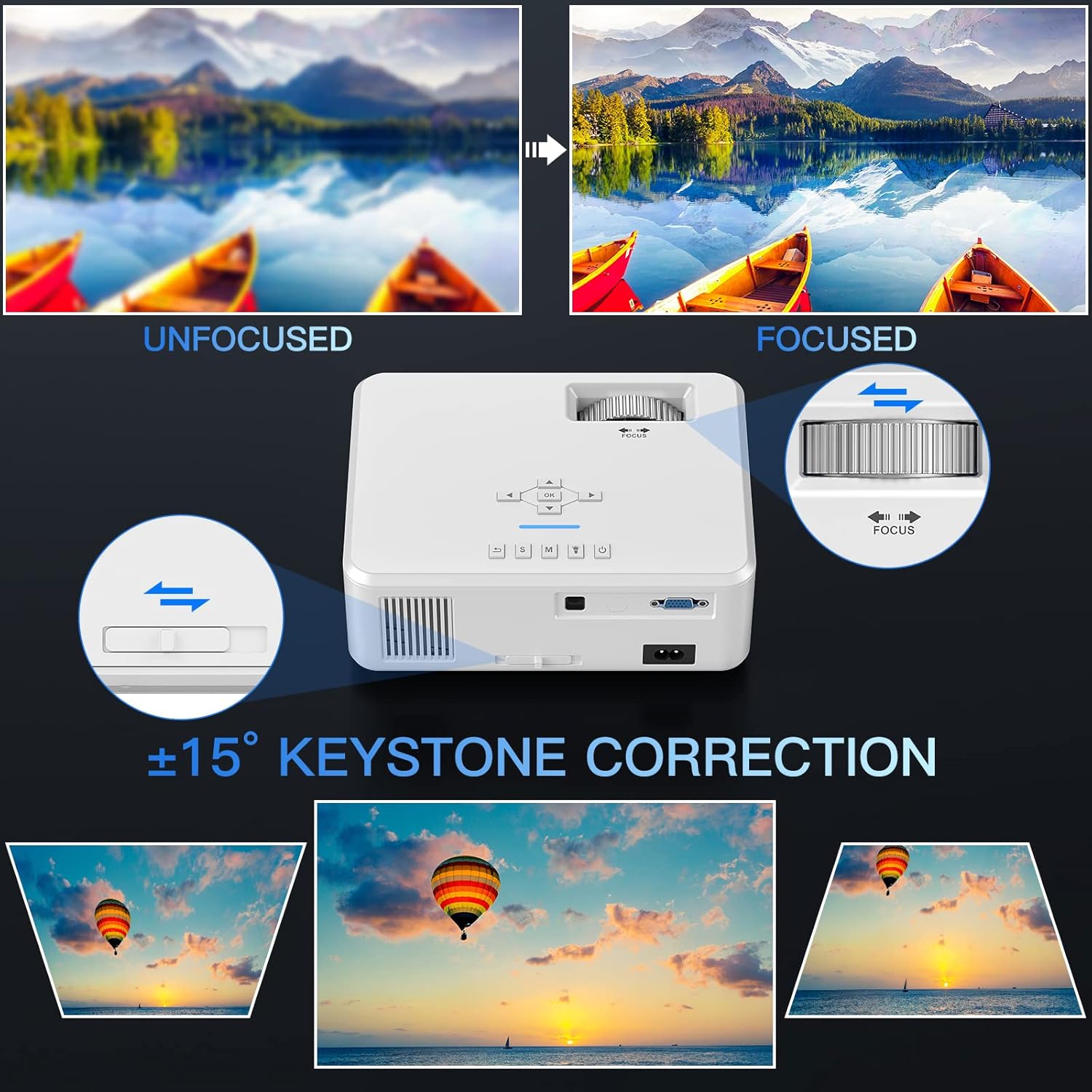
Image: Visual guide for adjusting focus and keystone correction on the projector.
5. Návod k obsluze
5.1 Zapnutí/vypnutí
Stisknutím tlačítka napájení na projektoru nebo na dálkovém ovladači zapnete nebo vypnete zařízení.
5.2 Výběr vstupního zdroje
Use the 'Source' button on the projector or remote to select your desired input (HDMI, USB, VGA, AV, Screen Mirroring).
5.3 Bezdrátové připojení (zrcadlení obrazovky)
The Pericat S20 supports 5G+2.4G dual-band WiFi for screen mirroring from iOS, Android, and Windows devices.
- Turn on the projector and select 'Screen Mirroring' from the input source menu.
- Ensure your smartphone (iOS/Android) is connected to the same WiFi network as the projector.
- On your smartphone, enable the screen mirroring function (e.g., 'Screen Mirroring' for iOS, 'Smart View' or 'Cast' for Android).
- Select the projector device (e.g., "S20-XXXXXX") from the list of available devices.
- Dokončete připojení podle pokynů na obrazovce.
Video: Step-by-step guide on how to connect the projector with an iPhone for screen mirroring.

Image: Visual representation of 5G+2.4G WiFi screen mirroring with iOS, Android, and Windows devices.
5.4 Připojení Bluetooth
Projektor je vybaven technologií Bluetooth 5.1 pro připojení k externím audio zařízením.
- Navigate to the 'Sound' settings in the projector's menu.
- Select 'BT Setting' and turn Bluetooth 'On'.
- The projector will search for nearby Bluetooth devices.
- Select your desired Bluetooth speaker or headphones from the list to connect.

Image: Illustration of the projector's two-way Bluetooth 5.1 functionality, allowing connection to external speakers.
5.5 Kabelová připojení
Connect various devices using the appropriate cables:
- HDMI: Connect TV sticks, game consoles (PS5), laptops, PCs.
- USB: Insert USB drives for media playback. For some phones, a wired USB connection might be supported for mirroring (refer to phone's compatibility).
- VGA: Připojte starší počítače nebo notebooky.
- AV: Connect DVD players or other devices with AV output using the included AV cable.
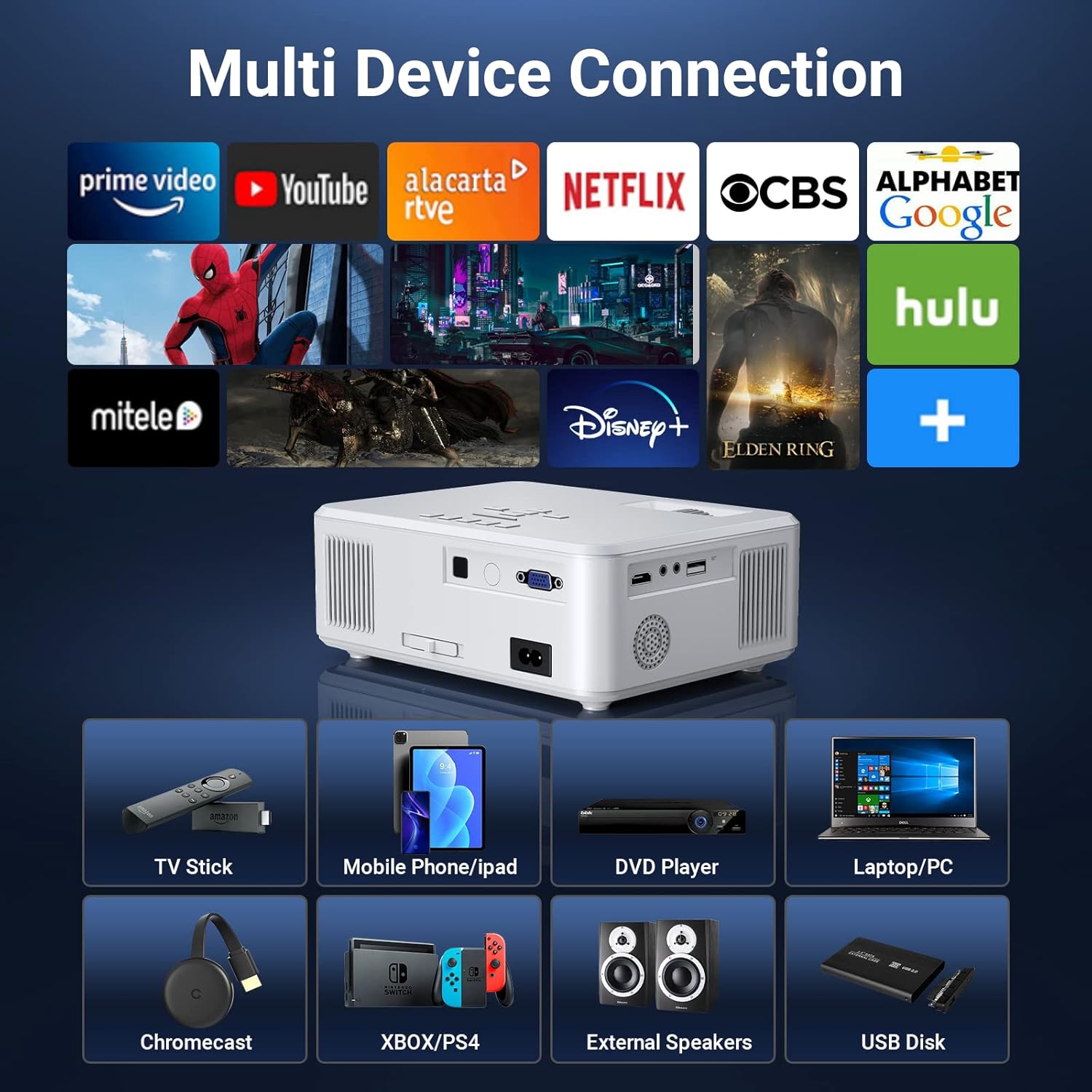
Obrázek: Přamples of multiple devices connecting to the projector, including TV sticks, phones, DVD players, laptops, and external speakers.
5.6 Funkce zoom
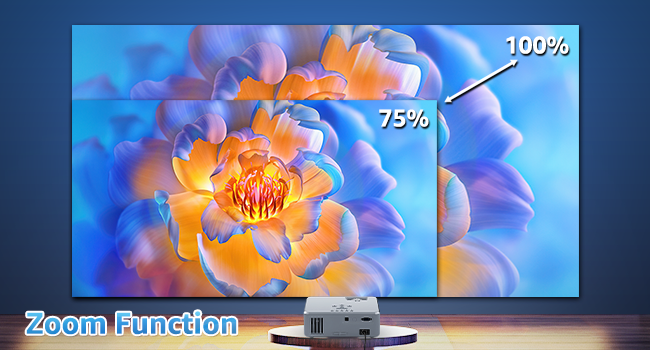
The projector features a 75-100% zoom function to adjust the screen size without moving the projector. Access this function through the projector's menu settings.

Image: Visual explanation of the projector's zoom function, showing adjustment from 75% to 100% of the image size.
5.7 Režim spánku
The projector can be set to enter sleep mode after a period of inactivity to conserve energy. This setting can be configured in the system menu.

Image: The sleep mode function indicated on the projector's control panel.
6. Údržba
6.1 Čištění
- K čištění vnější strany projektoru použijte měkký, suchý hadřík.
- For the lens, use a lens cleaning cloth and specialized lens cleaning solution. Avoid abrasive materials.
- Regularly clean the ventilation vents to prevent dust buildup and ensure proper airflow.
6.2 Skladování
Pokud projektor delší dobu nepoužíváte, skladujte jej na chladném a suchém místě mimo dosah přímého slunečního záření a extrémních teplot. Použijte originální obal nebo ochranné pouzdro, abyste zabránili prachu a poškození.
7. Řešení problémů
- Bez obrázku: Ensure the power cord is securely connected and the projector is turned on. Check the input source selection matches your connected device. Verify the HDMI/VGA cable is properly connected.
- Rozmazaný obrázek: Adjust the focus wheel until the image is sharp. Ensure the projection distance is within the recommended range.
- Trapezoidal Image: Use the keystone correction lever to adjust the image shape until it is rectangular.
- Žádný zvuk: Check the volume settings on both the projector and the connected device. If using an external speaker, ensure it is properly connected via Bluetooth or audio cable.
- No Sound from Netflix/Streaming Apps: Due to copyright protection, some Netflix videos may not have sound if Dolby Sound is enabled. Turn off Dolby Sound in your streaming device's audio settings to resolve this.
- Problémy s WiFi připojením: Ensure the projector and your device are connected to the same 5G or 2.4G WiFi network. Re-enter the WiFi password if necessary.
8. Specifikace
| Funkce | Specifikace |
|---|---|
| Značka | Pericat |
| Číslo modelu | S20 |
| Rozlišení displeje | Nativní rozlišení 1920 x 1080P (podpora 4K) |
| Jas | 13000 XNUMX lumenů |
| Technologie připojení | Wi-Fi (5G+2.4G), Bluetooth 5.1, HDMI, USB, VGA, AV |
| Velikost zobrazení projekce | 65-251 palců |
| Poměr stran | 4:3/16:9 |
| Korekce lichoběžníkového zkreslení | ±15° |
| Funkce zvětšení | 75–100 % |
| Typ reproduktoru | Built-In Dual Speakers |
| Rozměry produktu | 8.4 x 6.4 x 3 palce |
| Hmotnost položky | 2.2 libry |
9. Záruka a podpora
Pericat is committed to providing excellent customer service. Your Pericat S20 Projector comes with the following:
- 3 rok bezplatné výměny: For manufacturing defects or malfunctions.
- Zásady 30denního vrácení: No-reason return within 30 days of purchase.
- Doživotní podpora: Ongoing technical assistance and solutions.
- 24-Hour Quick Service: Customer support available via phone or email.
Pro podporu navštivte prosím www.pericatstore.com nebo kontaktujte support@pericatstore.com. You may also call 1-833-300-8645.

Image: Summary of Pericat's customer support and warranty offerings.