
Introduction to Amazon Fire TV Stick 4K
This document serves as a comprehensive user manual for the Amazon Fire TV Stick 4K, compiled from the detailed guide titled 'Amazon Fire TV Stick 4K: A Complete User Guide to Setup, Operate and Get Your Amazon Fire TV Stick Device Performing Optimally, With Additional Tips to Master Your Device in No Time'. It provides essential instructions for setting up, operating, and troubleshooting your Fire TV Stick 4K device.
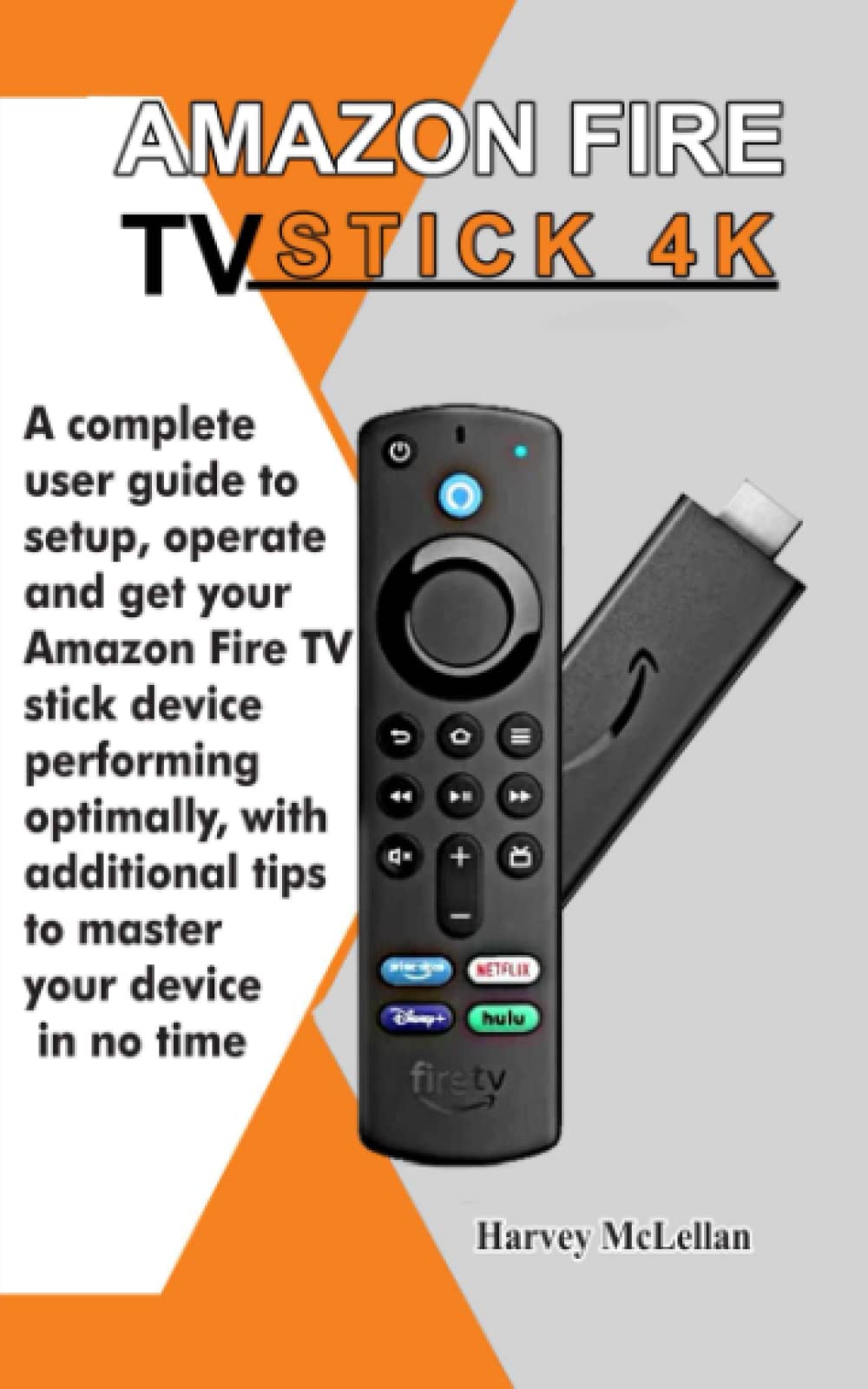
Image: The front cover of the user guide book, titled 'Amazon Fire TV Stick 4K: A Complete User Guide...'. This book provides detailed instructions for the Fire TV Stick 4K device.
1. Nastavení a počáteční konfigurace
Follow these steps to set up your Amazon Fire TV Stick 4K and prepare it for use.
- Připojení Fire TV Stick: Plug the Fire TV Stick 4K into an available HDMI port on your television. For optimal performance, connect the included power adapter to the Fire TV Stick and then to a power outlet.
- Power On and Select Input: Zapněte televizor a pomocí dálkového ovladače televizoru vyberte správný vstupní zdroj HDMI.
- Spárujte dálkový ovladač: Insert the included batteries into your Alexa Voice Remote. If the remote does not pair automatically, press and hold the Domov tlačítko po dobu 10 sekund, dokud LED indikátor nezačne blikat.
- Internetové připojení: Follow the on-screen instructions to connect your Fire TV Stick 4K to your Wi-Fi network. You will need your Wi-Fi password.
- Amazon Account Login: Log in with your Amazon account credentials. If you do not have an Amazon account, you will be prompted to create one.
- Aktualizace softwaru: The device may automatically download and install the latest software updates. This process can take several minutes.
- Počáteční nastavení: Customize settings such as language, time zone, and parental controls as prompted.
2. Operating Your Fire TV Stick 4K
This section covers the primary functions and features of your Fire TV Stick 4K.
2.1 Hlasové ovládání Alexou
Stiskněte a podržte Alexa button on your remote and speak into the microphone to issue commands. You can ask Alexa to:
- Hledat movies, TV shows, or actors.
- Launch applications (e.g., "Open Netflix").
- Control playback (e.g., "Pause", "Fast forward 30 seconds").
- Check weather, news, or sports scores.
- Ovládejte kompatibilní zařízení chytré domácnosti.
2.2 Správa aplikací
To add apps to your Fire TV home screen:
- Přejděte na Aplikace section on the home screen or use Alexa voice command ("Alexa, open Appstore").
- Procházejte nebo vyhledejte požadované aplikace.
- Select an app and choose Získat or Stáhnout jej nainstalovat.
- Installed apps will appear on your home screen. You can rearrange them by holding the Vybrat button on an app icon and choosing Pohyb.
2.3 Rodičovská kontrola
To set up parental controls:
- Přejít na Nastavení > Předvolby > Rodičovská kontrola.
- Otočte se Rodičovská kontrola ON a vytvořte si PIN.
- Configure restrictions for purchases, app launches, and content ratings.
2.4 4K Playback and Subtitles
- Přehrávání v rozlišení 4K: Ensure your TV is 4K compatible and connected to an HDMI port that supports HDCP 2.2. The Fire TV Stick 4K will automatically detect and stream content in the highest available resolution.
- Activating Subtitles: Během přehrávání videa stiskněte tlačítko Menu button on your remote (three horizontal lines) to access playback options. Select titulky or Skryté titulky and choose your preferred language.
3. Údržba a péče
Proper care ensures the longevity and optimal performance of your Fire TV Stick 4K.
- Čištění: Use a soft, dry, lint-free cloth to clean the device and remote. Do not use liquid cleaners or aerosols.
- Větrání: Ensure the Fire TV Stick is not obstructed and has adequate airflow to prevent overheating.
- Aktualizace softwaru: Keep your device's software updated. Updates are typically automatic but can be manually checked via Nastavení > Moje Fire TV > O > Zkontrolujte aktualizace.
- Skladování: Pokud zařízení delší dobu nepoužíváte, skladujte jej na chladném a suchém místě.
4. Odstraňování běžných problémů
Here are solutions to common problems you might encounter.
4.1 Problémy s připojením k internetu
- Žádné připojení k Wi-Fi:
- Restartujte Wi-Fi router a modem.
- Přejít na Nastavení > Síť on your Fire TV Stick and select your network to re-enter the password.
- Ensure the Fire TV Stick is within range of your Wi-Fi router.
- Pomalá rychlost internetu:
- Minimize other devices using your network.
- Consider moving your router closer to the Fire TV Stick or using a Wi-Fi extender.
- Zkontrolujte rychlost připojení u svého poskytovatele internetových služeb.
4.2 Dálkové ovládání nereaguje
- Vyměňte baterie v dálkovém ovladači.
- Unplug the Fire TV Stick from power for 30 seconds, then plug it back in.
- To re-pair the remote, hold the Domov tlačítko na 10 sekund.
4.3 Žádný obraz ani zvuk
- Ensure the Fire TV Stick is securely plugged into the HDMI port and the power adapter is connected.
- Ověřte, zda je váš televizor na správném HDMI vstupu.
- Zkuste na televizoru jiný port HDMI.
- Restart your Fire TV Stick by unplugging it for 30 seconds.
5. Guidebook Specifications
This section provides the publication details for the user guide from which this manual is derived.
| Funkce | Detail |
|---|---|
| ASIN | B0B4HJSN3T |
| Vydavatel | Nezávisle publikováno |
| Datum vydání | 21. června 2022 |
| Jazyk | angličtina |
| Počet stránek | 97 stran |
| ISBN-13 | 979-8837410789 |
| Hmotnost položky | 118 g |
| Rozměry | 12.7 x 0.64 x 20.32 cm |
Image: Back cover of the user guide book, displaying the ISBN-13 barcode (979-8837410789) and other publication details.
6. Záruka a podpora
For detailed warranty information and customer support regarding your Amazon Fire TV Stick 4K device, please refer to the official Amazon website or the documentation included with your device. You can typically find support resources by visiting Podpora zařízení Amazon.
For further reading and advanced tips, consider the comprehensive guide available with ISBN 979-8837410789.