
DUODUOGO S7
DUODUOGO 5G WiFi Android 11 Tablet S7 User Manual
Model: S7
Brand: DUODUOGO
1. Úvod
This user manual provides comprehensive instructions for the DUODUOGO 5G WiFi Android 11 Tablet S7. It covers product features, setup, operation, maintenance, and troubleshooting to ensure optimal use of your device. Please read this manual thoroughly before using the tablet.
2. Co je v krabici
- DUODUOGO 5G WiFi Android 11 Tablet (10.4 Inch)
- Odnímatelná klávesnice
- Kabel USB typu C
- Napájecí adaptér
- Uživatelská příručka (tento dokument)
3. Konec produktuview
The DUODUOGO S7 tablet features a 10.4-inch touchscreen display, powered by Android 11, and includes a detachable keyboard for enhanced productivity. It supports dual-band Wi-Fi (2.4G and 5G) and offers ample storage with 4GB RAM and 64GB internal storage, expandable up to 256GB.

Image: The DUODUOGO S7 tablet in blue, shown with its detachable keyboard and a hand interacting with the touchpad. The tablet screen displays "Android 11". A smaller inset image shows the tablet from the rear with its kickstand extended.
Klíčové vlastnosti:
- Operační systém: Android 11
- Zobrazit: 10.4-inch IPS Touchscreen (1280 x 800 resolution)
- Paměť: 4 GB RAM
- Skladování: 64GB ROM (expandable up to 256GB)
- Kamery: Rear 8MP, Front 5MP
- Konektivita: Dual WiFi (2.4G/5G), Bluetooth, OTG, Type-C
- Baterie: 6500 XNUMX mAh

Image: A stylized depiction of the Android 11 system, with a robotic hand reaching out from a tablet screen towards a small Android mascot holding the number 11. Text reads "Android 11 System" and "Visit your favorite apps, music, movies, books, etc".
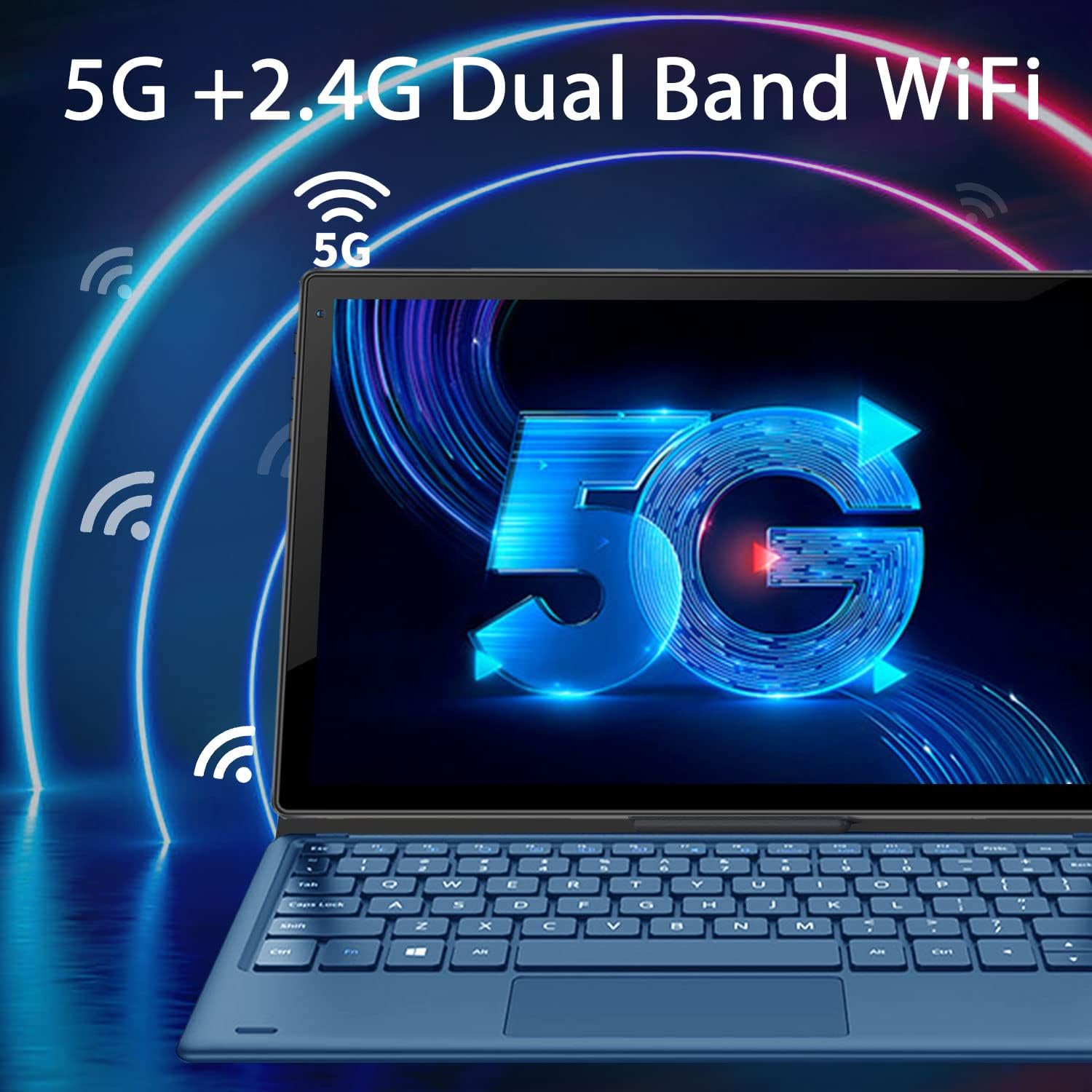
Image: The tablet screen displaying a large "5G" logo with Wi-Fi signals emanating from it, indicating dual-band 5G and 2.4G Wi-Fi connectivity. Text reads "5G + 2.4G Dual Band WiFi".

Image: Three tablets shown from the back, with the middle tablet displaying a photo gallery. Icons and text indicate "Large Capacity Battery", "4GB RAM", "64GB ROM", and "256GB Expand".
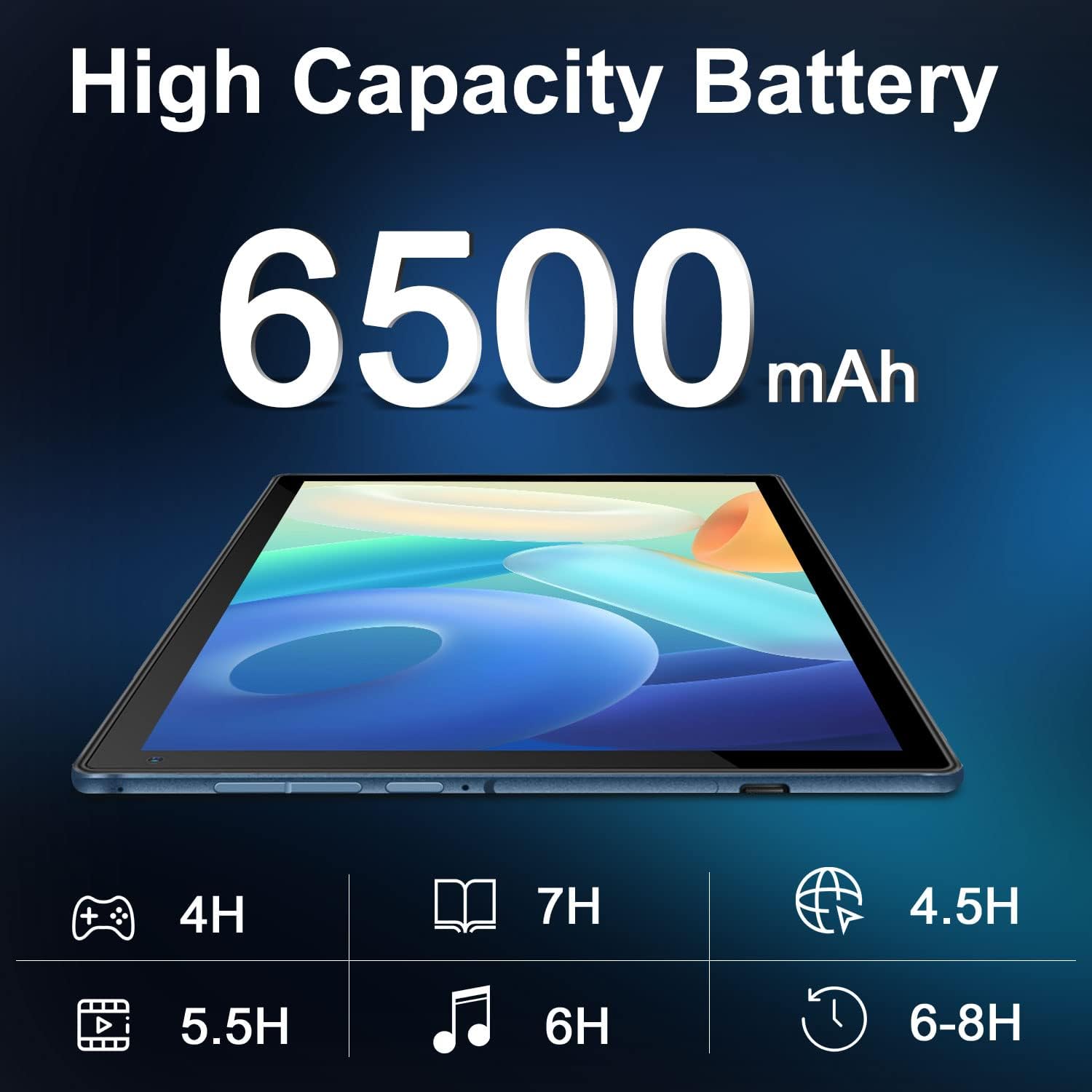
Image: A tablet lying flat, with a large "6500mAh" text overlay, indicating its high capacity battery. Below are icons and estimated usage times for various activities like gaming, reading, video playback, music, web browsing, and general use.

Image: A collage showing the tablet's camera capabilities (people on a beach, family on a boat) and its 10.4-inch IPS display quality (a surfer on a wave). Text highlights "Front 5MP Rear 8MP" and "10.4" IPS Display".

Image: A four-panel collage demonstrating different usage modes: a person using the tablet with keyboard, a child and adult using the tablet with a stand, and a child interacting with a learning app on the tablet. Text reads "Enjoy Different Mode".
4. Nastavení
4.1 Nabíjení tabletu
Before first use, fully charge the tablet. Connect the USB Type-C cable to the tablet's charging port and the other end to the power adapter. Plug the adapter into a wall outlet. The charging indicator will show the charging status. A full charge typically takes 3-4 hours.
4.2 Zapnutí/vypnutí
- Zapnutí: Press and hold the Power button (usually located on the side or top edge) for a few seconds until the DUODUOGO logo appears on the screen.
- Vypnutí: Stiskněte a podržte tlačítko Napájení, dokud se nezobrazí nabídka vypnutí. Vyberte možnost „Vypnout“ nebo „Vypnout“.
- Restartovat: V nabídce vypnutí vyberte možnost „Restartovat“.
4.3 Průvodce počátečním nastavením
Upon first power-on, the Android 11 setup wizard will guide you through essential configurations:
- Vyberte preferovaný jazyk.
- Připojte se k síti Wi-Fi.
- Sign in with your Google account or create a new one. This is necessary to download apps from Google Play Store.
- Nastavení zámku obrazovky (PIN, vzorec, heslo).
- Review a přijměte podmínky služeb Google.
4.4 Připojení klávesnice
The detachable keyboard connects magnetically to the tablet. Align the magnetic connector on the keyboard with the corresponding pins on the tablet's bottom edge. The keyboard will snap into place and connect automatically. No separate pairing is required.
5. Návod k obsluze
5.1 Navigace v systému Android 11
- Domovská obrazovka: Přejetím prstem doleva nebo doprava zobrazíte různé domovské obrazovky.
- Zásuvka aplikace: Přejeďte prstem ze spodní části obrazovky nahoru na view všechny nainstalované aplikace.
- Oznámení a rychlé nastavení: Přejetím prstem od horního okraje obrazovky dolů zobrazíte oznámení a rychlé nastavení (Wi-Fi, Bluetooth, Jas atd.).
- Multitasking: Swipe up from the bottom and hold, then release to see recent apps. Tap an app to switch, or swipe it away to close.
5.2 Připojení k Wi-Fi
Připojení k síti Wi-Fi:
- Přejít na Nastavení > Síť a internet > Wi-Fi.
- Přepnout Wi-Fi On.
- Vyberte požadovanou síť ze seznamu.
- Pokud se zobrazí výzva, zadejte heslo a poté klepněte na Připojit.
5.3 Používání kamer
Tablet je vybaven 5MP předním fotoaparátem a 8MP zadním fotoaparátem.
- Otevřete Fotoaparát aplikaci z domovské obrazovky nebo ze zásuvky aplikací.
- Klepnutím na ikonu přepínače fotoaparátu přepínáte mezi předním a zadním fotoaparátem.
- Klepnutím na tlačítko spouště pořídíte fotografii nebo spustíte/zastavíte nahrávání videa.
5.4 Správa úložiště
The tablet comes with 64GB of internal storage. You can expand this using a microSD card (up to 256GB).
- Inserting a MicroSD Card: Locate the microSD card slot (usually on the side of the tablet). Gently insert the card until it clicks into place.
- Správa úložiště: Přejít na Nastavení > Skladování na view využití a správa úložiště files.
6. Údržba
- Čištění: Use a soft, lint-free cloth to clean the screen and body of the tablet. Do not use liquid cleaners or aerosols directly on the device.
- Péče o baterie: Nevystavujte extrémním teplotám. Nenechávejte baterii často zcela vybíjet. Pro dlouhodobé skladování nabijte baterii přibližně na 50 %.
- Aktualizace softwaru: Pravidelně kontrolujte aktualizace systému v Nastavení > Systém > Aktualizace systému aby byl zajištěn optimální výkon a bezpečnost.
- Ochrana: Use the provided keyboard case to protect the tablet from scratches and minor impacts.
7. Řešení problémů
7.1 Tablet se nezapne
- Ujistěte se, že je tablet dostatečně nabitý. Připojte jej k nabíječce alespoň na 30 minut.
- Stiskněte a podržte tlačítko napájení po dobu 10–15 sekund pro vynucení restartu.
7.2 Problémy s připojením k Wi-Fi
- Check if Wi-Fi is enabled in Quick Settings or Network & internet settings.
- Restartujte Wi-Fi router.
- Zapomeňte na síť v nastavení tabletu a znovu se připojte.
- Ujistěte se, že jste v dosahu signálu Wi-Fi.
7.3 Klávesnice nereaguje
- Ensure the keyboard is properly aligned and connected to the magnetic pins on the tablet.
- Gently clean the magnetic pins on both the tablet and keyboard to ensure good contact.
- Restartujte tablet.
7.4 Pády nebo zamrzání aplikací
- Zavřete aplikaci a znovu ji otevřete.
- Vymažte mezipaměť a data aplikace v Nastavení > Aplikace a oznámení > [Název aplikace] > Úložiště a mezipaměť.
- Ensure the app is updated to its latest version from Google Play Store.
- Restartujte tablet.
8. Specifikace
| Funkce | Specifikace |
|---|---|
| Značka | DUODUOGO |
| Číslo modelu | S7 |
| Operační systém | Android 11 |
| Velikost obrazovky | 10.4 palce |
| Rozlišení obrazovky | 1280 x 800 |
| BERAN | 4 GB |
| Interní úložiště | 64 GB |
| Rozšiřitelné úložiště | Až 256 GB (MicroSD) |
| Zadní kamera | 8 MP |
| Přední kamera | 5 MP |
| Kapacita baterie | 6500 XNUMX mAh |
| Konektivita | Dual WiFi (2.4G/5G), Bluetooth, OTG, Type-C |
| Rozměry produktu (DxŠxV) | 9.5 x 6.4 x 0.35 palce |
9. Záruka a podpora
DUODUOGO provides comprehensive support for its products. For any issues or inquiries regarding your DUODUOGO S7 Tablet, please refer to the following:
- Záruka: The product comes with a one-month free replacement policy and 365 days of free repair in case of non-human damage.
- Zákaznická podpora: If you encounter any problems using your DUODUOGO device, you can contact us through Amazon. Our support team aims to reply to your message and resolve your problem within 12 hours until you are satisfied.
- Software & Apps: The DUODUOGO Device is GMS certified, allowing you to download applications directly from Google Play Store.
Ask a question about this manual
Ask about setup, troubleshooting, compatibility, parts, safety, or missing instructions. Manuals+ will review the question and use this page’s manual context to help answer it.