
1. Úvod
Thank you for choosing the AUN AKEY6S Native Full HD 1080p Projector. This manual provides essential information for setting up, operating, maintaining, and troubleshooting your projector. Please read this manual thoroughly before use to ensure optimal performance and longevity of your device.
The AUN AKEY6S projector features native 1920x1080p resolution with 4K support, 8000 lumens brightness, a 12000:1 contrast ratio, and runs on Android 9.0. It offers versatile connectivity options including WiFi (2.4G/5G) and Bluetooth 5.2, making it suitable for various home cinema and presentation needs.
2. Nastavení
2.1 Vybalení a obsah balení
Opatrně vyjměte všechny součásti z obalu. Ujistěte se, že jsou přítomny všechny níže uvedené položky:
- 1x AUN AKEY6S Projector
- 1x Dálkové ovládání
- 1x Uživatelská příručka (tento dokument)
- Napájecí zdroj 1x
2.2 Umístění projektoru
Position the projector on a stable, flat surface or mount it securely. Ensure there is adequate ventilation around the device. The optimal projection distance and screen size are as follows:
- Velikost projekce: 50 až 300 palců
- Projekční vzdálenost: Approximately 1.5 meters (50 inches) to 6.2 meters (300 inches)

Image: Illustration of the AUN AKEY6S projector demonstrating adjustable projection sizes from 50 to 300 inches based on distance from the screen.
2.3 Připojení napájení
Connect the provided power supply cable to the projector's power input port and then plug it into a standard electrical outlet.
2.4 Počáteční zapnutí
Press the power button on the projector or the remote control to turn on the device. The projector will boot up and display the Android 9.0 interface.
2.5 Zaostření a korekce lichoběžníkového zkreslení
- Soustředit: Otáčejte zaostřovacím kroužkem na objektivu projektoru, dokud nebude promítaný obraz jasný a ostrý.
- Korekce lichoběžníkového zkreslení: The AKEY6S features an electronic keystone correction of ±40°. Access this setting through the projector's menu to adjust the image shape if it appears trapezoidal.
2.6 Možnosti montáže
The projector supports multiple mounting configurations:
- Stolní držák: Umístěte projektor na rovný povrch.
- Držák na strop: Secure the projector to the ceiling using a compatible projector mount (not included). Ensure the image orientation is adjusted in the projector settings if mounted upside down.

Image: Visual representation of various mounting options for the AUN AKEY6S projector, including ceiling and desktop placements.
3. Návod k obsluze
3.1 User Interface Navigation (Android 9.0)
Navigate the Android 9.0 interface using the remote control. Use the directional buttons to move between icons and options, and the OK button to select. The Back button returns to the previous screen, and the Home button returns to the main menu.
3.2 Připojení externích zařízení
The AKEY6S projector offers multiple ports for connecting various devices:

Obrázek: Podrobný view of the AUN AKEY6S projector's rear panel, highlighting all available input and output ports for connectivity.
- HDMI (HD-IN): Connect devices like laptops, gaming consoles (X-BOX, PS4), TV sticks, or set-top boxes using an HDMI cable. Select the corresponding HDMI input source from the projector's menu.
- USB (USB-IN): Vložení USB flash disků pro přehrávání médií files (videos, photos, music) directly.
- AV (AV-IN): Starší zařízení připojte pomocí AV kabelu.
- SD Card (SD Card-IN): Insert an SD card to access media files.
- 3.5mm audio výstup: Připojte externí reproduktory nebo sluchátka.
- RJ45 (LAN): For wired internet connection (Android version only).
- VGA (VGA-IN): Connect computers or laptops using a VGA cable.
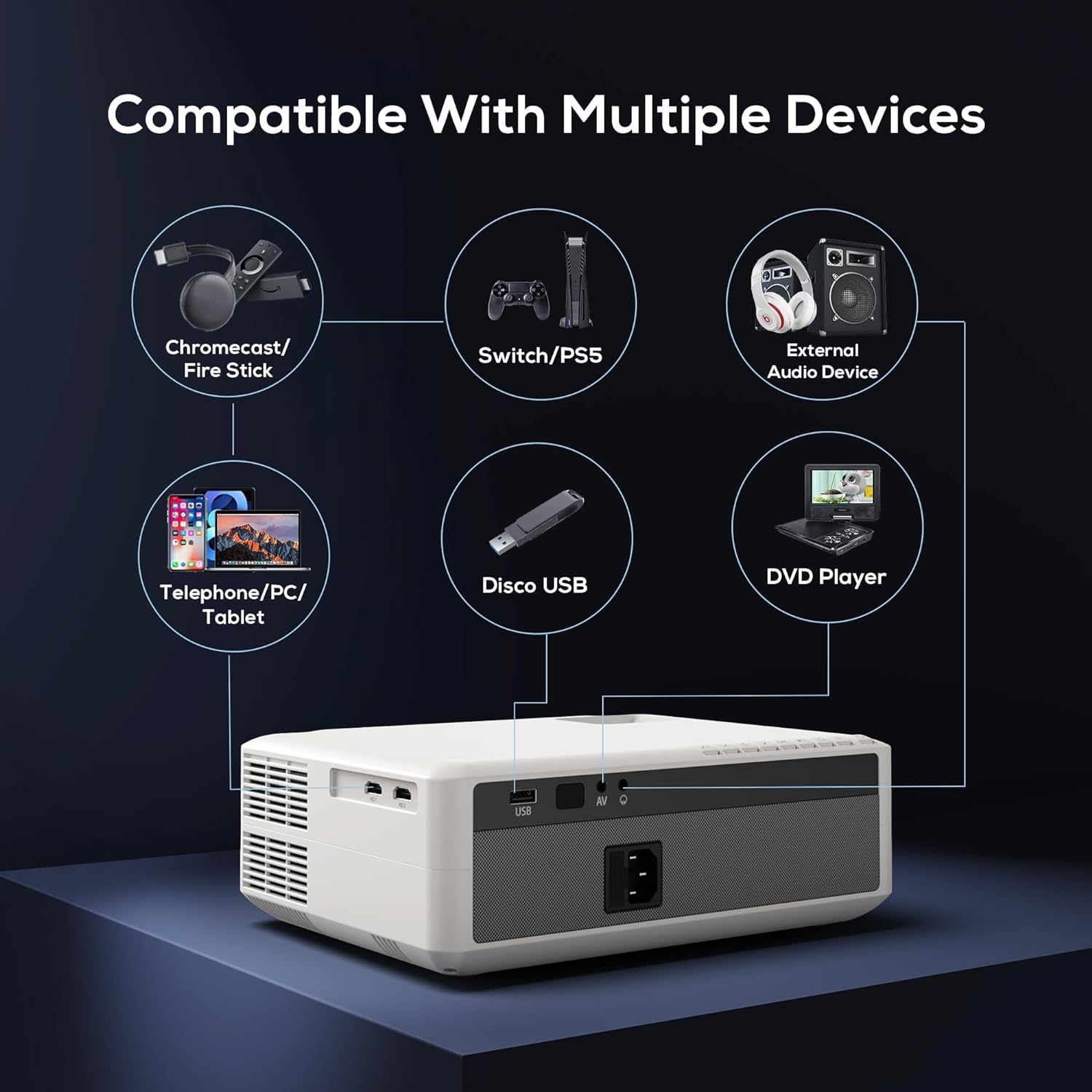
Image: Diagram illustrating the AUN AKEY6S projector's compatibility with a wide range of external devices such as streaming sticks, gaming consoles, audio systems, mobile devices, USB drives, and DVD players.
3.3 Bezdrátové připojení (WiFi)
Chcete-li se připojit k bezdrátové síti:
- Go to the projector's settings menu.
- Vybrat Síť a internet.
- Zapnout Wi-Fi and select your desired 2.4G or 5G network from the list.
- Zadejte heslo, pokud se zobrazí výzva, a připojte se.
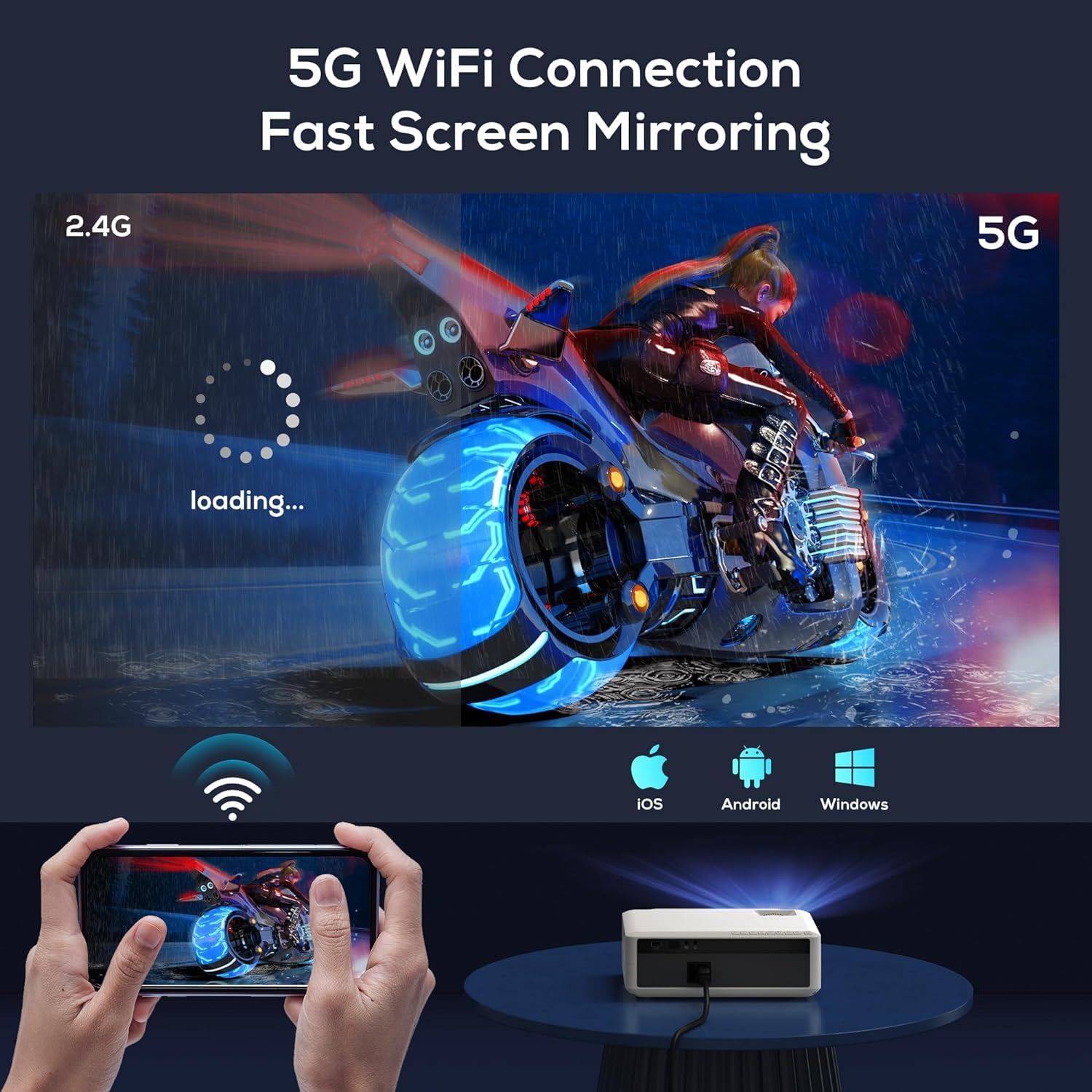
Image: The AUN AKEY6S projector displaying a loading screen, illustrating its 5G WiFi capability for fast screen mirroring from a mobile device.
3.4 Připojení zvuku přes Bluetooth
Pair Bluetooth speakers or headphones for enhanced audio:
- Go to the projector's settings menu.
- Vybrat Připojená zařízení or Bluetooth.
- Turn on Bluetooth and put your audio device into pairing mode.
- Vyberte ze seznamu zařízení, které chcete připojit.
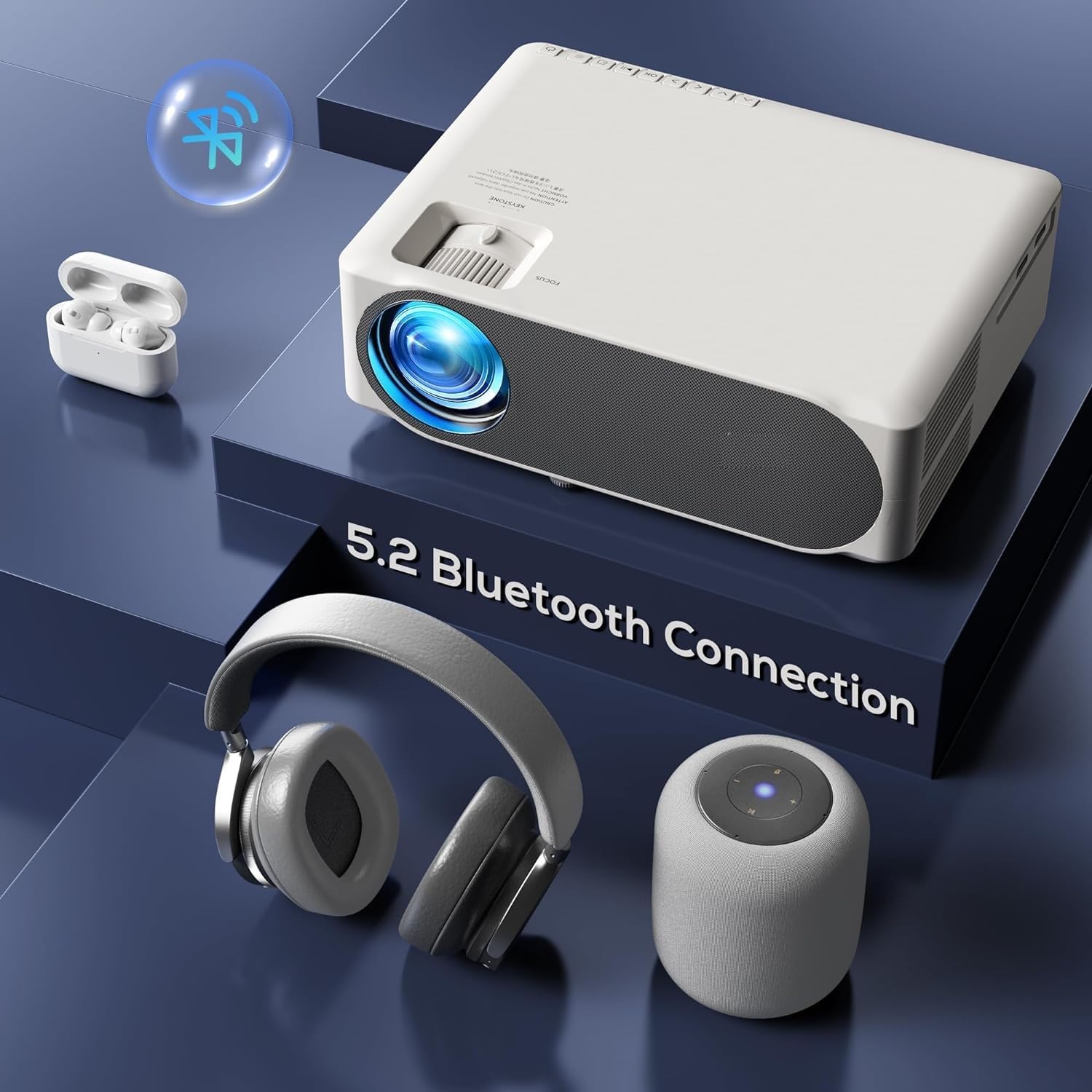
Image: The AUN AKEY6S projector shown with various Bluetooth audio devices, highlighting its Bluetooth 5.2 connectivity for wireless sound.
3.5 Zrcadlení obrazovky
The projector supports screen mirroring from iOS, Android, and Windows devices via WiFi. Refer to the specific screen mirroring application or setting on your device and follow the on-screen instructions to connect to the projector.
3.6 Správa aplikací
The AKEY6S comes with Android 9.0 and pre-installed applications. You can also install more apps:
- Předinstalované aplikace: YouTube, Netflix, Hotstar, Prime Video.
- Instalace nových aplikací:
- The projector supports Google Play Store and APK installation.
- To install Aptoide TV App Store: Open the browser, search for "Aptoide TV APK", download the APK, then open File Manager and install.
- Download other apps like Netflix, Hotstar, Prime Video from Aptoide TV App Store if not pre-installed or if updates are needed.
4. Údržba
4.1 Čištění
- Čočka: Používejte měkký hadřík bez žmolků, speciálně určený pro optické čočky. Nepoužívejte abrazivní čisticí prostředky ani nadměrnou sílu.
- Projector Body: Wipe the exterior with a soft, dry cloth. For stubborn dirt, slightly dampa hadřík s vodou.
- Průduchy: Regularly check and clean the ventilation openings to prevent dust buildup, which can affect cooling performance. Use a soft brush or compressed air.
4.2 Ochrana proti prachu
The AUN AKEY6S projector features an advanced dustproof design to minimize dust ingress and maintain image quality over time. Regular cleaning of external vents is still recommended.
4.3 Skladování
When not in use for extended periods, store the projector in a cool, dry place, away from direct sunlight and extreme temperatures. Cover the lens with its cap to protect it from dust and scratches.
5. Řešení problémů
If you encounter issues with your AUN AKEY6S projector, refer to the following common problems and solutions:
5.1 Bez napájení
- Ujistěte se, že je napájecí kabel bezpečně připojen k projektoru i k elektrické zásuvce.
- Ověřte funkčnost elektrické zásuvky zapojením jiného zařízení.
- Check if the power indicator light on the projector is on.
5.2 Žádný obraz nebo rozmazaný obraz
- Otáčejte zaostřovacím kroužkem na objektivu, dokud nebude obraz ostrý.
- Check the keystone correction settings if the image is trapezoidal.
- Ensure the input source is correctly selected (e.g., HDMI 1, USB).
- Verify that the connected source device (laptop, TV stick) is powered on and outputting a signal.
- Pokud se čočka projektoru jeví znečištěná, očistěte ji.
5.3 Žádný zvuk
- Zvyšte hlasitost na projektoru i na připojeném zdrojovém zařízení.
- Zkontrolujte, zda jsou externí reproduktory nebo sluchátka správně připojeny nebo spárovány přes Bluetooth.
- Ensure the audio output setting on the projector is correct.
- Verify that the source video/audio file is not muted or corrupted.
5.4 Dálkové ovládání nereaguje
- Vyměňte baterie v dálkovém ovladači.
- Ujistěte se, že mezi dálkovým ovladačem a infračerveným přijímačem projektoru nejsou žádné překážky.
- Namiřte dálkový ovladač přímo na infračervený přijímač projektoru.
5.5 WiFi or Bluetooth Connectivity Issues
- Ensure WiFi/Bluetooth is enabled in the projector's settings.
- Restartujte projektor a router/zařízení Bluetooth.
- Zkontrolujte, zda je správně zadáno heslo k WiFi.
- Move the projector closer to the WiFi router or Bluetooth device to improve signal strength.
5.6 App Installation Issues
For issues related to app installation, refer to the following:
- How to Install YouTube? The projector comes with a preinstalled YouTube App.
- How to install Aptoide TV App Store?
- Open the Browser.
- Type for Aptoide TV APK.
- Download the APK to the Projector.
- Otevřete File Manager and Install the Aptoide TV App Store.
- How to download Netflix, Hotstar, Prime Video Apps?
- Projector comes with preinstalled Netflix, Hotstar, Prime Video Apps.
- Otherwise, download the apps from Aptoide TV App Store.
6. Specifikace
| Funkce | Detail |
|---|---|
| Značka | AUN |
| Model | AKEY6S |
| Nativní rozlišení | 1920 x 1080p Full HD |
| Podpora 4K | Ano |
| Jas | 8000 XNUMX lumenů |
| Kontrastní poměr | 12000:1 |
| Velikost projekce | 50 - 300 palce |
| Poměr stran | 16:9 |
| Lamp Život | 30,000 hodiny |
| Operační systém | Android 9.0 |
| Paměť (RAM / ROM) | 1 GB RAM / 8 GB ROM |
| CPU | 4-Cores ARM 64 |
| GPU | ARM A35 GPU |
| Wi-Fi | 2.4G / 5G |
| Bluetooth | Bluetooth 5.2 |
| Konektivita | 2x HDMI, AV, USB, SD Card, 3.5mm Audio Out, RJ45, VGA |
| Elektronický Keystone | ±40° |
| Rozměry produktu | 30 x 25 x 8 cm |
| Hmotnost položky | 2 kg |
| Wattage | 150 wattů |
| Obnovovací frekvence | 60 Hz |
Poznámka: Specifikace se mohou změnit bez předchozího upozornění z důvodu vylepšení produktu.
7. Záruka a podpora
7.1 Záruka na produkt
The AUN AKEY6S Projector comes with a 1-letá záruka from the date of purchase. This warranty covers manufacturing defects and workmanship under normal use. Please retain your purchase receipt as proof of purchase.
7.2 Zákaznická podpora
For technical assistance, warranty claims, or any product-related inquiries, please contact Megaa Electronics, the authorized support provider:
- E-mail: support@megaaelectronics.com or megaaelectronics@gmail.com
- WhatsApp: 8328671337
Please provide your product model (AKEY6S) and purchase details when contacting support to facilitate a quicker resolution.