
1. Úvod
This manual provides detailed instructions for setting up, operating, and maintaining your MINIX X35-i Plus 4K Ultra HD Industrial Android Player. This device is designed for reliable performance in digital signage and various industrial applications, offering robust connectivity and a pre-rooted Android 11 firmware.

Image 1.1: MINIX X35-i Plus Industrial Android Player. This image displays the compact black device alongside icons indicating its key features: 4K Ultra HD resolution, WiFi 6 connectivity, and Android 11 operating system.
2. Obsah balení
Ověřte prosím, zda jsou ve vašem balení obsaženy všechny níže uvedené položky:
- MINIX X35-i Plus Unit
- Dvoupásmová anténa
- HDMI kabel
- Kabel USB-C na USB-A
- 12V 2A Power Adapter (with multiple plug types)
- Dálkové ovládání
- Průvodce nastavením

Image 2.1: Contents of the MINIX X35-i Plus package. This image shows the main unit, a power adapter with interchangeable international plugs, a remote control, an HDMI cable, a USB-C to USB-A cable, a dual-band antenna, and a setup guide.
3. Konec produktuview
The MINIX X35-i Plus features a compact design with various ports for comprehensive connectivity. Understanding the layout of these ports is essential for proper setup and operation.
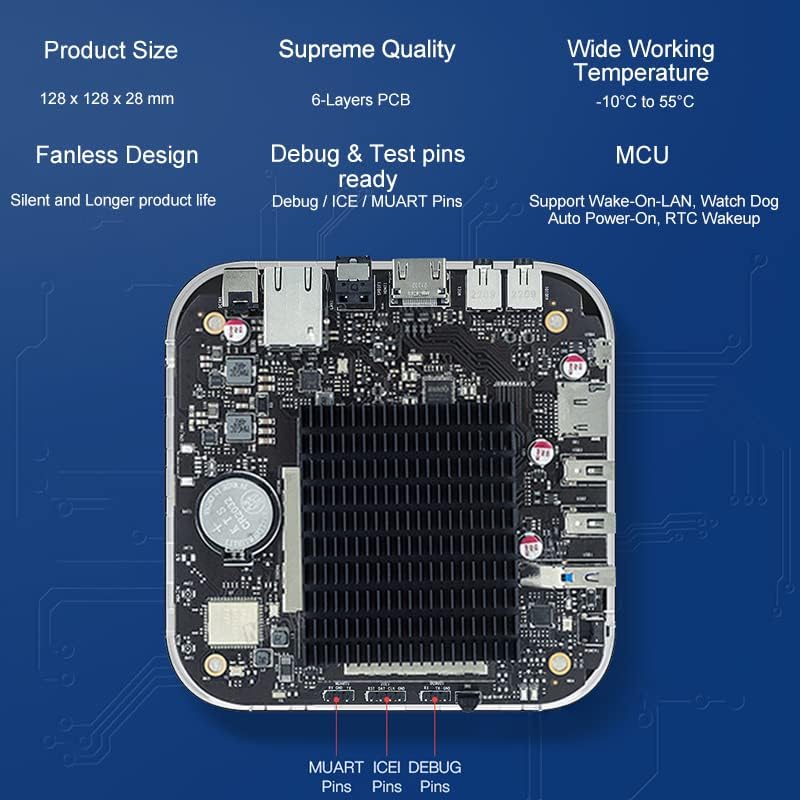
Image 3.1: MINIX X35-i Plus device with port labels and dimensions. The image highlights the device's dimensions (128mm x 128mm x 28mm) and labels its ports: Power Button, USB 3.0, 2x USB 2.0, TF Card Slot, OTG, Kensington Lock, Headphone Jack, Microphone Jack, HDMI 2.0, Gigabit Ethernet, S/PDIF, and DC 12V Power Jack.
Vnitřní design
The device incorporates industrial-grade components and a 6-layer PCB for stable, long-term operation. Its fanless design ensures silent operation and extended product life, suitable for continuous 24/7 use.

Obrázek 3.2: Vnitřní view of the MINIX X35-i Plus PCB. This image shows the internal circuit board, highlighting the fanless heatsink design and debug/test pins (MUART, ICEI, DEBUG) for advanced users or developers.
4. Průvodce nastavením
Follow these steps to set up your MINIX X35-i Plus:
- Připojte anténu: Screw the dual-band antenna onto the designated connector at the rear of the device.
- Připojení k displeji: Connect one end of the HDMI cable to the HDMI port on the MINIX X35-i Plus and the other end to an HDMI input on your display (TV, monitor, projector).
- Připojení k síti (volitelné):
- Kabelové připojení: Connect an Ethernet cable from your router or network switch to the Gigabit Ethernet port on the device.
- Bezdrátové připojení: The device supports 802.11ax Dual-Band Wi-Fi 6. You will configure the Wi-Fi connection after initial power-on.
- Připojení periferií (volitelné):
- Zařízení USB: Connect USB keyboards, mice, or other peripherals to the available USB 3.0 (x1) or USB 2.0 (x2) ports.
- Zvuková zařízení: Connect headphones or external speakers to the 3.5mm Headphone Jack. For digital audio, use the S/PDIF port.
- Mikrofon: Connect a microphone to the 3.5mm Microphone Jack.
- Zapnutí: Connect the 12V 2A power adapter to the DC 12V Power Jack on the device, then plug the adapter into a power outlet. The device should automatically power on or can be turned on using the power button.
5. Návod k obsluze
5.1 Initial Boot and Android 11 System
Upon first power-on, the device will boot into the Android 11 operating system. Follow the on-screen prompts for initial setup, including language selection and network configuration. The device features a pre-rooted firmware, allowing for advanced customization.

Image 5.1: Android 11 operating system interface. This image illustrates the Android 11 system running on the MINIX X35-i Plus, emphasizing its 'rooted firmware' and 'customization accept' features.
5.2 Síťové připojení (Wi-Fi 6)
The MINIX X35-i Plus supports Wi-Fi 6 (802.11ax) for faster and more reliable wireless connections. To connect to Wi-Fi:
- Přejděte na Nastavení > Síť a internet > Wi-Fi.
- Zapněte Wi-Fi On.
- Vyberte požadovanou síť ze seznamu a v případě potřeby zadejte heslo.

Image 5.2: Illustration of Wi-Fi 6 capabilities. This image highlights the device's Wi-Fi 6 support, indicating speeds up to 2400Mbps, which is three times faster than Wi-Fi 5.
5.3 Pokročilé funkce
- Probuzení přes LAN (WOL): Allows the device to be powered on remotely via a network message. Ensure this feature is enabled in the system settings if required.
- Automatické napájení: Configures the device to automatically power on when electricity is supplied, ideal for unattended installations.
- RTC (Real-Time Clock) Wakeup: Enables scheduled power-on times.
- Hlídací pes: A hardware feature that monitors system operation and can automatically restart the device if it becomes unresponsive, ensuring continuous uptime.
- Podpora dotykové obrazovky: The device supports touch screen displays, making it suitable for interactive digital signage applications.
Image 5.3: MINIX X35-i Plus connected to a touch screen display. This image demonstrates the device's compatibility with touch screen interfaces, suitable for interactive kiosks or digital signage.
5.4 Aplikační scénáře
The MINIX X35-i Plus is versatile and can be deployed in various industrial and commercial settings:
- Digitální značení
- Prodejní automaty
- Lékařské vybavení
- Herní konzole
- Robot Assistance
- Digital POS Registers

Image 5.4: Various use cases for the MINIX X35-i Plus. This image depicts the device being used in diverse environments such as vending machines, medical equipment, game consoles, robot assistance, digital POS registers, and advertising machines.
6. Údržba
The MINIX X35-i Plus is designed for low maintenance due to its fanless construction and robust components.
- Čištění: Use a soft, dry cloth to clean the exterior of the device. Avoid using liquid cleaners or aerosols directly on the unit.
- Větrání: Although fanless, ensure the device is placed in a location with adequate airflow to prevent heat buildup, especially during continuous operation.
- Aktualizace firmwaru: Periodically check the official MINIX webweb s aktualizacemi firmwaru pro zajištění optimálního výkonu a zabezpečení.
7. Řešení problémů
If you encounter issues with your MINIX X35-i Plus, refer to the following common solutions:
- Bez napájení:
- Ujistěte se, že je napájecí adaptér bezpečně připojen k zařízení i k funkční zásuvce.
- Zkontrolujte, zda je elektrická zásuvka funkční.
- Žádný výstup na displej:
- Check that the HDMI cable is firmly connected to both the device and the display.
- Ujistěte se, že je váš displej nastaven na správný vstupní zdroj HDMI.
- Pokud je to možné, zkuste jiný kabel HDMI nebo displej.
- Dálkové ovládání nereaguje:
- Ujistěte se, že mezi dálkovým ovladačem a infračerveným přijímačem zařízení nejsou žádné překážky.
- Vyměňte baterie v dálkovém ovladači.
- Consider using a USB keyboard and mouse for easier navigation if the remote remains problematic.
- Cannot Connect to Wi-Fi/Network:
- Verify that the Wi-Fi antenna is properly attached.
- Zkontrolujte router a připojení k internetu.
- Ujistěte se, že zadáváte správné heslo Wi-Fi.
- Pokud používáte kabelové připojení, ujistěte se, že je ethernetový kabel bezpečně připojen.
- Issues with Google Account or Bluetooth Pairing:
- Ensure the device has a stable internet connection for Google account services.
- For Bluetooth, ensure the peripheral is in pairing mode and within range.
- Restart the device and attempt pairing again.
- Systém nereaguje:
- Stiskněte a podržte tlačítko napájení po dobu 5–10 sekund pro vynucení vypnutí zařízení a poté jej restartujte.
- If the issue persists, a factory reset may be necessary (refer to advanced settings, this will erase all data).
8. Specifikace
| Funkce | Specifikace |
|---|---|
| Název modelu | X35-i Plus |
| CPU | RK3566 Cortex-A55 Quad-Core |
| GPU | Mali-G52-2EE |
| Paměť | 2 GB DDR4 |
| Interní úložiště | 32GB eMMC 5.1 |
| Operační systém | Android 11 (Pre-Rooted Firmware) |
| Video výstup | HDMI 2.0, up to 4K@60Hz |
| Zvukový výstup | HDMI 2.0, 3.5mm stereo jack, optical S/PDIF |
| Bezdrátové připojení | 802.11ax Dual-Band Wi-Fi 6, Bluetooth 5.0 |
| Kabelové sítě | Gigabit Ethernet RJ-45 |
| Periferní rozhraní | Micro SD card reader, USB 3.0 x1, USB 2.0 x2, OTG port x1, Kensington Lock, 3.5mm Headphone jack, 3.5mm Microphone jack, IR Receiver |
| Napájení | 12V/2A adapter (CE, FCC certified) |
| Speciální funkce | Wake On LAN, Auto Power, RTC, Watchdog, HDMI CEC, Portrait mode, Miracast, Electrostatic Prevention for interfaces, Gigabit Ethernet Port with lightning protection design, Over-voltage ochrana |
| Rozměry produktu | 5.04 x 5.04 x 1.1 palce (128 x 128 x 28 mm) |
| Hmotnost položky | 1.61 libry (730 gramů) |
| Barva | Černý |
9. Informace o záruce
For detailed warranty information, please refer to the official MINIX webnebo se obraťte na prodejce. Záruční podmínky se mohou lišit v závislosti na regionu a prodejci.
10. Podpora
If you require further assistance or have questions not covered in this manual, please utilize the following support channels:
- Official MINIX Webmísto: Návštěva www.minix.com.hk for product information, FAQs, and firmware downloads.
- MINIX Forum: Engage with the community and find solutions at www.theminixforum.com.
- Amazon Customer Support: For purchase-related inquiries, log in to your Amazon account, go to 'Your Orders', and select 'Ask Product Question' for the MINIX X35-i Plus.
- Sociální média: Connect with MINIX on Facebook at http://www.facebook.com/minixtech.