
Zavedení
This manual provides detailed instructions for the setup, operation, maintenance, and troubleshooting of your Keychron V5 Wired Custom Mechanical Keyboard. The Keychron V5 is a 96% layout keyboard featuring QMK/VIA programmability, hot-swappable switches, double-shot PBT keycaps, and compatibility with macOS, Windows, and Linux systems.
Obsah balení
Prosím, ověřte, zda jsou v balení přítomny všechny položky:
- Keychron V5 drátová vlastní mechanická klávesnice
- Kabel USB-C na USB-C
- Adaptér USB-A na USB-C
- Stahovač klíčů
- Stahovák spínačů
- Additional Keycaps for Windows/macOS
Nastavení
Připojení klávesnice
To connect your Keychron V5 keyboard:
- Vyhledejte port USB-C na zadní straně klávesnice.
- Connect one end of the provided USB-C to USB-C cable to the keyboard.
- Connect the other end of the cable to a USB-C port on your computer. If your computer only has USB-A ports, use the provided USB-A to USB-C adapter.
- Klávesnice bude automaticky rozpoznána vaším operačním systémem.
System Toggle (Mac/Windows)
The Keychron V5 includes a system toggle switch to ensure full compatibility with both macOS and Windows operating systems. This switch is typically located on the back or side of the keyboard.
Přepínání mezi operačními systémy:
- Locate the 'Win/Mac' toggle switch.
- Slide the switch to the 'Mac' position for macOS or 'Win' position for Windows.
- The keyboard will adjust its key mappings accordingly.

Obrázek: Boční view of the Keychron V5 keyboard, highlighting the system toggle switch and USB-C port for system compatibility.
Ergonomic Angle Adjustment
The keyboard features adjustable feet to customize the typing angle for improved ergonomics.
To adjust the typing angle:
- Flip the keyboard over to access the feet on the underside.
- Gently pull out the feet to extend them to your desired angle. There are usually two levels of adjustment.

Image: The Keychron V5 keyboard with its adjustable feet extended, demonstrating the ergonomic angle design.
Návod k obsluze
Klíčové funkce a rozvržení
The Keychron V5 features a 96% layout with 97 keys, efficiently retaining function keys and a num pad while saving desk space. The keyboard comes with pre-installed double-shot PBT keycaps in an OSA profile, designed for a comfortable fingertip feel and excellent oil resistance.
Obrázek: Kompletní view of the Keychron V5 keyboard, showcasinjeho 96% rozložení a design kláves.
Přizpůsobení QMK/VIA
The Keychron V5 supports QMK/VIA firmware, allowing for comprehensive customization of key mappings, macros, and backlight effects. VIA is a graphical user interface that simplifies the programming process.
Přizpůsobení klávesnice:
- Stáhněte si software VIA z oficiálního webu Keychron. website or the VIA GitHub repository.
- Připojte klávesnici k počítači.
- Launch the VIA software. The software should automatically detect your Keychron V5.
- Use the intuitive interface to remap keys, create macros, and adjust lighting settings across multiple layers.
For detailed instructions on using QMK/VIA, refer to the official Keychron documentation or community guides.

Image: A visual representation of the VIA software interface, demonstrating how users can customize key layouts and macros for the Keychron V5.
Programovatelný knoflík
The Keychron V5 features a programmable rotary knob, which can be customized via QMK/VIA to control various functions such as volume, zoom, or scrolling.
To customize the knob's function:
- Otevřete software VIA.
- Navigate to the knob customization section.
- Assign desired functions for clockwise rotation, counter-clockwise rotation, and pressing the knob.

Obrázek: Detailní záběr view of the programmable rotary knob on the Keychron V5 keyboard, highlighting its textured surface.
Přepínače vyměnitelné za provozu
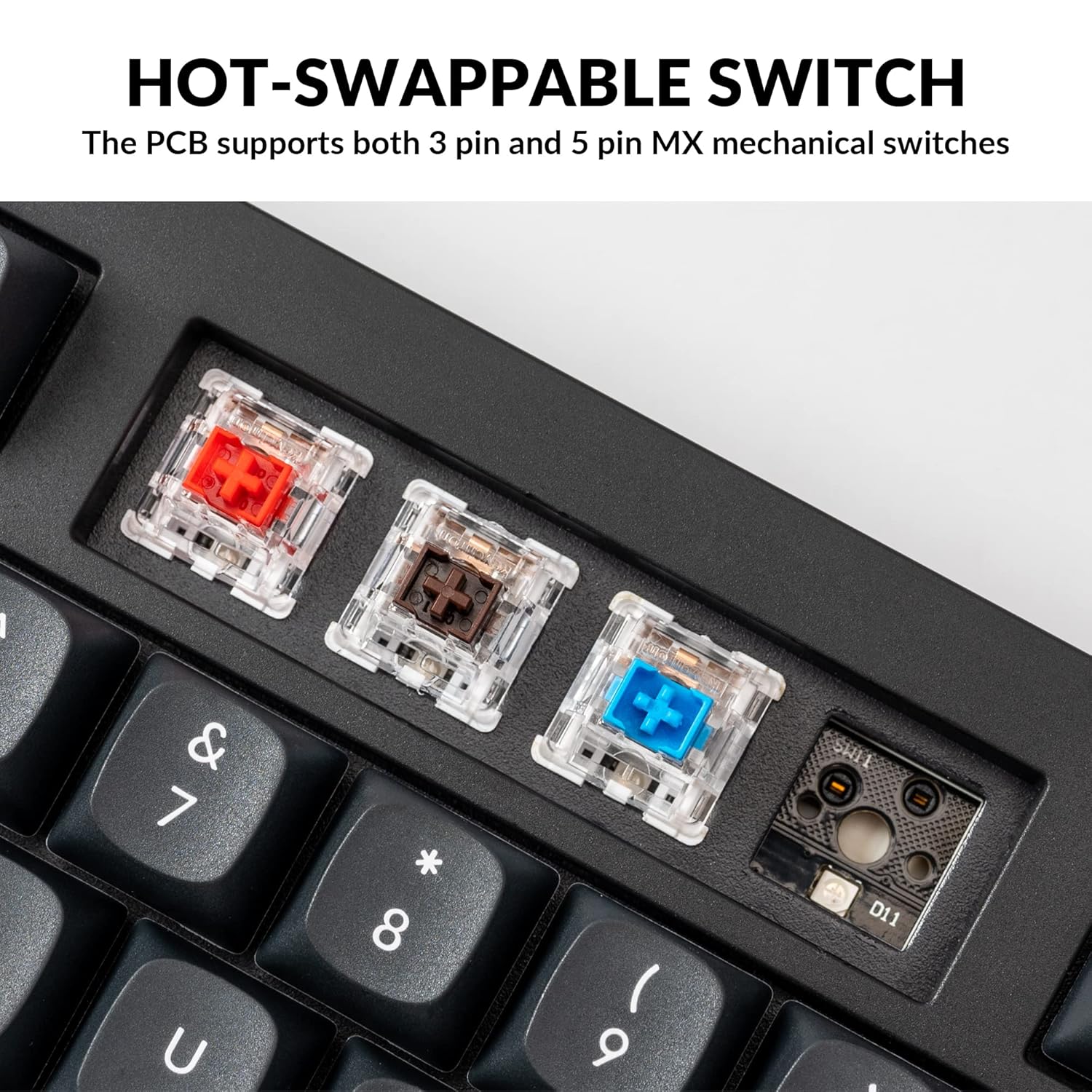
The Keychron V5 is equipped with hot-swappable sockets, allowing you to change mechanical switches without soldering. It supports most 3-pin and 5-pin MX mechanical switches (e.g., Cherry, Gateron, Kailh, Panda).
The keyboard comes with pre-lubed K Pro Red linear switches, offering a smooth and responsive typing experience with a lifespan of up to 50 million keystrokes.
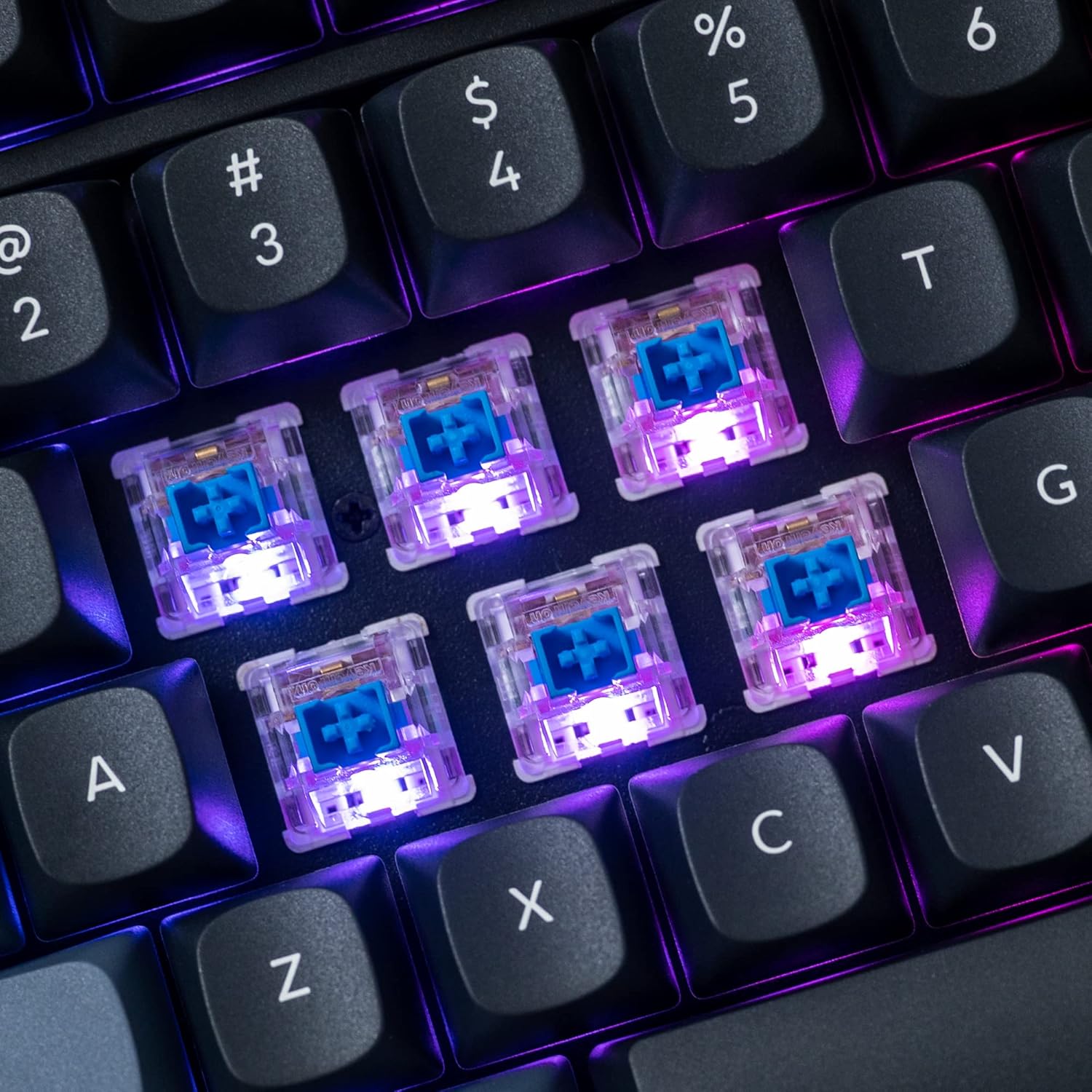
Obrázek: Podrobný view of the hot-swappable mechanical switches on the Keychron V5 keyboard, illuminated by RGB backlighting.
Podsvícení
The V5 features south-facing RGB backlighting, designed to better illuminate the keyboard from the typist's angle and prevent interference when using Cherry-profile keycaps. You can customize the backlight effects and colors using the VIA software.

Image: A close-up of the double-shot PBT keycaps on the Keychron V5 keyboard, showcasing their texture and legends.
Údržba
Čištění
To maintain the cleanliness and longevity of your keyboard:
- Klávesnice: K vyjmutí krytek kláves použijte stahovák na klávesy. Očistěte je jemným mýdlovým roztokem a měkkým hadříkem, poté je opláchněte a důkladně osušte, než je znovu nasadíte.
- Tělo klávesnice: Otřete tělo klávesnice měkkým hadříkemamp tkanina. Vyhněte se používání agresivních chemikálií nebo abrazivních materiálů.
- Prach: Pomocí stlačeného vzduchu odstraňte prach a nečistoty z prostoru mezi klávesami a spínači.
Výměna spínače
Výměna spínače:
- Pomocí dodaného stahováku na klávesy opatrně odstraňte klávesu ze spínače, který chcete vyměnit.
- Insert the switch puller tool around the top and bottom clips of the switch.
- Jemně stiskněte klipy a vytáhněte spínač přímo nahoru, abyste jej vyjmuli z desky plošných spojů.
- Zarovnejte piny nového spínače s otvory na desce plošných spojů. Ujistěte se, že piny jsou rovné.
- Press the new switch firmly into place until it clicks. Ensure it is seated properly and not bent.
- Znovu nasaďte krytku kláves.
Výměna kláves
Výměna krytek kláves:
- Use the keycap puller to gently remove the existing keycap by hooking it onto the keycap and pulling upwards.
- Align the new keycap with the cross-shaped stem of the switch.
- Press the new keycap firmly down until it is fully seated.
Odstraňování problémů
- Klávesnice nereaguje:
Ensure the USB cable is securely connected to both the keyboard and the computer. Try a different USB port or cable. Verify the system toggle switch is set correctly for your operating system. - Klíče se neregistrují:
If specific keys are not working, the switch might be faulty or not fully seated. Try removing and re-inserting the switch. If the issue persists, replace the switch. - Problémy s podsvícením:
Check VIA software settings to ensure backlighting is enabled and configured correctly. If only certain LEDs are not working, it might indicate a faulty LED or switch. - Software QMK/VIA nedetekuje klávesnici:
Ensure the keyboard is connected via USB. Close and reopen the VIA software. Make sure you have the correct firmware loaded if you have flashed custom firmware. - Keycaps Feel Loose:
Ensure keycaps are fully pressed onto the switch stems. If a keycap consistently feels loose, the switch stem might be damaged, or the keycap's cross-mount might be worn.
Specifikace
| Funkce | Specifikace |
|---|---|
| Značka | Keychron |
| Model | V5 |
| Popis klávesnice | Mechanické |
| Rozložení klávesnice | QWERTY, 96% Layout (97 Keys) |
| Technologie připojení | Kabelové (USB-C) |
| Kompatibilní zařízení | Počítač (macOS, Windows, Linux) |
| Typ přepínače | Linear (K Pro Red) |
| Hot-swappable Support | Yes (3-pin and 5-pin MX mechanical switches) |
| Klíčenky | Dvojitý vstřik PBT, OSA Profile |
| Podsvícení | RGB s orientací na jih |
| Materiál pouzdra | Polybutylentereftalát, silikon |
| Další funkce | QMK/VIA Programmable, Programmable Knob, Screw-in Stabilizers |
Záruka a podpora
Keychron products are typically covered by a limited warranty. For specific warranty terms, duration, and conditions, please refer to the warranty information provided with your product packaging or visit the official Keychron webmísto.
For technical support, troubleshooting assistance, or to inquire about replacement parts, please contact Keychron customer service through their official website's support portal. When contacting support, please have your product model (Keychron V5) and purchase details ready.