
1. Úvod
This manual provides essential information for setting up, operating, maintaining, and troubleshooting your new HP 14-inch laptop. Please read this guide thoroughly to ensure optimal performance and longevity of your device.
2. Konec produktuview
The HP 14-inch laptop is designed for productivity and portability, featuring an Intel Celeron N4120 processor, 4GB RAM, and 128GB storage (64GB eMMC + 64GB Micro SD). It comes pre-installed with Windows 11 Home in S mode.
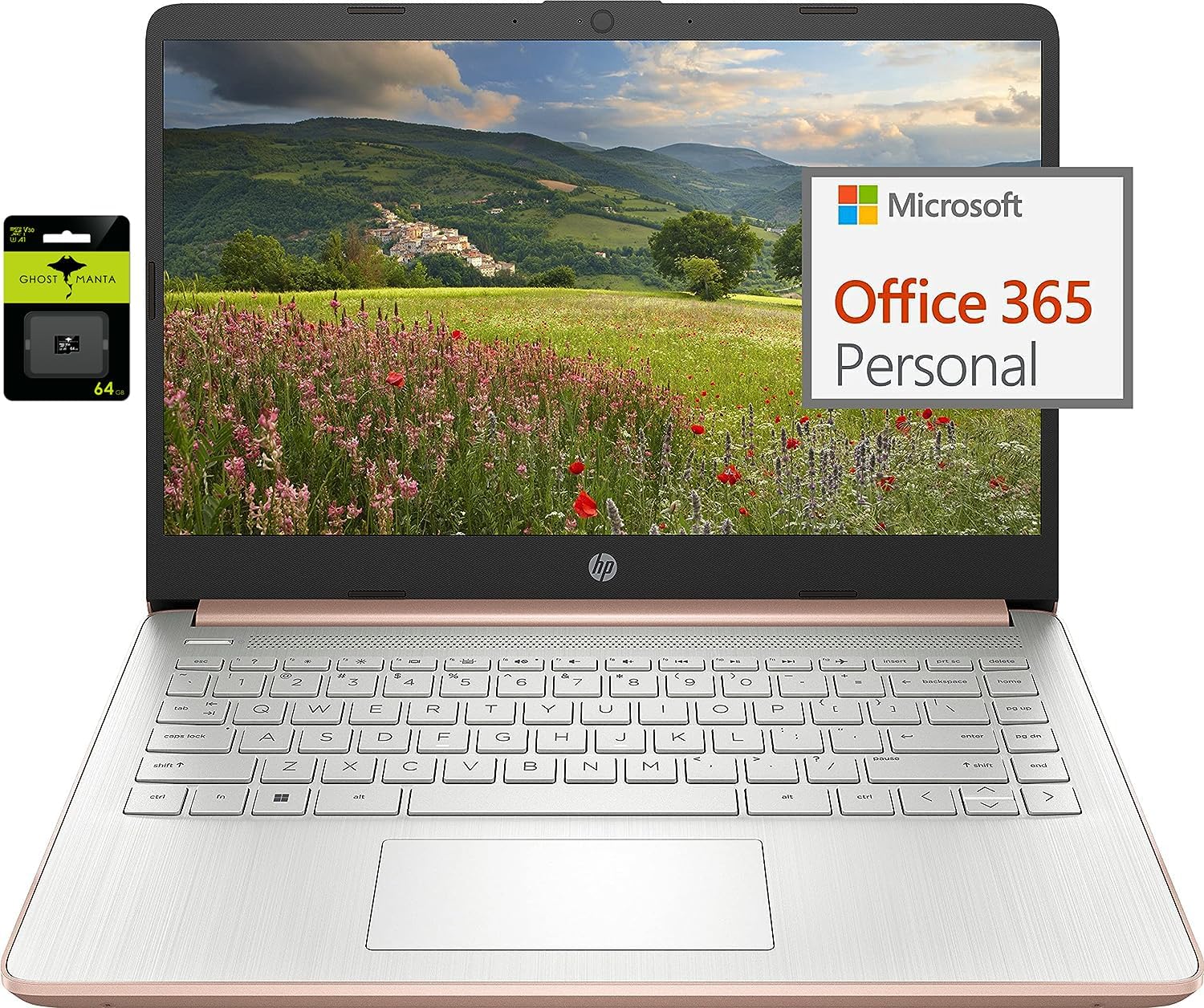
Figure 2.1: HP 14-inch Laptop with included accessories.
This image displays the HP 14-inch laptop in an open position, showcasing its screen and keyboard. To the left, packaging for a Ghost Manta 64GB SD card is visible, and to the right, a graphic indicating Microsoft Office 365 Personal is included. The laptop features a rose gold finish on the base and a silver keyboard deck.
2.1 Klíčové vlastnosti
- Zobrazit: 14.0palcová úhlopříčka, HD (1366 x 768), tenký okraj, jasnýView.
- Procesor: Intel Celeron N4120, 4 Cores & 4 Threads.
- Paměť: 4GB DDR4 RAM.
- Skladování: 64GB eMMC internal storage with an additional 64GB Micro SD card.
- Operační systém: Windows 11 Home in S mode.
- Konektivita: 802.11a/b/g/n/ac (2x2) Wi-Fi and Bluetooth.
- Porty: USB 3.1 Type-C, USB 3.1 Type-A (x2), HDMI, Headphone/Microphone Combo Jack, microSD slot.
- Webvačka: HP True Vision 720p HD camera with integrated dual array digital microphones.
- Baterie: Up to 11.5 hours video playback, HP Fast Charge.

Figure 2.2: Laptop displaying the Windows 11 desktop interface.
This image shows the HP 14-inch laptop open at an angle, with the screen displaying the Windows 11 desktop. The keyboard and touchpad are visible, and the laptop's rose gold and silver color scheme is prominent.
2.2 Rozložení portů
Familiarize yourself with the port locations for connecting external devices.

Figure 2.3: Left side ports.
This close-up image shows the left side of the HP 14-inch laptop. From left to right, the ports include a headphone/microphone combo jack, a USB Type-C port, two USB Type-A ports, an HDMI port, and the power input port.

Figure 2.4: Right side ports.
This close-up image shows the right side of the HP 14-inch laptop. From left to right, the ports include a microSD card slot, followed by indicator lights for power and storage activity.
3. Nastavení
3.1 První zapnutí
- Připojte napájecí adaptér k notebooku a do elektrické zásuvky.
- Otevřete víko notebooku a stiskněte tlačítko napájení, které se obvykle nachází v pravém horním rohu klávesnice.
- Postupujte podle pokynů na obrazovce a dokončete počáteční nastavení systému Windows 11, včetně nastavení jazyka, regionu a sítě.
3.2 Switching Out of Windows 11 S Mode
Your laptop comes with Windows 11 Home in S mode, which is optimized for security and performance by exclusively running apps from the Microsoft Store. If you need to install applications from outside the Microsoft Store, you must switch out of S mode. This process is irreversible.
- Na počítači se systémem Windows 11 v režimu S otevřete Nastavení > Systém > Aktivace.
- In the "Switch to Windows 11 Pro" section, locate and select the Jděte do obchodu odkaz. (Note: If you also see an "Upgrade your edition of Windows" section, ensure you click the "Go to the Store" link specifically for switching out of S mode.)
- Na stránce „Přepnout z režimu S“ (nebo podobné), která se zobrazí v obchodě Microsoft Store, vyberte možnost Získat tlačítko.
- Po zobrazení potvrzovací zprávy budete moci instalovat aplikace mimo Microsoft Storu.
4. Návod k obsluze
4.1 Základní obsluha
- Zapnutí/vypnutí: Stisknutím tlačítka napájení počítač zapnete. Chcete-li počítač vypnout, klikněte na tlačítko Start, poté na Napájení a vyberte možnost Vypnout.
- Klávesnice: Use the integrated keyboard for typing. Function keys (F1-F12) often have secondary functions (e.g., volume, brightness) accessible by pressing the Fn key simultaneously.
- Touchpad: The touchpad acts as a mouse. Tap to click, use two fingers to scroll, and pinch to zoom.
4.2 Připojení periferních zařízení
- Zařízení USB: Connect USB drives, external keyboards, or mice to the USB Type-A or Type-C ports.
- HDMI: Use the HDMI port to connect to an external monitor or TV.
- Zvuk: Zapojte sluchátka nebo externí reproduktory do kombinovaného konektoru pro sluchátka/mikrofon.
- MicroSD karta: Insert the provided 64GB Micro SD card into the microSD slot for expanded storage.

Figure 4.1: Ghost Manta 64GB Micro SD card.
This image shows the retail packaging for a Ghost Manta 64GB Micro SD card, which is included with the laptop for additional storage.
4.3 Bezdrátové připojení
- Wi-Fi: Chcete-li se připojit k bezdrátové síti, klikněte na ikonu Wi-Fi na hlavním panelu, vyberte požadovanou síť a v případě potřeby zadejte heslo.
- Bluetooth: Chcete-li spárovat zařízení Bluetooth, přejděte na Nastavení > Bluetooth a zařízení, zapněte Bluetooth a vyberte možnost „Přidat zařízení“.
5. Údržba
5.1 Péče o baterii
- Pro optimální životnost baterie se vyvarujte častého úplného vybíjení baterie.
- Pokud notebook delší dobu nepoužíváte, skladujte jej na chladném a suchém místě.
- Use only the original HP power adapter.
5.2 Čištění notebooku
- Turn off the laptop and disconnect the power adapter before cleaning.
- Použijte měkký hadřík, který nepouští vlákna dampvodou nebo čističem obrazovek.
- Na klávesnici a šasi použijte měkký, suchý hadřík. Nepoužívejte agresivní chemikálie.
5.3 Aktualizace softwaru
Regularly check for and install Windows updates and HP driver updates to ensure system stability and security. You can find Windows updates in Nastavení > Windows Update.
6. Řešení problémů
Tato část se zabývá běžnými problémy, se kterými se můžete setkat. V případě složitějších problémů se podívejte na oficiální zdroje podpory společnosti HP.
- Laptop will not power on: Ujistěte se, že je napájecí adaptér bezpečně připojen a baterie je dostatečně nabitá. Zkuste jinou zásuvku.
- Pomalý výkon: Close unnecessary applications, check for background processes, and ensure sufficient free storage space. Consider switching out of S mode if you need to run more demanding applications not available in the Microsoft Store.
- Problémy s připojením k Wi-Fi: Restart your router and laptop. Check Wi-Fi settings to ensure the correct network is selected and the password is entered accurately.
- Problémy s obrazovkou (žádný obraz, blikání): Connect an external monitor via HDMI to check if the issue is with the laptop's display or the graphics output.
7. Specifikace
| Funkce | Detail |
|---|---|
| Značka | HP |
| Číslo modelu | HP |
| Velikost obrazovky | 14 palce |
| Rozlišení obrazovky | 1366 x 768 pixelů |
| Procesor | Intel Celeron N4120 (1.1 GHz base, up to 2.6 GHz burst) |
| BERAN | 4GB DDR4 (2400 MHz) |
| Pevný disk | 64GB eMMC + 64GB Micro SD |
| Grafický koprocesor | Grafická karta Intel UHD Graphics 600 |
| Operační systém | Windows 11 Home v režimu S |
| Bezdrátový typ | 802.11a/b/g/n/ac, Bluetooth |
| Porty USB 3.0 | 3 (1x Type-C, 2x Type-A) |
| Port HDMI | 1 |
| Hmotnost položky | 3.24 libry |
| Rozměry produktu | 12.76 x 8.86 x 0.71 palce |
| Barva | Růžové zlato |
| Výdrž baterie (přehrávání videa) | Až 11 hodin 30 minut |
| Webvačka | Kamera HP True Vision 720p HD |
8. Záruka a podpora
For warranty information, technical support, or service, please visit the official HP support website or contact HP customer service. Keep your purchase receipt and product serial number readily available.
Podpora HP Webmísto: support.hp.com