
1. Úvod
Welcome to the HyperX Armada 25 Gaming Monitor user manual. This document provides essential information for setting up, operating, maintaining, and troubleshooting your new monitor. The HyperX Armada 25 is designed for competitive gaming, featuring a 24.5-inch Full HD (1920x1080) IPS panel, a 240Hz refresh rate, and a 1ms response time, ensuring smooth and responsive visuals. It also includes NVIDIA G-SYNC compatibility to eliminate screen tearing and minimize input latency. A desk mount is included for convenient setup and to maximize desk space.
Klíčové vlastnosti:
- Balíček vše v jednom: Includes an ergonomic arm and desk mount for easy setup and space-saving.
- Vysoká obnovovací frekvence a doba odezvy: 240Hz refresh rate and 1ms response time for ultra-smooth gaming.
- Vibrant IPS Panel: 24.5-inch Full HD (1920x1080) IPS panel delivers stunning visuals with accurate colors and wide viewing úhly.
- Kompatibilní s NVIDIA G-SYNC: Eliminates screen tearing and reduces stuttering for a fluid gaming experience.

Oficiální video produktu:
2. Nastavení
This section guides you through the initial setup of your HyperX Armada 25 Gaming Monitor, including assembly and connection to your computer.
2.1. Assembling the Desk Mount
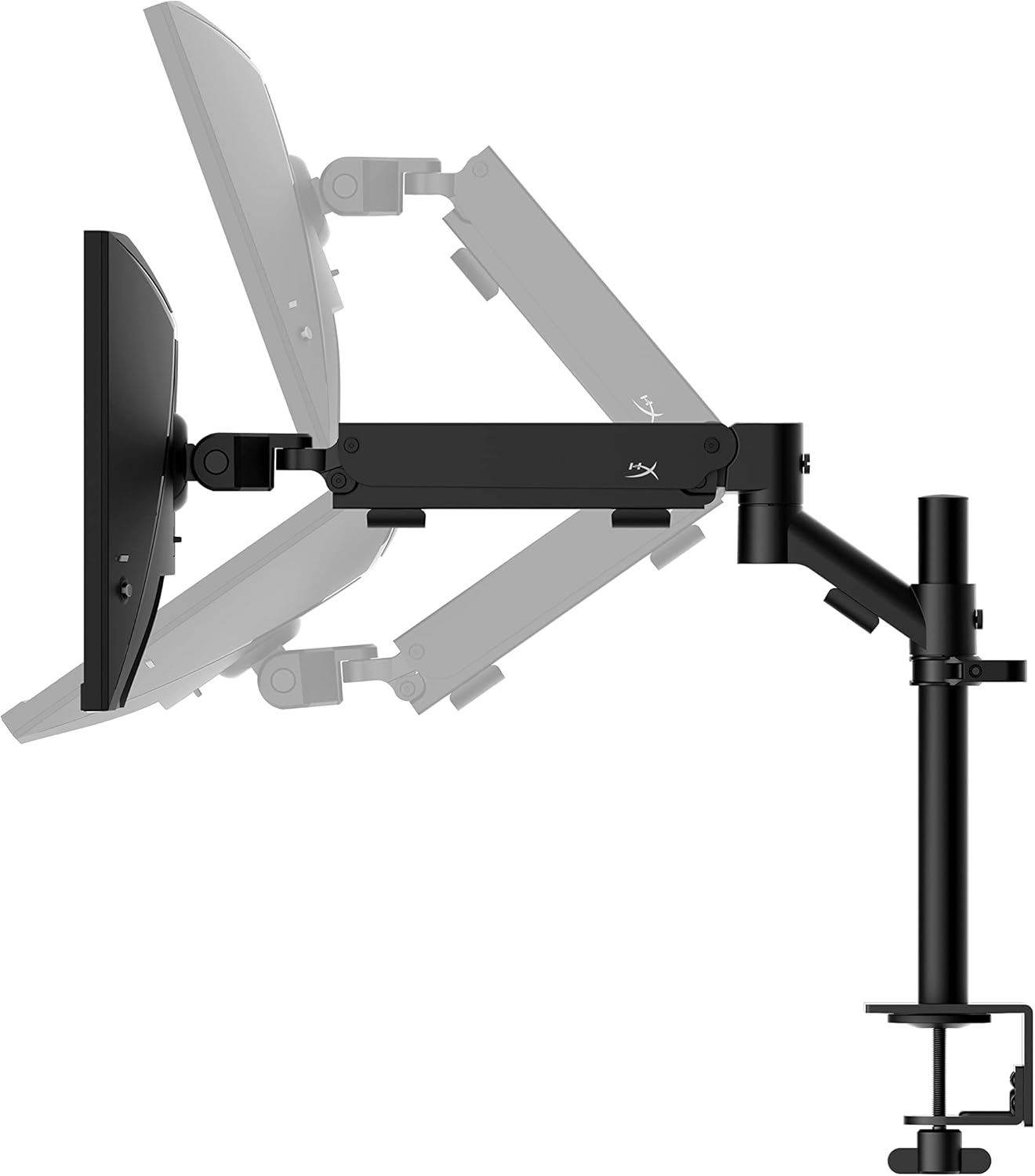
The HyperX Armada 25 comes with an integrated ergonomic desk mount. Follow the instructions provided in the separate quick start guide for detailed assembly steps. The monitor head easily snaps into the arm, allowing for quick and secure installation.

2.2. Připojení monitoru
Connect the monitor to your computer using the appropriate cables. The HyperX Armada 25 supports both HDMI and DisplayPort connections.
- Connect one end of the HDMI or DisplayPort cable to the corresponding port on your computer's graphics card.
- Connect the other end of the cable to an available HDMI 2.0 or DisplayPort 1.4 port on the back of your monitor.
- Připojte napájecí kabel k monitoru a poté do elektrické zásuvky.
- Stisknutím tlačítka napájení na monitoru jej zapněte.

3. Obsluha monitoru
This section covers basic operation and navigation of the monitor's On-Screen Display (OSD) menu.
3.1. Navigace v nabídce na obrazovce (OSD)
The OSD menu is controlled using a joystick located on the back of the monitor. This joystick allows you to power on/off the monitor and navigate through various settings.
- Stiskněte joystick: Otevření nabídky OSD nebo potvrzení výběru.
- Pohyb joysticku nahoru/dolů/doleva/doprava: To navigate through menu options and adjust settings.
- Hold the joystick: To power off the monitor.

3.2. Nastavení polohy monitoru
The ergonomic desk mount allows for flexible positioning of your monitor. You can adjust the height, tilt, swivel, and pivot to find your optimal viewúhel.

4. Údržba
Proper maintenance ensures the longevity and optimal performance of your HyperX Armada 25 Gaming Monitor.
- Čištění obrazovky: Lehce používejte měkký hadřík, který nepouští vlákna dampened with water or a specialized screen cleaner. Avoid using harsh chemicals, abrasive materials, or direct spraying onto the screen.
- Čištění Casing: Otřete monitor casinměkkým, suchým hadříkem.
- Větrání: Abyste zabránili přehřátí, ujistěte se, že ventilační otvory monitoru nejsou zablokované.
- Vypnutí, když se nepoužívá: Pokud monitor delší dobu nepoužíváte, vypněte jej, abyste ušetřili energii a prodloužili jeho životnost.
5. Řešení problémů
Pokud narazíte na problémy s monitorem, postupujte podle následujících běžných kroků pro řešení potíží.
- Bez napájení:
- Zkontrolujte, zda je napájecí kabel pevně připojen k monitoru i k elektrické zásuvce.
- Ujistěte se, že elektrická zásuvka funguje správně.
- Stiskněte tlačítko napájení na monitoru.
- Bez signálu:
- Verify that the HDMI or DisplayPort cable is securely connected to both the monitor and your computer.
- Ujistěte se, že je počítač zapnutý a není v režimu spánku.
- Vyberte správný vstupní zdroj pomocí nabídky OSD.
- Flickering Screen or Image Issues:
- Zkontrolujte kabel displeje, zda není poškozený nebo zda nejsou uvolněné kontakty.
- Ujistěte se, že máte aktuální ovladače grafické karty.
- Upravte obnovovací frekvenci v nastavení displeje počítače.
- If G-SYNC is enabled, try disabling it temporarily to see if the issue persists.
- Buttons Not Responding (OSD Joystick):
- Ujistěte se, že je monitor zapnutý.
- Try restarting the monitor by unplugging and replugging the power cable.
- Clean around the joystick to ensure no debris is obstructing its movement.
6. Specifikace
Detailed technical specifications for the HyperX Armada 25 Gaming Monitor.
| Funkce | Detail |
|---|---|
| Rozměry produktu | 21.94 x 25.79 x 31.12 palce; 16.98 libry |
| Číslo modelu položky | HyperX Armada 25 |
| Datum první dostupnosti | 24. srpna 2022 |
| Výrobce | Společnost HP Inc. |
| ASIN | B0B2C1G356 |
| Velikost displeje | Úhlopříčka 24.5 palců |
| Rezoluce | Full HD (1920x1080) |
| Obnovovací frekvence | 240 Hz |
| Typ panelu | IPS panel |
| Doba odezvy | 1 ms |
| Technologie synchronizace | Kompatibilní s NVIDIA® G-SYNC® |
| Included Mount | Desk Mount Included |
| Konektivita | HDMI and Display Port |
7. Záruka a podpora
For warranty information, technical support, or to access additional resources, please visit the official HyperX webnebo kontaktujte jejich zákaznický servis.
- Official HyperX Webmísto: www.hyperx.com
- Stránka podpory produktu: Refer to the support section on the HyperX webweb pro váš konkrétní model.