
Zavedení
This manual provides detailed instructions for the setup, operation, and maintenance of your PUSAT One Shot Pro Wireless Gaming Mouse. Please read this manual thoroughly before using the product to ensure optimal performance and longevity.
Obsah balení
Zkontrolujte prosím, zda jsou ve vašem balení přítomny všechny níže uvedené položky:
- Bezdrátová herní myš PUSAT One Shot Pro
- USB bezdrátový přijímač
- Nabíjecí kabel USB-C na USB-A
- Additional Side Buttons (interchangeable)
- Uživatelská příručka (tento dokument)

Obrázek 1: PUSAT One Shot Pro mouse, charging cable, and interchangeable side buttons, displayed with its retail packaging.
Konec produktuview
Familiarize yourself with the various components and controls of your PUSAT One Shot Pro Wireless Gaming Mouse.
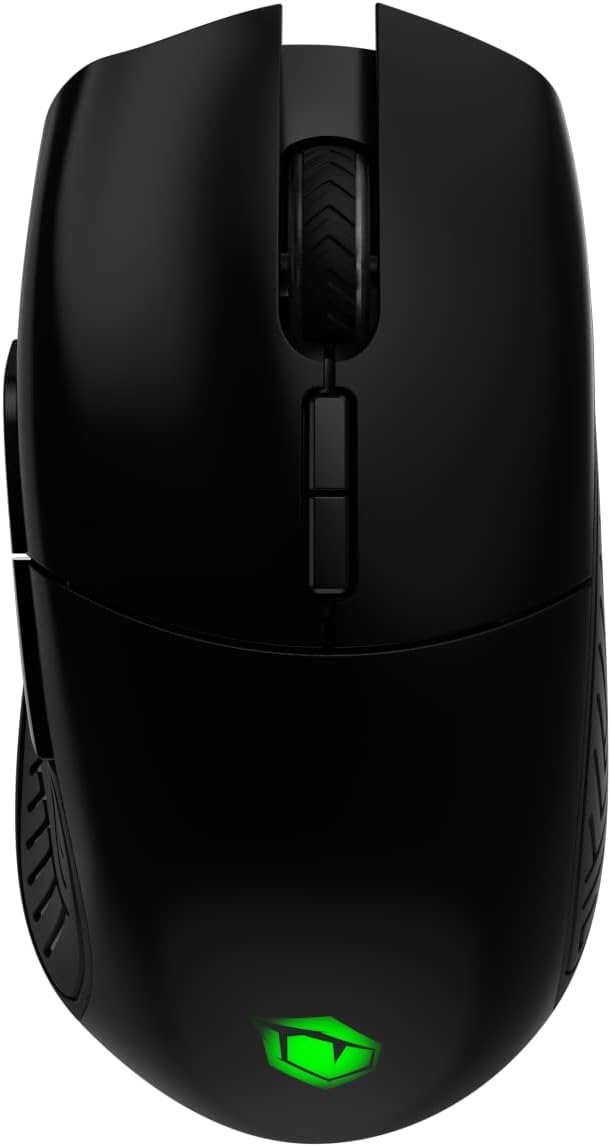
Obrázek 2: Nahoru view of the PUSAT One Shot Pro mouse, showing the left and right click buttons, scroll wheel, and DPI switch buttons.

Obrázek 3: Levá strana view of the PUSAT One Shot Pro mouse, highlighting the two programmable side buttons and textured grip.

Obrázek 4: Dno view of the PUSAT One Shot Pro mouse, showing the optical sensor, ON/OFF switch, user profile switch, and the compartment for the USB receiver.
Funkce tlačítek:
- Levé tlačítko myši: Standardní funkce primárního kliknutí.
- Kliknutí pravým tlačítkem: Standardní funkce sekundárního kliknutí.
- Rolovací kolečko: Scrolls content up/down, also functions as a middle click button.
- DPI Switch Buttons: Adjusts the mouse's sensitivity (DPI) on the fly.
- Programmable Side Buttons (8 total): Customizable buttons for various functions, often used for macros or in-game actions.
- Uživatel Profile Switch (Bottom): Allows switching between different user-defined profiles.
- ON/OFF Switch (Bottom): Zapíná nebo vypíná myš.
Nastavení
Připojení myši:
- Locate the USB wireless receiver. It is typically stored in a compartment on the underside of the mouse (refer to Figure 4).
- Remove the USB wireless receiver from its storage slot.
- Plug the USB wireless receiver into an available USB port on your computer (PC or Notebook).
- Flip the ON/OFF switch on the bottom of the mouse to the "ON" position.
- Your computer should automatically detect and install the necessary drivers. The mouse will be ready for use once the installation is complete.
For optimal wireless performance, ensure the USB receiver is placed in a location with minimal interference and a clear line of sight to the mouse.
Návod k obsluze
Základní použití:
- Pohybem myši na rovném povrchu ovládáte kurzor na obrazovce.
- Use the left and right click buttons for primary and secondary actions.
- Rotate the scroll wheel to navigate through documents or web stránky.
Nastavení DPI:
The PUSAT One Shot Pro mouse features adjustable DPI (Dots Per Inch) settings, allowing you to change cursor sensitivity. Use the dedicated DPI switch buttons, usually located near the scroll wheel, to cycle through preset DPI levels (1,000 to 16,000 DPI). Each change typically corresponds to a visual indicator, such as an RGB lighting color change, though specific indicators may vary.
Programovatelná tlačítka:
The mouse is equipped with 8 programmable buttons. To customize these buttons, you will typically need to download and install the official PUSAT software from the manufacturer's website. This software allows you to assign macros, keyboard functions, or other commands to each programmable button.
Nabíjení
The PUSAT One Shot Pro mouse is equipped with a rechargeable Lithium Ion battery (700 mAh) and supports both wired and wireless charging.
Kabelové nabíjení:
- Connect the USB-C end of the charging cable to the port on the front of the mouse.
- Connect the USB-A end of the charging cable to an available USB port on your computer or a USB wall adapter.
- The mouse's RGB lighting or an indicator light will typically show the charging status.

Obrázek 5: The PUSAT One Shot Pro mouse connected via its USB-C charging cable.
Bezdrátové nabíjení:
The PUSAT One Shot Pro supports wireless charging. To charge wirelessly, place the mouse on a compatible wireless charging pad. Ensure the mouse is correctly positioned on the charging pad for the charging process to initiate. The mouse's indicator lights will typically confirm that wireless charging is active.
Note: A wireless charging pad is sold separately and is not included with the mouse.
Údržba
Čištění:
- Před čištěním se ujistěte, že je myš vypnutá.
- Použijte měkký hadřík, který nepouští vlákna dampPovrch myši otřete vodou nebo jemným čisticím roztokem.
- Vyhněte se používání agresivních chemikálií, abrazivních čisticích prostředků nebo rozpouštědel.
- Use compressed air to remove dust and debris from crevices and around buttons.
- Clean the optical sensor on the bottom of the mouse periodically with a cotton swab to ensure accurate tracking.
Péče o baterie:
- Vyhněte se častému úplnému vybíjení baterie.
- Pokud myš delší dobu nepoužíváte, skladujte ji na chladném a suchém místě.
- Pokud baterii skladujete delší dobu, nabijte ji přibližně na 50 %, abyste prodloužili její životnost.
Odstraňování problémů
| Problém | Možná příčina | Řešení |
|---|---|---|
| Myš neodpovídá |
|
|
| Zpožděný nebo nepravidelný pohyb kurzoru |
|
|
| Buttons not working or programmable features not active |
|
|
| Bezdrátové nabíjení nefunguje |
|
|
Specifikace
| Funkce | Detail |
|---|---|
| Značka | CENTRUM |
| Model | One Shot Pro |
| Konektivita | Bezdrátové připojení 2.4 GHz (USB přijímač) |
| Rozsah DPI | 1,000 - 26 000 DPI |
| Počet tlačítek | 8 (programovatelných) |
| Typ snímače | Optický |
| Typ baterie | 1 Lithium Ion Battery (Included) |
| Kapacita baterie | 700 XNUMX mAh |
| Nabíjení | USB-C Wired, Wireless Charging Compatible |
| Rozměry (D x Š x V) | 12.5 x 6.6 x 4.2 cm |
| Hmotnost | 110 g |
| Barva | Černý |
| Hardwarová platforma | PC, Notebook |
Bezpečnostní informace
- Nevystavujte myš extrémním teplotám, vlhkosti ani přímému slunečnímu záření.
- Vyhněte se pádu myši nebo jejímu vystavení silným nárazům.
- Nepokoušejte se myš rozebírat ani upravovat. Mohlo by dojít ke zrušení záruky a poškození.
- Keep the mouse away from liquids. If liquid enters the device, discontinue use immediately and contact support.
- Dispose of the battery according to local regulations. Do not dispose of batteries in general household waste.
Záruka a podpora
For warranty information and technical support, please refer to the warranty card included with your product or visit the official PUSAT website. If you encounter any issues not covered in this manual, please contact PUSAT customer service for assistance.