
1. Úvod
This manual provides detailed instructions for the setup, operation, maintenance, and troubleshooting of your FMOUSE Slim White Wireless Bluetooth Mouse M113. Please read this manual thoroughly before using the product to ensure optimal performance and longevity.

Image 1: FMOUSE M113 Slim White Wireless Bluetooth Mouse
2. Obsah balení
Po otevření balení se prosím ujistěte, že obsahuje všechny následující položky:
- 1 x FMOUSE M113 Wireless Mouse
- 1 x USB Charging Cable (Type-C, 80cm/31.5in)
- 1 x USB přijímač (2.4 GHz)
- 1 x Návod k použití

Image 2: Package contents of the FMOUSE M113 mouse
3. Nastavení
3.1 Nabíjení myši
Before initial use, fully charge the mouse using the provided Type-C USB cable. The charging port is located at the front of the mouse.
- Nabíjení: The scroll wheel light will display red.
- Nabíjení dokončeno: The scroll wheel light will turn off.
- Slabá baterie: The scroll wheel light will flash red.

Image 3: Type-C charging port and battery indicators
3.2 Connecting the Mouse (Dual Mode)
The FMOUSE M113 supports two connection modes: 2.4GHz Wireless (via USB receiver) and Bluetooth 5.1. You can switch between modes using the selector switch on the bottom of the mouse.

Image 4: Dual connection options for the mouse
3.2.1 Bezdrátové připojení 2.4 GHz (USB přijímač)
- Locate the USB receiver stored in the magnetic slot on the bottom of the mouse.
- Zapojte USB přijímač do volného USB portu na vašem počítači.
- Slide the switch on the bottom of the mouse to the 2.4G position (indicated by a USB icon).
- Myš by se měla automaticky připojit k vašemu zařízení.
3.2.2 Připojení Bluetooth 5.1
- Slide the switch on the bottom of the mouse to the Bluetooth position (indicated by a Bluetooth icon).
- The scroll wheel light will flash, indicating it is in pairing mode.
- On your device (e.g., MacBook, iPad, Laptop), navigate to the Bluetooth settings.
- Hledat available devices and select "FMOUSE M113" (or similar) to pair.
- Once paired, the scroll wheel light will stop flashing and remain solid.
Video 1: Konecview of FMOUSE M113 features and connectivity
4. Ovládání myši
4.1 Základní funkce
- Levé kliknutí: Primární výběr a aktivace.
- Klikněte pravým tlačítkem myši: Zpřístupňuje kontextové nabídky.
- Rolovací kolečko: Posouvá obsah svisle.
4.2 Nastavení DPI
The mouse features 4 adjustable DPI levels (800/1200/1600/2400) to customize cursor sensitivity. Press the Tlačítko DPI (located near the scroll wheel) to cycle through the settings. The scroll wheel light color indicates the current DPI level.
- 800 DPI: (Specific color may vary, refer to image)
- 1200 DPI: (Specific color may vary, refer to image)
- 1600 DPI: (Specific color may vary, refer to image)
- 2400 DPI: (Specific color may vary, refer to image)
To turn the scroll wheel light on or off, long-press the DPI button for 2 seconds.

Image 5: 4 Adjustable DPI levels and corresponding light indicators
4.3 Desktop Return Button
The mouse includes a dedicated Desktop Return button. Pressing this button will instantly minimize all open windows and return you to your computer's desktop. This feature is useful for quick privacy or task switching.

Image 6: Function of the Desktop Return button
4.4 Mute/Volume Control Button
The Tlačítko ztlumení provides quick audio control:
- Jedno stisknutí: Mutes or unmutes your computer's audio.
- Long Press (2 seconds) and Scroll: After a long press, you can adjust the computer's volume by scrolling the wheel up or down.

Image 7: Mute and volume adjustment functions
4.5 Funkce tichého kliknutí
The FMOUSE M113 is designed with silent click buttons, reducing noise during use. This makes it suitable for quiet environments such as libraries, offices, or late-night work.
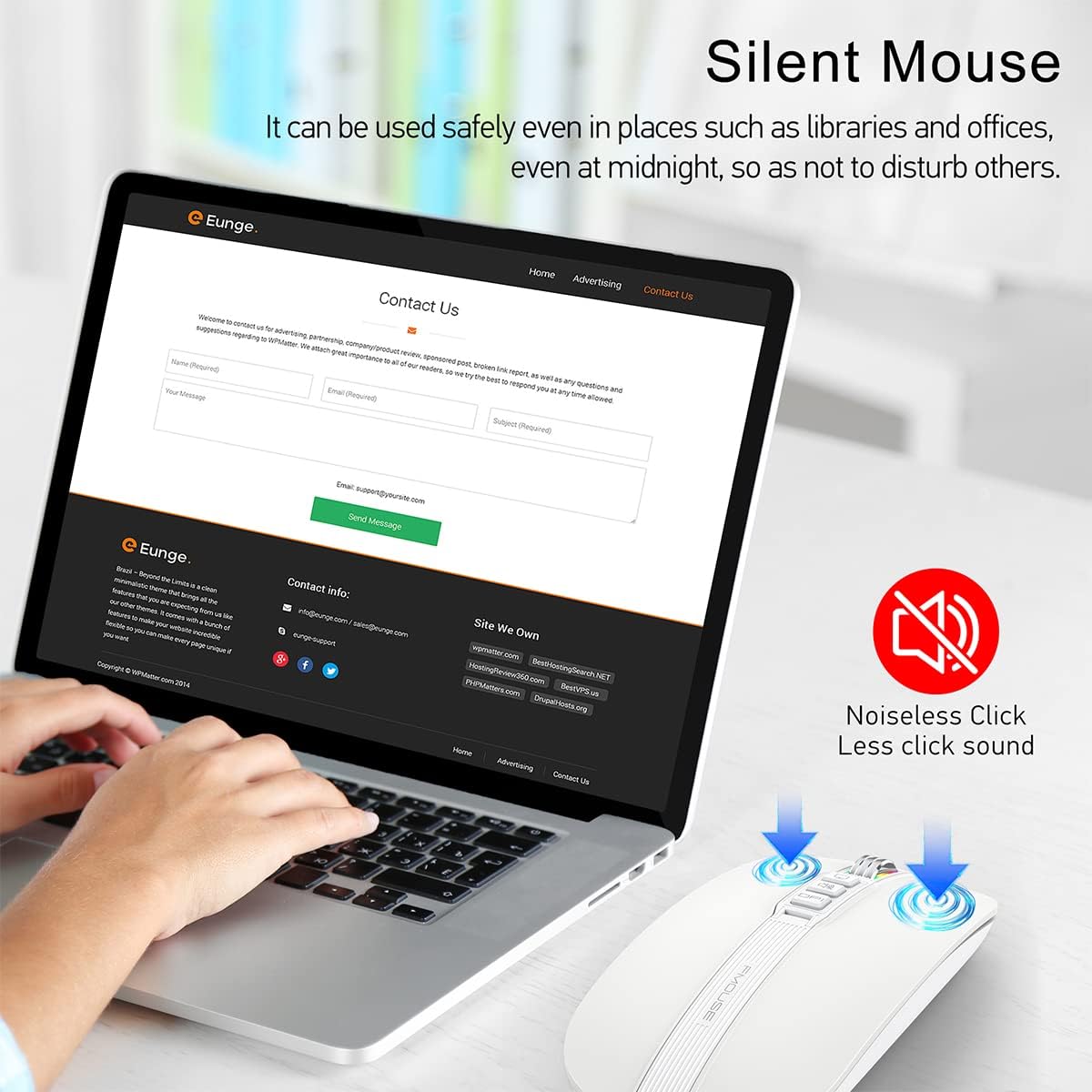
Image 8: Silent click feature of the mouse
5. Údržba
5.1 Čištění
- Před čištěním odpojte myš od zařízení.
- K otření povrchu myši použijte měkký, suchý hadřík, který nepouští vlákna.
- Na odolné nečistoty lehce dampen the cloth with water or a mild electronic cleaner. Avoid excessive moisture.
- Nepoužívejte agresivní chemikálie, abrazivní čisticí prostředky ani rozpouštědla.
5.2 Péče o baterii
- Myš pravidelně nabíjejte, aby baterie vydržela dobře.
- Vyhněte se častému úplnému vybíjení baterie.
- Do not expose the mouse to extreme temperatures, as this can affect battery life.
5.3 Skladování
- Pokud myš delší dobu nepoužíváte, skladujte ji na chladném a suchém místě.
- Ensure the mouse is turned off to conserve battery life.
- The USB receiver can be stored in its magnetic slot on the bottom of the mouse to prevent loss.
6. Řešení problémů
6.1 Problémy s připojením
- Mouse not connecting via 2.4GHz USB receiver:
- Ensure the USB receiver is securely plugged into a working USB port.
- Verify the switch on the bottom of the mouse is set to the 2.4G position.
- Try plugging the receiver into a different USB port. - Mouse not connecting via Bluetooth:
- Ensure the switch on the bottom of the mouse is set to the Bluetooth position.
- Check that Bluetooth is enabled on your device.
- Remove any previous pairings of the mouse from your device's Bluetooth settings and attempt to pair again.
- Ensure the mouse is sufficiently charged.
6.2 DPI Light Behavior
- DPI light not changing color: Press the DPI button to cycle through settings. If it still doesn't change, ensure the mouse is powered on and charged.
- DPI light is off: Long-press the DPI button for 2 seconds to toggle the light on/off.
6.3 Problémy s nabíjením
- Myš se nenabíjí:
- Ensure the Type-C charging cable is securely connected to both the mouse and a power source.
- Try using a different USB port or power adapter.
- Check if the charging cable is damaged. - Scroll wheel light flashing red: This indicates a low battery. Connect the mouse to a power source for charging.
6.4 Cursor Movement
- Kurzor se pohybuje nepravidelně nebo vůbec:
- Ensure the mouse is properly connected (2.4GHz or Bluetooth).
- Check the battery level and charge if necessary.
- Vyčistěte optický senzor na spodní straně myši.
- Ensure the mouse is used on a suitable surface (not highly reflective or transparent).
7. Specifikace
| Funkce | Specifikace |
|---|---|
| Rozměry produktu | 4.45 x 2.24 x 0.98 palce (113 x 57 x 25 mm) |
| Hmotnost položky | 2.4 unce (68 gramů) |
| Technologie připojení | Bluetooth 5.1, 2.4GHz Wireless (USB) |
| Technologie detekce pohybu | Optický |
| Úrovně DPI | 800/1200/1600/2400 |
| Typ baterie | 1 lithium-iontová baterie (součástí balení) |
| Nabíjecí port | Typ-C |
| Speciální funkce | One-click DPI adjustment, One-click access to desktop, One-click muting, Three shortcut keys |

Image 9: Dimensions of the FMOUSE M113 mouse
8. Záruka a podpora
8.1 Informace o záruce
FMOUSE products are designed and manufactured to the highest quality standards. For specific warranty details, please refer to the warranty card included in your product packaging or visit the official FMOUSE webUschovejte si účtenku jako doklad o koupi pro případ reklamace.
8.2 Zákaznická podpora
If you encounter any issues or have questions regarding your FMOUSE M113 mouse that are not covered in this manual, please contact FMOUSE customer support through the following channels:
- Oficiální Webmísto: Visit the FMOUSE Store on Amazon
- E-mail: Viz obal produktu nebo oficiální webstránky pro kontaktní e-mail.