
1. Úvod
The Razer Barracuda X is a versatile 4-in-1 USB-C wireless headset designed for immersive home gaming and seamless on-the-go audio. It offers true versatility and freedom, backed by long-lasting comfort, powerful drivers, and a crystal-clear microphone. This manual provides essential information for setting up, operating, maintaining, and troubleshooting your headset.

Image: The Razer Barracuda X headset in a gaming environment, showcasing its sleek design and wireless capability.
2. Obsah balení
Ujistěte se, že balení obsahuje všechny následující položky:
- Razer Barracuda X Wireless Gaming Headset
- Bezdrátový dongle typu C
- Removable Razer HyperClear Cardioid Mic
- Nabíjecí kabel typu C
- Adaptérový kabel typu A na typ C.
- Uživatelská příručka (tento dokument)

Image: The Razer Barracuda X headset with its included accessories: the USB-C wireless dongle and the detachable HyperClear Cardioid Mic.
3. Nastavení
3.1 Nabíjení headsetu
Before first use, fully charge your Razer Barracuda X headset using the provided Type-C charging cable. Connect the Type-C end to the headset's charging port and the USB-A end to a power source (e.g., computer USB port, wall adapter).
3.2 Wireless Connectivity (2.4GHz USB-C Dongle)
For low-latency gaming audio, use the 2.4GHz wireless connection:
- Plug the Type-C wireless dongle into your desired device (PC, PlayStation, Nintendo Switch, Android device). If your device only has a USB-A port, use the included Type-A to Type-C adapter cable.
- Power on your Razer Barracuda X headset. It will automatically connect to the dongle.
3.3 Připojení Bluetooth
For mobile use or devices without a USB-C port, connect via Bluetooth:
- With the headset powered on, press and hold the SmartSwitch button (usually indicated by a Bluetooth icon) until the LED indicator blinks blue, indicating pairing mode.
- On your device, search for Bluetooth devices and select "Razer Barracuda X" to pair.

Image: The Razer Barracuda X headset connected to multiple devices, highlighting its SmartSwitch dual wireless capability for seamless transitions between 2.4GHz and Bluetooth.
3.4 Připojení mikrofonu
Insert the detachable Razer HyperClear Cardioid Mic into the microphone jack located on the left earcup. Ensure it is firmly seated.
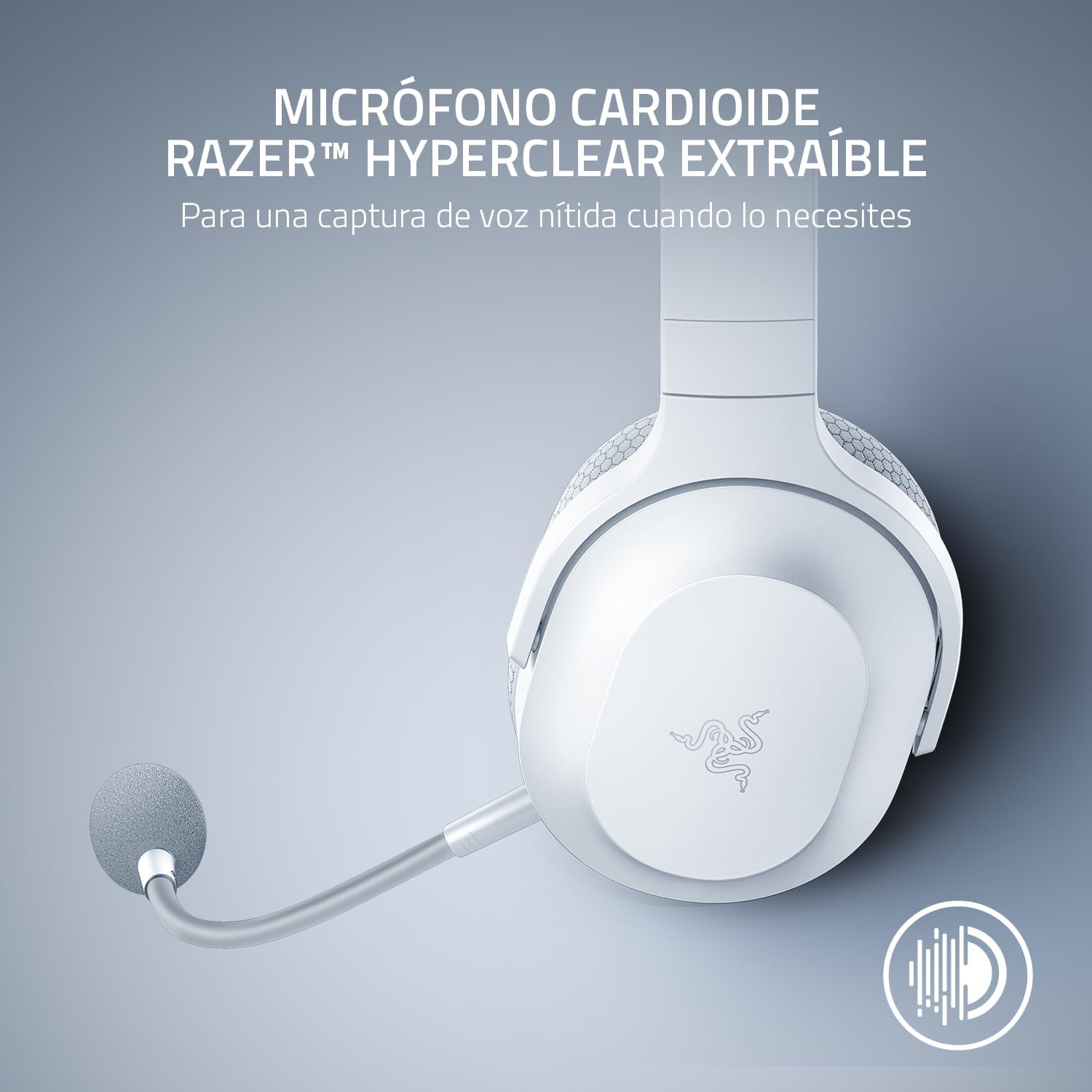
Image: The Razer Barracuda X headset with its detachable HyperClear Cardioid Mic, designed for clear voice capture.
4. Ovládání náhlavní soupravy
4.1 Zapnutí/vypnutí
- Zapnutí: Stiskněte a podržte tlačítko napájení, dokud se nerozsvítí indikátor LED.
- Vypnutí: Stiskněte a podržte tlačítko napájení, dokud nezhasne LED indikátor.
4.2 Ovládání hlasitosti
Adjust the audio volume using the volume roller located on the left earcup.
4.3 Ztlumení mikrofonu
Press the microphone mute button on the left earcup to toggle the microphone on or off. An LED indicator on the mic will show its status.
4.4 SmartSwitch Dual Wireless
The SmartSwitch feature allows you to seamlessly switch between 2.4GHz wireless and Bluetooth connections. When connected to both, the headset will prioritize the 2.4GHz connection for gaming. If a call comes in on your Bluetooth-connected phone, the headset will automatically switch to the Bluetooth connection. After the call, it will switch back to 2.4GHz.

Image: Close-up of the Razer Barracuda X headset's on-headset controls, including the volume wheel, power button, and mic mute button.
4.5 Comfort and Ergonomics
The Barracuda X features a lightweight 250g ergonomic design with breathable memory foam ear cushions and swiveling earcups, ensuring comfort during long gaming sessions or daily commutes.

Obrázek: Podrobný view of the Razer Barracuda X headset's ergonomic design, highlighting the comfortable ear cushions and lightweight build.
5. Údržba
5.1 Čištění
- K čištění sluchátek s mikrofonem použijte měkký, suchý hadřík.
- Vyhněte se používání agresivních chemikálií nebo abrazivních materiálů.
- Náušníky jemně otřeteamp hadříkem a nechte zcela uschnout na vzduchu.
5.2 Skladování
Store the headset in a cool, dry place away from direct sunlight and extreme temperatures. When not in use, consider storing it in a protective case to prevent damage.
6. Řešení problémů
6.1 Žádný zvuk/Špatná kvalita zvuku
- Kontrola hlasitosti: Ensure the headset volume is not muted or set too low.
- Konektivita: Verify the 2.4GHz dongle is properly inserted and the headset is connected, or that Bluetooth is successfully paired. Try re-pairing if necessary.
- Nastavení zařízení: Confirm the Razer Barracuda X is selected as the default audio output device in your computer's or console's sound settings.
- Rušení: Přesuňte se dále od jiných bezdrátových zařízení, která mohou způsobovat rušení.
6.2 Mikrofon nefunguje
- Zkontrolujte ztlumení: Ensure the microphone is not muted via the headset button or your device's software.
- Spojení: Re-insert the detachable microphone firmly into its jack.
- Nastavení zařízení: Verify the Razer Barracuda X microphone is selected as the default input device in your computer's or console's sound settings and application settings (e.g., Discord).
6.3 Headset Not Powering On/Charging
- Nabíjení baterie: Connect the headset to a power source using the Type-C charging cable and allow it to charge for at least 30 minutes.
- Check Cable/Port: Ensure the charging cable and port are not damaged. Try a different cable or USB port.
6.4 Automatické vypnutí
The headset may automatically power off after a period of inactivity to conserve battery. This is a normal feature. To prevent this during active use, ensure audio is consistently playing through the headset.
7. Specifikace
| Funkce | Detail |
|---|---|
| Značka | Razer |
| Název modelu | Barracuda |
| Číslo modelu | RZ04-04430200-R3U1 |
| Barva | Bílý |
| Technologie připojení | Bezdrátové připojení 2.4 GHz, Bluetooth 5.2, USB-C |
| Typ zvukového ovladače | Dynamický ovladač |
| Velikost zvukového ovladače | 40 Millimeters (Razer TriForce) |
| Frekvenční odezva | 20 Hz - 20,000 XNUMX Hz |
| Impedance | 32 ohmů |
| Citlivost | 96 dB |
| Mikrofon | Odnímatelný kardioidní mikrofon Razer HyperClear |
| Životnost baterie | Až 50 hodin |
| Hmotnost | 9.6 unce (250 g) |
| Umístění uší | Přes ucho |
| Typ ovládání | Ovládání médií, dotykové ovládání |
| Další funkce | SmartSwitch Dual Wireless, 250g Ergonomic Design |

Obrázek: Explodoval view diagram illustrating the Razer TriForce 40mm drivers, designed for distinct high, mid, and low audio frequencies.
8. Záruka a podpora
8.1 Informace o záruce
The Razer Barracuda X Wireless Gaming Headset comes with a 2letá záruka výrobceUschovejte si prosím doklad o koupi pro případ reklamace.
8.2 Zákaznická podpora
Pro další pomoc, technickou podporu nebo dotazy ohledně záruky navštivte oficiální podporu Razer. webmísto nebo Obchod Razer na Amazonu.