
Logitech H390
Uživatelská příručka pro headset Logitech H390 USB
Model: H390 (P/N: 981-001285)
Značka: Logitech
Konec produktuview
The Logitech H390 USB Headset is designed for clear audio communication and comfortable use across various applications, including video meetings, music listening, and gaming. It features a noise-cancelling microphone and convenient in-line controls for volume and mute functions. This wired headset connects via USB-A, offering a simple plug-and-play experience.

Figure 1: Logitech H390 USB Headset.
Průvodce nastavením
Připojení náhlavní soupravy
The Logitech H390 headset is designed for easy setup with its plug-and-play USB-A connectivity. No additional software or drivers are typically required for basic functionality.
- Locate a USB-A Port: Identify an available USB-A port on your computer (PC, Mac, or Chromebook).
- Plug In the Headset: Insert the USB-A connector of the H390 headset firmly into the USB-A port on your device.
- Rozpoznávání systému: Your operating system should automatically detect and configure the headset as an audio input and output device. This may take a few moments.
- Ověření nastavení zvuku: After connection, it is recommended to verify your audio settings in your computer's sound preferences to ensure the Logitech H390 is selected as the default playback and recording device.

Figure 2: USB-A Plug for easy connection.

Figure 3: Headset connected to a laptop, illustrating cable length.
Návod k obsluze
Vestavěné ovládací prvky
The Logitech H390 features convenient in-line controls located on the headset cable, allowing for quick adjustments without needing to interact with your computer's software.
- Tlačítko zvýšení hlasitosti: Press the '+' button to increase the audio output volume.
- Tlačítko snížení hlasitosti: Press the '-' button to decrease the audio output volume.
- Tlačítko ztlumení: Press the central button to mute or unmute the microphone. A red indicator light on the control unit signifies that the microphone is muted.

Obrázek 4: Detailní view of in-line controls.
Použití mikrofonu
The headset is equipped with a rotating, noise-cancelling microphone designed to minimize background noise for clear voice capture.
- Umístění: For optimal voice clarity, position the microphone boom arm so that the microphone is approximately 2-3 centimeters (about 1 inch) from your mouth.
- Zrušení hluku: The noise-cancelling feature helps to filter out ambient sounds, making your voice clearer to listeners.
- Skladování: When not in use, the microphone boom arm can be rotated upwards and tucked away discreetly.

Figure 5: Rotating noise-cancelling microphone.
Digital Stereo Sound
The Logitech H390 delivers enhanced digital stereo audio, suitable for a wide range of applications from online meetings to multimedia consumption.

Figure 6: User experiencing digital stereo sound.
Údržba a péče
To ensure the longevity and optimal performance of your Logitech H390 headset, follow these simple care guidelines:
- Čištění: Gently wipe the headset, including the ear cushions and microphone, with a soft, damp tkanina. Vyhněte se používání agresivních chemikálií nebo abrazivních čisticích prostředků.
- Skladování: Sluchátka skladujte na čistém a suchém místě mimo dosah extrémních teplot a přímého slunečního záření. Zabraňte zamotání kabelu.
- Zacházení: Do not pull the cable forcefully when disconnecting the headset. Always grasp the USB plug. Avoid dropping the headset or subjecting it to strong impacts.
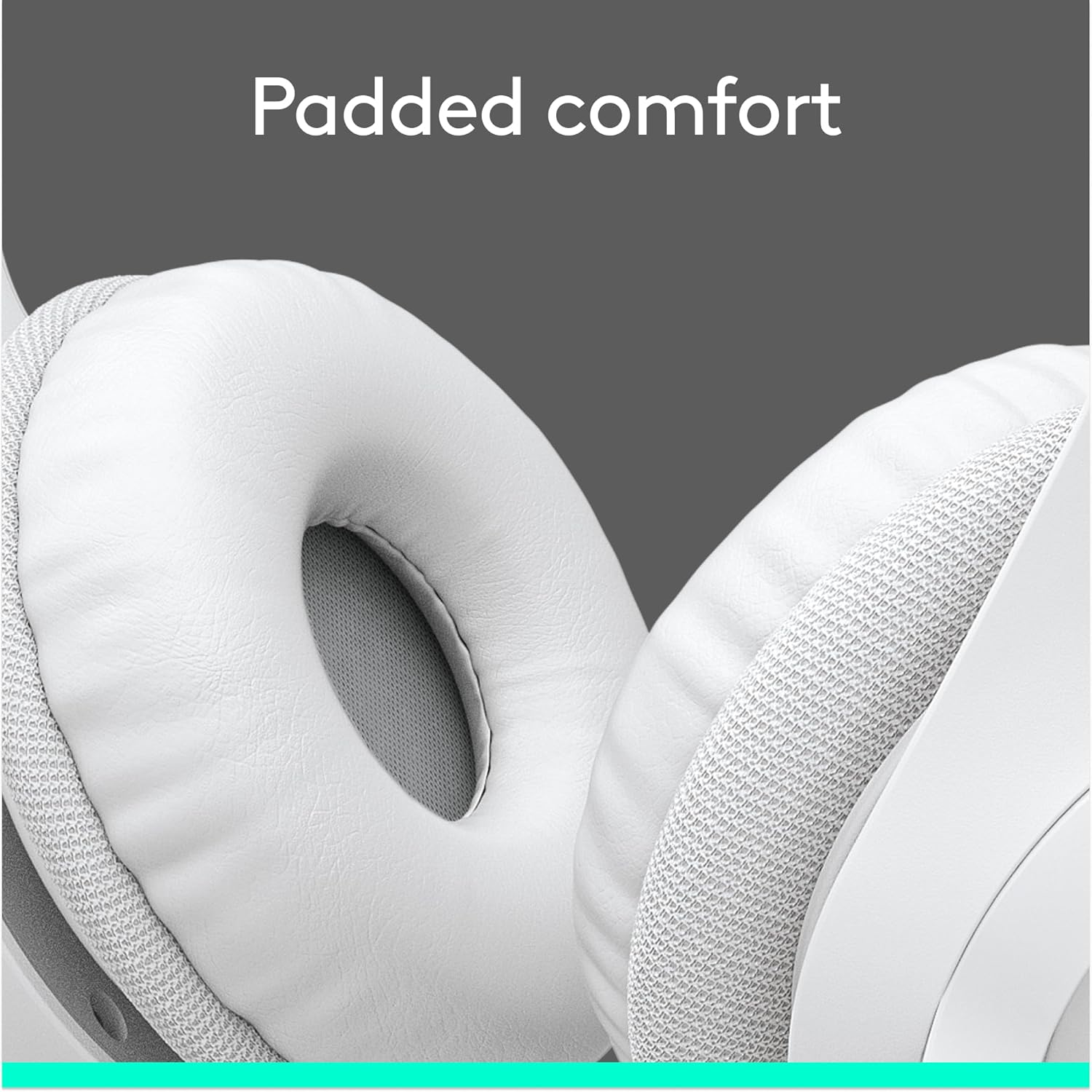
Figure 7: Padded ear cups for comfortable wear.
Odstraňování problémů
If you encounter issues with your Logitech H390 headset, try the following common troubleshooting steps:
- Žádný zvuk/nefungující mikrofon:
- Ensure the USB-A connector is fully inserted into the port.
- Check your computer's sound settings to confirm the Logitech H390 is selected as the default playback and recording device.
- Verify that the microphone mute button on the in-line control is not activated (red light off).
- Try plugging the headset into a different USB port on your computer.
- Restartujte počítač.
- Zkreslený zvuk:
- Adjust the volume using the in-line controls or your computer's volume settings.
- Ujistěte se, že žádná jiná zvuková zařízení neruší.
- Vyzkoušejte jiný port USB.
- Background Noise from Microphone:
- Ensure the microphone is positioned correctly, close to your mouth.
- The H390 features noise cancellation, but excessive background noise may still be picked up. Try to use the headset in a quieter environment if possible.
For further assistance, refer to the support section or contact Logitech customer service.
Specifikace
| Funkce | Detail |
|---|---|
| Název modelu | H390 |
| Číslo modelu položky | 981-001285 |
| Technologie připojení | Kabelové (USB-A) |
| Jack pro sluchátka | USB |
| Kontrola hluku | Adaptivní potlačení hluku |
| Mikrofon | Included, Rotating, Noise-Cancelling |
| Vestavěné ovládací prvky | Volume Control, Mute |
| Délka kabelu | 6.23 stop (1.9 m) |
| Umístění uší | Přes ucho |
| Ušní polštářky | Leatherette, Padded |
| Čelenka | Adjustable, Padded |
| Kompatibilní zařízení | Windows, macOS, ChromeOS |
| Barva | Bílý |
| Hmotnost položky | 6.9 unce (0.43 libry) |
| Výrobce | Logitech |
| Datum první dostupnosti | 18. ledna 2023 |
Záruka a podpora
Informace o záruce
Logitech products typically come with a limited hardware warranty. For specific warranty terms and conditions applicable to your Logitech H390 headset, please refer to the warranty documentation included with your purchase or visit the official Logitech support webmísto.
Zákaznická podpora
If you require technical assistance, have questions about your product, or need to initiate a warranty claim, please contact Logitech customer support through their official channels. You can often find support resources, FAQs, and contact information on the Logitech webmísto.
For additional information, you may also refer to the official Uživatelská příručka (PDF) poskytuje společnost Logitech.
Ask a question about this manual
Ask about setup, troubleshooting, compatibility, parts, safety, or missing instructions. Manuals+ will review the question and use this page’s manual context to help answer it.