
QINIZX MiniMacroKeyPad-6K+
QINIZX Mini 6-Key Macro Mechanical Keypad User Manual
Model: MiniMacroKeyPad-6K+ | Brand: QINIZX
Zavedení
This manual provides comprehensive instructions for the setup, operation, and configuration of your QINIZX Mini 6-Key Macro Mechanical Keypad. This compact, programmable keypad is designed for various applications, including gaming, office tasks, and specialized functions, offering customizable key assignments and RGB backlighting.
Obsah balení
Prosím, ověřte, zda jsou v balení přítomny všechny položky:
- 1 x QINIZX Mini 6-Key Macro Mechanical Keypad
- 1 x USB-C to USB Cable (1.5m)

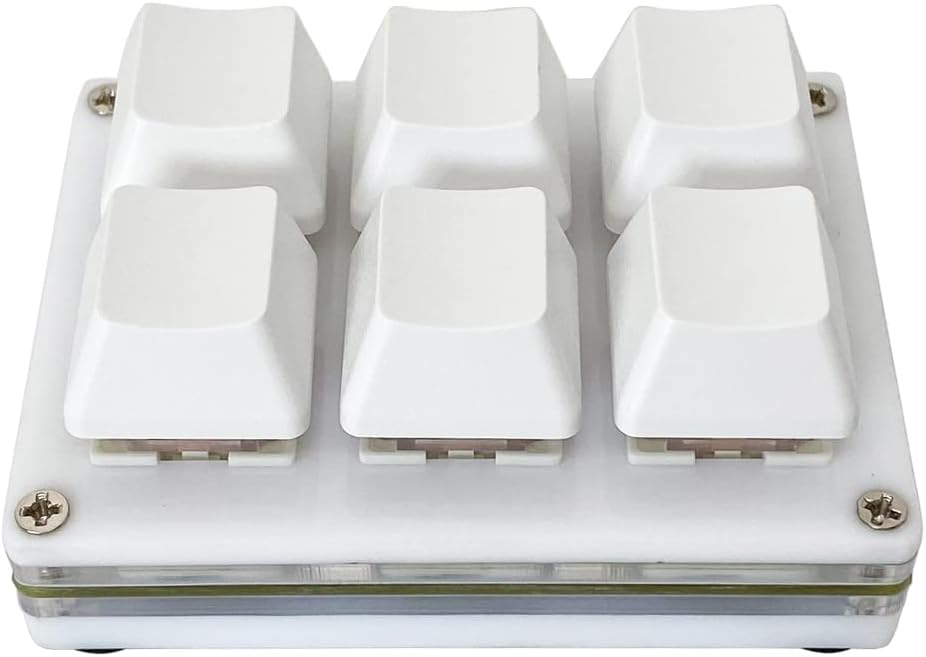
Image: The QINIZX Mini 6-Key Macro Mechanical Keypad shown with its included USB-C to USB cable.
Specifikace
| Číslo modelu | MiniMacroKeyPad-6K+ |
| Rozměry | 2.68 x 2.0 x 1.18 palce (6.8 x 5.1 x 3.0 cm) |
| Hmotnost | 1.76 unce (50 gramů) |
| Konektivita | Typ C USB |
| Typ přepínače | Mechanical (Red Switches, Hot-Swappable) |
| Podsvícení | RGB |
| Kompatibilita | Windows, Mac OS, Linux (Configuration software requires Windows) |
| Vlastnosti | Programmable Keys, Macro Functionality, Memory Function, Portable Design |


Image: The compact size of the keypad shown in hand, and a view of its base with non-slip pads and dimensions.
Pokyny pro nastavení
1. Hardwarové připojení
- Connect the provided USB-C to USB cable to the Type-C port on the keypad.
- Zapojte druhý konec kabelu USB do volného portu USB na počítači.
- The keypad is plug-and-play for basic HID functionality. For custom programming, proceed to the software installation steps.
Obrázek: Boční view of the keypad highlighting the USB-C connection port.
2. Software Installation and Configuration (Windows Required for Setup)
To fully customize the keypad's functions and RGB lighting, you need to use the dedicated configuration software. Poznámka: The software is Windows-based. If you intend to use the keypad with Mac OS or Linux, you must perform the initial configuration on a Windows computer. The keypad has a memory function and will retain its settings when moved to another operating system.
- Stáhněte si software: Visit the official software webmísto: https://key.itytsoft.com/. You may also find a direct link to the English software manual (6key_en.docx) on the same site.
- Připravte se na instalaci: Some antivirus software may flag the executable file (.exe) as a potential threat. This is a common occurrence for custom utility software. Temporarily disable your PC's protection software if you encounter issues during download or execution.
- Extract and Run: Stáhněte si
Setting.zipfile, extract its contents, and locate theRun-me.exefile. DvojklikRun-me.exeto launch the configuration software. - Zvolte jazyk: If the software is not in English, look for an "English" or "ENGLISH" button to switch the interface language.
- Connect and Detect: Ensure your keypad is connected to the computer. In the software, click "SearchDevice" to detect your keypad. Once detected, click "Configure". If the software shows "unconnected" after 10 seconds, try a different USB port or restart your computer.

Image: Visual guide for downloading and launching the keypad configuration software.
Operating Modes and Key Configuration
The configuration software allows you to assign various functions to each of the 6 keys. Each key can operate independently in one of four modes:
- Režim klávesnice: Assign standard keyboard keys (e.g., A, B, C, Ctrl, Shift, Alt). Multiple key combinations are supported.
- Režim myši: Assign mouse functions (e.g., left click, right click, middle click, scroll up/down, mouse movement).
- Multimediální režim: Assign multimedia controls (e.g., Play/Pause, Stop, Volume Up/Down, Mute, Next/Previous Track).
- Multi-key Mode (Macro): Create macros by assigning a sequence of up to 15 key presses. You can also add an interval time between key presses for specific applications (e.g., one-key password entry).
Configuring Keys:
- In the software interface, select the key you wish to configure.
- Choose the desired mode (Keyboard, Mouse, Multimedia, Multi-key) from the dropdown menu for that key.
- Follow the on-screen prompts to select the specific function or sequence of keys. For multi-key mode, click the keys you need to input one by one.
- After configuring all desired keys, click the "Save to Keyboard" button to apply the settings. A "save successfully" message will confirm the update.

Image: Software interface demonstrating key mode selection and assignment for various functions.
Nastavení podsvícení RGB
The keypad features customizable RGB LED backlighting. You can adjust the lighting effects and colors through the configuration software.
- Within the configuration software, locate the "LED setting" section.
- Select from various LED modes, including static colors (red, green, blue, yellow, cyan, white, purple), flow modes, and a default colorful gradient mode that constantly brightens and slowly changes color.
- After selecting your preferred lighting effect, click "Save to Keyboard" to apply the changes.

Image: The keypad displaying different RGB backlight colors and effects.
Údržba
Obecná péče:
- Keep the keypad clean by wiping it with a soft, dry cloth.
- Avoid exposing the keypad to excessive moisture or extreme temperatures.
- Nepoužívejte drsné chemikálie ani abrazivní čisticí prostředky.
Přepínače vyměnitelné za provozu:
The QINIZX Mini 6-Key Macro Mechanical Keypad features hot-swappable switches, allowing you to replace the default Red switches with other compatible 3-pin or 5-pin mechanical switches without soldering. You can also replace the keycaps with standard Cherry MX compatible keycaps.
- Demontáž krytky kláves: Use a keycap puller to gently remove the keycaps.
- Odstranění spínače: Use a switch puller to carefully remove the mechanical switch from its socket. Apply even pressure to avoid damaging the PCB or switch pins.
- Instalace přepínače: Align the pins of the new switch with the holes on the PCB. Press down gently until the switch clicks into place. Ensure the pins are straight before insertion to prevent bending.
- Instalace kláves: Place the new keycap onto the switch stem and press down firmly.

Obraz: View of the keypad's hot-swappable switch socket, along with a detached keycap and mechanical switch.
Odstraňování problémů
- Klávesnice nereaguje:
- Ensure the USB cable is securely connected to both the keypad and the computer.
- Zkuste připojit klávesnici k jinému USB portu na počítači.
- Restartujte počítač a zkuste to znovu.
- Test the keypad on another computer if possible to rule out a computer-specific issue.
- Configuration Software Not Detecting Keypad:
- Verify the keypad is connected and powered on.
- Ensure you have downloaded the correct software from https://key.itytsoft.com/.
- Dočasně deaktivujte veškerý antivirový software nebo firewall, který by mohl blokovat aplikaci.
- Zkuste spustit software jako správce.
- If the software shows "unconnected" after 10 seconds, try a different USB port or restart your computer.
- Keys Not Performing Assigned Functions:
- Reconnect the keypad and reopen the configuration software.
- Verify that the desired functions are correctly assigned to each key in the software.
- Ensure you clicked "Save to Keyboard" after making changes.
- If using on Mac/Linux, confirm that the configuration was saved on a Windows machine first.
- RGB Backlight Not Working or Incorrect:
- Check the LED settings in the configuration software.
- Ensure the desired lighting mode is selected and saved to the keypad.
Záruka a podpora
For warranty information or technical support, please refer to the retailer where you purchased the QINIZX Mini 6-Key Macro Mechanical Keypad or visit the official QINIZX webKontaktní údaje naleznete na webových stránkách. Uschovejte si doklad o koupi pro případ reklamace.
Související dokumenty - MiniMacroKeyPad-6K+
 |
Stažení softwaru a konfigurační příručka pro makro klávesnici QINIZX RGB Komplexní průvodce stažením a konfigurací softwaru QINIZX RGB Macro Keypad pro Windows a Mac. Naučte se, jak nastavit vlastní klávesové zkratky, makra a LED osvětlení pro vaše herní nebo produktivní potřeby. |
Ask a question about this manual
Ask about setup, troubleshooting, compatibility, parts, safety, or missing instructions. Manuals+ will review the question and use this page’s manual context to help answer it.