
1. Úvod
The Raspberry Pi 4 Model B is a powerful, credit-card sized computer designed for a wide range of applications, from desktop computing to embedded projects. This 8GB RAM version offers enhanced performance for demanding tasks. It features a quad-core Cortex-A72 (ARM v8) 64-bit SoC, dual display support up to 4K@60Hz, true Gigabit Ethernet, 2.4 GHz and 5.0 GHz wireless LAN, Bluetooth 5.0, and upgraded USB 3.0 ports.
This manual provides essential information for setting up, operating, maintaining, and troubleshooting your Raspberry Pi 4 Model B.

Obrázek 1: Shora dolů view of the Raspberry Pi 4 Model B (8GB) board, showing the main components and ports.
2. Nastavení
2.1 Components Required
- Raspberry Pi 4 Model B (8GB) board
- Official Raspberry Pi USB-C Power Supply (5.1V, 3A) or equivalent
- MicroSD card (minimum 8GB, Class 10 recommended) with Raspberry Pi OS installed
- Micro HDMI to HDMI cable (x2 for dual display)
- USB klávesnice a myš
- Monitor nebo TV se vstupem HDMI
- (Optional) Ethernet cable for wired network connection
2.2 Příprava karty MicroSD
- Stáhněte si software Raspberry Pi Imager z oficiálního webu Raspberry Pi. webmísto.
- Insert your MicroSD card into a card reader connected to your computer.
- Open Raspberry Pi Imager, select your desired operating system (e.g., Raspberry Pi OS Full), and choose your MicroSD card.
- Click "Write" to install the operating system onto the MicroSD card. This process will erase all existing data on the card.
- Once the writing process is complete, safely eject the MicroSD card from your computer.
2.3 Připojení periferních zařízení
Before applying power, connect all necessary peripherals:
- MicroSD karta: Insert the prepared MicroSD card into the card slot on the underside of the Raspberry Pi.
- Zobrazit: Connect one or two Micro HDMI to HDMI cables from the Raspberry Pi's Micro HDMI ports to your monitor(s).
- Klávesnice a myš: Connect your USB keyboard and mouse to the USB 2.0 or USB 3.0 ports.
- Síť (volitelné): For a wired connection, plug an Ethernet cable into the Ethernet port.
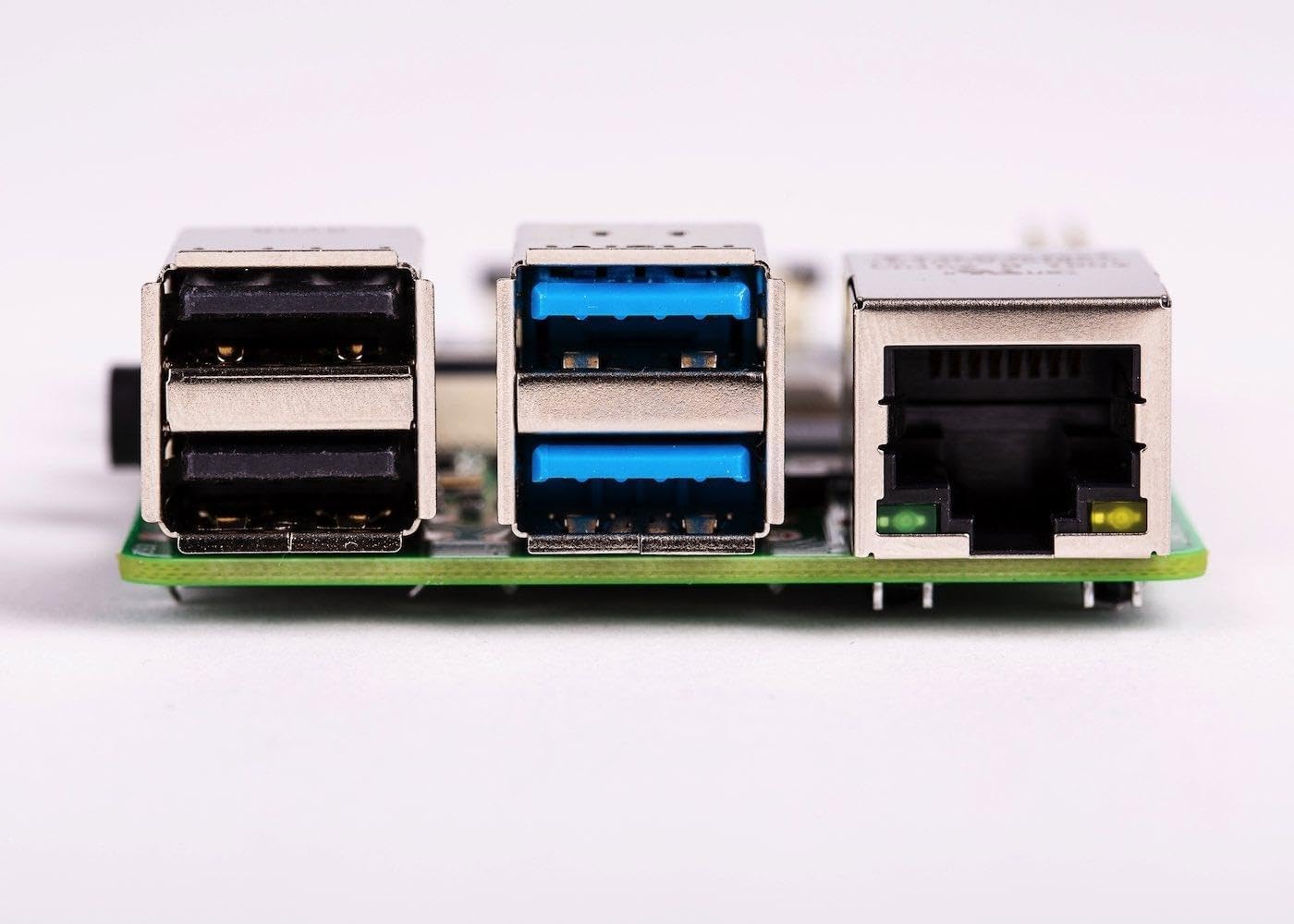
Obrázek 2: Boční strana view of the Raspberry Pi 4 Model B, highlighting the USB 2.0, USB 3.0, and Ethernet ports.
2.4 Zapnutí
Once all peripherals are connected, plug the USB-C power supply into the Raspberry Pi's USB-C power port. The Raspberry Pi will automatically power on and begin the boot process. The red power LED will illuminate, and the green activity LED will flash during boot.
3. Návod k obsluze
3.1 První spuštění a počáteční konfigurace
On the first boot, Raspberry Pi OS will guide you through an initial setup wizard. This includes setting your country, language, timezone, creating a new password, connecting to Wi-Fi, and updating software. Follow the on-screen prompts to complete the setup.
3.2 Desktop Environment
After initial setup, you will be presented with the Raspberry Pi OS desktop environment. This functions similarly to other desktop operating systems, allowing you to browse the web, edit documents, program, and more.
3.3 Konektivita
- Wi-Fi: Connect to a wireless network using the network icon in the top-right corner of the desktop.
- Bluetooth: Pair Bluetooth devices via the Bluetooth icon in the top-right corner.
- Ethernet: If an Ethernet cable is connected, the Raspberry Pi will automatically establish a wired network connection.
3.4 Hlavička GPIO
The 40-pin GPIO (General Purpose Input/Output) header allows you to connect and control various electronic components and sensors. Refer to the official Raspberry Pi documentation for detailed information on GPIO programming and usage.

Obrázek 3: Nahoře view of the Raspberry Pi 4 Model B, showing the 40-pin GPIO header on the left side.
4. Údržba
4.1 Aktualizace softwaru
Regularly update your Raspberry Pi OS to ensure optimal performance, security, and access to the latest features. Open a terminal and run the following commands:
sudo apt update
sudo apt full-upgrade -y
sudo reboot
4.2 Chlazení
The Raspberry Pi 4 can generate significant heat under heavy load. For sustained performance, especially in enclosed spaces or demanding applications, consider using a heatsink or an active cooling solution (e.g., a fan) to prevent thermal throttling.

Obrázek 4: Detail view of the main processor chip on the Raspberry Pi 4 Model B, which can benefit from cooling solutions.
4.3 Safe Shutdown
Always shut down your Raspberry Pi properly to prevent data corruption on the MicroSD card. You can do this via the desktop menu (Menu > Shutdown > Shutdown) or by opening a terminal and typing:
sudo shutdown -h nowWait for the green activity LED to stop flashing before disconnecting power.
5. Řešení problémů
- Žádný výstup na displej:
- Ensure Micro HDMI cables are securely connected to both the Raspberry Pi and the monitor.
- Ověřte, zda je monitor nastaven na správný vstupní zdroj.
- Try a different Micro HDMI cable or monitor.
- Ensure the MicroSD card has a valid operating system installed.
- Power Issues (No LEDs, No Boot):
- Confirm you are using a compatible 5.1V 3A USB-C power supply.
- Check the power cable and connection.
- Try a different power supply if available.
- Problémy s připojením Wi-Fi/Bluetooth:
- Ensure the Wi-Fi/Bluetooth module is enabled in the Raspberry Pi OS settings.
- Check for correct network credentials.
- Move the Raspberry Pi closer to the wireless access point.
- Ensure no physical obstructions are blocking the signal.
- Pomalý výkon:
- Check for excessive heat and consider adding a cooling solution.
- Ensure your MicroSD card is a high-speed (Class 10 or higher) card.
- Zavřete nepotřebné aplikace.
- Proveďte aktualizaci softwaru.
For more detailed troubleshooting, visit the official Raspberry Pi documentation and community forums.
6. Specifikace
| Funkce | Detail |
|---|---|
| Procesor | Broadcom BCM2711, čtyřjádrový Cortex-A72 (ARM v8) 64bitový SoC @ 1.5 GHz |
| BERAN | 8GB LPDDR4-2400 SDRAM |
| Konektivita | 2.4 GHz and 5.0 GHz IEEE 802.11b/g/n/ac wireless LAN, Bluetooth 5.0, BLE, Gigabit Ethernet |
| USB porty | 2 × porty USB 3.0, 2 × porty USB 2.0 |
| Video & Sound | 2 × porty micro-HDMI (podpora až 4Kp60), 2kanálový MIPI DSI DisplayPort, 2kanálový MIPI CSI port pro kameru, 4pólový stereo audio a kompozitní video port |
| GPIO | Standardní 40kolíková záhlaví GPIO (plně zpětně kompatibilní s předchozími deskami) |
| Moc | 5V DC via USB-C connector (minimum 3A), 5V DC via GPIO header, Power over Ethernet (PoE) enabled (requires separate PoE HAT) |
| Rozměry | 2.76 x 1.97 x 0.39 palce (70 x 50 x 10 mm) |
| Operační systém | Raspberry Pi OS (formerly Raspbian) |

Obrázek 5: Detail view of the dual Micro HDMI ports and the MIPI CSI camera port on the Raspberry Pi 4 Model B.
7. Záruka a podpora
For warranty information and technical support, please refer to the official Raspberry Pi webnebo se obraťte na prodejce. Uschovejte si doklad o koupi pro případ reklamace.
Oficiální Raspberry Pi Webmísto: www.raspberrypi.org