
1. Úvod
The JEYI Dual NVMe PCIe 4.0 X8 Expansion Card is designed to expand your system's storage capabilities by allowing the installation of two NVMe M.2 Solid State Drives (SSDs) into a single PCIe X8 or X16 slot. This card supports PCIe 4.0 bandwidth, enabling high-speed data transfer up to 128Gbps. It is compatible with various M.2 SSD sizes and features a heatsink for efficient thermal management. Proper motherboard BIOS configuration for PCIe bifurcation is essential for the card to recognize both installed SSDs.

Image 1.1: JEYI Dual NVMe PCIe 4.0 X8 Expansion Card with heatsink.
2. Obsah balení
Ověřte, zda jsou v balení obsaženy všechny níže uvedené položky:
- 1x JEYI Dual NVMe PCIe 4.0 X8 Expansion Card
- 1x Low Profile Konzola
- 1x High Profile Bracket (Pre-installed)
- 1x Šroubovák
- 2x NVMe SSD Holders
- 5x šrouby

Image 2.1: Illustration of the JEYI Dual NVMe PCIe 4.0 X8 Expansion Card and its included accessories.
3. Specifikace
| Funkce | Popis |
|---|---|
| Číslo modelu | PCIe 4.0 IHyper Lite 2-Bay |
| Hardwarové rozhraní | PCI Express 4.0, PCIE x8 |
| Podporované disky SSD | 2x NVMe M.2 SSDs (M key, B+M key) |
| Podporované velikosti SSD | 2230, 2242, 2260, 2280, 22110 |
| Maximální kapacita | Up to 4TB per SSD |
| Šířka pásma | 128Gbps (PCIe 4.0) |
| Napájení | 3.3V and 12V dual voltage (via dual 6A power modules) |
| Rozměry | 7.87 x 3.94 x 0.39 palce |
| Hmotnost položky | 2.82 unce (80 gramů) |
| Kompatibilní zařízení | Personal Computer (with compatible motherboard) |
4. Nastavení a instalace
4.1. Požadavky na kompatibilitu
- Motherboard with PCIe Bifurcation Support: This expansion card requires a motherboard that supports PCIe bifurcation in its BIOS. Without bifurcation enabled, only one NVMe SSD may be detected.
- Available PCIe Slot: An available PCIe X8 or X16 slot is required. The card is backward compatible with PCIe 3.0/2.0, but will operate at the lower speed of the slot.
- NVMe M.2 SSDs: Only M.2 NVMe SSDs (M key or B+M key) are supported. SATA M.2 SSDs are not compatible.
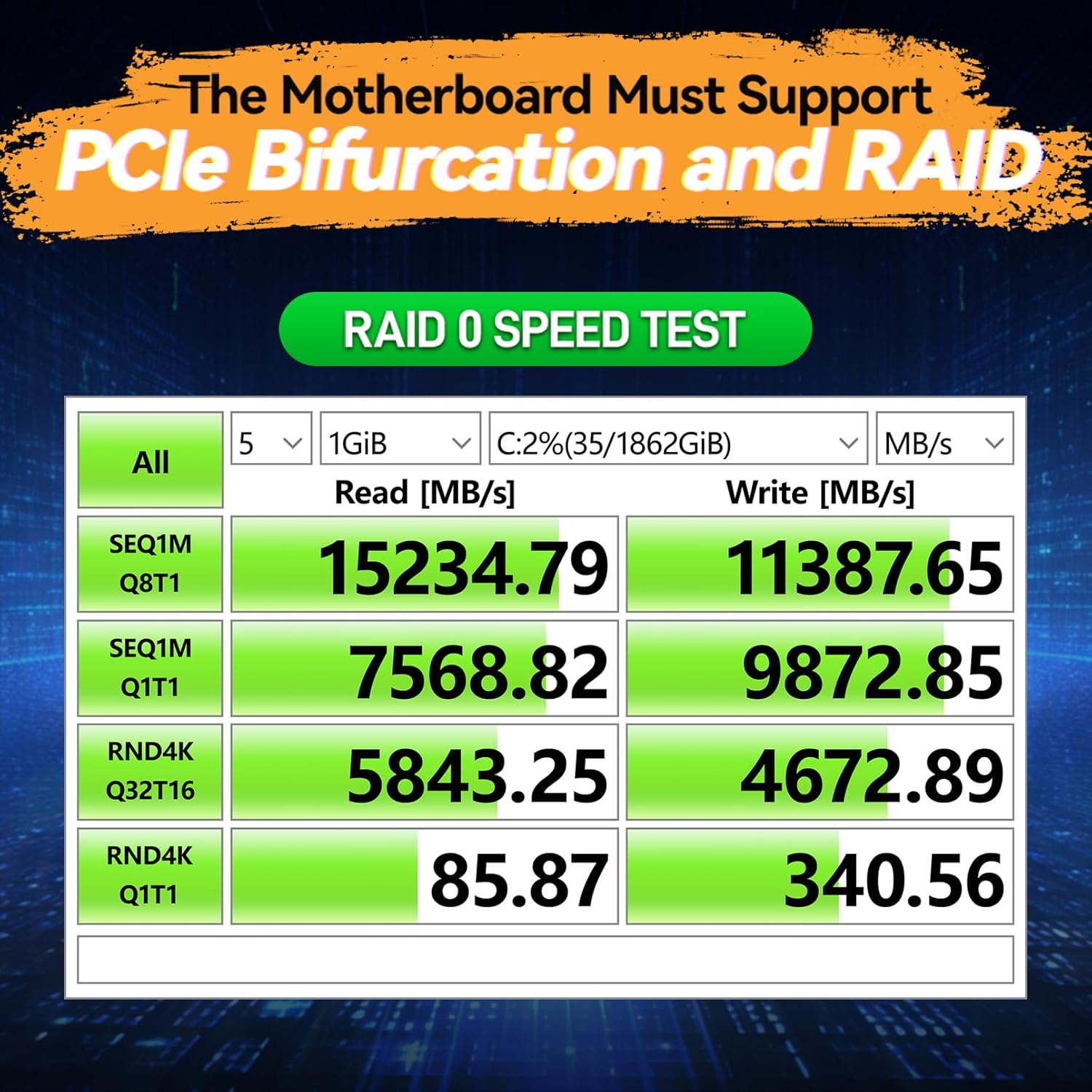
Image 4.1: Illustration emphasizing the requirement for motherboard PCIe Bifurcation and RAID support.

Image 4.2: The card is compatible with PCIe 5.0, 4.0, 3.0, and 2.0 slots, utilizing X8 or X16 configurations.

Image 4.3: The card supports M.2 NVMe SSDs (M key and B+M key) in 2230, 2242, 2260, 2280, and 22110 form factors.
4.2. Installing NVMe SSDs onto the Card
- Carefully align your NVMe M.2 SSD with the M.2 slot on the expansion card.
- Insert the SSD firmly into the slot at an angle.
- Gently push down the SSD and secure it with the provided NVMe SSD holder and screw.
- Pokud instalujete dva, opakujte pro druhý SSD disk.
4.3. Installing the Expansion Card into the Motherboard
- Vypněte počítač a odpojte napájecí kabel.
- Otevřete skříň počítače.
- Locate an available PCIe X8 or X16 slot. If necessary, replace the pre-installed high-profile držák s low-profile bracket provided to match your case.
- Insert the expansion card firmly into the PCIe slot until it is fully seated.
- Kartu připevněte k pouzdru šroubem.
- Zavřete skříň počítače a znovu připojte napájecí kabel.
4.4. BIOS Configuration for PCIe Bifurcation
This is a critical step. Without proper BIOS configuration, your system may only detect one of the two installed NVMe SSDs, or none at all. The exact steps may vary depending on your motherboard manufacturer and BIOS version. Refer to your motherboard's manual for precise instructions.
Obecné kroky:
- Power on your computer and enter the BIOS/UEFI setup (usually by pressing DEL, F2, or F10 during boot).
- Přejděte na Moderní or Periferní zařízení sekce.
- Look for settings related to Konfigurace PCIe slotu, Bifurkace PCIe, Konfigurace palubních zařízenínebo Nastavení PCI subsystému.
- Locate the specific PCIe slot where the JEYI expansion card is installed.
- Change the setting for that PCIe slot to a bifurcation mode that splits the lanes into two X4 segments (e.g., X4X4, 4x4nebo PCIe x4x4). For an X8 slot, this would typically be X4X4.
- Uložte změny a ukončete BIOS.

Obrázek 4.4: Příkladample BIOS settings for PCIe bifurcation on ASUS (Advanced > Onboard Devices Configuration) and MSI (Setting > Advanced > PCIe > PCI Subsystem Settings) motherboards.
5. Návod k obsluze
5.1. Drive Detection
After successful installation and BIOS configuration, both NVMe SSDs should be detected by your operating system. You may need to initialize and format the new drives through Disk Management (Windows) or a similar utility (Linux/macOS) before they can be used.
5.2. NVMe Soft RAID Support
The JEYI Dual NVMe PCIe 4.0 X8 Expansion Card supports NVMe soft RAID configurations based on your motherboard's chipset capabilities. This allows you to combine the two NVMe SSDs into a RAID array (e.g., RAID 0 for performance, RAID 1 for redundancy) using software RAID features provided by your operating system or motherboard utilities. Consult your motherboard's documentation for specific instructions on setting up software RAID.
Obrázek 5.1: Příkladample RAID 0 speed test results, demonstrating high read and write performance.
6. Údržba
The expansion card is designed for passive cooling of the installed NVMe SSDs. The integrated heatsink and double-sided copper holes contribute to heat dissipation.

Image 6.1: The card features double-sided copper holes to enhance SSD heat dissipation.
- Proud vzduchu: Ensure adequate airflow within your computer case to assist with cooling, especially for high-performance PCIe 4.0 NVMe SSDs which can generate significant heat.
- Čištění: Periodically clean dust from inside your computer case and from the expansion card's heatsink using compressed air to maintain optimal cooling performance.
- Tepelné podložky: If you remove the heatsink for any reason, ensure thermal pads are properly re-applied or replaced to maintain effective heat transfer.
7. Řešení problémů
- Only one NVMe SSD is detected:
This is the most common issue. It indicates that PCIe bifurcation is likely not enabled or incorrectly configured in your motherboard's BIOS. Refer to Section 4.4 for detailed instructions on BIOS configuration. Ensure the PCIe slot is set to split its lanes (e.g., X4X4 for an X8 slot). - No NVMe SSDs are detected:
- Verify that the expansion card is fully seated in the PCIe slot.
- Ensure the NVMe SSDs are correctly installed on the expansion card and secured.
- Confirm that your motherboard supports PCIe bifurcation and that it is enabled in the BIOS.
- Check if the SSDs are M.2 NVMe type; SATA M.2 SSDs are not compatible.
- Test the card and SSDs in another compatible system if possible to rule out component failure.
- Pomalý výkon:
- Ensure the expansion card is installed in a PCIe 4.0 compatible slot if you expect PCIe 4.0 speeds. If installed in a PCIe 3.0 slot, performance will be limited to PCIe 3.0 speeds.
- Verify that your NVMe SSDs are PCIe 4.0 compatible.
- Check for adequate cooling. Overheating can cause performance throttling.
- If using RAID, ensure the RAID configuration is optimized for performance (e.g., RAID 0).
- Physical fit issues:
Some server chassis or compact cases may have limited space. The card comes with both high and low-profile brackets. Ensure you are using the correct bracket for your system.
8. Záruka a podpora
JEYI products are designed for reliability and performance. For warranty information and technical support, please refer to the official JEYI webnebo se obraťte na prodejce. Uschovejte si doklad o koupi pro případ reklamace.
Další zdroje a informace o produktech naleznete na JEYI Store on Amazon.