
1. Úvod
Thank you for choosing the VOYEE WE-07 Wired Game Controller. This manual provides detailed instructions for setting up, operating, and maintaining your controller. The WE-07 is designed for a responsive and immersive gaming experience on both PC and PlayStation 3 platforms.

Image: The VOYEE WE-07 wired game controller, featuring a black and red design with prominent VOYEE branding and illuminated rumble effects, indicating its dual shock capabilities.
2. Vlastnosti produktu
- Kabelové připojení: Equipped with a 1.8-meter (5.9ft) USB cable for a stable connection and comfortable gaming distance.
- Dvojité vibrace rázů: Built-in dual motion motors provide varied intensity feedback for an authentic gaming experience.
- Ergonomický design: Features a special matte layer for a comfortable grip during extended gaming sessions.
- Široká kompatibilita: Supports Windows 7/8/8.1/10/11 PC games (DInput and XInput modes) and is fully compatible with Sony PlayStation 3 consoles.

Image: An illustration highlighting the internal dual shock rumble motor within the VOYEE WE-07 controller, emphasizing its vibration feedback capability.
3. Rozložení ovladače
Familiarize yourself with the buttons and controls of your VOYEE WE-07 controller:

Image: A detailed diagram of the VOYEE WE-07 controller, labeling all buttons and joysticks, including R1/R2/L1/L2 buttons, LED indicators, SELECT, START, HOME, D-Pad, Left/Right Joysticks, and A/B/X/Y buttons.
- Levý joystick: Pro směrový pohyb.
- Pravý joystick: Pro ovládání kamery nebo zaměřování.
- D-Pad: Směrový ovladač pro přesné zadávání.
- Akční tlačítka (A, B, X, Y): Pro akce ve hře.
- Ramenní knoflíky (L1, R1): Tlačítka namontovaná nahoře.
- Trigger Buttons (L2, R2): Bottom-mounted analog triggers.
- Tlačítko VYBRAT: Typically for menu navigation or specific game functions.
- Tlačítko Start: Typically for pausing or starting games.
- HOME/P3 Button: For accessing system menus or PlayStation 3 home screen.
- LED Indicators (1-4): Show player number or connection status.
4. Pokyny k nastavení
Connecting your VOYEE WE-07 controller is a straightforward process:
4.1. Connecting to a PC (Windows 7/8/8.1/10/11)
- Vyhledejte v počítači volný port USB.
- Plug the USB connector of the VOYEE WE-07 controller into the USB port.
- Your computer will automatically detect and install the necessary drivers. This may take a few moments.
- Once installed, the controller will be ready for use. You may need to configure the controller settings within your game or platform (e.g., Steam) for optimal performance.
The controller supports both DInput (DirectInput) and XInput modes. Most modern PC games use XInput, which is automatically recognized. For older games, DInput might be used.
4.2. Connecting to a PlayStation 3 (PS3)
- Ujistěte se, že je vaše konzole PS3 zapnutá.
- Plug the USB connector of the VOYEE WE-07 controller into an available USB port on your PS3.
- The PS3 will recognize the controller. The LED indicators on the controller will light up to show the assigned player number.
- The controller is now ready for use with your PlayStation 3 games.

Image: A close-up of the VOYEE WE-07 controller's USB cable connecting to a device, illustrating the wired connection process.
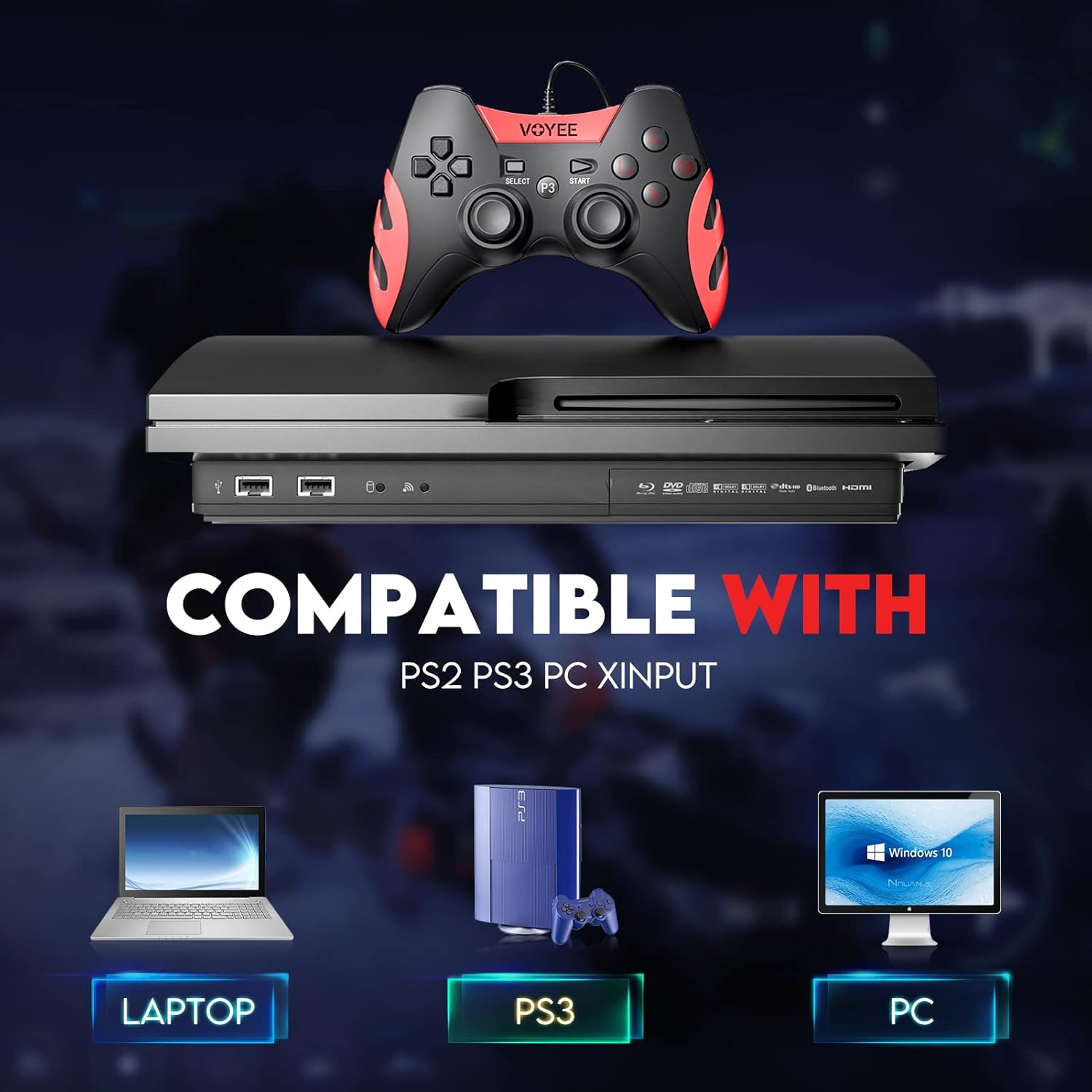
Image: A graphic demonstrating the VOYEE WE-07 controller's compatibility with various platforms, including laptops, PlayStation 3 consoles, and desktop PCs, highlighting its versatility.
5. Návod k obsluze
Once connected, the VOYEE WE-07 controller functions similarly to standard gamepads. Here are some general operating tips:
- Ovládání hry: Use the joysticks and D-Pad for movement and navigation. The action buttons (A, B, X, Y) and shoulder/trigger buttons (L1, R1, L2, R2) perform in-game actions as defined by the specific game.
- Vibrační zpětná vazba: The dual shock motors will provide tactile feedback during gameplay, enhancing immersion. This feature is automatically enabled when supported by the game.
- HOME/P3 Button: Press this button to access the system menu on PS3 or to bring up the game overlay on PC (depending on the game or platform).
- Ergonomie: The controller's matte finish and ergonomic design are intended for comfortable use during long gaming sessions.
6. Řešení problémů
If you encounter issues with your VOYEE WE-07 controller, please refer to the following common solutions:
| Problém | Řešení |
|---|---|
| Controller not recognized by PC/PS3. |
|
| Vibrační zpětná vazba nefunguje. |
|
| Tlačítka nebo joysticky nereagují. |
|
7. Údržba
To ensure the longevity and optimal performance of your VOYEE WE-07 controller, follow these maintenance guidelines:
- Čištění: K otření povrchu ovladače použijte měkký, suchý hadřík. V případě odolné nečistoty lehceamphadřík vodou. Nepoužívejte agresivní chemikálie ani abrazivní čisticí prostředky.
- Skladování: Store the controller in a cool, dry place away from direct sunlight and extreme temperatures. Avoid placing heavy objects on the controller.
- Péče o kabely: Do not sharply bend or pull the USB cable. Always grasp the plug when disconnecting, not the cable itself.
- Vyhněte se kapkám: Chraňte ovladač před pády a nárazy, které by mohly poškodit vnitřní součásti.
8. Specifikace
| Model | ST-07 |
| Značka | VOYEE |
| Konektivita | Kabelové USB |
| Délka kabelu | 1.8 metrů (5.9 stop) |
| Kompatibilní zařízení | PC (Windows 7/8/8.1/10/11), PlayStation 3 |
| Typ ovladače | Gamepad, Joystick (DInput & XInput) |
| Další funkce | Dual Shock Vibration, Ergonomic Design, Matte Finish |
| Množství tlačítek | 17 |
9. Záruka a podpora
VOYEE provides a 365denní záruka for the WE-07 wired gamepad controller from the date of purchase. This warranty covers manufacturing defects under normal use.
If you encounter any problems or have questions regarding your VOYEE WE-07 controller, please do not hesitate to contact our customer service team via e-mail. Our friendly customer service is available to assist you.
For support, please visit the official VOYEE webkontaktní informace naleznete na webu nebo v dokumentaci k nákupu.