
1. Úvod
This manual provides comprehensive instructions for the safe and efficient operation of your CLABEL 220B Thermal Bluetooth Label Printer. This portable, inkless label maker is designed for various applications in small businesses, offices, and homes, supporting label widths from 20mm to 50mm.
2. Obsah balení
Ověřte prosím, zda jsou ve vašem balení obsaženy všechny níže uvedené položky:
- CLABEL 220B Thermal Bluetooth Label Printer
- 1 Roll of Thermal Labels
- USB nabíjecí kabel
- Uživatelská příručka (tento dokument)
3. Konec produktuview
Familiarize yourself with the components of your CLABEL 220B printer.
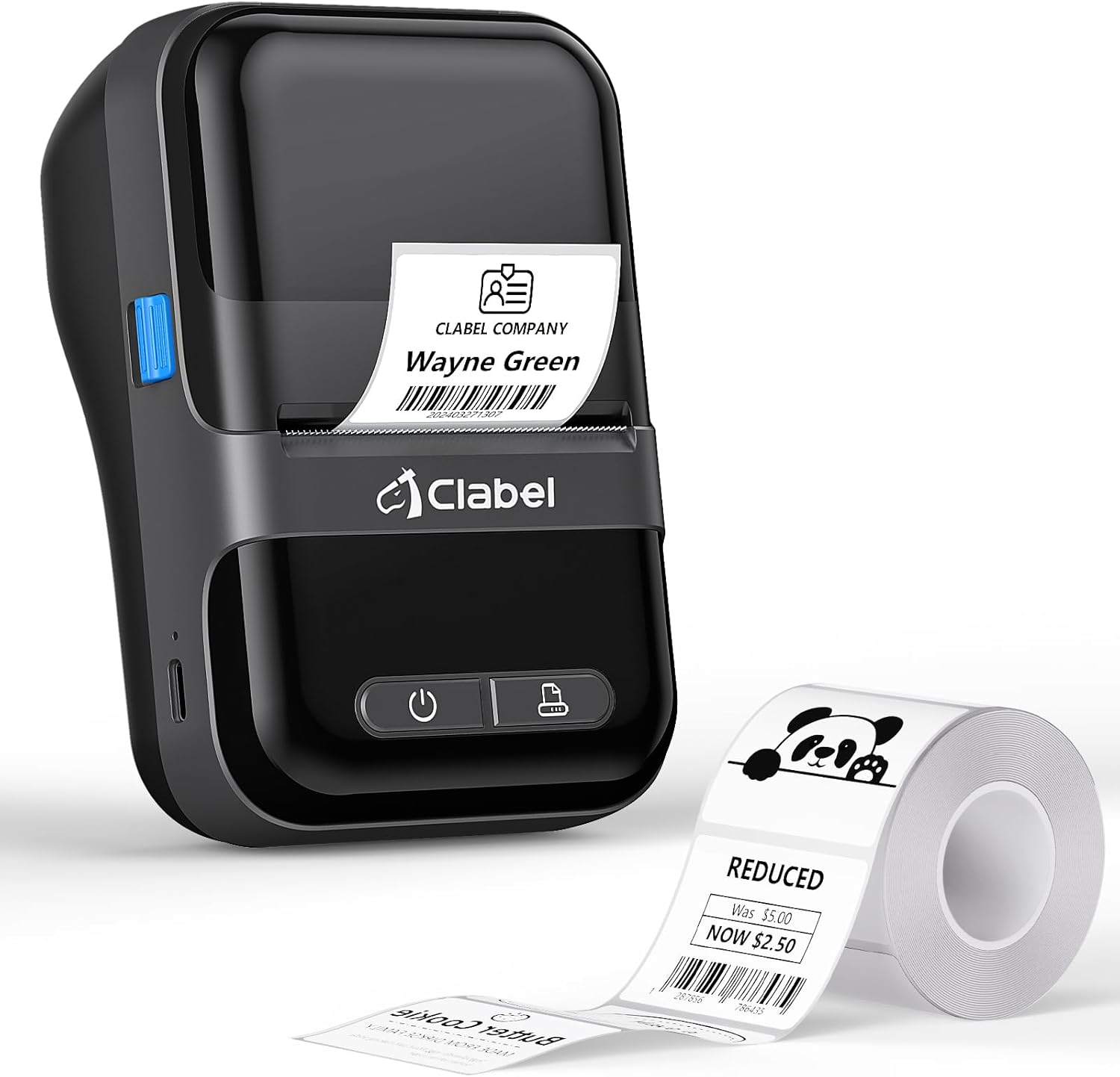
Image: The CLABEL 220B printer, showcasing its compact design, a printed label emerging from the output slot, and a roll of blank labels.
The printer features a power button, a feed button, and a label compartment. The charging port is typically located on the side or back.
4. Nastavení
4.1. Nabíjení tiskárny
Before initial use, fully charge the printer. Connect the provided USB cable to the printer's charging port and to a 5V-2A power adapter (not included) or a computer's USB port. The charging indicator light will show the charging status.
4.2. Načítání štítků
Follow these steps to correctly load the thermal labels:

Image: Step-by-step guide for label installation, showing opening the cover, setting jam protection, inserting labels, and closing the cover.
- Otevřete kryt tiskárny.
- Set the jam protection to "OPEN" if applicable.
- Insert the label roll into the compartment, ensuring the printable side faces up and the labels are aligned on the left.
- Pull out a small length of labels and close the cover securely.
5. Připojení
5.1. Mobile Phone Connection (Bluetooth)
The CLABEL 220B supports connection with iOS and Android devices via Bluetooth.

Image: Mobile phone connection steps, illustrating downloading the 'Clabel trade' app, enabling Bluetooth, and connecting to the printer within the app.
- Download the "CLABEL trade" app from your device's app store (iOS App Store or Android Google Play Store).
- Ujistěte se, že je na vašem mobilním telefonu povoleno Bluetooth.
- Open the "CLABEL trade" app and connect to your printer from the device list.
5.2. PC Connection (USB)
For Windows PCs, connect the printer using the provided USB cable.

Image: Computer connection steps, detailing turning on the printer, connecting via USB, downloading the driver/app, and printing.
- Zapněte tiskárnu.
- Připojte tiskárnu k počítači pomocí kabelu USB.
- Download the necessary driver or application from the official CLABEL brand webmísto.
- Open the application, create or select a label, and initiate printing.
6. Návod k obsluze
6.1. Using the CLABEL Trade App
The "CLABEL trade" app offers extensive features for label creation and management:
- Access over 30 business label templates.
- Utilize more than 450 common symbols for various applications.
- Create and customize your own label templates.
- Edit and typeset labels with text, barcodes, QR codes, images, and more.
6.2. Batch Printing
The printer supports batch printing, allowing you to import data from Excel tables to print multiple labels efficiently. This feature helps improve printing efficiency by setting the printing quantity without repetitive operations.
6.3. Recommended Label Sizes and Uses
The CLABEL 220B printer supports labels with a width of 20-50mm and a length of 15-100mm, accommodating various styles and applications.

Image: Recommended label sizes for business applications, including price tags, barcodes, logos, and product information (e.g., 40x40mm, 50x50mm).

Image: Recommended label sizes for food applications, such as bakery items, ingredient lists, and price & date labels (e.g., 40x30mm, 50x40mm).

Image: Recommended label sizes for office organization, including labels for letters, addresses, folders, and cables (e.g., 25x78mm, 50x30mm).
7. Údržba
To ensure optimal performance and longevity of your CLABEL 220B printer, follow these maintenance guidelines:
- Čištění tiskové hlavy: Regularly clean the thermal print head with an alcohol swab to remove dust or adhesive residue. Ensure the printer is off and cooled down before cleaning.
- Čištění exteriéru: Otřete vnější povrch tiskárny měkkým, suchým hadříkem. Nepoužívejte agresivní chemikálie ani abrazivní materiály.
- Skladování: Tiskárnu skladujte na chladném a suchém místě mimo dosah přímého slunečního záření a extrémních teplot.
- Péče o baterie: For long-term storage, charge the battery to about 50% every three months to prevent deep discharge.
8. Řešení problémů
If you encounter issues with your CLABEL 220B printer, refer to the following common problems and solutions:
| Problém | Možná příčina | Řešení |
|---|---|---|
| Tiskárna se nezapne | Slabá baterie nebo problém s napájením | Charge the printer fully. Ensure the power button is pressed correctly. |
| Poor print quality (light or spotty) | Znečištěná tisková hlava, nesprávný typ štítku nebo slabá baterie | Clean the print head. Ensure you are using thermal labels. Charge the printer. Adjust print density in the app if available. |
| Labels are misaligned or jammed | Labels not loaded correctly | Open the cover, re-align the label roll, and ensure it's properly seated. Refer to Section 4.2. |
| Nelze se připojit přes Bluetooth | Bluetooth vypnutý, problém s aplikací nebo tiskárna není viditelná | Ensure Bluetooth is enabled on your phone and the printer is on. Restart the app and printer. Try re-pairing the device. |
| PC connection issues | Driver not installed, incorrect cable, or software issue | Install the correct driver from the CLABEL website. Ensure the USB cable is functional. Restart PC and printer. |
If the problem persists, please contact CLABEL customer support for further assistance.
9. Specifikace
Key technical specifications for the CLABEL 220B Thermal Bluetooth Label Printer:
- Model: 220B
- Technologie tisku: Tepelný
- Konektivita: Bluetooth, USB
- Tiskový výstup: Monochromatický
- Maximální rozlišení tisku: 203 DPI
- Maximální velikost média: 25–50 mm (šířka)
- Kompatibilní zařízení: Smartphones (iOS, Android), Windows XP or above
- Kapacita baterie: 2200 XNUMX mAh
- Spotřeba energie: 2.2 wattů (v zapnutém stavu)
- Rozměry produktu: 4.65"H x 4.6"Š x 2.88"V
- Hmotnost položky: 14.1 unce (400 gramů)
10. Záruka a podpora
The CLABEL 220B Thermal Bluetooth Label Printer comes with a limited warranty. For specific warranty terms and conditions, please refer to the documentation included with your purchase or visit the official CLABEL webmísto.
For additional support, including detailed user guides and installation manuals, please refer to the following resources:
- Official CLABEL Webmísto: CLABEL Store
- Uživatelská příručka (PDF): Stáhněte si uživatelskou příručku
- Instalační manuál (PDF): Stáhnout instalační manuál
For technical assistance or customer service inquiries, please contact CLABEL support through their official channels.