
Zavedení
The HyperGear HyperStream 1080P Webcam provides high-definition video and clear audio for various applications, including online meetings, classes, and streaming. This manual provides instructions for setup, operation, maintenance, and troubleshooting to ensure optimal performance of your webvačka.
Obsah balení
Prosím, ověřte, zda jsou v balení přítomny všechny položky:
- HyperGear HyperStream 1080P Webvačka
- USB kabel
- Vestavěný mikrofon
Konec produktuview
The HyperGear HyperStream 1080P Webcam is designed for ease of use and high-quality performance. Key features include:
- Crystal-Clear 1080P HD Resolution: Delivers sharp and vibrant visuals.
- Built-in Noise Reduction Microphone: Captures clear audio by reducing background sounds.
- Plug & Play USB připojení: Requires no additional software or drivers for quick setup.
- Wide-Angle 110° Lens: Zachycuje široké pole view, suitable for group interactions.
- Auto-White Balance: Automatically adjusts to various lighting conditions for optimal image quality.
- Nastavitelný klip-on Mount: Securely attaches to monitors or laptops, and can also be positioned as a standalone unit.
Pokyny pro nastavení
Follow these steps to set up your HyperGear HyperStream 1080P Webvačka:
- Rozbalte Webvačka: Opatrně vyjměte webcam and its USB cable from the packaging.

Image: The HyperGear HyperStream 1080P Webcam is designed for instant plug-and-play setup without requiring additional drivers. Simply connect the USB cable to your computer.
- Namontujte Webvačka:
- Na monitoru/notebooku: Open the adjustable clip and place it securely on top of your monitor or laptop screen. Adjust the angle to ensure the webVačka je stabilní a otočená k vám.
- Na stole: Fold the clip to form a stable stand and place the webkameru na rovném povrchu, například na stole.

Obrázek: The webcam features an adjustable mount that allows it to be clamped onto any screen or display, or positioned as a standalone unit on your desk. It offers 180-degree rotation for flexible positioning.
- Připojte se k vašemu zařízení: Zapojte kabel USB z webcam into an available USB port on your computer (PC, Mac) or Xbox console. The webcam is plug-and-play, so no additional drivers are typically required.
- Ověřit připojení: Your operating system should automatically detect the webcam. You can verify its connection in your device settings or within your preferred video conferencing/streaming application.
Návod k obsluze
Once connected, the HyperGear HyperStream 1080P WebKamera je připravena k použití s různými aplikacemi.
Kompatibilita systému
The webcam is compatible with multiple operating systems and platforms:
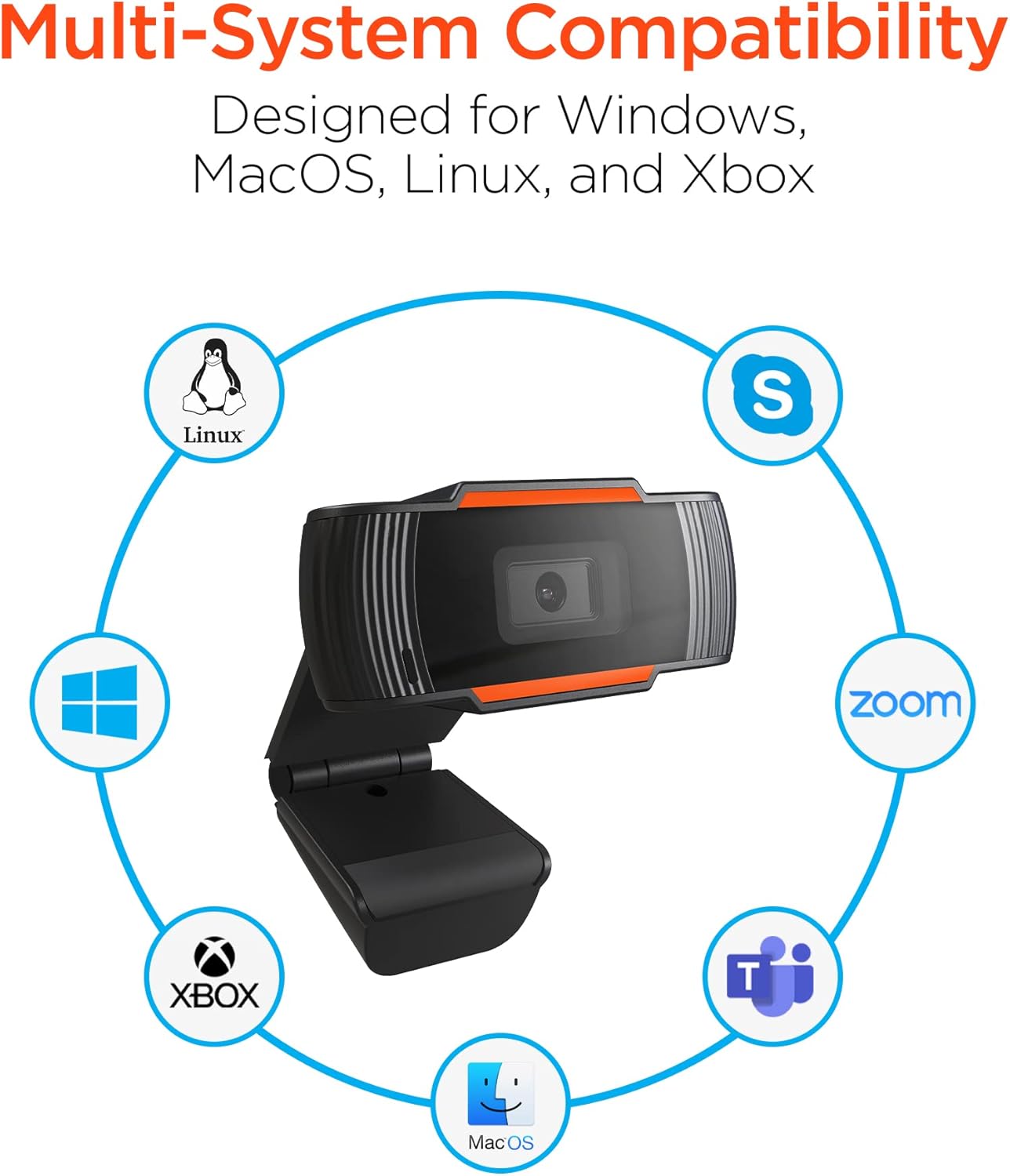
Image: The HyperGear HyperStream 1080P Webcam offers multi-system compatibility, designed for use with Windows, MacOS, Linux, and Xbox, as well as popular communication platforms like Skype, Zoom, and Microsoft Teams.
- Windows
- macOS
- Linux
- Xbox
- Compatible with popular video conferencing software (e.g., Skype, Zoom, Microsoft Teams).
Pomocí Webvačka
- Vyberte Webvačka: In your video conferencing or streaming application, navigate to the video and audio settings. Select "HyperGear HyperStream 1080P Webcam" as your video input device and its integrated microphone as your audio input device.
- Adjust Position and Angle: Zajistěte webcam is positioned to capture your desired view. The 110° wide-angle lens is ideal for capturing multiple participants or a broader background.

Image: The 110° ultra wide-angle lens ensures that your entire team and presentations fit within the frame, making it suitable for group meetings and collaborative environments.
- Benefit from Auto-White Balance and Fixed Focus: The webcam automatically adjusts for optimal lighting and maintains a sharp focus on subjects within its field of view, eliminating the need for manual adjustments.

Obrázek: The webcam features fixed focus and auto-white balance (AWB) to automatically adjust to various lighting conditions (like daylight or fluorescent), ensuring clear and sharp visuals without manual intervention.
- Utilize Noise Reduction Microphone: The built-in microphone actively reduces ambient noise, ensuring your voice is clear and easily understood during calls.

Image: The integrated noise reduction microphone minimizes unwanted background noise and distortions, ensuring clear audio during your video calls and streams.
Údržba
Pro zajištění dlouhé životnosti a optimálního výkonu vašeho webvačky, dodržujte tyto pokyny pro údržbu:
- Čištění: Gently wipe the lens with a soft, lint-free cloth. Avoid using harsh chemicals or abrasive materials that could scratch the lens or damage the casing.
- Skladování: Pokud nepoužíváte, uložte webSkladujte kameru na čistém a suchém místě mimo dosah extrémních teplot a přímého slunečního záření.
- Zacházení: Vyvarujte se pádu webcam or subjecting it to strong impacts, which could damage internal components.
Odstraňování problémů
If you encounter issues with your HyperGear HyperStream 1080P Webvačku, zkuste následující kroky pro řešení potíží:
- WebKamera nebyla detekována:
- Ujistěte se, že je kabel USB bezpečně zapojený do obou webcam and your computer's USB port.
- Zkuste zapojit webkamera do jiného portu USB.
- Restartujte počítač.
- Check your operating system's device manager (Windows) or System Information (macOS) to see if the webkamera je uvedena.
- Žádný video výstup:
- Ověřte, že webV nastavení aplikace je jako vstupní video zařízení vybrána kamera.
- Ensure no other application is currently using the webcam, as some systems only allow one application to access it at a time.
- Check for any physical obstructions covering the lens.
- No Audio Input (Microphone):
- Potvrďte, že webcam's microphone is selected as the audio input device in your application's settings and your system's sound settings.
- Zkontrolujte, zda není mikrofon ztlumený v nastavení aplikace nebo systému.
- Ensure your system's privacy settings allow applications to access the microphone.
- Špatná kvalita videa:
- Ensure you have adequate lighting in your environment. While the webcam has auto-white balance, sufficient ambient light is crucial for best results.
- Vyčistěte webcam lens if it appears smudged or dirty.
- Check your internet connection speed if streaming or video conferencing, as a slow connection can affect video quality.
Specifikace
| Funkce | Detail |
|---|---|
| Značka | HyperGear |
| Název modelu | HyperStream Portable 1080P |
| Rozlišení záznamu videa | 1080p |
| Technologie připojení | USB |
| Barva | černý |
| Speciální funkce | Nastavitelný |
| Typ videokamery | Webvačka |
| Operační systém | Windows, macOS |
| Typ objektivu | Široký úhel |
| Typ zaměření | Pevné zaostření |
| Poměr stran obrazu | 16:9 |
| Typ řízení expozice | Automatický |
| Efektivní rozlišení videa | 1920 XNUMX pixelů |
| Kompatibilní zařízení | Osobní počítač |
| Vestavěná média | Mikrofon, USB kabel |
| Hmotnost položky | 4.72 uncí |
| UPC | 633755155390 |
| ASIN | B09S51KSC4 |
Záruka a podpora
For warranty information and customer support, please refer to the documentation included with your purchase or visit the official HyperGear webmísto.
Můžete také navštívit HyperGear Store on Amazon pro více informací o produktu a zdroje podpory.