
Logitech 960-001441
Logitech Brio 300 Full HD Webuživatelská příručka kamery
Model: 960-001441 | Značka: Logitech
1. Úvod
The Logitech Brio 300 is a Full HD webcam designed to enhance your video meeting experience. It features 1080p resolution for natural image quality, RightLight 2 auto light correction to adapt to various lighting conditions, and a noise-reducing microphone for clear audio. The integrated privacy shutter provides instant control over your camera's visibility. This webcam is certified for popular video conferencing platforms such as Zoom, Microsoft Teams, and Google Meet, ensuring seamless integration and hassle-free meetings.
2. Co je v krabici
- Logitech Brio 300 Webcam (Off-White)
- Integrated USB-C Cable (5 ft / 1.5 m)
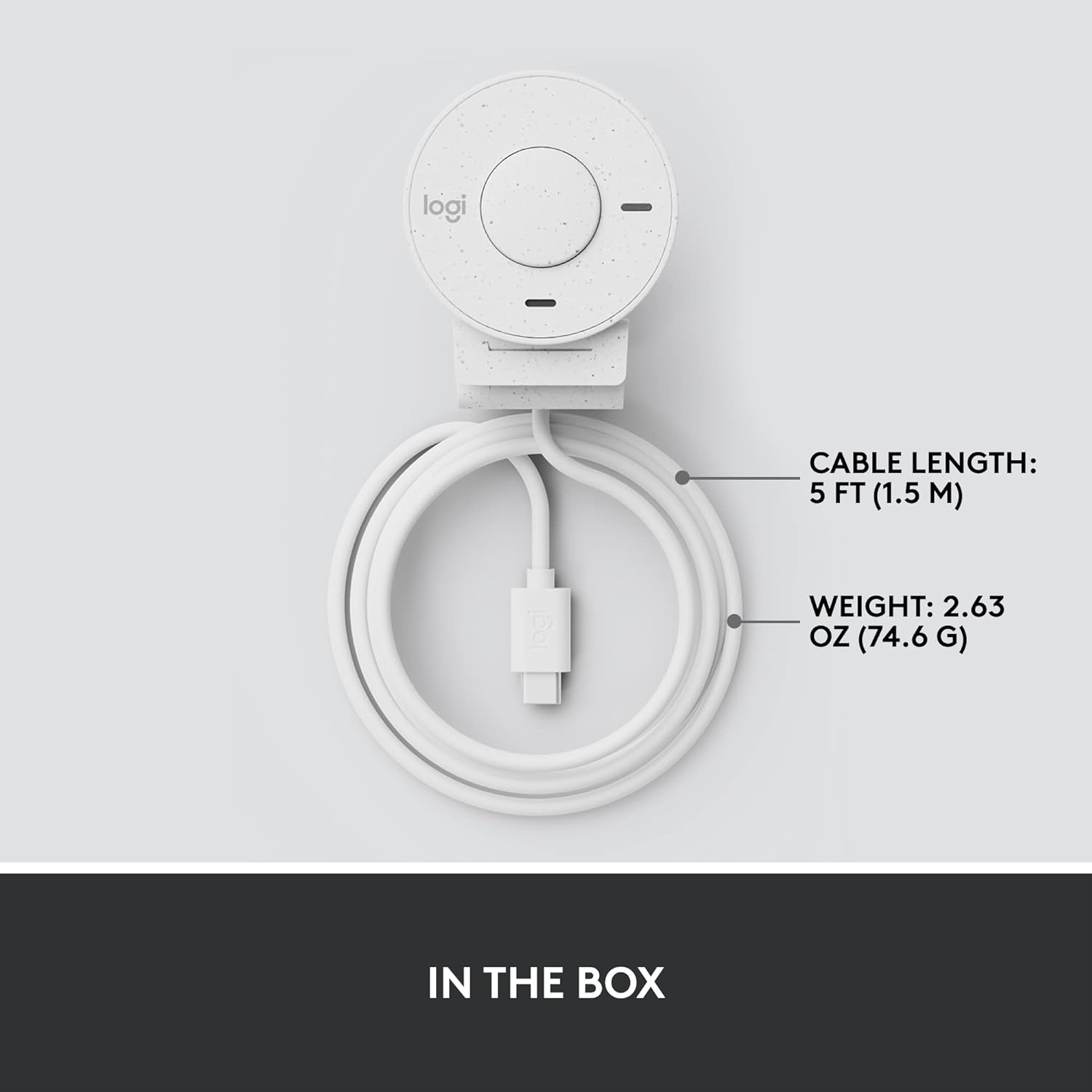
Figure 2.1: Logitech Brio 300 webcam with its integrated USB-C cable, showing the compact design and cable length.
3. Nastavení
3.1. Umístění
Position the Logitech Brio 300 webcam on your monitor or laptop screen. The integrated mounting clip is designed to securely fit various screen thicknesses without scratching, thanks to its rubberized pads.

Obrázek 3.1: Logitech Brio 300 webcam, showing its design and how it sits on a monitor.
3.2. Připojení
Připojte integrovaný kabel USB-C z webcam directly to an available USB-C port on your computer. The webcam is plug-and-play, meaning it should be automatically recognized by your operating system (Windows, macOS, Chrome OS).
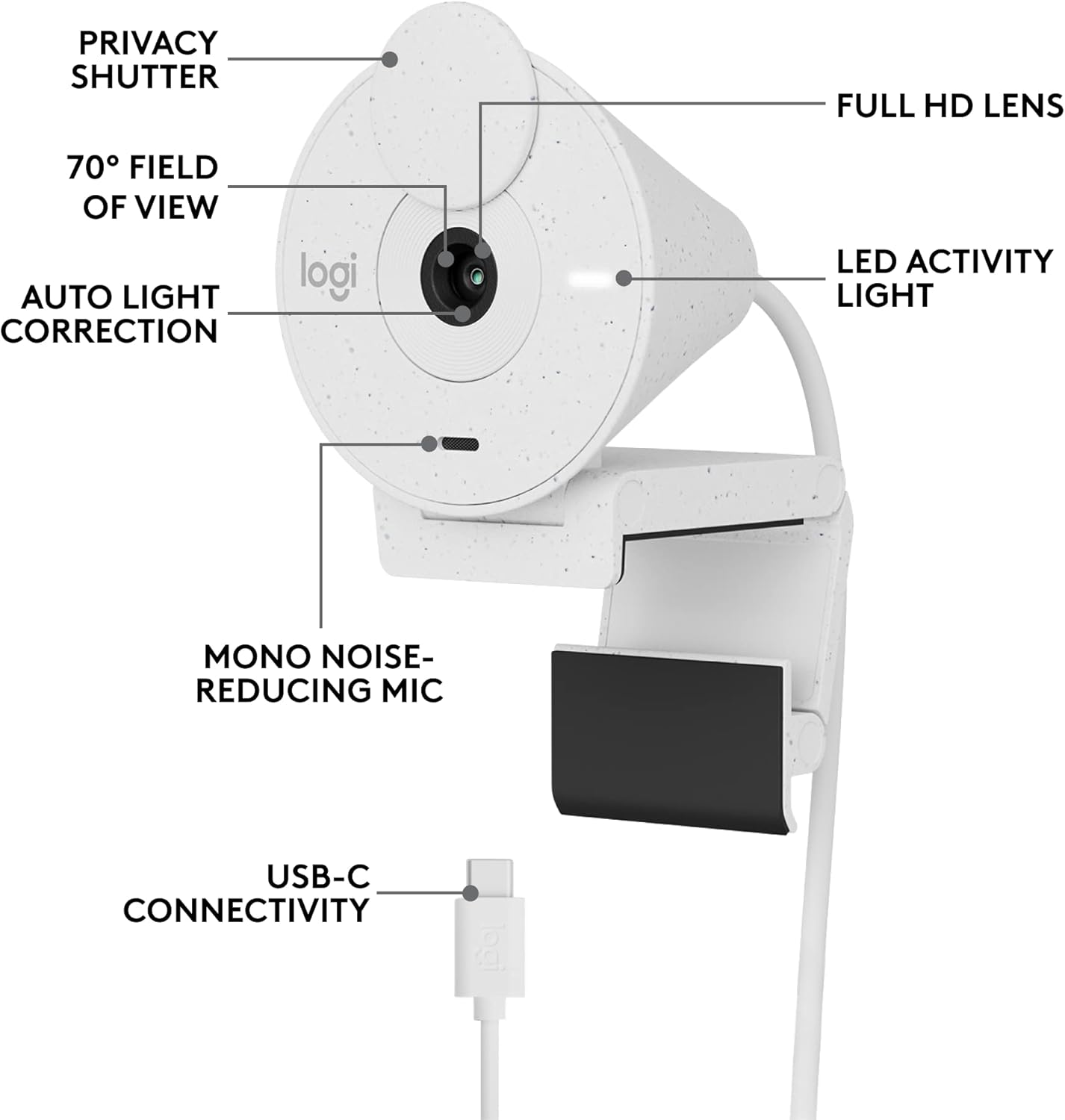
Obrázek 3.2: Detailní view of the Logitech Brio 300, highlighting its USB-C connectivity and other key components.
3.3. Instalace softwaru (volitelné, ale doporučené)
For advanced customization and optimal performance, download and install the free Logi Tune application from the official Logitech website. Logi Tune allows you to adjust color, image quality, and other settings for your webvačka.
Návštěva Logitech Logi Tune stáhnout software.
4. Obsluha Webvačka
4.1. Privacy Shutter
The Brio 300 features an integrated privacy shutter. To cover the lens and ensure privacy, simply spin the circular cover over the lens. Spin it back to uncover the lens when you are ready to use the camera.
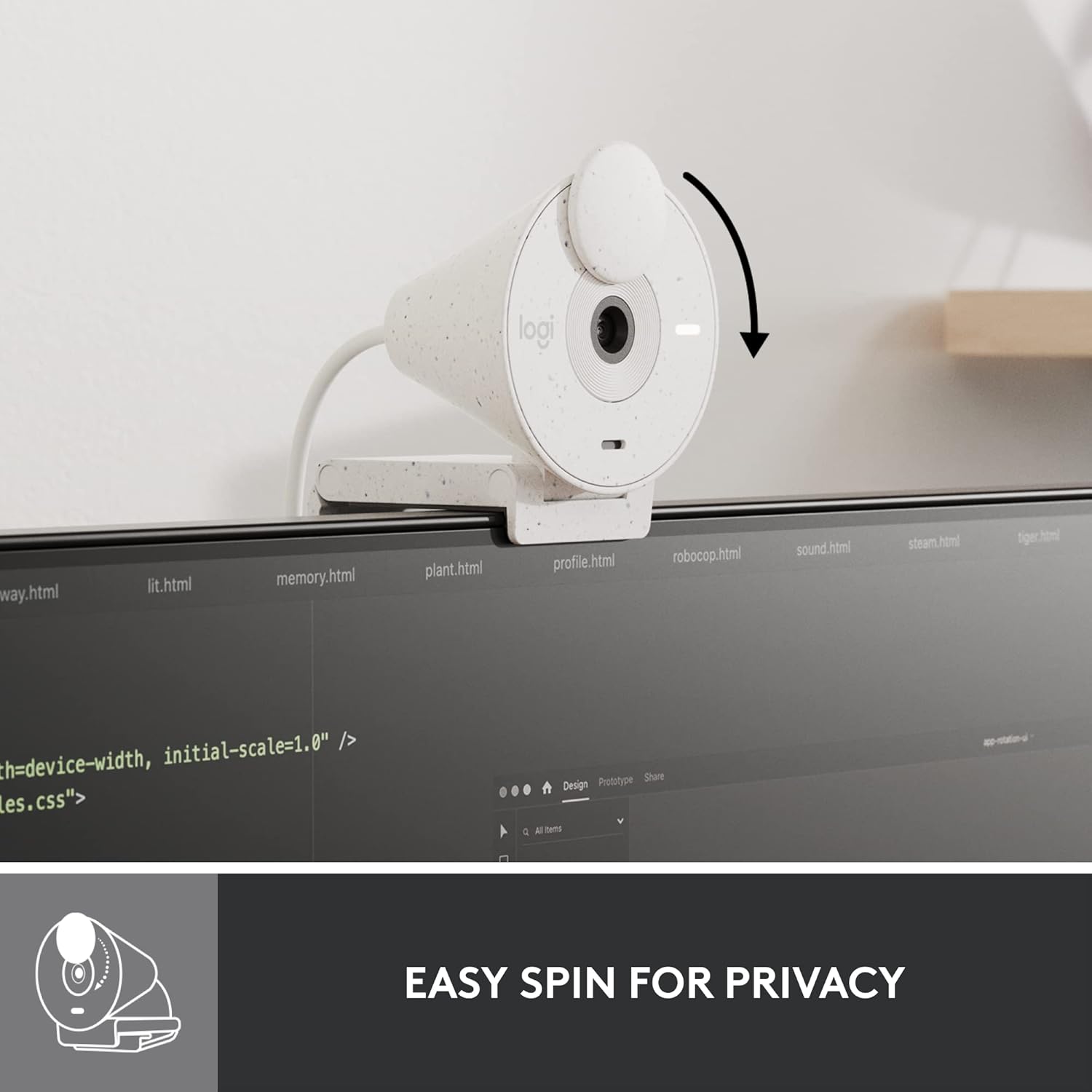
Figure 4.1: Demonstrating the easy-to-use spin privacy shutter on the Brio 300.
4.2. Auto Light Correction (RightLight 2)
The webcam is equipped with RightLight 2 technology, which automatically adjusts to poor lighting conditions. This ensures you appear clear and well-lit, even in dim environments.

Figure 4.2: Visual representation of the Brio 300's auto light correction feature improving image quality in low light.
4.3. Mikrofon pro redukci šumu
The integrated mono microphone features noise reduction, suppressing background sounds to ensure your voice is heard clearly during calls.
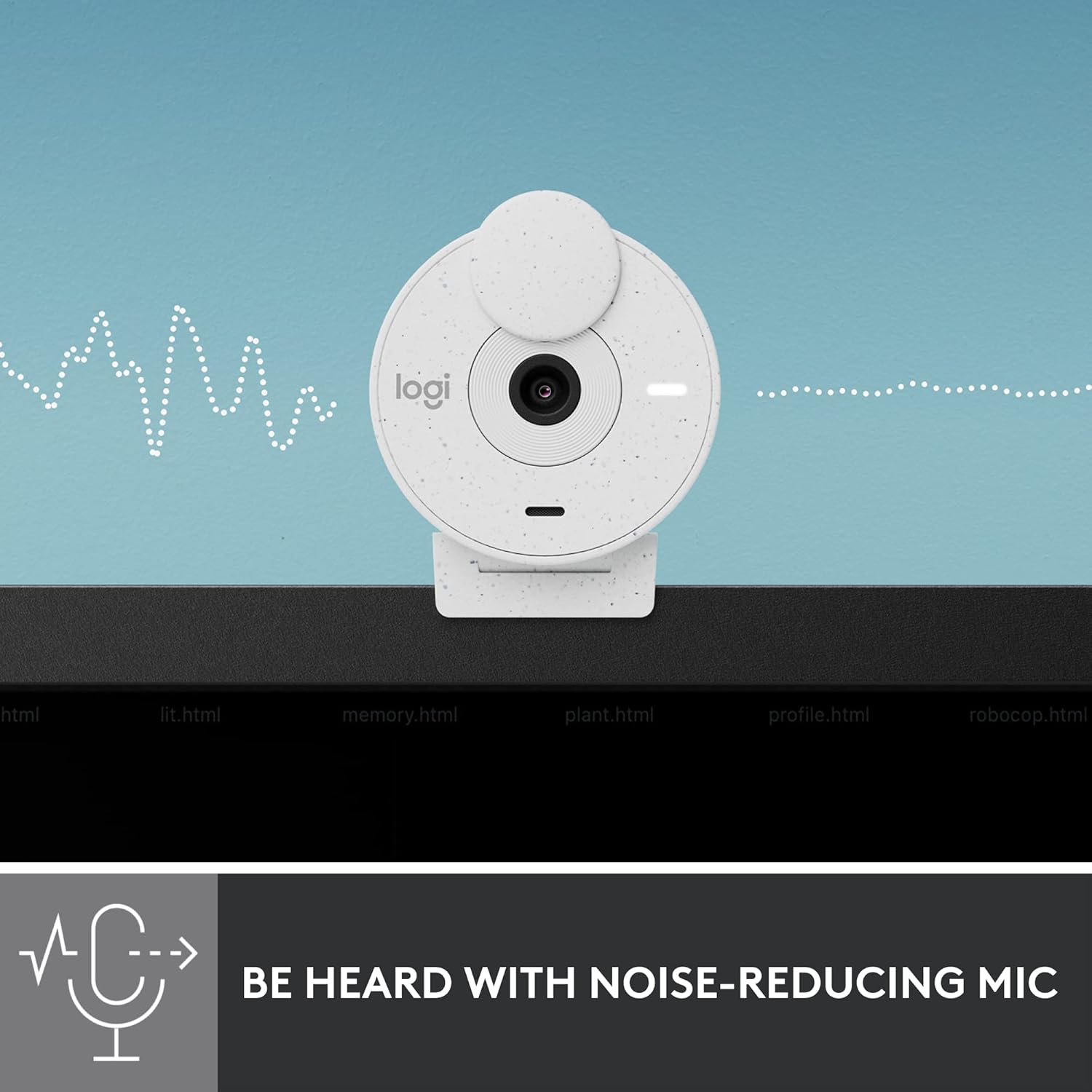
Figure 4.3: Illustration of the Brio 300's noise-reducing microphone capturing clear audio.
4.4. Kompatibilita
The Brio 300 is certified for Zoom, Microsoft Teams, and Google Meet, ensuring broad compatibility with most video conferencing platforms.

Figure 4.4: The Brio 300 is certified for major meeting platforms, including Zoom, Microsoft Teams, and Google Meet.
5. Údržba
Pro zajištění dlouhé životnosti a optimálního výkonu myši Logitech Brio 300 webvačky, dodržujte tyto jednoduché pokyny pro údržbu:
- Čištění objektivu: Gently wipe the camera lens with a soft, lint-free cloth. For stubborn smudges, slightly dampen the cloth with a lens cleaning solution. Avoid abrasive materials or harsh chemicals.
- Čištění těla: K čištění těla přístroje použijte měkký, suchý hadřík. webkamera. Nepoužívejte tekuté čisticí prostředky přímo na zařízení.
- Skladování: When not in use, especially during travel, ensure the privacy shutter is closed to protect the lens. Store the webUchovávejte kameru na čistém a suchém místě mimo dosah extrémních teplot.
6. Řešení problémů
If you encounter issues with your Logitech Brio 300, try the following troubleshooting steps:
- Žádné video/zvuk:
- Ujistěte se, že je kabel USB-C bezpečně připojen k oběma webkameru a váš počítač.
- Zkontrolujte, zda je otevřená clona pro ochranu soukromí.
- Ověřte, že webcam is selected as the primary video and audio device in your video conferencing application settings (e.g., Zoom, Microsoft Teams, Google Meet).
- Zkuste připojit webcam to a different USB-C port or a different computer to rule out port or system issues.
- Špatná kvalita videa:
- Ensure adequate lighting in your environment. While RightLight 2 helps, sufficient ambient light is crucial for optimal image quality.
- Vyčistěte objektiv fotoaparátu podle pokynů v části Údržba.
- Aktualizujte svůj webcam drivers and the Logi Tune software to the latest version.
- Check your internet connection speed, as a slow connection can affect video streaming quality.
- Špatná kvalita zvuku:
- Ujistěte se, že mikrofon není nijak zakrytý.
- Minimalizujte hluk na pozadí ve vašem okolí.
- Adjust microphone levels in your computer's sound settings or Logi Tune.
7. Specifikace
| Funkce | Detail |
|---|---|
| Maximální rozlišení obrazovky | FHD (1080p) |
| Rozlišení záznamu videa | 1080p |
| Technologie fotosenzoru | CMOS |
| Technologie připojení | USB-C |
| Speciální funkce | Low Light Correction (RightLight 2) |
| Mikrofon | Mono, Noise Reduction |
| Funkce ochrany osobních údajů | Integrated Privacy Shutter |
| Hmotnost položky | 3.99 unce |
| Rozměry produktu | 4.6 x 3.5 x 2.7 palce |
| Materiál | Minimum 48% Post-Consumer Recycled Plastic |
8. Záruka a podpora
The Logitech Brio 300 webcam comes with a limited hardware warranty. For detailed warranty information, technical support, and frequently asked questions, please visit the official Logitech support website or refer to the full user manual available in PDF format.
Oficiální uživatelská příručka (PDF): Stáhnout zde
For software support and customization, download the Logi Tune application.