
Zavedení
Thank you for choosing the NASUS W200 Wireless Gaming Mouse. This manual provides essential information for setting up, operating, and maintaining your new device. Please read it carefully to ensure optimal performance and longevity of your mouse.
Obsah balení
- NASUS W200 Wireless Gaming Mouse
- USB 2.4 GHz Receiver
- Charging Cable (if applicable, not specified but common for rechargeable wireless mice)
- Uživatelská příručka
Nastavení
1. Nabíjení myši
Before first use, it is recommended to fully charge the mouse. Connect the charging cable to the mouse's charging port and the other end to a USB power source (e.g., computer USB port, USB wall adapter). The LED indicator will show charging status.
2. Připojení USB přijímače
- Locate the USB 2.4 GHz receiver, typically stored in a compartment on the underside of the mouse.
- Zapojte USB přijímač do volného USB portu na vašem počítači.
- Zapněte myš pomocí vypínače, který se nachází na její spodní straně.
- Váš počítač by měl automaticky detekovat a nainstalovat potřebné ovladače. Může to chvíli trvat.
Myš je nyní připravena k použití.
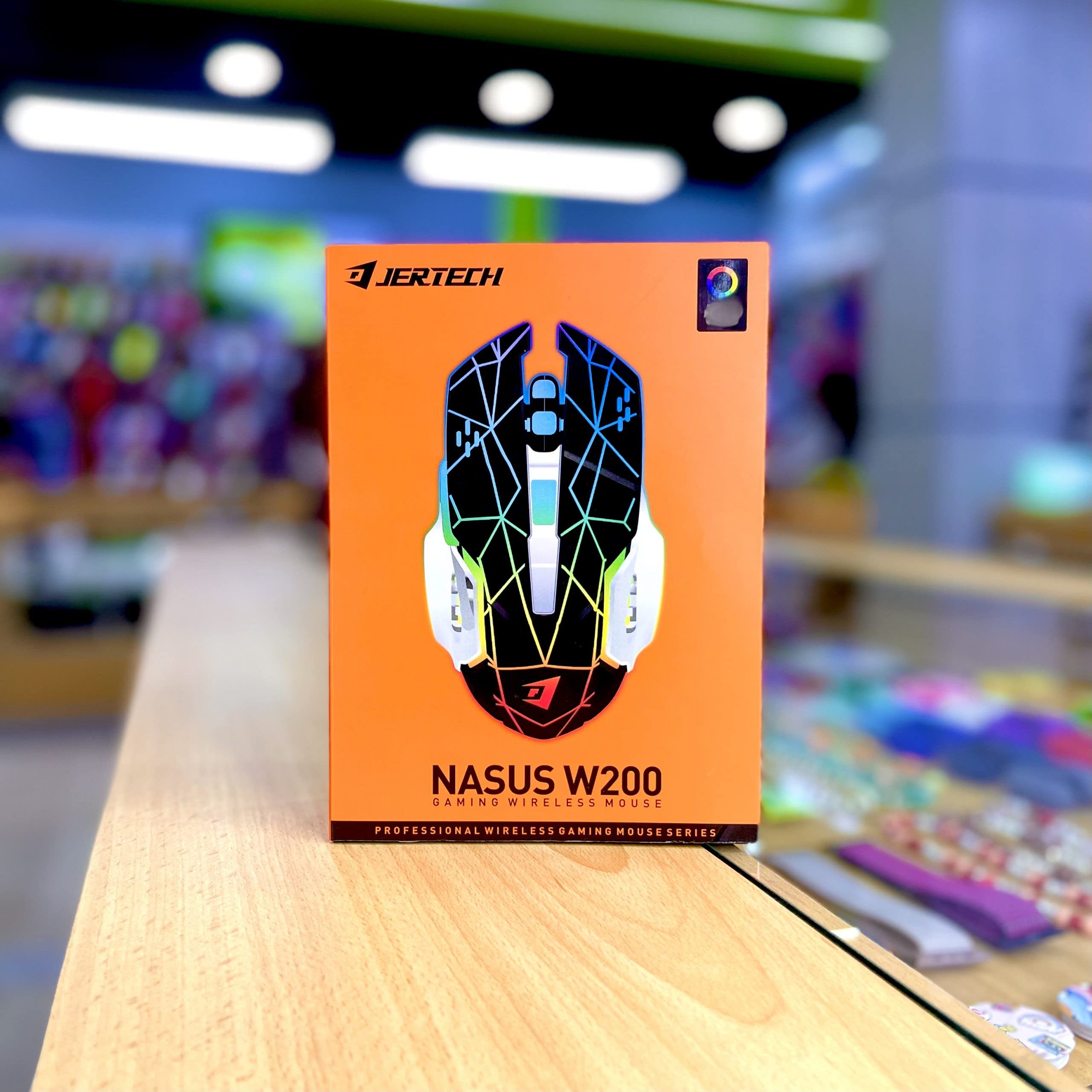
Návod k obsluze
Základní funkce
- Levé kliknutí: Standardní výběr a aktivace.
- Klikněte pravým tlačítkem myši: Accesses context menus.
- Rolovací kolečko: Posouvá dokumenty a web pages vertically. Can also be clicked for middle-click functionality.
Úprava DPI
The NASUS W200 mouse features a 2400 DPI sensor, allowing for adjustable sensitivity. There is typically a dedicated DPI button (often located behind the scroll wheel) that cycles through different DPI settings. Press this button to change the cursor speed to suit your preference for gaming or general use.

Další tlačítka
The mouse is equipped with 6 buttons. In addition to the standard left, right, and scroll wheel click, there are typically two side buttons and a DPI adjustment button. These additional buttons can often be programmed for specific functions in games or applications using your operating system's mouse settings or third-party software (if available).
Tiché kliknutí
The NASUS W200 features silent click technology, reducing click noise for a quieter user experience, especially beneficial in shared environments or during late-night use.
Údržba
Čištění
- To clean the mouse, disconnect it from your computer.
- Použijte měkký hadřík, který nepouští vlákna dampvodou nebo jemným čisticím roztokem.
- Avoid using harsh chemicals, abrasives, or spraying liquids directly onto the mouse.
- Regularly clean the optical sensor area on the underside to ensure accurate tracking.
Péče o baterie
- The mouse has a built-in 400 mAh rechargeable battery.
- Abyste prodloužili životnost baterie, vyhněte se častému úplnému vybíjení.
- Pokud myš nebudete delší dobu používat, nabijte ji přibližně na 50 % a uložte ji na chladném a suchém místě.
Odstraňování problémů
Myš nereaguje
- Ujistěte se, že je myš zapnutá.
- Zkontrolujte, zda je USB přijímač bezpečně zapojený do funkčního USB portu. Zkuste jiný USB port.
- Verify the mouse battery is charged. Connect the charging cable and allow it to charge for a while.
- Move the mouse closer to the USB receiver to ensure it's within the 10-meter wireless range.
- Restartujte počítač.
Nepravidelný pohyb kurzoru
- Vyčistěte optický senzor na spodní straně myši.
- Ujistěte se, že myš používáte na vhodném povrchu. Vyhněte se vysoce reflexním nebo průhledným povrchům. Doporučuje se podložka pod myš.
- Zkontrolujte, zda se v okolí nevyskytuje silné elektromagnetické rušení.
DPI se nemění
- Ujistěte se, že stisknete správné tlačítko pro nastavení DPI.
- If the issue persists, try restarting the mouse and your computer.
Specifikace
| Funkce | Detail |
|---|---|
| Značka | Obecný |
| Model | W200 |
| technologie Sensor | Optické sledování |
| Bezdrátové připojení | 2.4 GHz USB Wireless |
| Bezdrátové Dosah | 10 metrů (33 stop) |
| Počet tlačítek | 6 |
| Rozlišení DPI | 2400 DPI |
| Kapacita baterie | 400 XNUMX mAh |
| Rychlost sledování | 150 Inches Per Second (IPS) |
| Klikněte na Typ | Tiché kliknutí |
| Systémové požadavky | Windows XP/Vista/7/10, Mac OS |
| Zdroj napájení | Napájení z baterie |
| Barva | Vícebarevné |
| Typ dokončení | Matný |
Záruka a podpora
Informace o záruce
This NASUS W200 Wireless Gaming Mouse comes with a 1letá záruka výrobce od data nákupu. Tato záruka se vztahuje na výrobní vady. Nevztahuje se na škody způsobené nesprávným použitím, nehodami, neoprávněnými úpravami nebo běžným opotřebením.
Zákaznická podpora
For technical assistance, warranty claims, or further inquiries, please contact your retailer or the manufacturer's customer service. Refer to your purchase documentation for specific contact details.


