
1. Úvod
The CZUR Shine Ultra Pro is a professional 24-megapixel document camera scanner designed for high-resolution scanning of various materials, including documents, books, and cards. It features advanced OCR (Optical Character Recognition) technology, a foldable design for portability, and adjustable fill lights for optimal image quality. This manual provides comprehensive instructions for its setup, operation, maintenance, and troubleshooting.

The CZUR Shine Ultra Pro document camera scanner, showcasing its sleek, foldable design and integrated lighting.
2. Obsah balení
Než budete pokračovat v instalaci, ujistěte se, že balení obsahuje všechny níže uvedené položky:
- Main Device (CZUR Shine Ultra Pro Scanner)
- Uživatelská příručka
- Nožní pedál
- USB kabel
- Soft pad

The package includes the main CZUR Shine Ultra Pro device, a user manual, a convenient foot pedal for hands-free scanning, a USB cable for connectivity, and a soft pad to protect documents during scanning.
3. Pokyny k nastavení
3.1 Fyzické nastavení
- Rozložte skener: Gently unfold the scanner arm to its upright position. The arm is 90-degree foldable for compact storage and portability.
- Place the Soft Pad: Position the included soft pad on a flat surface directly beneath the scanner's camera lens. This pad provides a stable and contrasting background for scanning.
- Připojte kabel USB: Connect one end of the USB cable to the scanner and the other end to an available USB port on your computer.
- Připojení nožního pedálu (volitelné): If desired, connect the foot pedal to the designated port on the scanner. This allows for hands-free scanning operation.

The scanner's portable design allows for a 90-degree foldable arm and adjustable height, accommodating scanning areas up to A3 (16.5 x 11.69 inches) and A4 (8.26 x 11.69 inches).
3.2 Instalace softwaru
The CZUR Shine Ultra Pro requires dedicated software for full functionality. Please follow these steps:
- Stáhnout software: Visit the official CZUR website to download the latest version of the CZUR scanning software for your operating system.
- Systémové požadavky: The software is compatible with Windows XP, 7, 8, 10 (32/64-bit), and macOS 10.11 or newer (including macOS 12 Monterey).
- Instalace softwaru: Run the downloaded installer and follow the on-screen prompts to complete the installation.
- Spustit software: Once installed, launch the CZUR scanning application. The scanner should be automatically detected if properly connected.
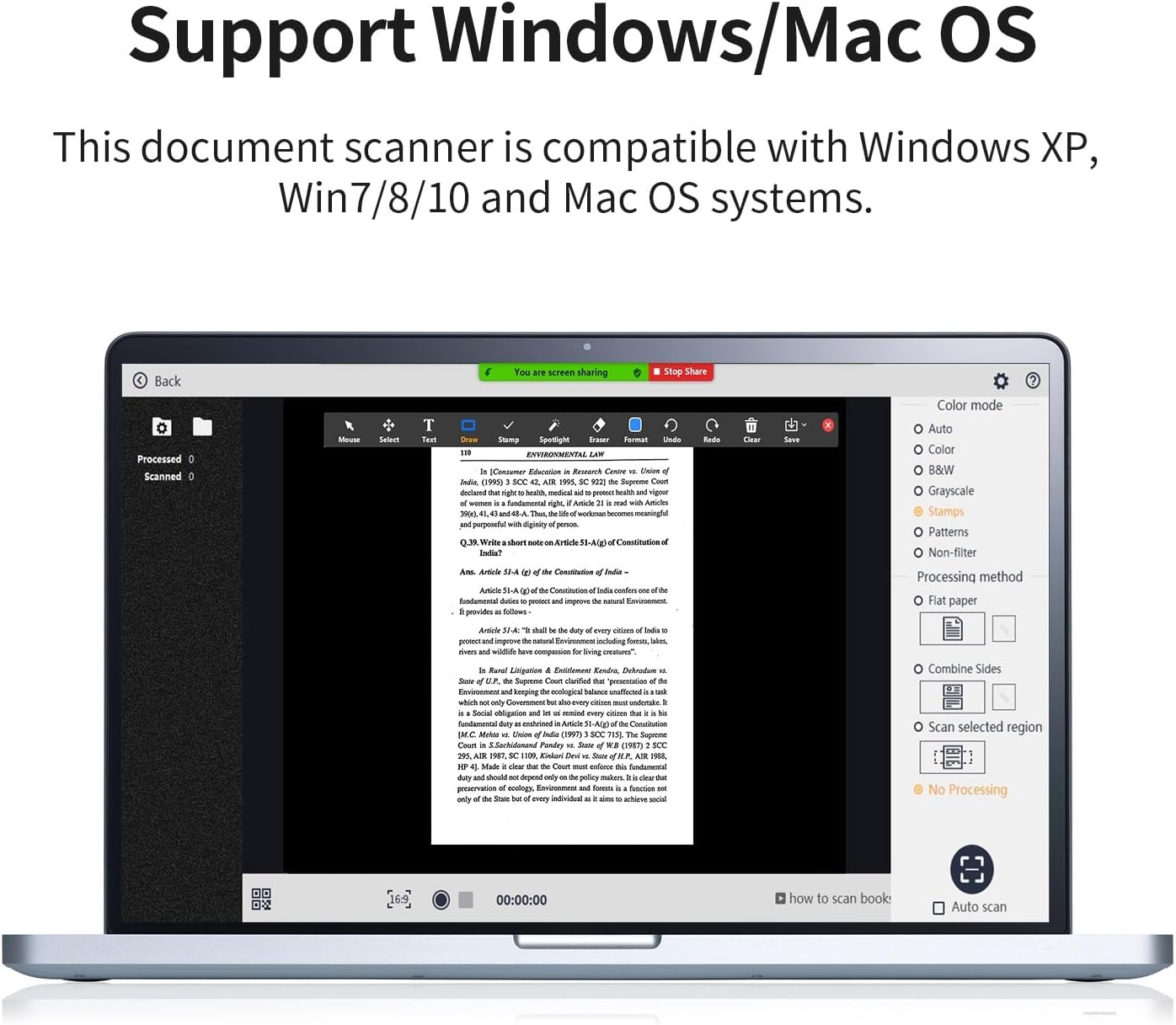
The CZUR scanning software, compatible with Windows XP, 7, 8, 10, and macOS 10.11 or newer, provides various scanning modes (color, B&W, grayscale), processing options (flat paper, combine sides), and an auto-scan function.
4. Návod k obsluze
4.1 Adjusting Scanner Height and Lights
- Nastavení výšky: The scanner features an extendable arm. Adjust the height to match the size of your document. For A4 documents, use a lower height; for A3 documents, extend the arm to its maximum height.
- Fill Lights: The scanner is equipped with two top-mounted fill lights. Rotate the knob on the device to adjust the brightness of these lights. Adjust the brightness according to ambient light conditions to achieve the best scanning results.

This image highlights the 24-megapixel camera sensor for high-resolution scanning and the integrated LED lights for optimal illumination. It also indicates scanning resolutions for A4 (440 DPI) and A3 (320 DPI) documents.
4.2 Skenování dokumentů
- Místo dokumentu: Place the document flat on the soft pad, ensuring it is within the scanning area indicated by the software preview.
- Vyberte režim skenování: In the software, choose your desired scan mode (e.g., Color, Black & White, Grayscale, Stamp, Pattern).
- Zahájit skenování: Click the scan button in the software or press the foot pedal to capture the image. The scanner can capture one page in approximately 1 second.
- Auto-Scan Feature: The scanner supports an auto-scan function, which can automatically detect and scan pages as they are turned.
4.3 Scanning Books and Curved Pages
The CZUR Shine Ultra Pro features patented flattening technology for scanning books:
- Place Book: Open the book and place it on the soft pad. The software's AI algorithm will intelligently flatten the curved pages.
- Smart Image Processing: The scanner automatically removes finger marks, converts unwrapped sheets into two single pages, and corrects tilt, cropping, or merging pages.
4.4 OCR Text Recognition
The integrated OCR technology allows you to convert scanned images into editable text formats:
- Process Scanned Images: After scanning, select the images you wish to process with OCR within the software.
- Convert to Editable Formats: The software can convert scanned JPG images into editable Word, PDF, Excel, or TIFF files. It supports 185 languages.

The scanner features advanced OCR (Optical Character Recognition) technology, capable of recognizing text in 185 languages and converting scanned JPG images into editable Word, PDF, Excel, or TIFF documents with a single click.
4.5 Video Recording and Screen Sharing
The scanner can also synchronize video recording and screen display, making it suitable for online meetings or teaching:
- Initiate Video Recording: Use the software to start video recording of the scanned area.
- Share Screen: Share the scanned images or live video feed through platforms like Zoom, Skype, or Microsoft Teams for convenient online collaboration.
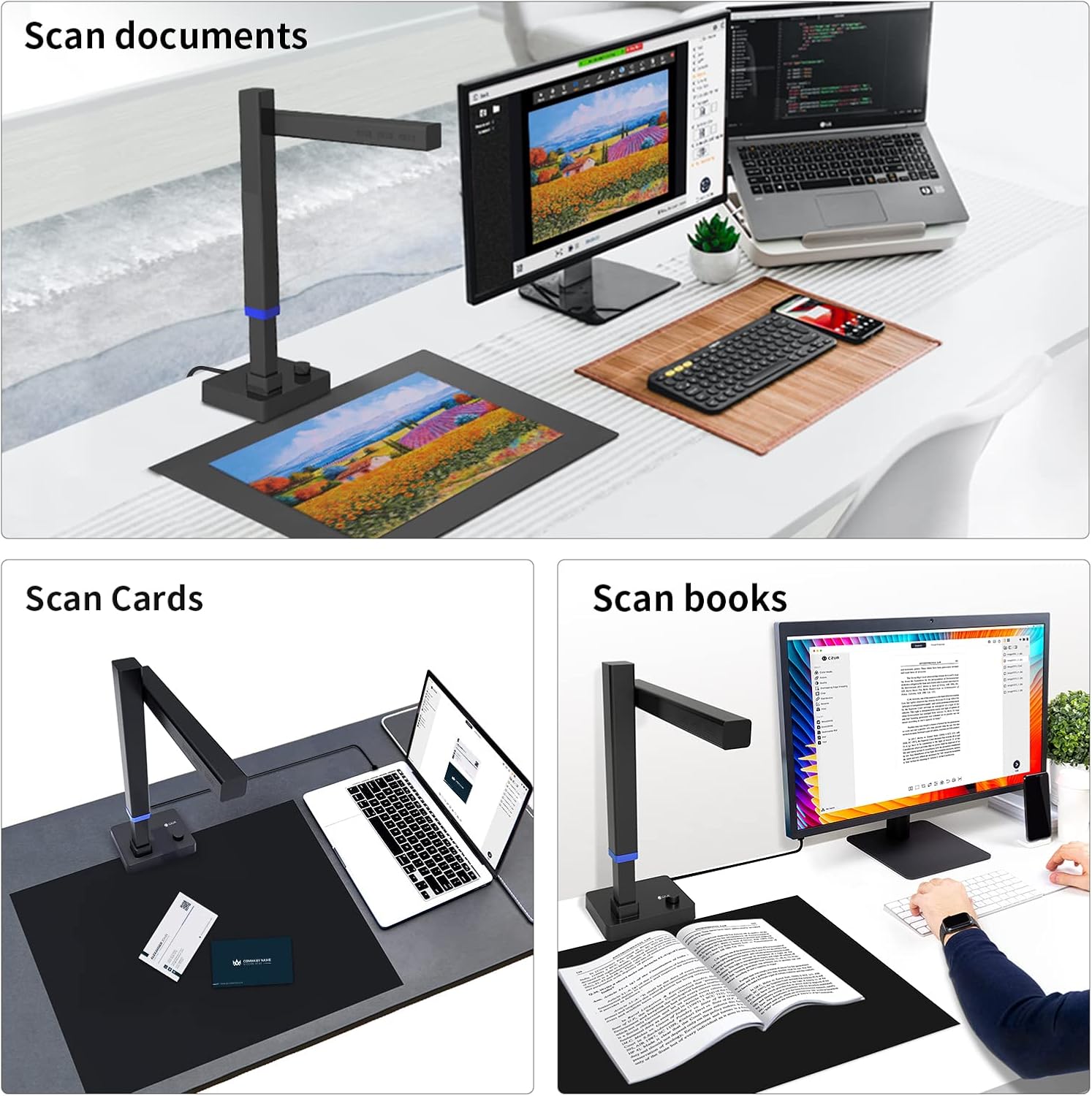
The CZUR Shine Ultra Pro is versatile, suitable for scanning various materials including standard documents, business cards, and books, making it ideal for diverse office and home use.
5. Údržba
- Čištění objektivu: Use a soft, dry, lint-free cloth to gently clean the camera lens. Avoid abrasive materials or harsh chemicals.
- Čištění zařízení: Wipe the exterior of the scanner with a slightly damp cloth. Ensure no moisture enters the device.
- Aktualizace softwaru: Regularly check the official CZUR webweb s aktualizacemi softwaru, aby byl zajištěn optimální výkon a přístup k novým funkcím.
- Skladování: When not in use, fold the scanner arm down for compact storage. Store in a dry, dust-free environment.
6. Řešení problémů
- Skener nebyl detekován:
- Ujistěte se, že je kabel USB bezpečně připojen ke skeneru i k počítači.
- Zkuste se připojit k jinému portu USB.
- Restart your computer and the scanning software.
- Verify that the correct drivers are installed. Reinstall the software if necessary.
- Špatná kvalita obrazu:
- Adjust the fill light brightness using the knob on the device.
- Ensure the document is placed flat and within the scanning area.
- Clean the camera lens for any smudges or dust.
- Avoid scanning highly glossy materials (e.g., glossy photos, magazines) as they are not recommended due to potential glare.
- Problémy s OCR:
- Ensure the scanned image is clear and well-lit.
- Check if the correct language is selected for OCR processing in the software.
- Pády/zamrzání softwaru:
- Ujistěte se, že váš počítač splňuje minimální systémové požadavky.
- Aktualizujte software na nejnovější verzi.
- Zavřete ostatní náročné aplikace běžící na pozadí.
7. Specifikace
| Funkce | Specifikace |
|---|---|
| Typ skeneru | Dokumentová kamera |
| Značka | CZUR |
| Název modelu | CZUR Shine Ultra Pro |
| Technologie připojení | USB |
| Rozměry produktu (D x Š x V) | 29.5 x 11.7 x 40.9 cm (11.63 x 4.61 x 16.12 inches extended) |
| Rezoluce | 24 Megapixels (A4: 440 DPI, A3: 320 DPI) |
| Hmotnost produktu | 1 kilogram |
| Barevná hloubka | 24 bitů |
| Technologie optických senzorů | CMOS |
| Světelný zdroj | LED |
| Minimální systémové požadavky | Windows XP, 7, 8, 10 (32/64-bit), macOS 10.11 or newer |

This diagram illustrates the compact dimensions of the CZUR Shine Ultra Pro, showing its height and base measurements when folded (13.19 inches high, 6.22 inches wide base) and extended (16.12 inches high, 4.61 inches wide base).
8. Záruka a podpora
8.1 Informace o záruce
The CZUR Shine Ultra Pro comes with a jednoletá záruka od data nákupu. Tato záruka se vztahuje na výrobní vady a poruchy při běžném používání. Uschovejte si prosím doklad o koupi pro případ uplatnění záruky.
8.2 Zákaznická podpora
For technical assistance, troubleshooting, or warranty inquiries, please contact CZUR customer support through their official webweb. Uveďte model vašeho produktu a podrobný popis problému, abyste získali rychlou pomoc.