
SABLUTE KB319, MC219
SABLUTE Wireless Keyboard and Mouse Combo User Manual
Model: KB319, MC219
Značka: SABLUTE
1. Počáteční nastavení
1.1 Obsah balení
- Bezdrátová klávesnice
- Bezdrátová myš
- USB Receiver (for both keyboard and mouse)
- Adaptér typu C
- Nabíjecí kabel USB-C
1.2 Připojení zařízení
The SABLUTE Wireless Keyboard and Mouse Combo utilizes a single USB receiver for both devices, ensuring a stable 2.4GHz RF connection. It is designed for plug-and-play functionality, requiring no additional drivers.
- Locate the USB receiver. It may be stored in the mouse's battery compartment for safekeeping.
- If your computer has a standard USB-A port, plug the USB receiver directly into an available port.
- If your computer only has a Type-C port, attach the provided Type-C adapter to the USB receiver, then plug the adapter into your computer's Type-C port.
- Ensure both the keyboard and mouse are switched to the 'ON' position using their respective power switches.
- The keyboard and mouse should automatically connect to your computer within a few seconds.

Image: The keyboard and mouse combo, showing the USB-A receiver and the Type-C adapter for versatile connectivity.
Video: Official product video demonstrating the connection process with both USB-A and Type-C adapters, highlighting the ease of setup.
2. Návod k obsluze
2.1 ovládání podsvícení
The keyboard features vibrant rainbow backlighting with adjustable brightness levels.
- To turn the backlight ON/OFF: Press Fn + pravý Shift.
- To adjust backlight brightness (3 levels): Press Fn + pravý Shift opakovaně.

Image: The keyboard displaying its gorgeous rainbow backlight, with an emphasis on the Fn and Right Shift keys for backlight control.
2.2 Přepínání systémů
Effortlessly switch between Windows and Mac layouts with a single key press.
- To switch between Windows and Mac systems: Press the dedicated WIN/MAC button on the keyboard.
2.3 Quiet and Comfortable Typing
The keyboard features soft membrane keys for a quiet and smooth typing experience. The mouse is designed for quiet clicks, reducing noise by 90% compared to standard mice.
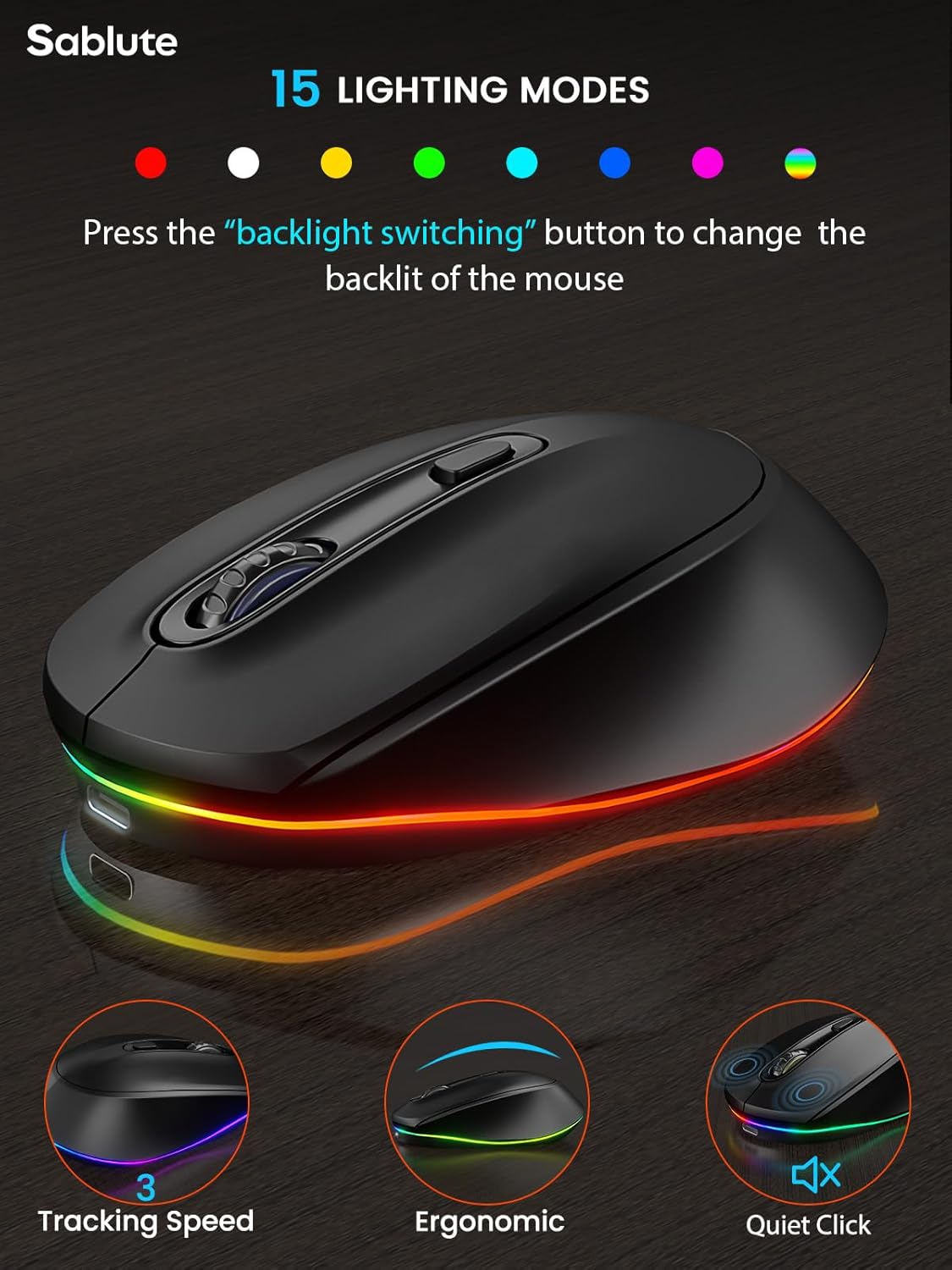
Image: A close-up of the keyboard keys illustrating the quiet typing mechanism, alongside the quiet-click mouse.
Dobíjecí baterie 2.4
Both the keyboard and mouse are rechargeable via a single USB-C cable, eliminating the need for disposable batteries.
- Doba nabíjení: Přibližně 3 hodiny pro plné nabití.
- Keyboard Standby: Up to 365 days (backlight off).
- Mouse Standby: Up to 270 days.
- Typical Use (9-5 job, backlight off): Keyboard battery lasts at least 4 weeks.
- Low Power Indicator: The power indicator light will flash when the battery is low, signaling it's time to recharge.
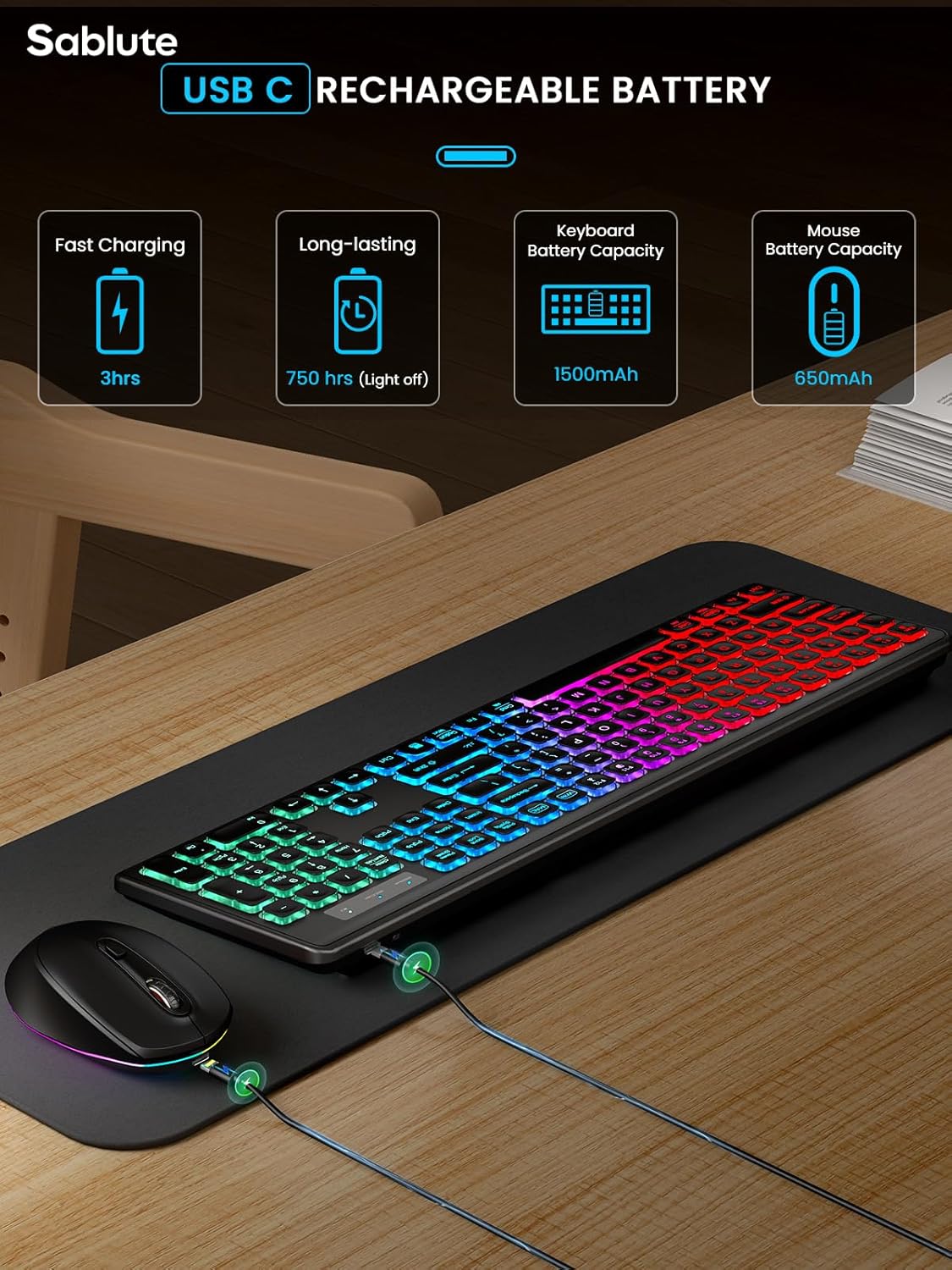
Image: The keyboard and mouse being charged via USB-C cables, highlighting their rechargeable nature and battery capacities.
2.5 Sleep Mode for Power Saving
To conserve battery life, both devices enter a sleep mode after periods of inactivity.
- Keyboard: Enters sleep mode after 30 minutes of inactivity. Press any key to wake it up.
- Mouse: Enters sleep mode after 1.5 minutes of inactivity. Move or click the mouse to wake it up.
- Both devices have an ON/OFF switch for manual power control.

Image: Visual representation of the smart energy-saving sleep modes for both the keyboard and mouse.
2.6 Efficient Shortcut Keys
The keyboard includes a range of shortcut keys for enhanced productivity, accessible via the Function (Fn) key.
- To activate shortcut functions: Press Fn + Esc for one-key operation.
- Common shortcuts include: Mute, Volume Up/Down, Previous/Next Track, Pause/Play, Brightness Up/Down, Select All, Copy, Paste, Shear.

Image: The keyboard layout highlighting the efficient shortcut keys and their functions.
2.7 Ergonomic Tilt Angle
The keyboard is designed with adjustable tilt legs to provide a comfortable typing angle and reduce hand fatigue.

Image: The keyboard viewed from the side, illustrating the ergonomic tilt angle provided by its adjustable legs.
2.8 Funkce myši
The wireless mouse offers customizable tracking speed and multiple lighting options.
- DPI Levels: Adjust tracking speed with 3 DPI levels (800/1200/1600).
- Lighting Modes: Features 15 switchable backlight modes.
3. Péče a údržba
3.1 Čištění
Pro zachování vzhledu a funkčnosti klávesnice a myši:
- Použijte měkký, mírně damp hadříkem k otření povrchů.
- Avoid using harsh chemicals, abrasive cleaners, or solvents, as these can damage the finish.
- Před čištěním se ujistěte, že jsou zařízení vypnutá.
3.2 Péče o baterii
To maximize the lifespan of the built-in rechargeable batteries:
- Charge the devices regularly, especially when the low power indicator flashes.
- Vyhněte se častému úplnému vybíjení baterií.
- Do not expose the devices to extreme temperatures (hot or cold), as this can degrade battery performance.
4. Řešení problémů
4.1 Problémy s připojením
- Ujistěte se, že je USB přijímač bezpečně zapojený do funkčního USB portu v počítači.
- Zkuste zapojit USB přijímač do jiného USB portu.
- Confirm that both the keyboard and mouse are switched to the 'ON' position.
- Check the battery levels of both devices. Recharge if necessary.
- Přesuňte klávesnici a myš blíže k USB přijímači, abyste vyloučili problémy s dosahem.
4.2 Keyboard/Mouse Unresponsive
- If devices are in sleep mode, press any key on the keyboard or move/click the mouse to wake them up.
- Power off and then power on both the keyboard and mouse.
- Unplug the USB receiver from your computer, wait a few seconds, and then plug it back in.
- Restartujte počítač.
4.3 Podsvícení nefunguje
- Ensure the backlight is turned on by pressing Fn + pravý Shift.
- Check the keyboard's battery level. The backlight may not function if the battery is critically low.
4.4 Keys Malfunctioning (e.g., repeated input, unresponsive keys)
- Ensure there are no physical obstructions or debris under the affected keys.
- Restartujte počítač.
- Pokud problém přetrvává, požádejte o další pomoc zákaznickou podporu.
5. Specifikace produktu
| Funkce | Popis |
|---|---|
| Čísla modelů | KB319, MC219 |
| Rozměry produktu | 17.44 x 5.35 x 1.17 palce |
| Hmotnost položky | 1.45 libry |
| Baterie | Vyžadovány 1 lithium -polymerové baterie (součástí balení) |
| Technologie připojení | Bezdrátové připojení 2.4 GHz přes USB |
| Speciální funkce | Rechargeable, Backlit, Sleep Modes, Spill-Resistant, Silent |
| Kompatibilní zařízení | Dell XPS 13/15, Inspiron, Macbook Pro, Macbook Air, iMac, HP ENVY, Pavilion, Spectre, Chromebook, Notebook, and other Windows/Mac devices. |
| Výrobce | SABLUTE |
| Země původu | Čína |
6. Záruka a podpora
6.1 Informace o záruce
SABLUTE stands behind the quality of its products. This product comes with:
- 90 Days Replacement
- 360 Days Manufacturer Warranty
6.2 Zákaznická podpora
For any questions, concerns, or support needs, please contact SABLUTE customer service:
- Response Time: 24 Hrs Reply
- Phone: 1-888-905-9607 (US, Monday-Friday 9am-1pm, 2pm-6pm PST)

Image: SABLUTE customer support details, including contact number and service hours.
Ask a question about this manual
Ask about setup, troubleshooting, compatibility, parts, safety, or missing instructions. Manuals+ will review the question and use this page’s manual context to help answer it.