
1. Úvod
The GTMEDIA V7 Pro is a versatile satellite receiver designed to provide access to DVB-S/S2/S2X and DVB-T/T2 digital television broadcasts. This device supports advanced features such as VCM/ACM/Multi-Stream, HEVC 10bit decoding, and includes a CA card slot for conditional access. It also offers USB WiFi connectivity for network features and online content. This manual provides essential information for setting up, operating, and maintaining your GTMEDIA V7 Pro receiver.
2. Bezpečnostní informace
- Ensure the device is placed on a stable, flat surface with adequate ventilation.
- Avoid exposing the receiver to moisture, extreme temperatures, or direct sunlight.
- Neblokujte ventilační otvory na zařízení.
- Před čištěním nebo prováděním jakékoli údržby odpojte napájení.
- Only use the provided power adapter to prevent damage.
- Nepokoušejte se zařízení sami otevírat ani opravovat. Obraťte se na kvalifikovaný servisní personál.
3. Obsah balení
Ověřte, zda jsou v balení obsaženy všechny níže uvedené položky:
- GTMEDIA V7 Pro Satellite Receiver
- Napájecí adaptér
- IR dálkové ovládání
- HDMI kabel
- Uživatelská příručka (tento dokument)
- Záruční list
- USB WiFi dongle

Image 3.1: All items included in the GTMEDIA V7 Pro package, showing the receiver, remote control, power adapter, HDMI cable, USB WiFi dongle, user manual, and warranty card.
4. Konec produktuview
The GTMEDIA V7 Pro features a compact design with essential ports for connectivity. Understanding the layout of the device will assist in proper setup and operation.
4.1 Front and Side Panels
- Zobrazit: Shows channel numbers, time, and status indicators.
- LED napájení: Označuje stav napájení zařízení.
- CA Card Slot: Located on the side, for inserting conditional access cards.
4.2 Připojení zadního panelu

Obrázek 4.1: Detailní view of the GTMEDIA V7 Pro's rear panel, illustrating the various input and output ports including LNB IN, ANT IN, HD OUT, AV OUT, RF TO TV, USB ports, DC 12V Power input, and the Power ON/OFF switch.
- LNB IN: Connects to your satellite dish LNB for DVB-S/S2/S2X signals (950MHz to 2150MHz).
- ANT IN: Connects to a terrestrial antenna for DVB-T/T2 signals.
- HD OUT: HDMI output for connecting to a high-definition television (up to 1080p).
- AV OUT: Analog video and audio output for older televisions.
- RF TO TV: RF output for connecting to a TV's antenna input.
- USB porty: Two USB ports for connecting USB storage devices (for PVR, media playback, firmware upgrade) or the included USB WiFi dongle.
- Napájení 12V stejnosměrného proudu: Connects to the provided 12V power adapter.
- Zapnutí/vypnutí: Hlavní vypínač zařízení.
5. Nastavení
Follow these steps to set up your GTMEDIA V7 Pro receiver:
- Připojení k televizi: Connect the receiver to your television using an HDMI cable (for best quality) or AV cables. Ensure the TV input is set to the corresponding HDMI or AV port.
- Connect Antenna/LNB:
- For satellite reception, connect your satellite dish LNB cable to the LNB IN přístav.
- For terrestrial reception, connect your terrestrial antenna cable to the ANT IN přístav.
- Connect USB WiFi Dongle: Insert the provided USB WiFi dongle into one of the USB ports on the rear panel.
- Připojte napájení: Zapojte napájecí adaptér do Napájení DC 12V vstup na přijímači a poté zapojte adaptér do zásuvky ve zdi.
- Zapnutí: Převrátit Zapnutí/vypnutí napájení switch to the ON position. The front display will show "boot" then "Load" as the system starts.
- Průvodce počátečním nastavením: Upon first power-on, the receiver may guide you through an initial setup wizard. Follow the on-screen prompts to select your preferred language and configure basic settings.
- Konfigurace sítě: Přejděte na Síť menu. Vybrat Konfigurace sítě, pak WiFi. Scan for available networks, select your network, and enter the password to connect.
- Vyhledávání kanálů:
- Přejít na Instalace menu.
- Vybrat Seznam satelitů for satellite channels or Pozemní for terrestrial channels.
- Choose your desired satellite (e.g., Hot Bird 13B/13C) or ensure the correct terrestrial region is selected.
- Proveďte Automatické vyhledávání or Blind Scan to find available channels. This process may take several minutes.
Video 5.1: This video demonstrates the physical overview, port connections, initial power-on sequence, and basic menu navigation for the GTMEDIA V7 Pro Satellite Receiver, including satellite list selection, channel search, and network configuration.
6. Návod k obsluze
6.1 Základní navigace
Use the included remote control to navigate the receiver's menus and functions. The arrow keys are used for selection, OK for confirmation, and EXIT/MENU for returning to previous screens or the main menu.
6.2 Správa kanálů
After performing a channel search, you can organize your channels. The receiver supports various channel sorting options and allows you to create favorite lists.
6.3 Přehrávání médií (USB)
Vložte paměťové zařízení USB s médiem files (music, pictures, movies) into a USB port. Navigate to the Média menu to browse and play your content.
6.4 Program Recording (PVR)
With a connected USB storage device, you can record live TV programs. Access the PVR functions through the remote control or the Média menu. You can also set timers for scheduled recordings.
6.5 Online Features
Once connected to the internet via WiFi, the receiver provides access to online applications such as YouTube and Youporn. Navigate to the Síť menu, pak Online Movie App pro přístup k těmto funkcím.
6.6 Conditional Access (CA Card)
The GTMEDIA V7 Pro includes a CA card slot. Insert your smart card into the slot to decrypt encrypted channels. Ensure the card is inserted correctly according to the card's orientation. The receiver supports various card types including Albertis/Tivusat/BBC Satback/Irdeto Card.

Image 6.1: A hand inserting a smart card into the CA card slot of the GTMEDIA V7 Pro receiver, demonstrating the conditional access feature for viewing encrypted programs.
6.7 Multi-Room Functionality
The Multi-Room feature allows you to share program resources across multiple satellite receivers within the same local area network, eliminating the need for multiple subscription cards for different devices.
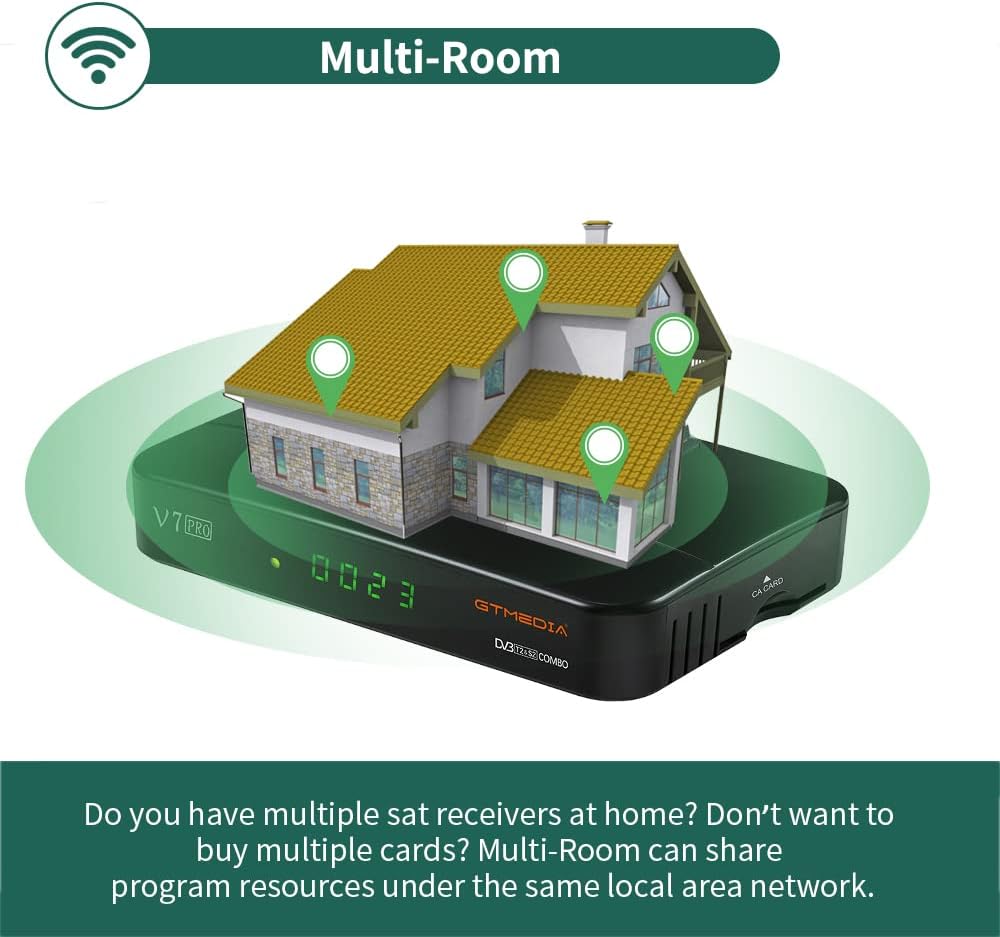
Image 6.2: An illustration depicting the GTMEDIA V7 Pro receiver connected to a house, symbolizing its Multi-Room capability to share content across multiple devices on a local network.
7. Údržba
7.1 Čištění
To clean the receiver, disconnect it from the power supply. Use a soft, dry cloth to wipe the exterior. Do not use liquid cleaners or abrasive materials.
7.2 aktualizací firmwaru
The GTMEDIA R&D center continuously optimizes and improves the receiver's firmware. New firmware versions are released on the official forum for users to download and update. To update, download the firmware to a USB drive, insert it into the receiver, and navigate to Tools > USB Upgrade v nabídce.
8. Řešení problémů
If you encounter issues with your GTMEDIA V7 Pro, refer to the following common problems and solutions:
- Bez signálu:
- Check all cable connections (LNB IN, ANT IN) to ensure they are secure.
- Verify that your satellite dish or terrestrial antenna is properly aligned.
- Ensure the correct satellite is selected in the Installation menu.
- Žádný obraz/zvuk:
- Confirm the HDMI or AV cable is securely connected to both the receiver and the TV.
- Check that your TV's input source is set to the correct HDMI or AV port.
- Ensure the TV volume is not muted or set too low.
- Dálkové ovládání nefunguje:
- Zkontrolujte a vyměňte baterie v dálkovém ovladači.
- Ujistěte se, že mezi dálkovým ovladačem a infračerveným senzorem přijímače nejsou žádné překážky.
- Problémy s připojením k síti:
- Verify the USB WiFi dongle is properly inserted.
- Check your WiFi network name and password in the Network Config menu.
- Restartujte svůj WiFi router.
9. Specifikace
The GTMEDIA V7 Pro is equipped with the following technical specifications and features:
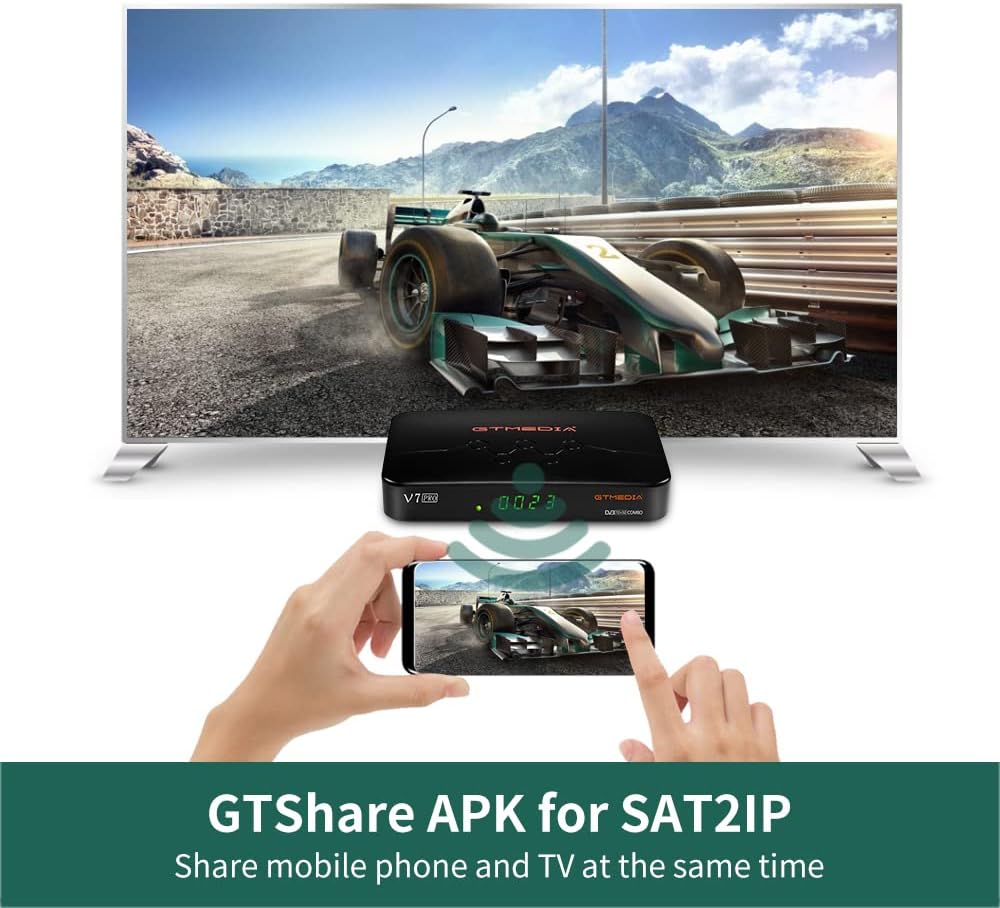
Image 9.1: A table detailing the product parameters of the GTMEDIA V7 Pro, including dimensions, unit weight, power supply, operating and storage temperatures, humidity, and included accessories.
| Funkce | Popis |
|---|---|
| Podpora tuneru | DVB-S/S2/S2X + DVB-T/T2 |
| Dekódování videa | VCM/ACM/Multi-Stream/T2MI, Multi-PLP, HEVC main 10 profile (10bit), AVS+ |
| Podmíněný přístup | CA Card Slot, supports BISS auto roll, Full PowerVu, DRE & Biss key, Albertis/Tivusat/BBC Satback/Irdeto Card |
| Podpora DiSEqC | Unicable, DiSEqC1.0/1.1/1.2/USALS Motor |
| Konektivita | USB (2 ports), USB WiFi dongle support, USB 3/4G dongle support |
| Online služby | YouTube, Youporn, CCCAM, NEWCAM, MGCAM |
| Více pokojů | Supported for sharing program resources on a local network |
| Jazyky | English, Spanish, French, Russian, Portuguese, Polish, Indonesian, Arabic, Turkish, German, Italian, Persian, Thai, etc. |
| Rozměry (D*Š*V) | 7.09 x 4.92 x 1.18 palce (180 x 125 x 30 mm) |
| Hmotnost jednotky | 8.8 unce (0.25 kilogramů) |
| Napájení | AC 100-250V, 50Hz/60Hz |
| Provozní teplota | 0 °C až +45 °C |
| Skladovací teplota | -10°C až +60°C |
| Vlhkost | 20% to 90% (Non-condensed) |
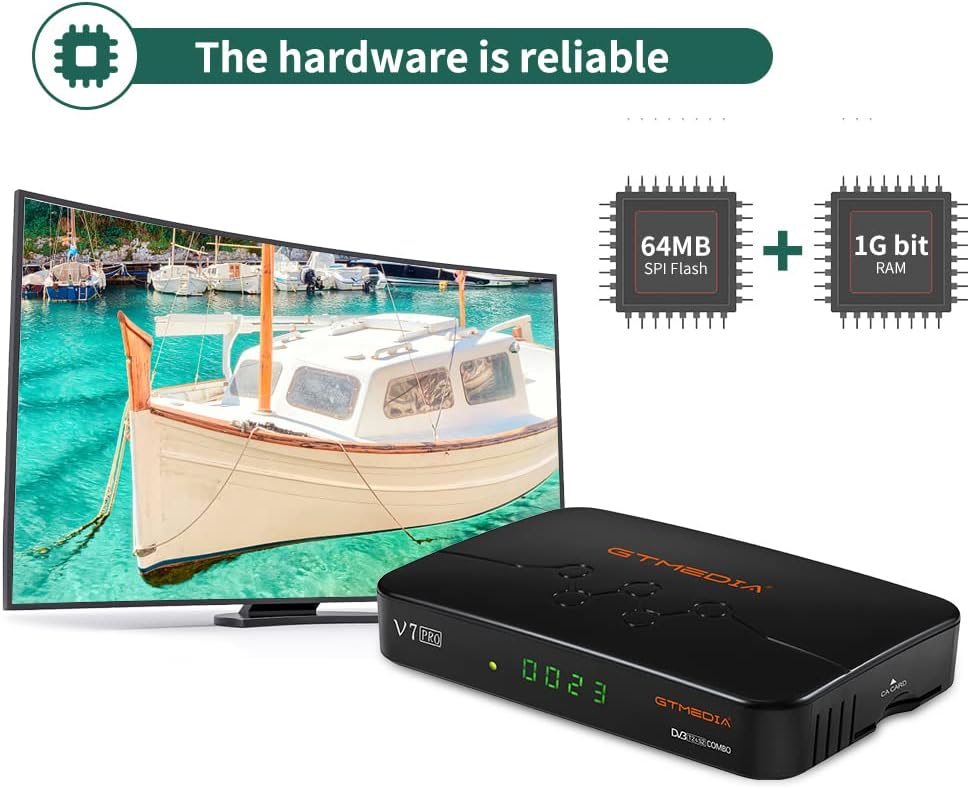
Obrázek 9.2: Vnitřní view of the GTMEDIA V7 Pro's hardware, highlighting the 64MB SPI Flash and 1G bit RAM components, indicating reliable performance.
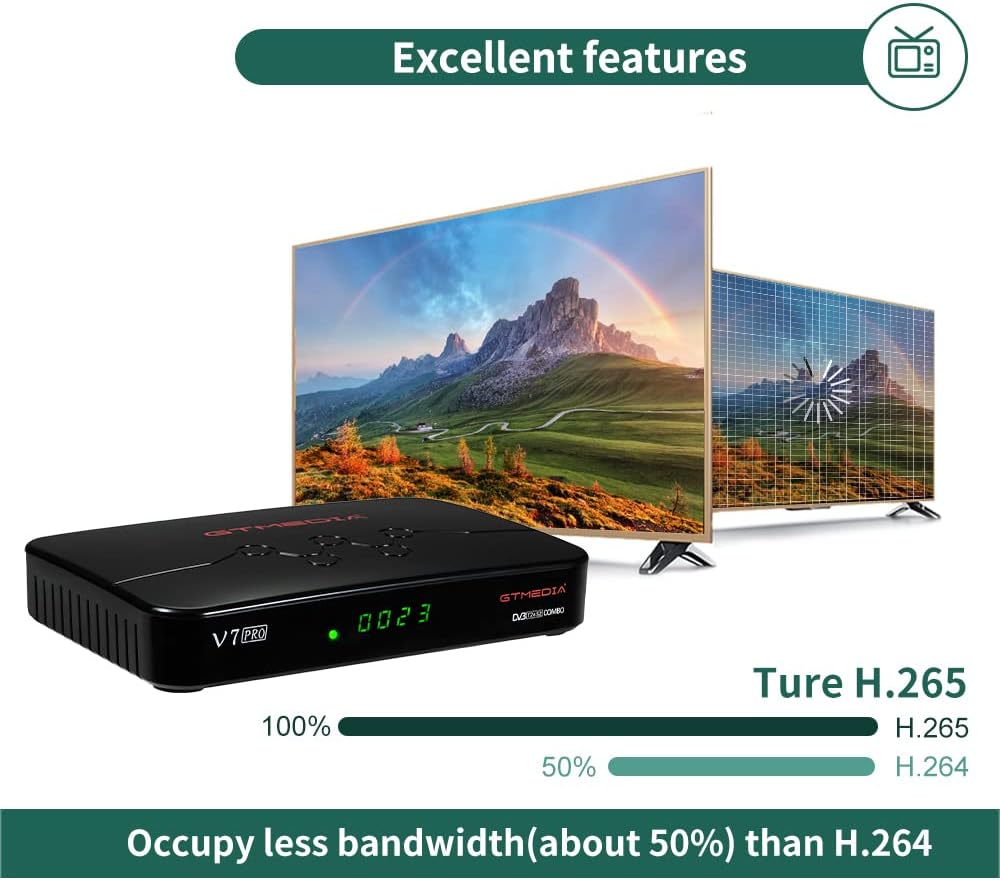
Image 9.3: An illustration demonstrating the GTMEDIA V7 Pro's H.265 (HEVC) decoding capability, which occupies approximately 50% less bandwidth compared to H.264, leading to more efficient video streaming.
10. Záruka a podpora
For detailed warranty information, please refer to the Warranty Card included in your product package.
For technical support, firmware updates, and community assistance, visit the official GTMEDIA R&D center forum. You can post your questions on the forum and expect a response within 24 hours.
Online zdroje:
- GTMEDIA Official Webmísto: www.gtmedia.cc
- GTMEDIA Support Forum: (Refer to product packaging or official website for specific forum link)