
1. Úvod
This manual provides comprehensive instructions for the HP LaserJet MFP M140w, a compact multifunction monochrome laser printer designed for efficient printing, scanning, and copying. It features Wi-Fi, Wi-Fi Direct, and USB 2.0 connectivity, offering a print speed of up to 20 pages per minute (ppm).

Obrázek 1.1: Přední strana view of the HP LaserJet MFP M140w printer.
2. Bezpečnostní informace
Please read all safety instructions before using the printer to prevent damage or injury. Keep this manual for future reference.
- Umístěte tiskárnu na stabilní a rovný povrch.
- Zajistěte řádné větrání kolem tiskárny.
- Používejte pouze napájecí kabel dodaný s tiskárnou.
- Nevystavujte tiskárnu vodě ani nadměrné vlhkosti.
- Během provozu držte ruce mimo pohyblivé části.
- Only use original HP toner cartridges to ensure optimal performance and avoid potential damage.
3. Obsah balení
Ověřte, zda jsou v balení přítomny všechny položky:
- Multifunkční tiskárna HP LaserJet MFP M140w
- Original HP Toner Cartridge
- Napájecí kabel
- Průvodce nastavením
4. Nastavení
4.1 Vybalení a umístění
- Vyjměte tiskárnu z obalu a odstraňte všechny ochranné pásky a balicí materiály.
- Umístěte tiskárnu na rovný a stabilní povrch.
4.2 Instalace tonerové kazety
- Otevřete dvířka pro přístup k toneru.
- Vyjměte novou tonerovou kazetu z obalu a jemně s ní zatřepejte, aby se toner rovnoměrně rozprostřel.
- Vložte kazetu do tiskárny, dokud nezacvakne na místo.
- Zavřete dvířka pro přístup k toneru.
4.3 Vkládání papíru
- Vytáhněte vstupní zásobník.
- Adjust the paper guides to the correct paper size (e.g., A4).
- Load up to 150 sheets of paper into the input tray.
- Zatlačte vstupní zásobník zpět do tiskárny.

Image 4.1: The printer with paper loaded and ready for use.
4.4 Připojení napájení
- Připojte napájecí kabel k tiskárně a poté do zásuvky ve zdi.
- Stisknutím tlačítka napájení zapněte tiskárnu.
4.5 Instalace softwaru a připojení
For full functionality, install the HP Smart App on your computer or mobile device. The app guides you through connecting the printer to your network.
- Wi-Fi připojení: The printer supports dual-band Wi-Fi with automatic reset. Follow the on-screen instructions in the HP Smart App to connect to your wireless network.
- Přímé připojení Wi-Fi: This feature allows direct connection from your mobile device to the printer without a router. Consult the HP Smart App for setup.
- USB 2.0: Connect the printer directly to your computer using a USB 2.0 cable (not included).
- Bluetooth: The printer supports Bluetooth connectivity for certain functions.
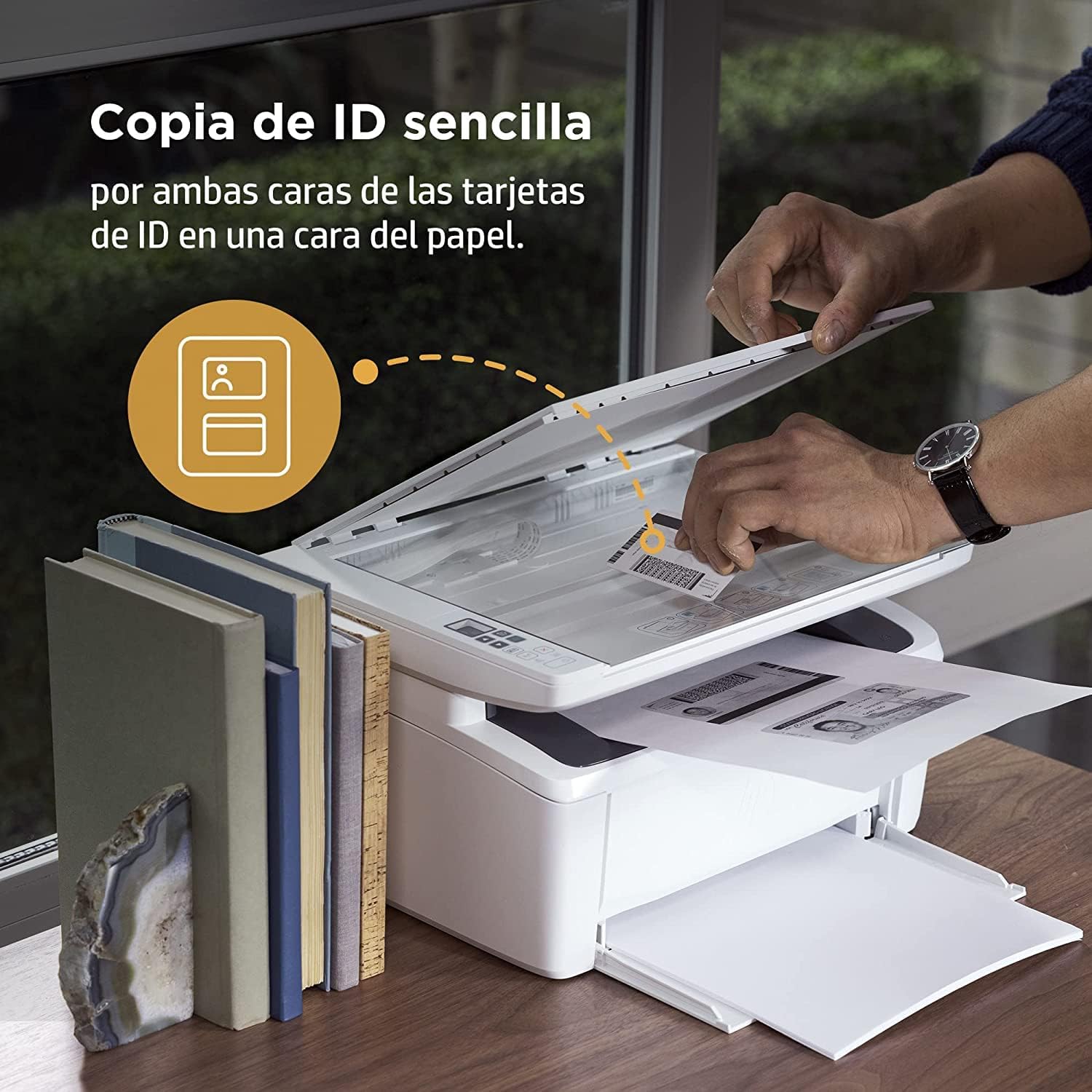
Image 4.2: The compact HP LaserJet MFP M140w printer with a mobile device displaying the HP Smart App interface.
5. Návod k obsluze
5.1 Tisk
The HP LaserJet MFP M140w prints at speeds up to 20 ppm in monochrome. It supports A4 paper size.
- Z počítače: Select the HP LaserJet MFP M140w from your printer list in any application. Adjust print settings as needed (e.g., paper size, quality).
- Z mobilního zařízení (aplikace HP Smart): Use the HP Smart App to easily print documents and photos directly from your smartphone or tablet.
- Ruční oboustranný tisk: For two-sided printing, the printer supports manual duplex. Follow the prompts on your computer or the HP Smart App to reinsert the paper to print the second side.
5.2 Skenování
The printer features a flatbed scanner for digitizing documents and images.
- Zvedněte víko skeneru.
- Place the document face down on the scanner glass, aligning it with the guides.
- Zavřete víko skeneru.
- Initiate the scan from your computer or the HP Smart App. You can choose scan settings such as resolution and file formát.
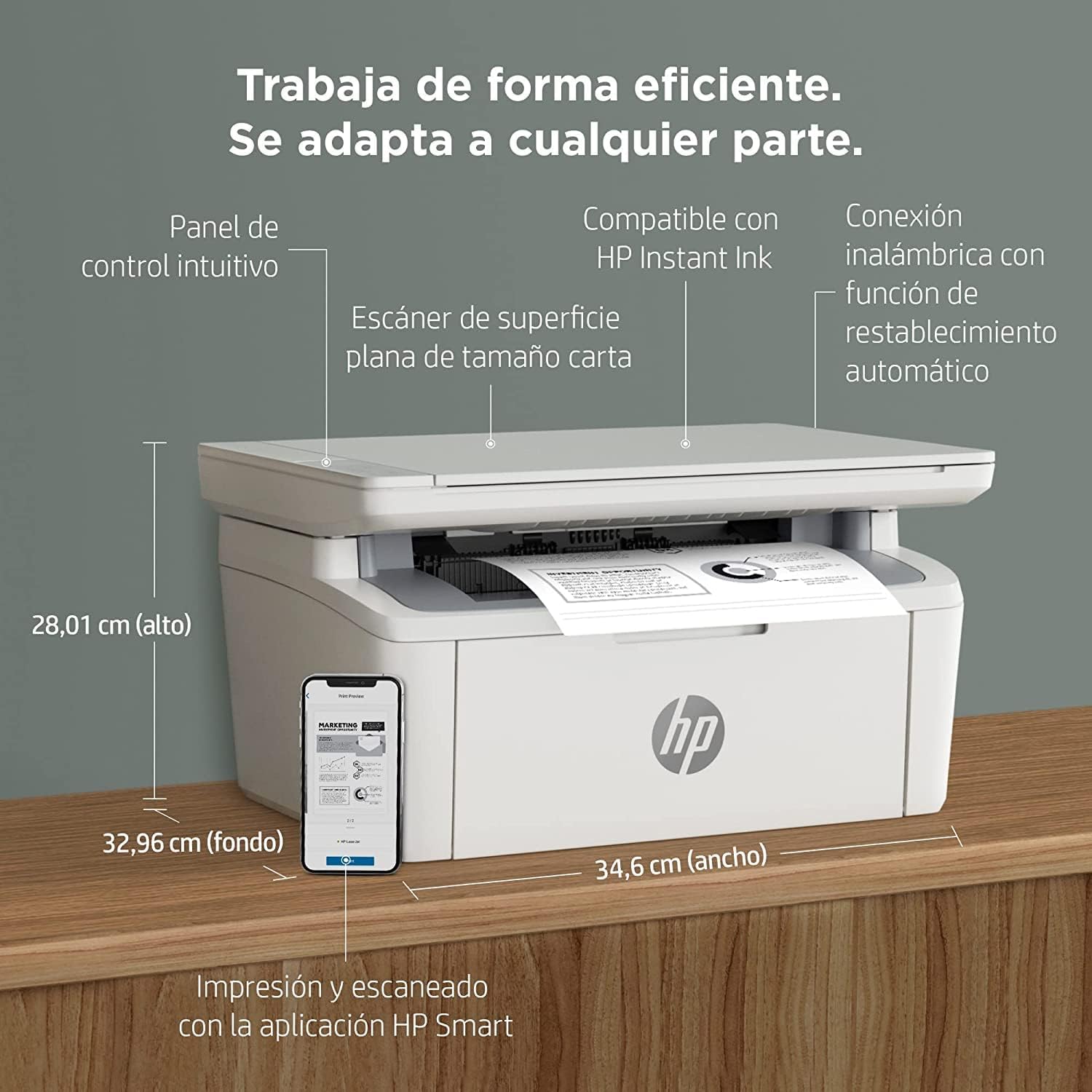
Image 5.1: Using the scanner for ID card copying.
5.3 Kopírování
The printer can make up to 150 copies per job.
- Place the original document on the scanner glass.
- Use the control panel on the printer or the HP Smart App to select the number of copies and start the copying process.
- ID Copy Function: This feature allows you to copy both sides of an ID card onto a single side of paper. Follow the instructions on the printer's control panel or the HP Smart App.
6. Údržba
6.1 Výměna tonerové kazety
When the toner level is low, replace the cartridge with an original HP 142A Black (W1420A) toner cartridge. Using non-HP cartridges may void your warranty and affect print quality.
- Otevřete dvířka pro přístup k toneru.
- Remove the old toner cartridge.
- Unpack the new HP 142A toner cartridge and gently shake it.
- Vložte novou kazetu, dokud nezapadne na místo.
- Zavřete dvířka pro přístup k toneru.
6.2 Čištění tiskárny
Pravidelné čištění pomáhá udržovat kvalitu tisku a prodlužuje životnost tiskárny.
- Otřete vnější povrch tiskárny měkkým hadříkem, který nepouští vlákna.
- Očistěte sklo skeneru měkkým hadříkem dampčističem skla (čisticí prostředek nanášejte na hadřík, ne přímo na sklo).
- Refer to the HP Smart App or HP support website for specific cleaning instructions for internal components.
6.3 aktualizací firmwaru
HP periodically releases firmware updates to improve printer performance and security. Ensure your printer is connected to the internet and check for updates via the HP Smart App or the printer's embedded web server.
7. Řešení problémů
This section addresses common issues you might encounter with your HP LaserJet MFP M140w printer.
7.1 Problémy s připojením
- Tiskárna nebyla v síti nalezena: Ensure the printer is powered on and connected to the correct Wi-Fi network. Use the HP Smart App's troubleshooting tools or try resetting the Wi-Fi connection on the printer.
- Wi-Fi connection drops: The printer features dual-band Wi-Fi with automatic reset. If issues persist, ensure your router is functioning correctly and the printer is within range.
- USB connection not recognized: Zkontrolujte, zda je kabel USB bezpečně připojen k tiskárně i k počítači. Zkuste jiný port USB nebo kabel.
7.2 Problémy s tiskem
- Žádný tiskový výstup: Check if the printer is online and there are no error messages. Ensure paper is loaded correctly and the toner cartridge is installed.
- Špatná kvalita tisku: Replace the toner cartridge if it's low. Ensure you are using original HP toner. Clean the printer if necessary.
- Uvíznutí papíru: Follow the instructions on the printer's display or in the HP Smart App to clear any jammed paper. Ensure paper is loaded correctly and not overfilled.
7.3 Scanning/Copying Issues
- Skener nereaguje: Ensure the scanner lid is fully closed and the document is placed correctly. Restart the printer and your computer/mobile device.
- Poor scan/copy quality: Clean the scanner glass. Ensure the original document is clean and flat.
7.4 Toner Cartridge Issues
The printer is designed to work exclusively with original HP toner cartridges. Firmware updates may affect the functionality of non-HP cartridges. If you experience issues with a non-HP cartridge, replace it with an original HP cartridge.
8. Specifikace
| Funkce | Specifikace |
|---|---|
| Název modelu | M140w |
| Číslo modelu produktu | 7MD72F |
| Funkce | Tisk, skenování, kopírování |
| Technologie tisku | Laser |
| Tisk výstupu | Monochromatický |
| Rychlost tisku (černobíle) | Až 20 str./min |
| Maximální rozlišení tisku (černobíle) | 1200 dpi |
| Oboustranný tisk | Manuál |
| Typ skeneru | Valník |
| Maximální vstupní kapacita listu | 150 listů |
| Max Copies per Run | 150 |
| Konektivita | Wi-Fi (Dual-band, auto-reset), Wi-Fi Direct, USB 2.0, Bluetooth |
| Rychlost procesoru | 500 MHz |
| Paměť | 64 MB |
| Kompatibilní operační systémy | Mac OS 10.15 Catalina (and later), Android |
| Rozměry (Š x H x V) | 34.6 x 32.96 x 28.01 cm (přibližně) |
| Hmotnost | 5.4 kg |
| Spotřeba energie | 60 Kilowatts (operating), 3600.0 Watts (peak) |
| Kompatibilní toner | HP 142A Black (W1420A) |
9. Záruka a podpora
9.1 Informace o záruce
The product includes a 2-year availability of spare parts in the EU. For specific warranty terms and conditions, please refer to the documentation provided with your printer or visit the official HP support webmísto.
9.2 Aktualizace softwaru
Software updates are guaranteed until April 13, 2030. These updates ensure continued functionality and security for your printer.
9.3 Zákaznická podpora
Pro další pomoc, technickou podporu nebo přístup k dalším zdrojům navštivte oficiální stránky podpory HP website or use the HP Smart App. The HP Smart App provides guided troubleshooting and access to support documentation.
Více informací a podporu naleznete na Podpora HP Webmísto.