
Brook Auto Catch Plus
Brook Pocket Auto Catch Plus Návod k obsluze
Model: Auto Catch Plus
1. Úvod
The Brook Pocket Auto Catch Plus is an advanced accessory designed to enhance your mobile gaming experience by automating the process of catching virtual creatures and collecting in-game items. This device connects wirelessly via Bluetooth to your smartphone, allowing for automatic actions without constant interaction with your phone screen. It features a vibration feedback system, an ON/OFF switch, and an exclusive companion application for settings adjustment and firmware updates.

Image 1.1: The Brook Pocket Auto Catch Plus device shown with its retail packaging.
2. Co je v krabici
Po vybalení zkontrolujte, zda jsou všechny komponenty přítomny:
- 1 x Brook Pocket Auto Catch Plus Unit
- 1 x náramek
- 1 x USB nabíjecí kabel
3. Specifikace
| Funkce | Detail |
|---|---|
| Rozměry produktu | 0.28 x 0.12 x 0.43 palce |
| Hmotnost položky | 1.13 unce |
| Číslo modelu | Auto Catch Plus |
| Typ baterie | 1 lithium-polymerová baterie (součástí balení) |
| Kapacita baterie | 40 miliamp hodiny |
| Konektivita | Bluetooth 4.0+ |
| Operační systém | Custom/Proprietary OS with Bluetooth 4.0+ support |
| Speciální funkce | Auto Catch, Auto Spin, Battery Capacity Display, Disconnection Reminder |
4. Pokyny k nastavení
4.1 Nabíjení zařízení
Before initial use, fully charge your Pocket Auto Catch Plus. Connect the provided USB charging cable to the device and a compatible USB power source. The device's screen will indicate charging status. A full charge typically takes approximately 1 hour.
4.2 Párování s vaším smartphonem
Follow these steps to connect your device to your smartphone:
- Step 1: Enable Bluetooth and Launch Game App
Turn on Bluetooth on your mobile device. Launch the game application (e.g., Pokémon Go) and navigate to the main map view. Tap the Main Menu button within the game. - Step 2: Access Game Settings
Tap 'Settings' located at the top right of the game screen. Then, select 'Pokémon Go Plus' from the settings page. - Step 3: Activate Pocket Auto Catch Plus
Press the red circle button on your Pocket Auto Catch Plus device to turn it on and make it discoverable. - Step 4: Select and Pair
Select 'Pokémon Go Plus' from the list of available devices on your phone screen and wait for pairing to complete. A successful connection will be indicated by a specific icon on the device's screen.

Image 4.1: Mobile phone screen showing Bluetooth enabled and the game's main menu.

Image 4.2: Game settings interface showing the option to select 'Pokémon Go Plus'.
Image 4.3: The device is shown next to the game's pairing screen, indicating it's ready for connection.

Image 4.4: Confirmation of successful pairing between the device and the game application.
5. Návod k obsluze
5.1 Automatické odchytávání a sběr předmětů
Once paired, the Pocket Auto Catch Plus will automatically attempt to catch nearby virtual creatures and spin Pokéstops to collect items. The device uses standard Pokeballs for catching. Ensure you have a sufficient supply of Pokeballs for continuous operation.

Image 5.1: Users engaging in automatic creature catching and item collection with the device.
5.2 Device Features and Indicators
- Vibrační zpětná vazba: The device provides vibration alerts for various events, including successful catches, item collection, and disconnections.
- Přepínač ON/OFF: A physical switch allows you to power the device on or off.
- Zobrazení kapacity baterie: The screen displays the current battery level.
- Disconnection Reminder: The device vibrates and displays an icon when it disconnects from your smartphone.

Image 5.2: Visual representation of the device's key features.
5.3 Using the Brook Pocket Center App
The exclusive "Brook Pocket Center" application allows you to customize settings and update the device's firmware. Download the app from your smartphone's app store. Through the app, you can:
- Adjust auto-catch and auto-spin settings.
- Enable/disable vibration feedback.
- Receive offline push notifications.
- Update device firmware for improved performance and new features.

Image 5.3: The Brook Pocket Center app provides advanced control over the device's functions.
6. Údržba
6.1 Čištění
Wipe the device with a soft, dry cloth. Avoid using harsh chemicals or abrasive materials, as these can damage the screen and casing. The device is not waterproof; avoid exposure to water or excessive moisture.
6.2 Péče o baterii
Chcete-li prodloužit životnost baterie, vyhněte se častému úplnému vybíjení zařízení. Zařízení pravidelně nabíjejte, zejména pokud bude skladováno po delší dobu.
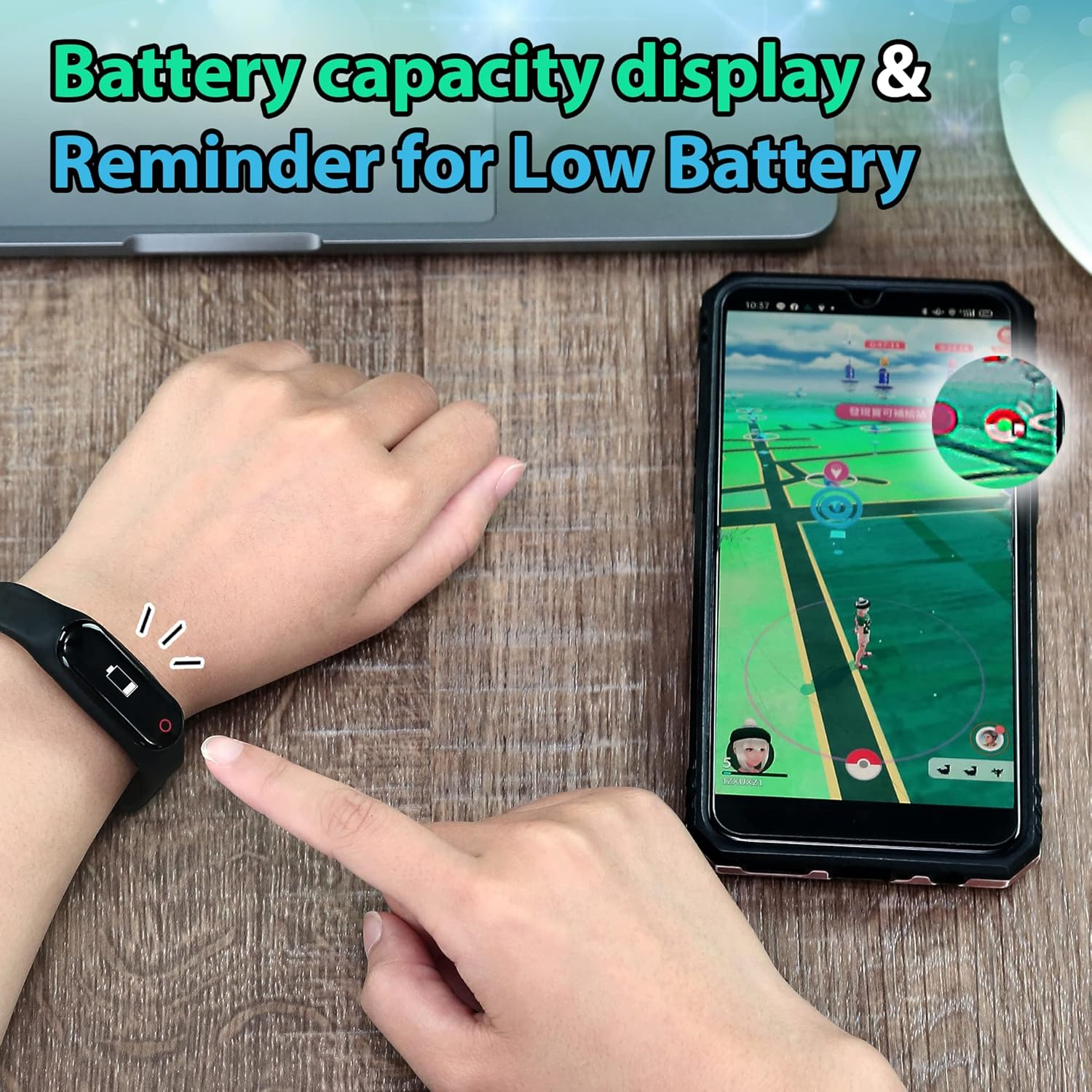
Image 6.1: The device displays battery capacity and provides low battery reminders.
7. Řešení problémů
7.1 Device Not Connecting/Frequent Disconnections
- Ujistěte se, že je na vašem smartphonu povoleno Bluetooth.
- Verify the device is charged and powered on.
- The game application typically disconnects external devices after one hour of inactivity. Reconnect manually if this occurs.
- Maintain close proximity between the device and your smartphone (within 15 feet). Obstacles or distance can weaken the connection.
- Check the in-game settings for 'Pokémon Go Plus' to ensure it is properly configured.
- If issues persist, try restarting both the device and your smartphone.

Image 7.1: The device provides a vibration reminder and visual cues for disconnection.
7.2 Not Catching Creatures or Spinning Pokéstops
- Confirm the device is successfully paired and connected to the game.
- Ensure you have sufficient Pokeballs in your inventory for catching. The device only uses standard Pokeballs.
- Check the settings within the "Brook Pocket Center" app and the in-game 'Pokémon Go Plus' settings to ensure auto-catch and auto-spin functions are enabled.
- Verify that your in-game item bag and creature storage are not full.
- Poor internet connectivity on your smartphone can affect the device's ability to interact with the game.
8. Záruka a podpora
For warranty information and technical support, please refer to the official Brook webnebo se obraťte přímo na jejich zákaznický servis. Uschovejte si účtenku jako doklad o koupi pro případ reklamace.
Výrobce: Potok
Webmísto: Visit the Brook Store on Amazon
Ask a question about this manual
Ask about setup, troubleshooting, compatibility, parts, safety, or missing instructions. Manuals+ will review the question and use this page’s manual context to help answer it.