
1. Úvod a konecview
The HP t430 Thin Client is a versatile, cloud-first device designed for desktop virtualization and cloud-based applications. It offers an intuitive experience for users and simplifies maintenance for IT administrators. Its compact design and efficient processing power contribute to a modern computing experience.
Mezi klíčové vlastnosti patří:
- Optimalizovaný výkon: Experience responsive performance with the Intel Celeron N4020 processor, operating at up to 2.8 GHz.
- Flexible Operating Systems: Available with Linux-based HP ThinPro or Windows 10 IoT Enterprise for Thin Clients.
- Efektivní paměť: Equipped with 4 GB DDR4 SDRAM for smooth operation.
- Integrovaná grafika: Features Intel UHD Graphics 600, supporting up to 4K display resolution.
- Komplexní konektivita: Includes USB-C for power, audio, and data, DisplayPort, HDMI, Gigabit Ethernet, and optional Wi-Fi.
- Kompaktní a přizpůsobivý design: A sleek profile with a built-in VESA mount allows for flexible placement, including mounting behind a display.

Obrázek 1.1: Přední strana view of the HP t430 Thin Client, showcasinjeho kompaktní design a přední USB port.
2. Průvodce nastavením
This section outlines the steps to set up your HP t430 Thin Client.
2.1. Vybalení a obsah
Carefully unpack your HP t430 Thin Client and verify that all components are present:
- HP t430 Thin Client unit
- Napájecí adaptér
- HP USB Slim Business Keyboard
- Myš
2.2. Připojení periferií
- Připojení displeje: Use a DisplayPort or HDMI cable to connect your monitor to the corresponding port on the thin client. The device supports up to two displays simultaneously.
- Připojení klávesnice a myši: Plug the USB keyboard and mouse into any available USB ports on the thin client.
- Připojit síť: For a wired connection, connect an Ethernet cable from your network router or switch to the LAN port on the thin client. If using Wi-Fi (optional), ensure your device has the integrated Wi-Fi module.
- Připojte napájení: Plug the power adapter into the thin client's power input, then connect the power adapter to an electrical outlet.

Obrázek 2.1: Zadní strana view of the HP t430 Thin Client, illustrating the various connectivity ports including USB, DisplayPort, HDMI, and Ethernet.
2.3. Počáteční zapnutí
After connecting all peripherals and power, press the power button on the thin client. The device will boot up, and you will be presented with the operating system interface (HP ThinPro or Windows 10 IoT Enterprise).

Image 2.2: The HP t430 Thin Client positioned on a desk, connected to a monitor, keyboard, and mouse, ready for use.
3. Návod k obsluze
Your HP t430 Thin Client is designed for efficient operation in virtualized and cloud environments.
3.1. Zapnutí/vypnutí
- Zapnutí: Stiskněte tlačítko napájení, které se nachází na přední straně zařízení.
- Vypnutí: Use the shutdown option within your operating system (HP ThinPro or Windows 10 IoT Enterprise). Avoid direct power disconnection during operation to prevent data corruption.
3.2. Operating System Navigation
Depending on your configuration, your thin client will run either HP ThinPro or Windows 10 IoT Enterprise. Familiarize yourself with the respective operating system's interface for accessing applications, settings, and network resources.
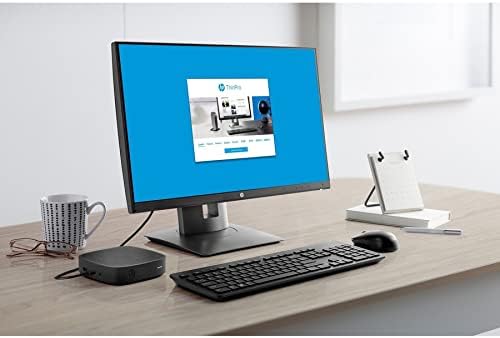
Image 3.1: A monitor connected to the HP t430 Thin Client, displaying the user interface of the HP ThinPro operating system.
3.3. Connecting to Virtual Desktops and Cloud Applications
The HP t430 Thin Client is pre-configured to connect to various virtualization platforms such as Citrix, VMware, and Microsoft RDP. Consult your IT administrator for specific connection details and credentials. Web browsers are also available for accessing cloud-based applications directly.
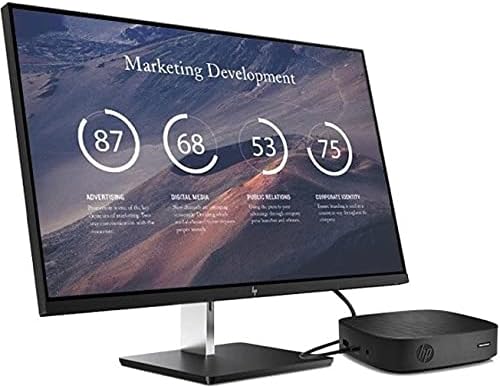
Image 3.2: The HP t430 Thin Client in a professional setting, connected to a monitor displaying a business-oriented dashboard with charts and data.
4. Údržba
Proper maintenance ensures the longevity and optimal performance of your HP t430 Thin Client.
4.1. Čištění
- Vnější: Lehce používejte měkký hadřík, který nepouští vlákna dampVnější povrchy otřete vodou nebo jemným, neabrazivním čisticím prostředkem. Vyhněte se agresivním chemikáliím.
- Porty: Ensure ports are free of dust and debris. Use compressed air if necessary, holding the can upright to prevent liquid discharge.
4.2. Aktualizace softwaru
Regularly apply operating system and security updates as recommended by HP or your IT department. HP manageability software can assist in deploying and managing these updates efficiently.
4.3. Ohledy na životní prostředí
Operate the thin client in a well-ventilated area, away from direct sunlight, excessive heat, and moisture. Ensure proper airflow around the device to prevent overheating.
5. Řešení problémů
Tato část obsahuje řešení běžných problémů, se kterými se můžete setkat.
5.1. Bez napájení
- Verify the power adapter is securely connected to both the thin client and a working electrical outlet.
- Otestujte elektrickou zásuvku pomocí jiného zařízení, abyste se ujistili, že je funkční.
- Ensure the power button on the thin client has been pressed.
5.2. Žádný displej
- Check that the display cable (DisplayPort or HDMI) is securely connected to both the thin client and the monitor.
- Ujistěte se, že je monitor zapnutý a nastavený na správný vstupní zdroj.
- Try connecting the thin client to a different monitor or using a different display cable if available.
5.3. Problémy s připojením k síti
- Kabelové připojení: Verify the Ethernet cable is properly connected to the thin client and the network router/switch. Check the network status lights on the thin client and router.
- Wi-Fi připojení: Ensure the Wi-Fi module is enabled in the operating system settings. Confirm you are connected to the correct network and have entered the password correctly.
- Restart the thin client and your network equipment (router/modem).
For persistent issues, refer to the HP support website or contact your IT administrator.
6. Specifikace
Detailed technical specifications for the HP t430 Thin Client.
| Funkce | Specifikace |
|---|---|
| Značka | HP |
| Název modelu | t430 |
| Číslo modelu | 486Z0UT#ABA |
| Operační systém | HP ThinPro 64, Windows 10 IoT Enterprise for Thin Clients |
| Procesor | Intel Celeron N4020 Dual-core (2 Core) |
| Rychlost procesoru | 1.10 GHz (up to 2.8 GHz burst) |
| Paměť RAM | 4 GB DDR4 SDRAM |
| Skladování | 32 GB SSD |
| Grafika | Grafická karta Intel UHD Graphics 600 |
| Video výstup | DisplayPort, HDMI, USB-C |
| Maximální rozlišení displeje | 3840 x 2160 pixelů (4K) |
| Konektivita | Gigabit Ethernet, Wi-Fi (optional) |
| USB porty | 5 Total (including USB-C) |
| Rozměry (V x Š x H) | 19.6 x 8.7 x 5 palce (přibližně) |
| Hmotnost | 4.3 libry |
| Barva | Černý |
| Dodržování | Energy Star, RoHS |
7. Informace o záruce
The HP t430 Thin Client comes with a 3letá záruka výrobceUschovejte si doklad o koupi pro případné reklamace. Podrobné podmínky naleznete v záruční dokumentaci dodané s produktem nebo navštivte oficiální podporu HP. webmísto.
8. Podpora
For further assistance, technical support, or to download drivers and documentation, please visit the official HP support webmísto:
You may also contact HP customer service directly through the contact information provided on their webmísto.