
1. Průvodce nastavením
This section provides instructions for setting up your FMOUSE M101 Dual Mode Wireless Mouse.
1.1 Instalace baterie
The FMOUSE M101 requires one AA battery (not included). Follow these steps to install the battery:
- Gently slide open the battery cover located on the underside of the mouse.
- Insert one AA battery into the compartment, ensuring correct polarity (+/-).
- Pevně zavřete kryt baterie.

Figure 1.1: Battery and USB receiver installation. The image displays the underside of the mouse with the battery cover removed, showing the slot for an AA battery and the storage compartment for the USB receiver.
1.2 Connection Modes (2.4GHz USB Receiver & Bluetooth)
Your FMOUSE M101 supports two connection modes: 2.4GHz wireless via USB receiver and Bluetooth. You can switch between these modes using the switch on the underside of the mouse.
1.2.1 Připojení 2.4GHz USB přijímače
- Locate the USB receiver stored inside the battery compartment of the mouse (refer to Figure 1.1).
- Plug the USB receiver into an available USB port on your computer (laptop, desktop, etc.).
- Posuňte přepínač režimů na spodní straně myši do polohy „2.4 G“.
- The mouse should automatically connect to your device. The indicator light will flash green during connection and turn off when connected.

Figure 1.2: Connecting the mouse via 2.4GHz USB receiver. A laptop is shown with the USB receiver inserted, indicating a wireless connection to the mouse.
1.2.2 Připojení Bluetooth
- Posuňte přepínač režimů na spodní straně myši do polohy „BT“ (Bluetooth).
- On your device (MacBook, iPad, PC, Android device), go to Bluetooth settings.
- Hledat available devices and select "FMOUSE M101" to pair.
- The indicator light will flash blue during pairing and turn off when successfully connected.
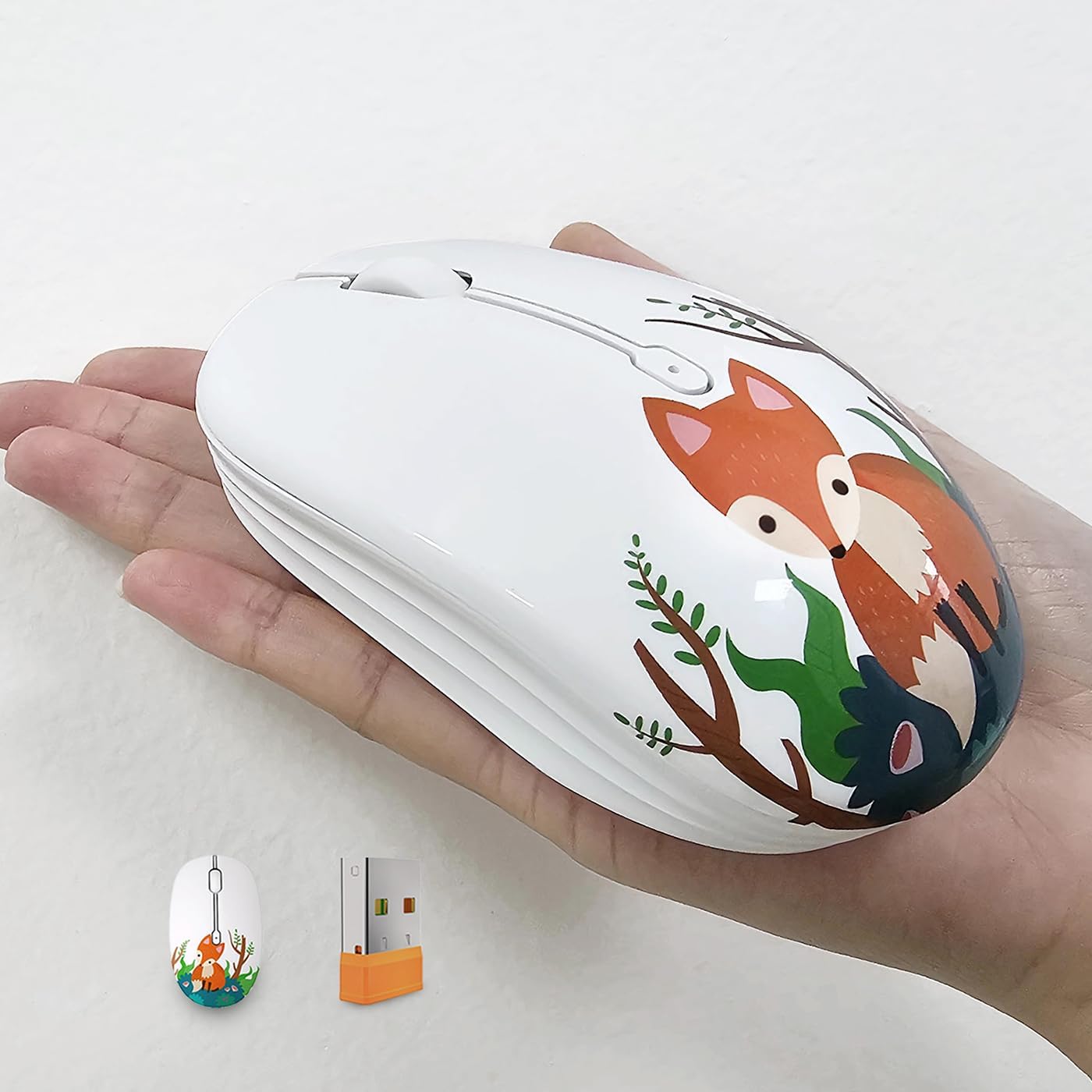
Figure 1.3: Connecting the mouse via Bluetooth. The mouse is positioned next to an iPad, illustrating a Bluetooth connection.
1.2.3 Mode Switch Indicator
The mouse features a mode switch indicator for easy status monitoring:
- Green Light Flash: Indicates 2.4G mode connection.
- Blue Light Flash: Indicates Bluetooth mode connection.
- Red Light Flash (Scroll Wheel): Indicates low battery alert.
- Zhasnout: Indicates successful connection and normal operation.

Figure 1.4: Mode switch indicator. Close-up of the mouse's underside showing the indicator lights for 2.4G, Bluetooth, and low battery status.
1.3 Kompatibilita
The FMOUSE M101 is compatible with a wide range of operating systems and devices, including:
- Windows 7 (x86/x64), Windows 8 (x86/x64), Windows 10 or later
- Mac OSX 10.08 nebo novější
- Chrome OS
- Android 5.0 nebo novější
- Personal computers, laptops, tablets, and smartphones.
1.4 Videoprůvodce nastavením
Video 1.1: This video demonstrates the setup process for the FMOUSE M101 Wireless Mouse, including battery installation and connecting via 2.4GHz USB receiver and Bluetooth.
Video 1.2: This video provides a quick guide on connecting the FMOUSE M101 via Bluetooth, highlighting the ease of pairing with compatible devices.
2. Návod k obsluze
Learn how to effectively use your FMOUSE M101 Dual Mode Wireless Mouse.
2.1 Silent Click Design
The FMOUSE M101 features a silent click design, minimizing noise during use. This allows for a quiet working or studying environment, ideal for libraries, offices, or late-night use.

Figure 2.1: Silent click design. The image highlights the noiseless operation of the mouse buttons.
2.2 Intelligent Power Saving Mode
To conserve battery life, the mouse automatically enters a sleep mode after 10 minutes of inactivity. To wake the mouse, simply click any button.
2.3 Ergonomický design
The mouse is designed with an ergonomic profile to fit comfortably in your hand, ensuring prolonged comfortable use.

Figure 2.2: Ergonomic design. A hand is shown comfortably gripping the mouse, demonstrating its ergonomic shape.
3. Údržba
Proper maintenance ensures the longevity and optimal performance of your FMOUSE M101.
3.1 Výměna baterie
When the scroll wheel flashes red, it indicates a low battery. Replace the AA battery by following the steps in Section 1.1 Battery Installation.
3.2 Čištění
K čištění myši použijte měkký, suchý hadřík. V případě odolných nečistot lehceampOtřete hadřík vodou nebo jemným čisticím roztokem. Nepoužívejte agresivní chemikálie ani abrazivní materiály, protože by mohly poškodit povrch myši nebo vnitřní součásti.
4. Řešení problémů
If you encounter issues with your FMOUSE M101, refer to the following common solutions:
4.1 Myš nereaguje
- Zkontrolujte baterii: Ujistěte se, že je baterie AA správně vložena a dostatečně nabitá. V případě potřeby ji vyměňte.
- Zapnutí: Verify the mouse is switched ON using the power switch on the underside.
- Probuzení ze spánku: Click any button to wake the mouse from its intelligent power-saving mode.
4.2 Connection Issues (2.4GHz USB Receiver)
- USB přijímač: Ensure the USB receiver is securely plugged into a working USB port on your device. Try a different USB port if available.
- Přepínač režimu: Confirm the mode switch on the mouse is set to "2.4G".
- Rušení: Move the mouse closer to the USB receiver and away from other wireless devices that might cause interference.
4.3 Connection Issues (Bluetooth)
- Přepínač režimu: Confirm the mode switch on the mouse is set to "BT" (Bluetooth).
- Bluetooth zapnuto: Ujistěte se, že je na vašem zařízení povoleno Bluetooth.
- Režim párování: If the mouse is not appearing in your device's Bluetooth settings, ensure it's in pairing mode (blue light flashing). You might need to briefly switch the mouse off and then back to BT mode to re-enter pairing.
- Zapomenout zařízení: If previously paired, try "forgetting" or "removing" the mouse from your device's Bluetooth settings and then re-pairing.
5. Specifikace
| Funkce | Detail |
|---|---|
| Značka | FMOUSE |
| Název modelu | M101 |
| Barva | Fox Pattern |
| Technologie připojení | Bluetooth, 2.4 GHz USB |
| Speciální funkce | Wireless 2.4 GHz and Bluetooth dual-mode mouse |
| Technologie detekce pohybu | Optický |
| Množství tlačítek | 3 |
| Orientace rukou | Právo |
| Kompatibilní zařízení | Windows 7/8/10+, Mac OSX 10.08+, Chrome OS, Android 5.0+, PCs, Laptops, Tablets, Smartphones |
| Operační systém | Android, Linux, Mac OS, Windows |
| Bezdrátové Dosah | 10.0 metrů |
| Zdroj napájení | Napájení z baterie (vyžaduje 1 AA baterii, není součástí balení) |
| Maximální citlivost | 1600 Dots per Inch (DPI) |
| Hmotnost položky | 58 gramů |
| Rozměry položky (D x Š) | 4.13"D x 2.44"Š |
| Materiál | Plast |
| UPC | 768494408725 |

Figure 5.1: Mouse dimensions. The image provides a visual representation of the mouse's length and width measurements.
6. Záruka a podpora
6.1 Záruka výrobce
The FMOUSE M101 Dual Mode Wireless Mouse comes with a 1letá záruka výrobce od data nákupu. Tato záruka se vztahuje na vady materiálu a zpracování při běžném používání. Nevztahuje se na škody způsobené nesprávným použitím, nehodami, neoprávněnými úpravami nebo vnějšími vlivy.
Uschovejte si prosím doklad o koupi pro uplatnění záruky.
6.2 Zákaznická podpora
For further assistance, technical support, or warranty inquiries, please contact FMOUSE customer service through the retailer's platform or visit the official FMOUSE webmísto.
Můžete také navštívit FMOUSE Store on Amazon pro více informací o produktu a zdroje podpory.