
Liene DHP512
Uživatelská příručka k fototiskárně Liene White M200 4x6'' Battery Edition
Model: DHP512
Značka: Liene
1. Konec produktuview
The Liene White M200 4x6'' Photo Printer Battery Edition is a portable dye-sublimation photo printer designed for high-quality, full-color photo printing. It offers wireless connectivity for smartphones (iPhone, Android), laptops, and PCs, making it ideal for home use and travel. This printer features a built-in rechargeable battery, allowing for printing without a constant power connection.
Key features include professional photo quality with water, scratch, and fade protection, a built-in Wi-Fi hotspot for stable connections, and a user-friendly design with a unique magnetic paper cassette for easy storage. The Liene APP provides additional editing and creative options.
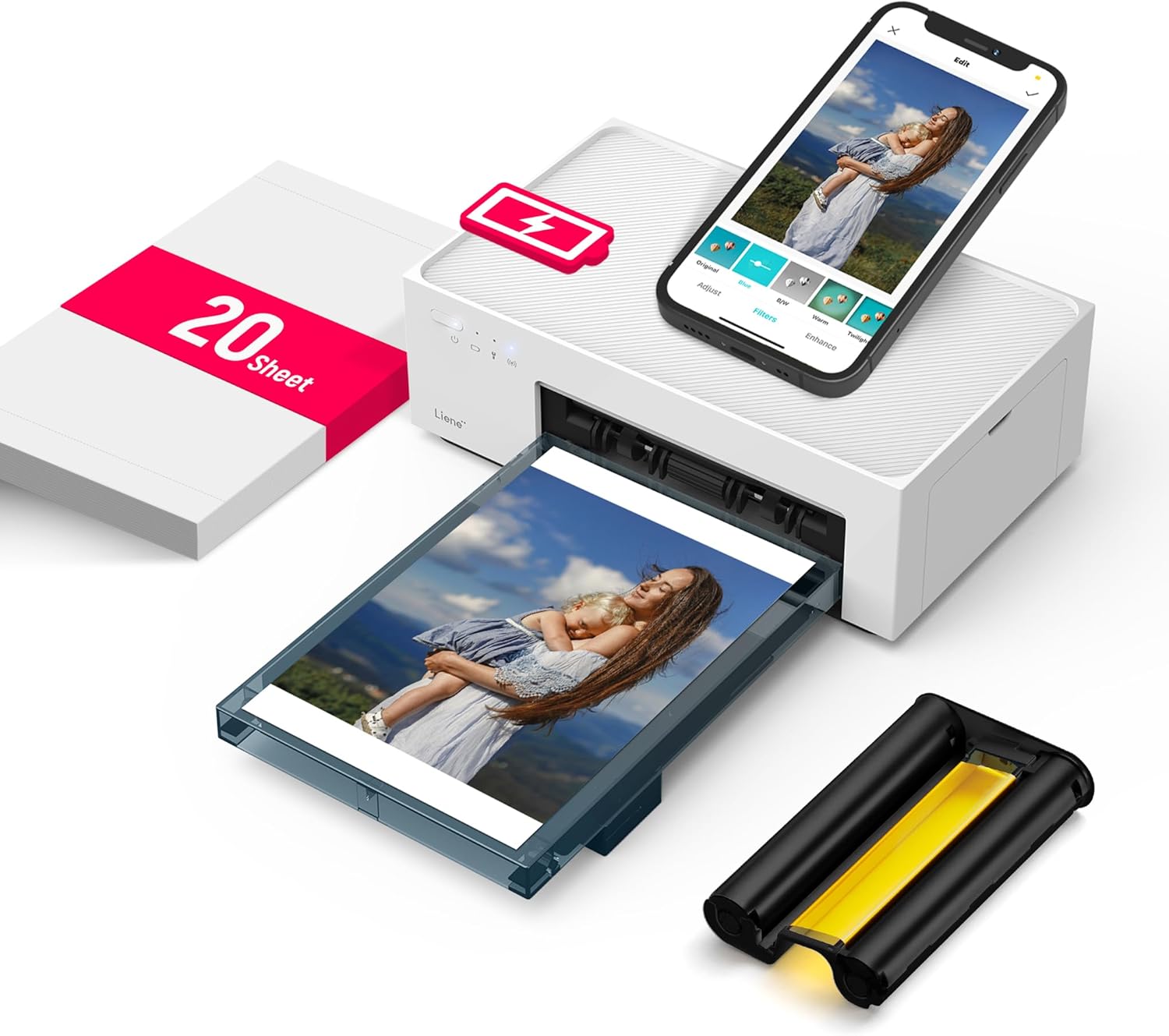
Figure 1.1: Liene White M200 Photo Printer with accessories, demonstrating its compact design and wireless capabilities.
2. Průvodce nastavením
Follow these steps to set up your Liene M200 Photo Printer for the first time.
2.1. Install Ink Cartridge
- Open the ink cartridge cover on the side of the printer.
- Insert the ink cartridge into the designated slot until it clicks into place. Ensure it is oriented correctly.
- Zavřete kryt inkoustové kazety.

Figure 2.1: Step-by-step illustration of installing the ink cartridge into the printer.
2.2. Load Photo Paper
- Open the paper cassette.
- Load up to 20 sheets of 4x6 inch photo paper into the cassette with the glossy side facing up.
- Close the paper cassette and insert it into the front slot of the printer.

Figure 2.2: Loading photo paper into the paper cassette before inserting it into the printer.
2.3. Zapnutí a připojení
- Connect the power adapter to the printer and a power outlet, or ensure the built-in battery is charged.
- Stisknutím tlačítka napájení zapněte tiskárnu. Rozsvítí se kontrolka.
- On your smartphone or computer, search for Wi-Fi networks and connect to the printer's built-in Wi-Fi hotspot (e.g., "Liene_Printer_XXXX"). No password is required for the initial connection.
- Download and install the "Liene Photo" app from your device's app store (iOS App Store or Google Play Store).

Figure 2.3: Powering on the printer and connecting to its Wi-Fi hotspot via the Liene app.
3. Návod k obsluze
This section details how to operate your Liene M200 Photo Printer for various printing tasks.
3.1. Printing from the Liene App
- Ensure your device is connected to the printer's Wi-Fi hotspot.
- Open the Liene Photo app.
- Select the photo(s) you wish to print from your device's gallery.
- Use the app's editing features to adjust, add filters, or borders to your photos.
- Confirm print settings (e.g., number of copies) and tap the print button. The printer will process and print the photo layer by layer.
Figure 3.1: Printing a photo directly from the Liene Photo app, showcasing the app's interface and the printer in action.
The Liene app allows for basic photo editing, including adjustments, filters, and borders. It also provides notifications for low ink or paper levels.

Figure 3.2: The Liene app's interface for customizing photos before printing.
3.2. Connectivity and Multi-Device Support
The Liene M200 printer features a built-in Wi-Fi hotspot for stable and fast connections, independent of your home network. It supports connections from various devices:
- iOS Airprint: Pro zařízení Apple.
- Android Mopria Print: Pro zařízení s Androidem.
- Computer (Wire/Wireless Connection): For Windows PCs and laptops.
- Liene APP: Dedicated application for enhanced features.
Up to 5 users can connect to the printer simultaneously, making it convenient for shared use.

Figure 3.3: The Liene printer's ability to connect with up to 5 devices simultaneously via its built-in Wi-Fi hotspot.
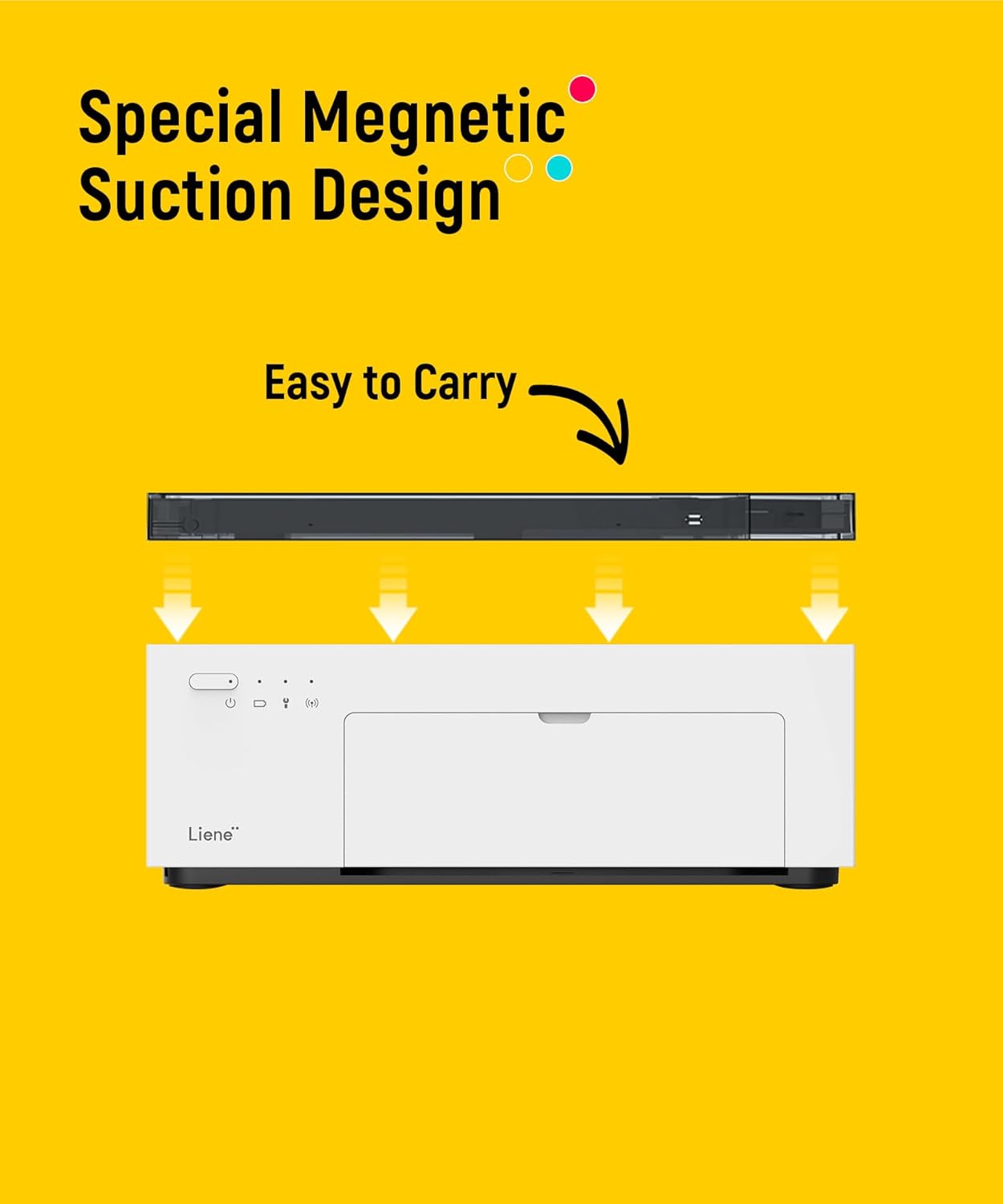
Obrázek 3.4: Přesview of multiple ways to print using the Liene M200, including iOS Airprint, Android Mopria Print, computer connections, and the Liene APP.
3.3. Provoz na baterie
The Liene M200 Battery Edition features a built-in rechargeable battery, providing portability. A full charge allows for approximately 40 prints. This enables printing on-the-go without needing to be plugged into a power outlet.
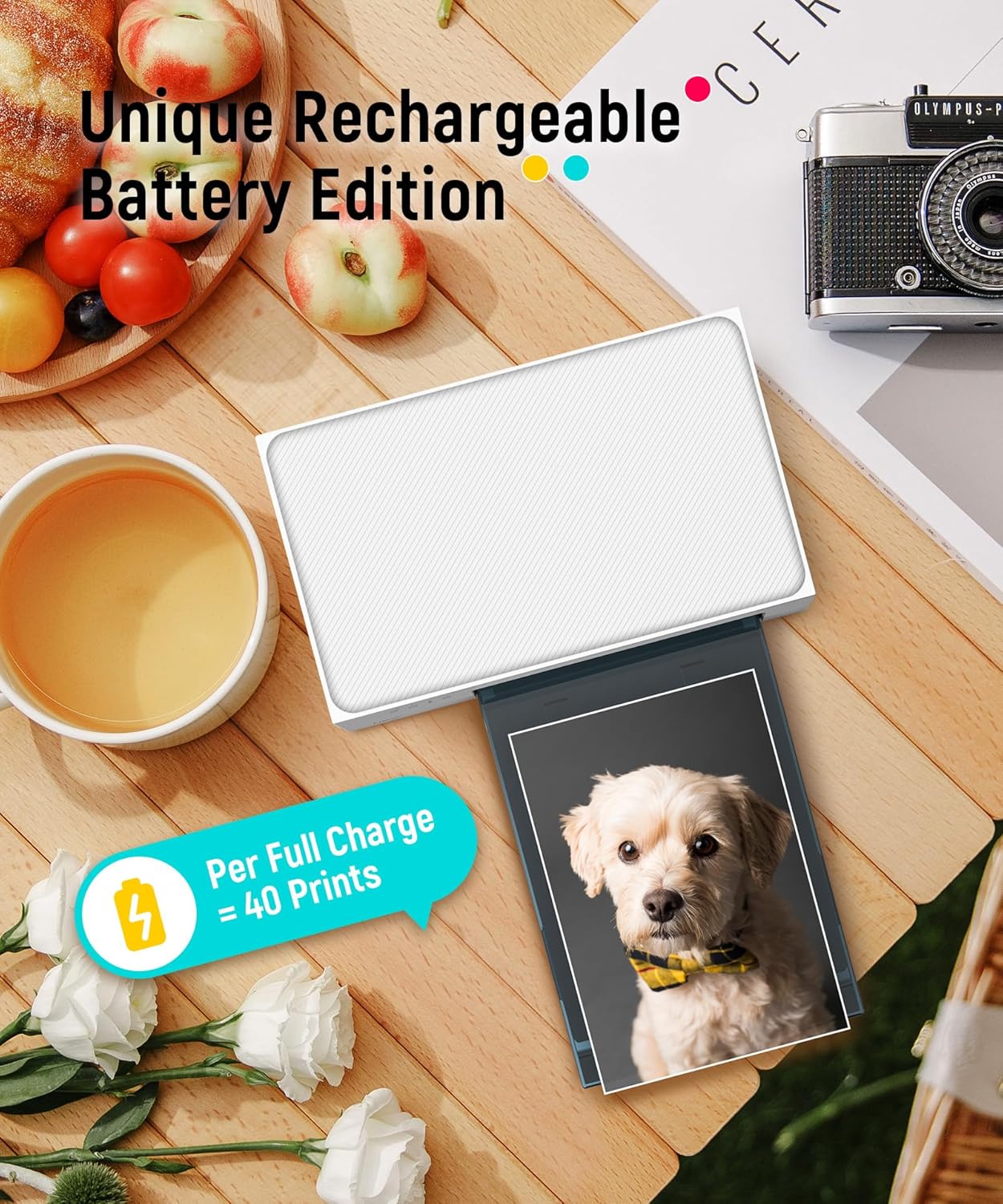
Figure 3.5: The Liene printer's rechargeable battery feature, offering up to 40 prints per full charge for portable use.
4. Údržba
Proper maintenance ensures the longevity and optimal performance of your Liene M200 Photo Printer.
4.1. Replacing Ink Cartridge and Photo Paper
The Liene Photo app will notify you when the ink cartridge or photo paper is running low. Replace them as follows:
- Inkoustová kazeta: When the ink is depleted, remove the old cartridge and insert a new one as described in Section 2.1.
- Photo Paper: When paper runs out, refill the paper cassette with new 4x6 inch photo paper as described in Section 2.2.
It is recommended to use official Liene photo paper and ink cartridges for best print quality and printer compatibility.

Figure 4.1: The essential consumables for the Liene printer: photo paper and ink cartridge.
4.2. Čištění tiskárny
To maintain print quality, occasionally clean the exterior of the printer with a soft, dry cloth. Avoid using liquid cleaners or abrasive materials. Do not attempt to clean internal components unless specifically instructed by Liene support.
5. Řešení problémů
If you encounter issues with your Liene M200 Photo Printer, refer to the following common problems and solutions.
| Problém | Možná příčina | Řešení |
|---|---|---|
| Tiskárna se nezapne. | No power, low battery, or power adapter issue. | Ensure power adapter is securely connected. Charge the printer's built-in battery. Try a different power outlet. |
| Cannot connect to printer Wi-Fi. | Printer not in Wi-Fi mode, out of range, or interference. | Ensure printer is powered on and Wi-Fi indicator is active. Move closer to the printer. Restart both printer and device. |
| Photos print with incorrect colors or streaks. | Low ink, incorrect paper loading, or dirty print head. | Check ink cartridge level and replace if necessary. Ensure paper is loaded correctly (glossy side up). Contact support if issue persists. |
| Zaseknutý papír. | Nesprávné vložení papíru nebo cizí předmět. | Carefully remove any jammed paper. Ensure paper is loaded correctly and not creased. |
| Liene App issues (e.g., stuck, cannot select multiple images). | App software bug or compatibility issue. | Restart the app or your device. Ensure the app is updated to the latest version. If issues persist, try reinstalling the app. For specific app limitations, refer to the app's help section or contact Liene support. |
| Internet access disabled when connected to printer Wi-Fi. | This is expected behavior for direct Wi-Fi connections. | The printer's direct Wi-Fi hotspot does not provide internet access. Disconnect from the printer's Wi-Fi to regain internet access on your device. |
If the problem persists after trying these solutions, please contact Liene customer support.
6. Specifikace
| Funkce | Detail |
|---|---|
| Značka | Liene |
| Název modelu | DHP512 |
| Technologie tisku | Sublimace barviva |
| Technologie připojení | Wi-Fi, USB |
| Maximální velikost média | 4 x 6 palce |
| Maximální rozlišení barevného tisku | 300 dpi |
| Kompatibilní zařízení | Smartphones (iOS, Android), PC, Laptops |
| Maximální vstupní kapacita listu | 20 listů |
| Hmotnost položky | 2.47 libry |
| Rozměry produktu | 7.48"H x 9.88"Š x 7.48"V |
| Zahrnuté komponenty | Photo printer, power adapter, photo paper, ink cartridge, instruction manual |
| Speciální funkce | Wireless, User friendly, Built-in Battery |
7. Záruka a podpora
7.1. Záruka na produkt
The Liene M200 Photo Printer comes with a full warranty. For detailed information regarding warranty terms, coverage, and duration, please refer to the official Liene webnebo kontaktujte přímo zákaznickou podporu.
7.2. Zákaznická podpora
For technical assistance, troubleshooting, or any inquiries regarding your Liene M200 Photo Printer, please contact Liene customer support. You can find contact information on the official Liene website or through the seller's support page on Amazon.
- Oficiální uživatelská příručka (PDF): Download PDF Manual
- Liene Store on Amazon: Visit Liene Store
- Seller Support (LieneDirect): Kontaktovat prodejce
Ask a question about this manual
Ask about setup, troubleshooting, compatibility, parts, safety, or missing instructions. Manuals+ will review the question and use this page’s manual context to help answer it.