
Zavedení
Thank you for choosing the FMOUSE M113 Wireless Bluetooth Mouse. This manual provides detailed instructions for setting up, operating, and maintaining your new mouse. Please read it carefully to ensure optimal performance and longevity of your device.
Konec produktuview
The FMOUSE M113 is a slim, rechargeable wireless mouse designed for versatility and convenience. It offers dual-mode connectivity (2.4G USB receiver and Bluetooth 5.1), multiple programmable buttons, adjustable DPI settings, and a silent click design.
Video: Nadview of FMOUSE M113 Wireless Mouse features, including connectivity, charging, and special buttons.

Obraz: The FMOUSE M113 mouse showcasing jeho štíhlý profesionálfile and compact dimensions (113mm length, 57mm width, 25mm height).
Obsah balení
Zkontrolujte prosím balení, zda neobsahuje následující položky:
- Bezdrátová myš FMOUSE M113
- USB Charging Cable (Type-C, 80cm/31.5in)
- USB přijímač (2.4G)
- Návod k použití

Obraz: Contents of the FMOUSE M113 package, including the mouse, USB charging cable, USB receiver, and instruction manual.
Nabíjení myši
The FMOUSE M113 features a built-in rechargeable Lithium-Ion battery. Before first use, it is recommended to fully charge the mouse.
- Locate the Type-C charging port at the front of the mouse.
- Connect the provided USB Type-C charging cable to the mouse and the other end to a USB power source (e.g., computer USB port, USB wall adapter).
- During charging, the scroll wheel light will illuminate red.
- Once fully charged, the scroll wheel light will turn off.
- If the battery is low, the scroll wheel light will flash red.

Obraz: Visual guide for charging the FMOUSE M113 mouse, showing the Type-C port and light indicators for charging (red light), fully charged (light off), and low battery (flashing red).
Možnosti připojení
The FMOUSE M113 supports dual-mode connectivity: 2.4G wireless via USB receiver and Bluetooth 5.1. You can connect to two different devices simultaneously.

Obraz: Diagram illustrating the two connection methods for the FMOUSE M113: 2.4G USB receiver for one device and Bluetooth for another, with indicators for successful connection.
Připojení 2.4G USB přijímače
- Locate the USB receiver stored in the magnetic slot on the underside of the mouse.
- Zapojte USB přijímač do volného USB portu na vašem počítači.
- Zapněte myš pomocí vypínače ON/OFF na spodní straně.
- Switch the mode selector on the bottom of the mouse to the 2.4G icon (usually indicated by a small antenna symbol).
- Myš by se měla připojit automaticky.
Bluetooth připojení
- Zapněte myš pomocí vypínače ON/OFF na spodní straně.
- Přepněte přepínač režimů na spodní straně myši na ikonu Bluetooth.
- On your device (MacBook, iPad, Laptop, etc.), go to Bluetooth settings.
- Hledat new devices and select "FMOUSE M113" (or similar name) from the list.
- Pair the device. The mouse should now be connected via Bluetooth.
Návod k obsluze
Zapnutí/vypnutí
Use the ON/OFF switch located on the underside of the mouse to power it on or off. Turning off the mouse when not in use helps conserve battery life.
Úprava DPI
The mouse features 4 adjustable DPI levels (800/1200/1600/2400) to customize cursor sensitivity. Press the Tlačítko DPI (located near the scroll wheel) to cycle through the settings. The color of the scroll wheel light indicates the current DPI level.
- 800 DPI: (Color indicator may vary, refer to image)
- 1200 DPI: (Color indicator may vary, refer to image)
- 1600 DPI: (Color indicator may vary, refer to image)
- 2400 DPI: (Color indicator may vary, refer to image)
To turn off the roller light, long press the DPI button for 2 seconds.

Obraz: Illustration of the 4 adjustable DPI levels (800, 1200, 1600, 2400) and how the scroll wheel light changes color to indicate the current setting.
Desktop Return Button
Oddaný Desktop Return button (located near the scroll wheel) allows for a quick return to your computer's home page with a single click. This feature enhances privacy and workflow efficiency.

Obraz: The Desktop Return button on the FMOUSE M113, demonstrating its function to instantly minimize all windows and return to the desktop.
Mute Button and Volume Control
The Tlačítko ztlumení (located near the scroll wheel) provides instant control over your computer's volume.
- Jedno stisknutí: Press the mute button once to instantly set your computer's volume to zero (mute).
- Long Press and Scroll: Long press the mute button for 2 seconds, then move the scroll wheel up or down to adjust the volume level.

Obraz: Visual guide demonstrating the mute button's functionality for instant muting and for adjusting volume by long-pressing and scrolling.
Silent Click Feature
The FMOUSE M113 is designed with silent click buttons, significantly reducing click noise. This makes it suitable for quiet environments such as libraries, offices, or late-night use, minimizing disturbance to others.
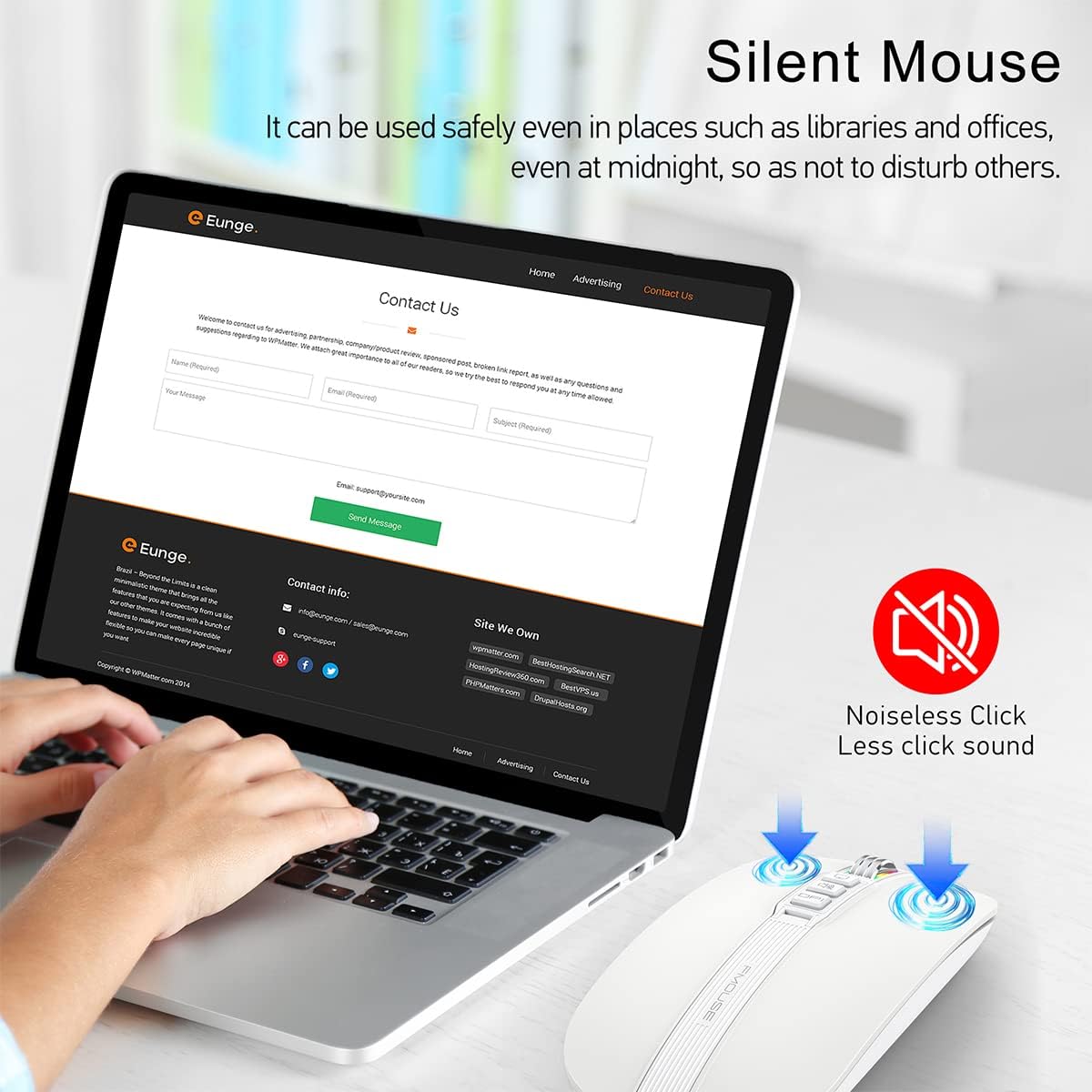
Obraz: Depiction of the FMOUSE M113 highlighting its noiseless click feature, indicating reduced sound output during use.
Specifikace
| Funkce | Detail |
|---|---|
| Model | M113 |
| Technologie připojení | Bluetooth 5.1, 2.4G USB Wireless |
| Úrovně DPI | 800/1200/1600/2400 |
| Speciální funkce | One-click DPI adjustment, One-click access to desktop, One-click muting, Three shortcut keys |
| Detekce pohybu | Optický |
| Typ baterie | Dobíjecí lithium-iontový |
| Nabíjecí port | USB Type-C |
| Rozměry produktu | 4.45 x 2.24 x 0.98 palce (113 x 57 x 25 mm) |
| Hmotnost položky | 2.4 unce (68 gramů) |
| Kompatibilita | Windows, macOS, iPadOS, ChromeOS, Linux |
Odstraňování problémů
- Myš se nepřipojuje:
Ensure the mouse is powered on. Check the connection mode switch (2.4G or Bluetooth) on the bottom of the mouse. For 2.4G, ensure the USB receiver is securely plugged in. For Bluetooth, ensure Bluetooth is enabled on your device and the mouse is paired correctly. Try restarting both the mouse and your device. - Pohyb kurzoru je nepravidelný nebo pomalý:
Adjust the DPI settings using the DPI button. Ensure the mouse is on a clean, non-reflective surface. Check battery level and recharge if necessary. - Myš se nenabíjí:
Ensure the Type-C cable is properly connected to both the mouse and the power source. Try a different USB port or charging cable. Check if the charging indicator light is on. - Tlačítka nereagují:
Check if the mouse is connected. Ensure no debris is obstructing the buttons. If the issue persists, try reconnecting the mouse.
Záruka a podpora
FMOUSE products are designed for reliability and performance. For warranty information or technical support, please refer to the contact details provided with your purchase documentation or visit the official FMOUSE webstránky. Uschovejte si prosím doklad o koupi pro případ reklamace.