
TRIGKEY GREEN G3
TRIGKEY Mini PC GREEN G3 Instruction Manual
Model: GREEN G3
1. Úvod
The TRIGKEY Mini PC GREEN G3 is a compact and powerful desktop computer designed for various applications, from office work and home entertainment to light gaming and design tasks. Equipped with an Intel 11th Generation N5095 processor, 16GB DDR4 RAM, and a 500GB M.2 SSD, it offers efficient performance and versatile connectivity options, including dual 4K@60Hz HDMI outputs.

Figure 1: TRIGKEY Mini PC GREEN G3
2. Průvodce nastavením
Follow these steps to set up your TRIGKEY Mini PC:
- Unboxing and Contents: Carefully remove all components from the packaging. The box typically includes the Mini PC, power adapter, HDMI cable, VESA mount, and user manual.
- Připojení periferií: Connect your monitor(s) using the HDMI ports, and plug in your keyboard and mouse into the available USB ports.
- Připojení napájení: Connect the power adapter to the Mini PC and then plug it into a power outlet.
- Zapnutí: Stiskněte tlačítko napájení na přední straně Mini PC. Rozsvítí se kontrolka napájení.
Video 1: Unboxing and contents of the Mini PC.
Video 2: Demonstrating the power consumption of the Mini PC.
3. Návod k obsluze
3.1 Základní obsluha
Your Mini PC comes pre-installed with Windows 10 Pro, allowing for immediate use upon initial setup. Follow the on-screen prompts for the first-time Windows configuration.
3.2 Nastavení duálního zobrazení
The TRIGKEY Mini PC supports dual 4K@60Hz HDMI outputs, significantly enhancing productivity by allowing you to extend your desktop across two screens. To set up dual displays:
- Connect both monitors to the HDMI ports on the back of the Mini PC.
- Once connected, Windows should automatically detect both displays. If not, right-click on the desktop, select 'Display settings', and click 'Detect'.
- In Display settings, you can arrange your displays, change resolution, and select display modes (e.g., Extend these displays, Duplicate these displays).
Video 3: How to use dual 4K HDMI outputs for increased work efficiency.
Video 4: Demonstration of dual screen display functionality.
3.3 Výkon nadview
The Intel Celeron N5095 processor with Intel UHD Graphics provides reliable performance for everyday computing tasks. The 16GB DDR4 RAM ensures smooth multitasking, while the 500GB M.2 SSD offers fast boot times and quick application loading.

Figure 2: Intel Celeron N5095 Processor details.

Figure 3: Multi-Core Performance Benchmark comparison.
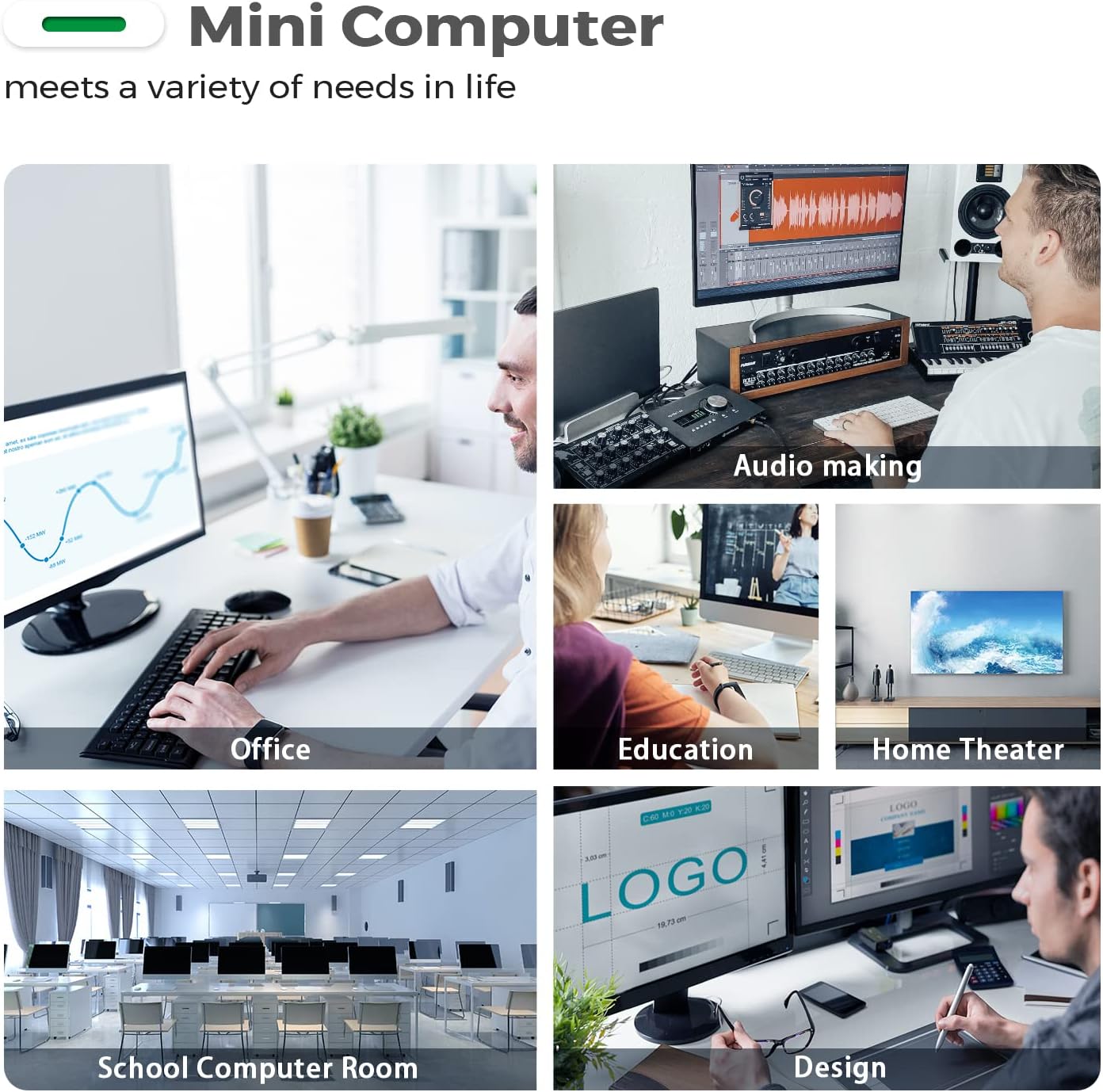
Figure 4: Intel UHD Graphics software running score.
4. Údržba a modernizace
4.1 RAM Installation/Upgrade
The Mini PC supports up to 16GB DDR4 RAM. If you need to install or upgrade the RAM, follow these steps:
- Vypněte Mini PC a odpojte všechny kabely.
- Unscrew the four screws at the bottom panel.
- Gently lift the back panel from the side to reveal the internal components.
- Locate the RAM slots. If replacing, carefully unclip and remove the existing RAM module by lifting it outward.
- Align the notch on the new RAM module with the slot and insert it firmly at an angle. Push down until the clips on both sides snap into place.
- Reattach the back panel and secure it with the screws.
Video 5: Step-by-step tutorial on how to install RAM.
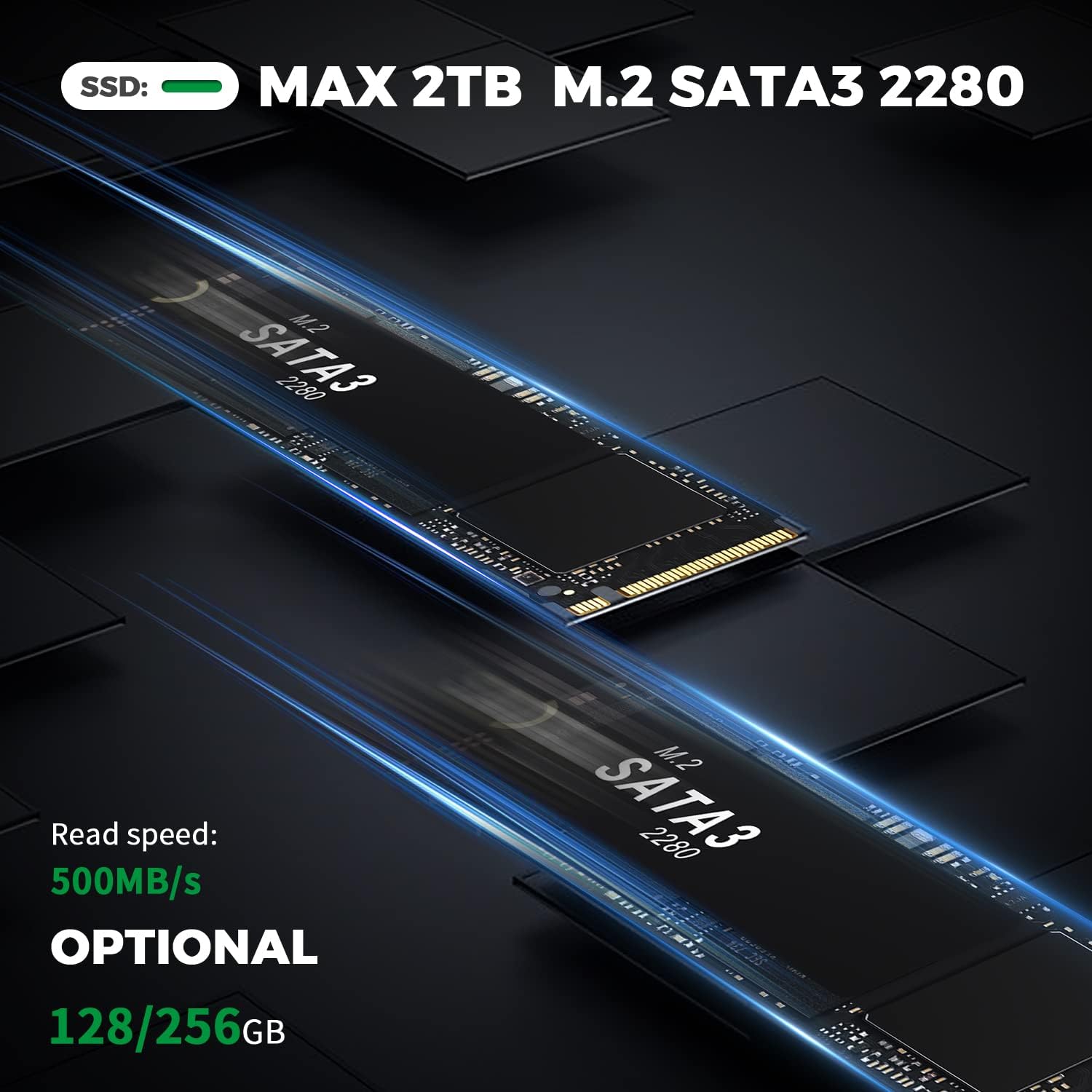
Figure 5: Max 16GB DDR4 RAM support.
4.2 SSD Expansion
The Mini PC supports up to 2TB M.2 SATA3 2280 SSD for expanded storage. To install an additional SSD:
- Follow steps 1-3 from RAM installation to open the back panel.
- Locate the M.2 SSD slot.
- Align the new M.2 SSD with the slot and gently push it in. Secure it with the provided screw.
- Reattach the back panel and secure it with the screws.
Video 6: Guide to expanding your SSD for massive storage space.
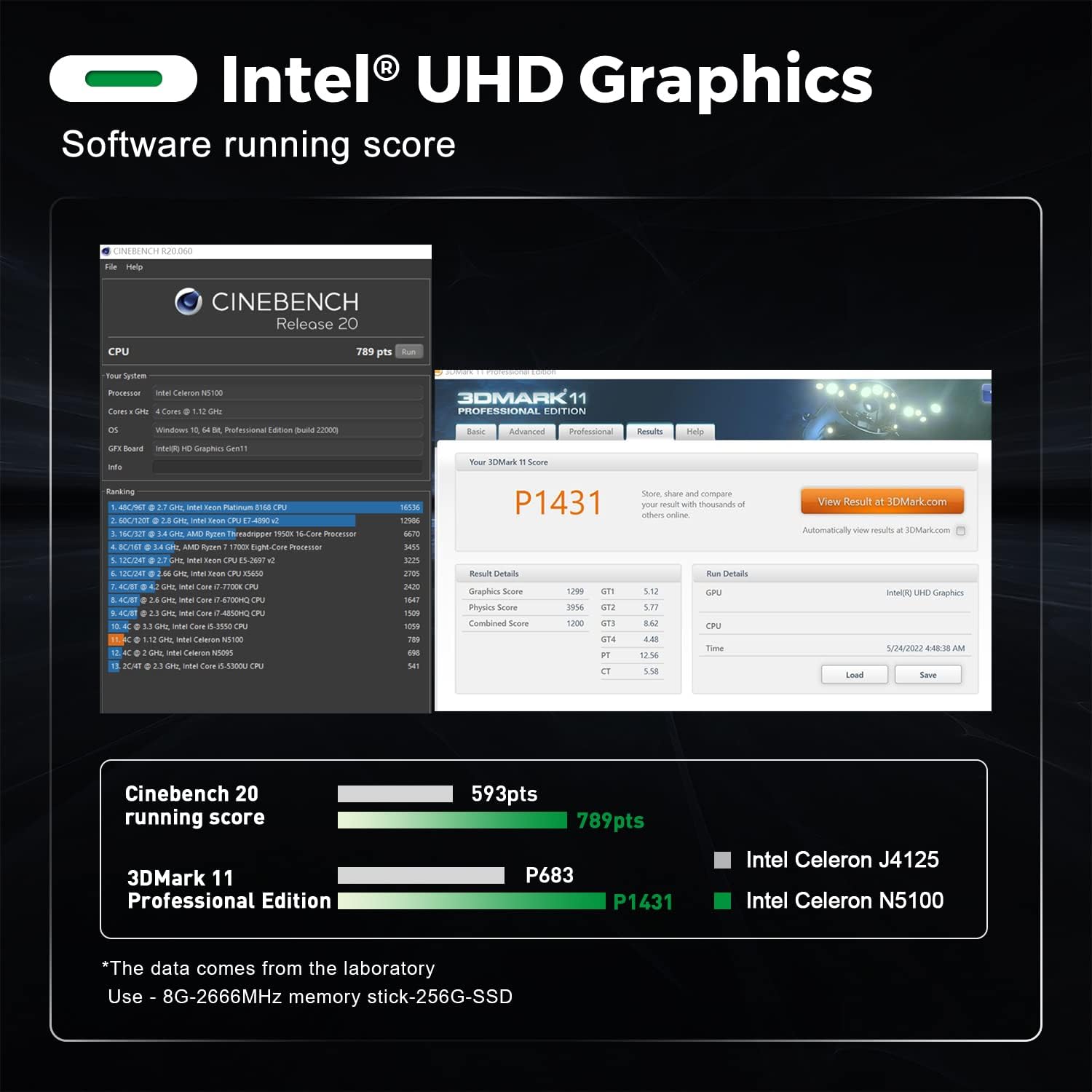
Figure 6: M.2 SSD SATA3 2280 support for up to 2TB.
5. Řešení problémů
5.1 Žádný displej
- Ensure the HDMI cable is securely connected to both the Mini PC and the monitor.
- Verify the monitor input source is set to the correct HDMI port.
- Try a different HDMI cable or monitor to rule out faulty equipment.
5.2 Problémy s napájením
- Check if the power adapter is correctly plugged into the Mini PC and the wall outlet.
- Ujistěte se, že zásuvka je funkční.
- If the device does not power on, try pressing and holding the power button for 10-15 seconds to perform a hard reset.
6. Specifikace produktu
| Funkce | Specifikace |
|---|---|
| Procesor | Intel 11th Generation N5095 (2.9 GHz Celeron, 4 Cores) |
| BERAN | 16 GB DDR4 (Max 2933MHz) |
| Skladování | 500 GB M.2 SSD (SATA3 2280, Max 2TB) |
| Grafika | Integrovaná grafika Intel UHD Graphics |
| Video výstup | Dual 4K@60Hz HDMI (3840x2160) |
| Bezdrátové připojení | WiFi 5 (2.4 GHz, 5.8 GHz), Bluetooth 5.0 |
| Porty | USB 3.0, LAN (Ethernet), HDMI, Audio Jack |
| Operační systém | Windows 10 Pro (or OS) |
| Rozměry | 115 mm x 102 mm x 41 mm |
| Hmotnost | 1.76 libry |
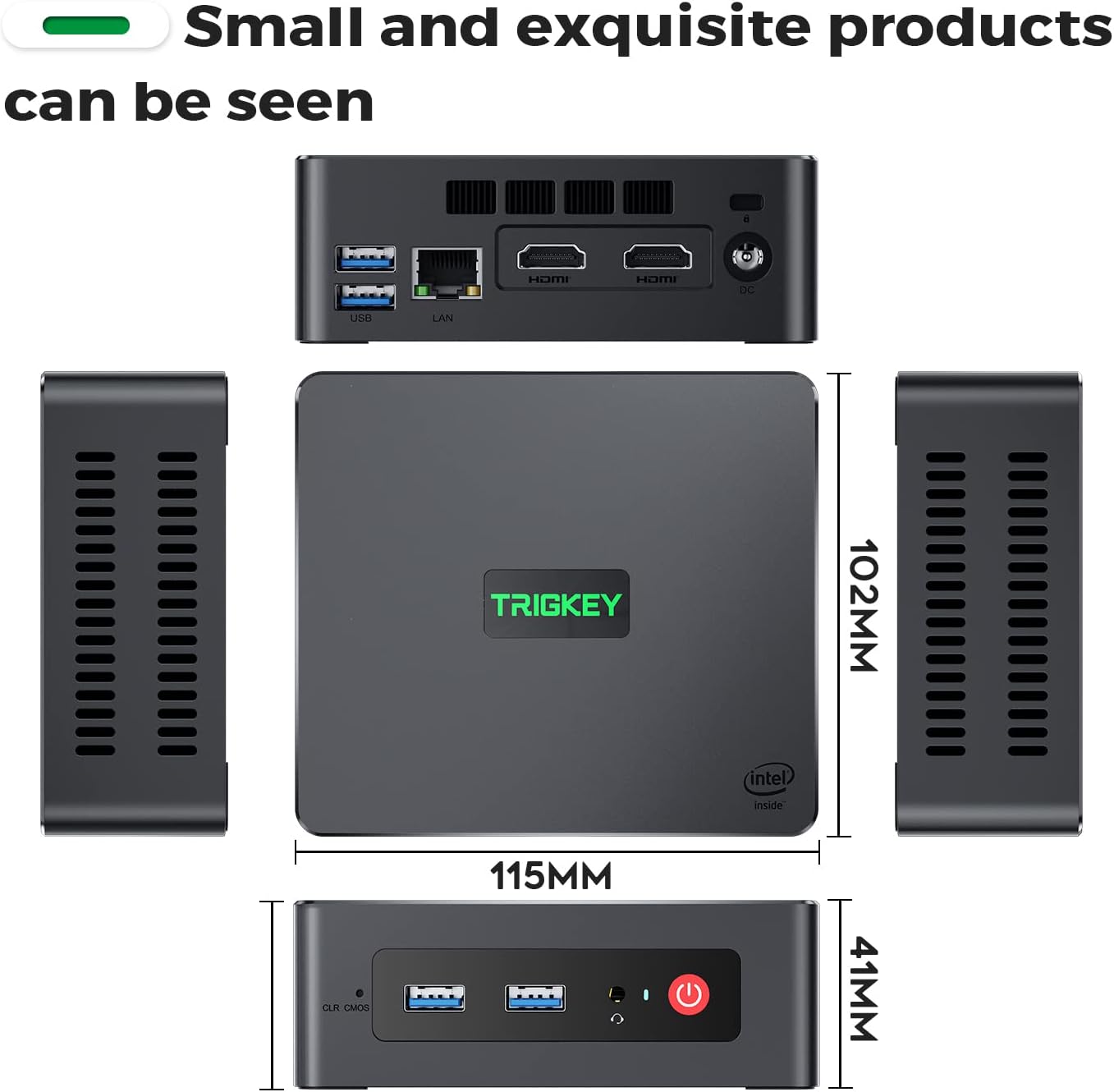
Figure 7: Compact dimensions of the Mini PC.

Figure 8: Various applications for the Mini PC.

Figure 9: The Mini PC supports 4K high-definition video output.
7. Záruka a podpora
TRIGKEY offers comprehensive after-sales support for its products:
- Rychlá odpověď do 24 hodin: Očekávejte odpověď na vaše dotazy do 24 hodin.
- 30-Day No Reason to Return: Products can be returned within 30 days without specific reasons.
- 12měsíční výměna: Výměna je k dispozici do 12 měsíců od zakoupení.
- Lifetime After-Sales Service and Technical Support: Continuous support throughout the product's lifespan.
Video 7: How to get TRIGKEY Support.
For any issues or questions, please contact TRIGKEY after-sales service directly. You can typically find contact information in the included user manual or on the official TRIGKEY webmísto.
Ask a question about this manual
Ask about setup, troubleshooting, compatibility, parts, safety, or missing instructions. Manuals+ will review the question and use this page’s manual context to help answer it.