
AZDOME M63H
Návod k obsluze palubní kamery AZDOME 4K (M63H)
Model: M63H | Brand: AZDOME
1. Úvod
Welcome to the AZDOME 4K Dash Cam (M63H) user manual. This guide provides detailed instructions on how to set up, operate, and maintain your dash cam to ensure optimal performance and longevity. Please read this manual thoroughly before using the device.
2. Co je v krabici
Carefully unpack your AZDOME M63H Dash Cam and verify that all items listed below are included:
- 1 x AZDOME M63H 4K Dash Cam
- 1 x Rear Camera (6m/19.7FT cable)
- 1 x 11.5FT/3.5M Power Supply Cable with Car Charger
- 1 x GPS přijímač
- 1 x 64GB AZDOME SD Card
- 2 x Static Clings Sticker
- 5 x Cable Hiding Clips
- 1 x Car Wiring Tool
- 1 x Uživatelská příručka

Image: All components included in the AZDOME M63H Dash Cam package.
3. Konec produktuview
Klíčové vlastnosti
- 4K přední + 1080P zadní nahrávání: Captures clear video at 2880x2160P (front) and 1080P (rear) with WDR and F1.8 large aperture.
- Vestavěná WiFi a GPS: Connects wirelessly to your smartphone via the AZDOME APP for remote control, real-time viewing, a file management. GPS records position and speed.
- Super noční vidění: Dual Sony Sensor and 170°+150° super wide-angle lens with Night Mode and WDR for clear recording in low light.
- Multifunkčnost: Includes G-sensor for automatic video locking, seamless loop recording, parking monitoring, motion detection, time lapse, and screen saver.
- Durable Metal Rear Camera: IP68 waterproof design for reliable outdoor use.
- 24hodinový parkovací monitor: Requires optional hardwire kit (B09LVD8XF9) for continuous power.
- Super kondenzátor: Operates reliably in extreme temperatures (-4°F to 158°F / -20°C to +70°C) without a battery.
Identifikace součásti

Image: The main AZDOME M63H Dash Cam unit, featuring the front lens and display screen.

Image: Visual representation of the wide 170-degree front and 150-degree rear field of view provided by the dash cam system.

Image: Illustrates the difference in clarity between the 4K front camera and 1080P rear camera video resolution.
4. Nastavení
4.1 Montáž palubní kamery
- Vyčistěte oblast čelního skla, kde bude namontována palubní kamera. Ujistěte se, že je bez prachu a mastnoty.
- Apply one of the static cling stickers to the chosen area on the windshield. This helps protect your windshield and makes removal easier.
- Attach the adhesive mount to the static cling sticker. Press firmly for 30 seconds to ensure a secure bond.
- Nasuňte palubní kameru na držák, dokud nezacvakne.
- Upravte úhel kamery pro zajištění jasného obrazu view silnice před sebou a vyhýbání se překážkám zezaduview zrcátko nebo stěrače.
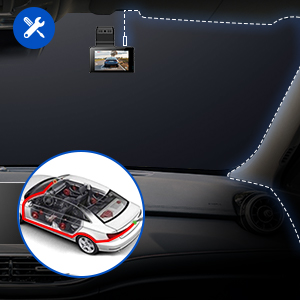
Image: A diagram illustrating the recommended cable routing for a neat and secure dash cam installation along the car's interior trim.
4.2 Připojení napájení
Connect the provided car charger to the dash cam's power input port and plug the other end into your vehicle's cigarette lighter socket. The dash cam will automatically power on when the vehicle starts.
4.3 Vložení SD karty
Insert the included 64GB SD card into the dash cam's SD card slot until it clicks. Ensure the card is inserted correctly with the contacts facing the camera's screen. It is recommended to format the SD card within the dash cam settings before first use.
4.4 Instalace zadní kamery
Connect the rear camera cable to the main dash cam unit. Mount the rear camera on your vehicle's rear windshield using the adhesive mount. Route the cable neatly along the vehicle's interior trim to the front unit. Ensure the rear camera has a clear view and is properly aligned.
5. Návod k obsluze
5.1 Zapnutí/vypnutí
- Automatické zapnutí/vypnutí: The dash cam will automatically power on and begin recording when connected to power and your vehicle starts. It will power off automatically when the vehicle is turned off.
- Ruční zapnutí/vypnutí: Press and hold the power button for a few seconds to manually turn the dash cam on or off.
5.2 Režimy nahrávání
- Nahrávání ve smyčce: The dash cam continuously records video in short segments (e.g., 1, 3, or 5 minutes). When the SD card is full, the oldest unlocked files are overwritten automatically.
- G-senzor (nouzové nahrávání): The built-in G-sensor detects sudden impacts or collisions. When triggered, the current video segment is automatically locked and saved to prevent it from being overwritten by loop recording.
5.3 Připojení k Wi-Fi a používání aplikací
The AZDOME M63H features built-in Wi-Fi for easy connection to your smartphone via the AZDOME app. This allows for live view, přehrávání videa, úprava nastavení a file ke stažení.
- Stáhněte si aplikaci „AZDOME“ z App Storu (iOS) nebo z Obchodu Google Play (Android).
- On the dash cam, enable Wi-Fi from the settings menu.
- On your smartphone, go to Wi-Fi settings and connect to the AZDOME dash cam's Wi-Fi network (e.g., "M63"). The default password is 12345678.
- Otevřete aplikaci AZDOME. Nyní můžete view živé footage, browse recorded videos, and manage settings.

Image: A step-by-step guide showing how to connect the AZDOME dash cam to your smartphone using the Wi-Fi feature for app control and live viewIng.
5.4 Funkce GPS
The integrated GPS module records your driving route, location, and speed. This data can be viewvedle tvého video footage using the AZDOME app or the dedicated AZDOME GPS Player software on a computer.

Image: A laptop screen displaying the AZDOME GPS Player interface, showing a recorded route on a map and live speed data, demonstrating the GPS tracking feature.
5.5 Parkovací monitor
The parking monitor feature provides surveillance when your vehicle is parked. If the dash cam detects a collision or motion (depending on settings), it will automatically start recording. For 24-hour parking monitoring, a hardwire kit (sold separately, e.g., B09LVD8XF9) is required to provide continuous power to the dash cam.
5.6 Přehrávání a File Řízení
Videos can be played back directly on the dash cam's screen, or by connecting the SD card to a computer, or through the AZDOME smartphone app. Files are organized into normal, locked (emergency), and parking mode folders. Regularly back up important footage and format the SD card to ensure optimal recording performance.
6. Údržba
- Čištění: K čištění čočky a obrazovky palubní kamery používejte měkký, suchý hadřík. Nepoužívejte abrazivní čisticí prostředky ani rozpouštědla.
- Formátování SD karty: It is recommended to format the SD card every 2-4 weeks to prevent data corruption and ensure smooth operation. This can be done through the dash cam's settings menu.
- Aktualizace firmwaru: Zkontrolujte oficiální stránky AZDOME website periodically for firmware updates. Keeping your dash cam's firmware up-to-date can improve performance and add new features.
- Teplota: While the dash cam is designed for extreme temperatures, avoid prolonged exposure to direct sunlight in very hot conditions when parked, if possible.
7. Řešení problémů
If you encounter issues with your AZDOME M63H Dash Cam, please refer to the following table for common problems and solutions:
| Problém | Možné řešení |
|---|---|
| Palubní kamera se nezapne. | Ensure the power cable is securely connected to both the dash cam and the car's power outlet. Check the car's cigarette lighter fuse. |
| Dash cam reboots frequently. | Ensure the power connection is stable. Try a different power source or cable. Format the SD card. If the issue persists, the SD card might be faulty; try a new high-quality U3 speed SD card. |
| Video footage je rozmazané nebo nejasné. | Vyčistěte objektiv fotoaparátu. Ujistěte se, že z objektivu byla odstraněna ochranná fólie. Zkontrolujte nastavení rozlišení videa. |
| Chyba SD karty / Nelze nahrávat. | Format the SD card in the dash cam's settings. Ensure you are using a high-speed (U3 or higher) SD card. The card might be full or corrupted; replace if necessary. |
| Problémy s připojením k Wi-Fi. | Ensure Wi-Fi is enabled on the dash cam. Double-check the Wi-Fi password (default: 12345678). Keep your phone close to the dash cam. Restart both the dash cam and your phone. |
| Mounting clips do not stick. | Ensure the mounting surface is clean, dry, and smooth. Apply firm pressure for an extended period. Consider using alternative adhesive solutions if the provided ones are insufficient. |
| Dash cam requires a password. | If you did not set a password, try the default password (if any) or consult the manufacturer's support for a reset procedure. |
8. Specifikace
| Funkce | Detail |
|---|---|
| Model | M63H |
| Rozlišení předního fotoaparátu | 4K (2880x2160P) |
| Rozlišení zadní kamery | 1080P |
| Front FOV | 170° |
| Rear FOV | 150° |
| Zobrazit | 3" UHD Display |
| Senzor | Sony Sensor (IMX415) |
| Konektivita | Wi-Fi, GPS |
| Skladování | Podporuje Micro SD kartu (64 GB součástí balení) |
| Zdroj napájení | Super Capacitor (no internal battery for operation) |
| Provozní teplota | -4 °F až 158 °F (-20 °C až +70 °C) |
| Rear Camera Waterproof Rating | IP68 |
| Hmotnost položky | 1.59 libry |
| Rozměry balení | 10 x 4.84 x 2.64 palce |
9. Záruka a podpora
9.1 Informace o záruce
AZDOME offers an 18-month after-sales service for the M63H Dash Cam. Please retain your proof of purchase for warranty claims. For specific warranty terms and conditions, refer to the official AZDOME webwebu nebo kontaktujte zákaznickou podporu.
9.2 Zákaznická podpora
If you have any questions, require technical assistance, or need to report an issue that is not covered in this manual, please contact AZDOME customer support through their official website or the contact information provided with your product packaging. They also offer free firmware upgrade services.
Ask a question about this manual
Ask about setup, troubleshooting, compatibility, parts, safety, or missing instructions. Manuals+ will review the question and use this page’s manual context to help answer it.