
1. Úvod
This manual provides detailed instructions for the setup, operation, and maintenance of your Bytech BYMCWC101BLK PC Web Camera. Please read this manual thoroughly before using the product to ensure proper functionality and longevity.
2. Obsah balení
Ověřte, zda jsou v balení produktu obsaženy všechny níže uvedené položky:
- Počítač Bytech BYMCWC101BLK Web Fotoaparát
- Uživatelská příručka (tento dokument)
- Integrovaný USB kabel
3. Nastavení
Follow these steps to set up your Bytech BYMCWC101BLK PC Web Fotoaparát:
- Umístění: Umístěte webcam on top of your computer monitor, laptop screen, or a flat surface. The adjustable clip allows for secure attachment.
- Připojení k počítači: Zapojte integrovaný kabel USB z webvložte do volného portu USB na vašem počítači.
- Instalace ovladače: The webcam is typically plug-and-play. Your operating system (Windows, macOS, Linux) should automatically detect and install the necessary drivers. Wait for the installation to complete.
- Ověření: Open a video conferencing application (e.g., Zoom, Skype, Microsoft Teams) or your computer's camera application to confirm the webcam is recognized and displaying video.
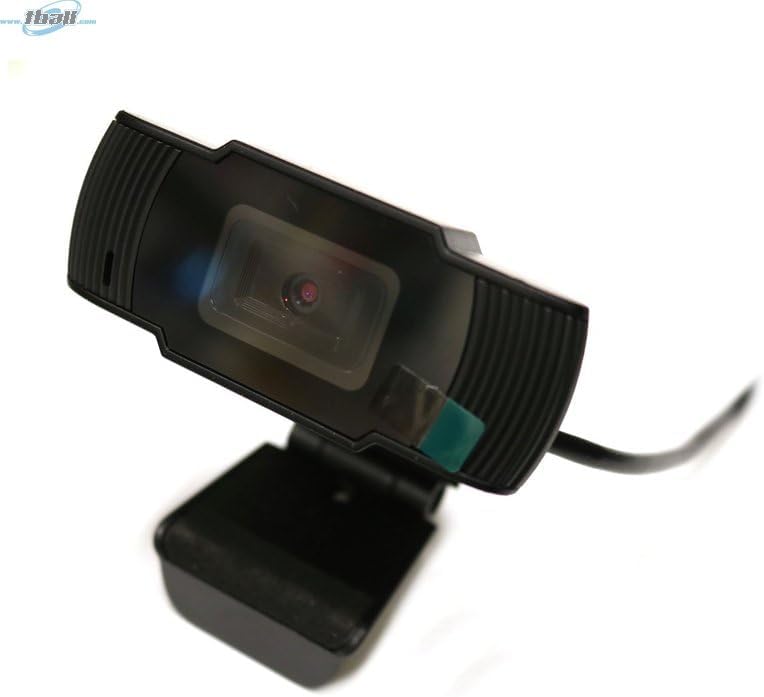
Image: The Bytech BYMCWC101BLK PC Web Camera securely mounted on top of a computer monitor, demonstrating its adjustable clip design.
4. Návod k obsluze
Once installed, the Bytech BYMCWC101BLK PC Web Camera can be used with various applications:
- Videokonference: Select the Bytech webcam as your video input device within your preferred video conferencing software (e.g., Zoom, Skype, Google Meet).
- Streamování: For live streaming platforms, configure the webcam as your primary video source in your streaming software (e.g., OBS Studio).
- Záznam: Use your computer's built-in camera application or third-party software to record video.
- Výkon při slabém osvětlení: The webcam features BSI CMOS photo sensor technology and is designed to perform effectively in low-light conditions, providing clear video even with limited ambient lighting.
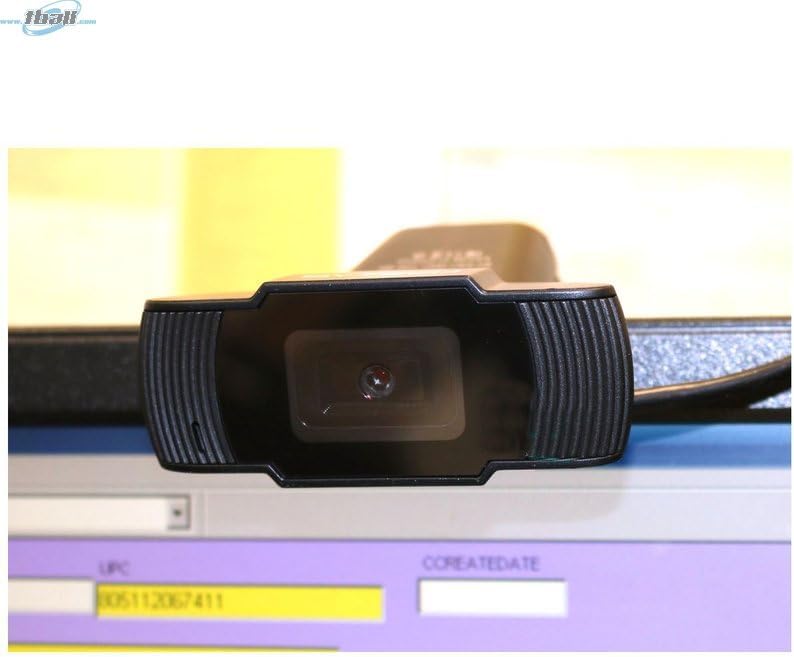
Obrázek: Detailní záběr view of the Bytech BYMCWC101BLK PC Web Camera's lens, highlighting its design and integrated privacy cover (if applicable, otherwise just lens).
5. Údržba
To ensure optimal performance and extend the lifespan of your webvačka:
- Čištění: Jemně otřete čočku měkkým hadříkem, který nepouští vlákna. Nepoužívejte agresivní chemikálie ani abrazivní materiály.
- Skladování: Pokud nepoužíváte, uložte webcam in a clean, dry environment away from direct sunlight and extreme temperatures.
- Péče o kabely: Kabel USB nadměrně neohýbejte ani nekrimpujte.
6. Řešení problémů
Pokud narazíte na problémy s vaším webvačky, viz následující běžné problémy a jejich řešení:
- Žádný obrázek/video:
- Ujistěte se, že je kabel USB bezpečně připojen k oběma webkameru a váš počítač.
- Zkuste zapojit webkamera do jiného portu USB.
- Restartujte počítač.
- Check your application settings to ensure the Bytech webcam is selected as the video input device.
- Špatná kvalita videa:
- Zajistěte dostatečné osvětlení ve vašem prostředí.
- Vyčistěte webobjektiv fotoaparátu měkkým hadříkem.
- Check your application's video settings for resolution and frame rate.
- Microphone Not Working (if applicable):
- Ověřte, že webcam's microphone is selected as the audio input device in your computer's sound settings and within your application.
- Ujistěte se, že mikrofon není ve vašem systému nebo aplikaci ztlumený.
7. Specifikace
| Funkce | Detail |
|---|---|
| Název modelu | BYMCWC101BLK |
| Značka | Bytech |
| Technologie připojení | USB |
| Technologie fotosenzoru | BSI CMOS |
| Formát záznamu videa | MP4 |
| Speciální funkce | Nízké osvětlení |
| Barva | Černý |
| Hmotnost položky | 4.9 unce |
| Rozměry balení | 7.76 x 4.65 x 2.44 palce |
8. Záruka a podpora
For warranty information or technical support, please refer to the documentation included with your purchase or contact your retailer. Keep your proof of purchase for warranty claims.