
Zavedení
This manual provides detailed instructions for setting up, operating, maintaining, and troubleshooting your ASUS TUF Gaming VG247Q1A 24-inch 1080P Monitor. Please read this manual thoroughly before using the monitor to ensure proper operation and to prevent damage.

Image: ASUS TUF Gaming VG247Q1A Monitor, front view.
Nastavení
Obsah balení
Před zahájením instalace ověřte, zda jsou v balení přítomny všechny položky.
- VG247Q1A Monitor
- Napájecí kabel
- Záruční list
- Stručný průvodce (QSG)
- HDMI kabel
- DisplayPort kabel

Image: Illustration of the items included in the monitor package, including the monitor, cables, and documentation.
Montáž monitoru
- Opatrně vyjměte monitor a jeho součásti z obalu.
- Attach the stand base to the stand neck, then secure it to the monitor panel. Refer to the Quick Start Guide for specific instructions and diagrams.
- Sestavený monitor umístěte na stabilní, rovný povrch.
Připojení monitoru
Připojte monitor k počítači nebo jiným zařízením pomocí příslušných kabelů.
- Připojení napájení: Připojte napájecí kabel k napájecímu vstupu monitoru a poté do elektrické zásuvky.
- Připojení videa:
- For optimal performance, use the included DisplayPort cable to connect the monitor to your graphics card's DisplayPort output.
- Alternatively, use an HDMI cable to connect to an HDMI port on your device. The monitor has two HDMI (v1.4) ports.
- Audio připojení: If desired, connect headphones or external speakers to the 3.5mm earphone jack on the monitor.

Obrázek: Zadní view of the monitor highlighting the DisplayPort, HDMI (x2), and earphone jack connections.
The monitor also supports VESA mount (100x100mm) for alternative mounting solutions.
Návod k obsluze
Zapnutí/vypnutí
Stisknutím tlačítka napájení na monitoru jej zapnete nebo vypnete. Kontrolka napájení se rozsvítí, když je monitor aktivní.
Nabídka na obrazovce (OSD).
Access the OSD menu using the joystick or buttons on the back/bottom of the monitor to adjust various settings.
- Navigace: Use the joystick to navigate through menu options.
- Výběr: Press the joystick or corresponding button to select an option.
- Výstup: Use the designated button or move the joystick to exit the menu.
Klíčové funkce a nastavení
- Obnovovací frekvence (165 Hz): The monitor supports a high refresh rate of 165Hz for smoother motion. Ensure your graphics card settings are configured to utilize this refresh rate.
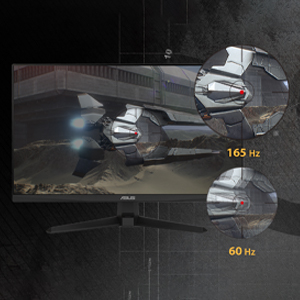
Image: Visual comparison demonstrating the smoothness of 165Hz refresh rate versus 60Hz.
- ASUS Extreme Low Motion Blur (ELMB): This technology provides a 1ms Moving Picture Response Time (MPRT) to reduce motion blur. Activate it through the OSD menu for clearer fast-paced visuals.
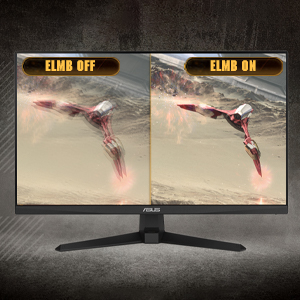
Image: Side-by-side comparison of ELMB off and ELMB on, showing reduced motion blur with ELMB active.
- AMD FreeSync™ Premium: This technology synchronizes the monitor's refresh rate with your AMD graphics card's frame rate to eliminate screen tearing and stuttering. Ensure it is enabled in both the monitor OSD and your graphics card software.
Image: Comparison of screen tearing with FreeSync Premium off versus smooth gameplay with FreeSync Premium on.
- Posílení stínů: Enhances image details in dark areas without over-exposing bright areas, providing better visibility in dimly lit game scenes.
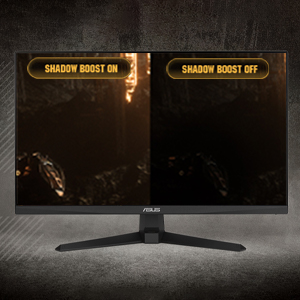
Image: Side-by-side comparison of a dark game scene with Shadow Boost off and Shadow Boost on, showing improved visibility in dark areas.
- Vlastnosti péče o zrak:
- Ultra-Low Blue Light: Reduces harmful blue light emissions to protect your eyes during long viewing sessions. Adjust the blue light filter level in the OSD menu.

Image: Graphic illustrating the effect of Ultra-Low Blue Light technology on screen output.
- Technologie Flicker-Free: Eliminates screen flickering to minimize eye strain. This feature is always active.

Image: Side-by-side comparison of a screen with and without flicker-free technology, demonstrating reduced flickering.
- Ultra-Low Blue Light: Reduces harmful blue light emissions to protect your eyes during long viewing sessions. Adjust the blue light filter level in the OSD menu.
- GamePlus: Provides in-game enhancements such as crosshairs, timers, FPS counters, and display alignment tools. Access these features via the OSD menu.
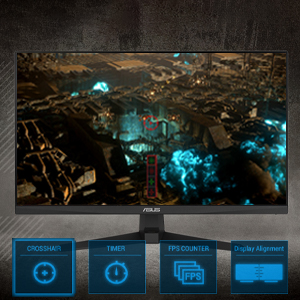
Image: Monitor screen displaying various GamePlus overlays like crosshair, timer, and FPS counter.
- GameVisual: Offers several preset display modes optimized for different content types (e.g., Scenery, Racing, Cinema, RTS/RPG, FPS, sRGB, MOBA). Select the appropriate mode for your current activity.

Image: Side-by-side comparison of a game scene with GameVisual off and GameVisual on, showing optimized visual settings.
Údržba
Správná údržba zajistí dlouhou životnost a optimální výkon vašeho monitoru.
- Čištění obrazovky:
- Vypněte monitor a odpojte napájecí kabel.
- Lehce používejte měkký hadřík, který nepouští vlákna dampvodou nebo neabrazivním čističem obrazovek.
- Wipe the screen gently. Avoid applying pressure or using harsh chemicals.
- Čištění Casing:
- K otření monitoru použijte měkký, suchý hadřík casing.
- Nepoužívejte abrazivní čisticí prostředky nebo rozpouštědla, která mohou poškodit povrchovou úpravu.
- Skladování:
- If storing the monitor for an extended period, unplug all cables and pack it in its original packaging if possible.
- Skladujte na chladném a suchém místě mimo dosah přímého slunečního záření a extrémních teplot.
Odstraňování problémů
If you encounter issues with your monitor, refer to the following common solutions.
| Problém | Možné řešení |
|---|---|
| Na obrazovce není žádný obraz |
|
| Obraz je rozmazaný nebo zkreslený |
|
| Z reproduktorů/sluchátek není slyšet žádný zvuk |
|
| Trhání nebo zasekávání obrazovky během hraní |
|
Pokud problém přetrvává i po vyzkoušení těchto řešení, kontaktujte zákaznickou podporu ASUS.
Specifikace
| Funkce | Detail |
|---|---|
| Značka | ASUS |
| Číslo modelu | VG247Q1A |
| Velikost obrazovky | 24 palce |
| Rezoluce | FHD 1080p (1920 x 1080 pixelů) |
| Poměr stran | 16:9 |
| Obnovovací frekvence | 165 Hz |
| Doba odezvy | 1 Milliseconds (MPRT) |
| Typ zobrazení | LCD |
| Typ panelu | VA (Note: Not explicitly stated, but common for these specifications) |
| Viewúhel | 170 stupňů |
| Jas | 350 kandel na metr čtvereční |
| Kontrastní poměr | 1000:1 |
| Screen Finish | Lesklý |
| Konektivita | 2x HDMI (v1.4), 1x DisplayPort (v1.2), 1x Earphone Jack |
| Technologie adaptivní synchronizace | FreeSync Premium |
| Speciální funkce | ASUS Extreme Low Motion Blur (ELMB), Shadow Boost, Blue Light Filter, Built-In Speakers, Flicker-Free, GamePlus, GameVisual |
| Rozměry položky (D x Š x V) | 15.53"H x 21.3"Š x 6.85"V |
| Hmotnost položky | 7.3 libry |
| Montáž VESA | 100x100mm compatible (Mount not included) |
| Spotřeba energie | 14.52 wattů |
| svtage | 240 voltů |
Záruka a podpora
Your ASUS TUF Gaming VG247Q1A monitor comes with a manufacturer's warranty.
- Typ záruky: 3letá záruka výrobce
- Popis záruky: 3 Year Warranty with ARR (Advanced Replacement Service)
Pro technickou podporu, reklamace nebo další pomoc navštivte oficiální stránky podpory ASUS. website or contact their customer service. Refer to the warranty card included in your package for specific contact details and terms.