
1. Úvod
Thank you for choosing the DIGITNOW PCIe Capture Card 4Kp60 (Model K801). This device is designed for high-quality video capture and streaming, supporting up to 4K 60Hz input and capturing in 4K30Hz or 1080P 120FPS resolution. It features an ultra-low latency HDMI pass-through, making it ideal for gamers, streamers, and content creators. This manual provides detailed instructions for installation, operation, and troubleshooting to ensure you get the most out of your capture card.

Figure 1: DIGITNOW PCIe Capture Card 4Kp60
2. Co je v krabici
- DIGITNOW PCIe Capture Card (Model K801)
- Průvodce instalací
3. Systémové požadavky
Pro optimální výkon se ujistěte, že váš systém splňuje následující minimální požadavky:

Figure 2: Detailed System Requirements
Hardwarové požadavky:
- Rozhraní: PCIe x1
- Vstup: Play Station 4, Xbox One, Nintendo Switch (unencrypted HDMI) up to 4K 60Hz
- výstup: HDMI (pass-through) up to 2160p30 (4K30)
- Rozlišení snímání: 2160p30, 1080p60, 720p, etc.
Operační systém:
- Windows 11/10/8/7
Recommended PC Specifications:
- Desktop CPU: Intel Core i5-6XXX or higher
- Desktop Graphics Card: NVIDIA GeForce GTX 1060 or higher
- Desktop RAM: 8GB (Dual Channels)
- Laptop CPU: Intel Core i7-7700HQ nebo vyšší
- Laptop Graphics Card: NVIDIA GeForce GTX 1050 Ti or higher
- Laptop RAM: 8GB (Dual Channels)
4. Nastavení a instalace
The DIGITNOW PCIe Capture Card is an internal component designed to be installed directly into your computer's motherboard. Follow these steps for proper installation and connection:
4.1 Fyzická instalace
- Vypněte počítač a odpojte všechny kabely.
- Otevřete skříň počítače.
- Vyhledejte na základní desce volný slot PCIe x1.
- Carefully insert the DIGITNOW PCIe Capture Card into the slot until it is firmly seated.
- Secure the card with the appropriate bracket (full height for ATX, low profile for Micro ATX, if applicable).
- Zavřete skříň počítače a znovu připojte všechny kabely.
- Zapněte počítač.
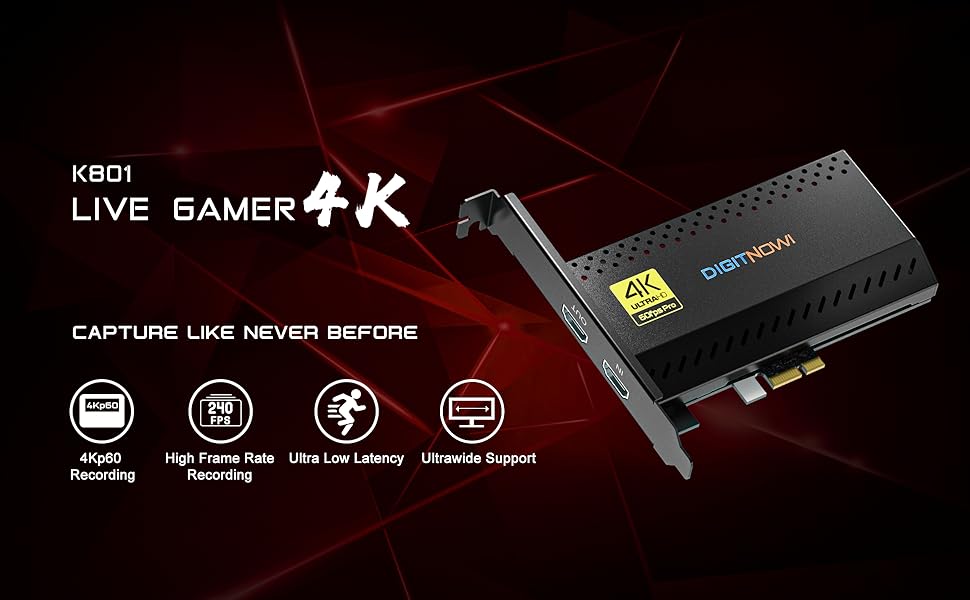
Figure 3: PCIe Capture Card installed in a desktop PC for streaming and recording.
4.2 Připojení zařízení
Once the card is installed, connect your gaming console or other HDMI source and monitor:
- Connect an HDMI cable from your gaming console (e.g., Nintendo Switch, PS5, Xbox Series X/S) to the HDMI-IN port na záznamové kartě.
- Připojte další kabel HDMI z HDMI OUT port on the capture card to your monitor or TV for zero-lag pass-through.
- Your computer should automatically detect the capture card.
Video 1: Demonstration of connecting a capture card to a device and setting up in OBS. This video shows the physical connections for HDMI input/output and USB to the computer.
5. Návod k obsluze
To begin capturing or streaming, you will need compatible software. OBS Studio is a popular free option.
5.1 Software Setup (OBS Studio)
- Download and install OBS Studio from the official webweb (obsproject.com).
- Launch OBS Studio.
- In the 'Sources' box, click the '+' icon and select 'Video Capture Device'.
- Create a new source or select an existing one, then click 'OK'.
- In the properties window, select 'DIGITNOW PCIe Capture Card' (or similar name) from the 'Device' dropdown.
- Adjust resolution, FPS, and other settings as desired. Ensure the resolution matches your input source for best quality.
- Click 'OK' to add the source. Your console's video feed should now appear in OBS.
- To add audio, click the '+' icon in 'Sources' again and select 'Audio Input Capture'. Choose the capture card's audio device.
- You can now start recording or streaming using the controls in OBS Studio.
5.2 Optimizing Settings
- For ultra-low latency, ensure your monitor is connected to the HDMI OUT port for direct pass-through.
- Experiment with different resolutions and frame rates in OBS to find the best balance for your system and streaming platform.
- Check your console's video output settings to ensure they are compatible with the capture card's input capabilities (e.g., 4K 60Hz).
6. Vlastnosti
- 4K Capture & HDMI Pass-through: Supports input max resolution 4K 60Hz and captures in 4K30Hz or 1080P 120FPS resolution.
- PCIe High-speed Interface: Installed internally, directly to your motherboard, ensuring high-speed data transfer.
- Široká kompatibilita: Compatible with Nintendo Switch, PS5, PS4, Xbox Series X/S, Xbox One X, Wii U, and various streaming platforms like Twitch and YouTube.
- Ultra nízká latence: Designed for zero-lag pass-through and high refresh rates for a seamless gaming and streaming experience.
- 5.1/7.1 Surround Sound Support: Records stereo audio at 5.1 or 7.1 surround sound, enhancing your PC setup.
- Ultrawide Recording: Not only captures 4Kp60, but also supports capturing the entire screen at ultrawide resolution.
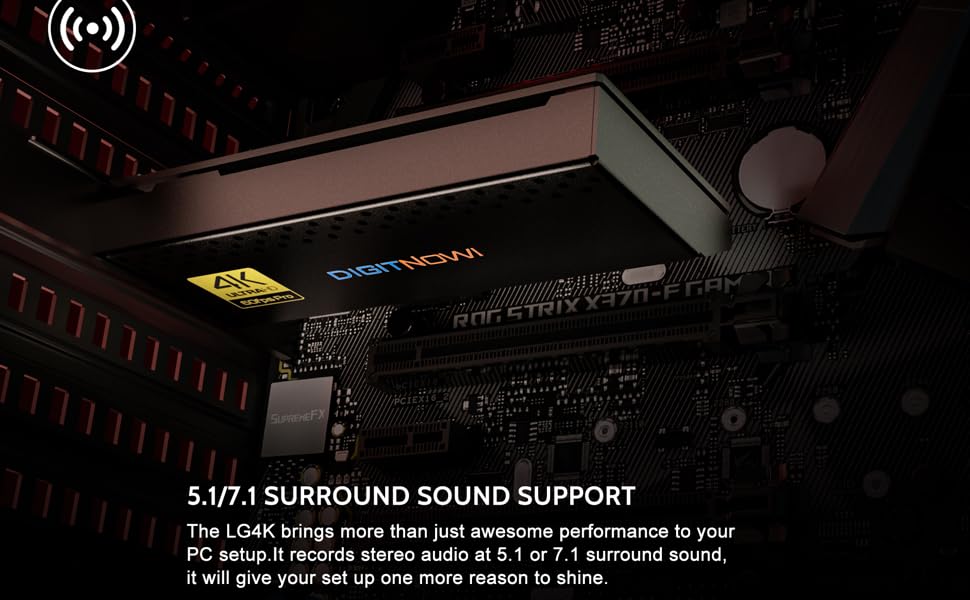
Figure 4: High-resolution capture and pass-through capabilities.
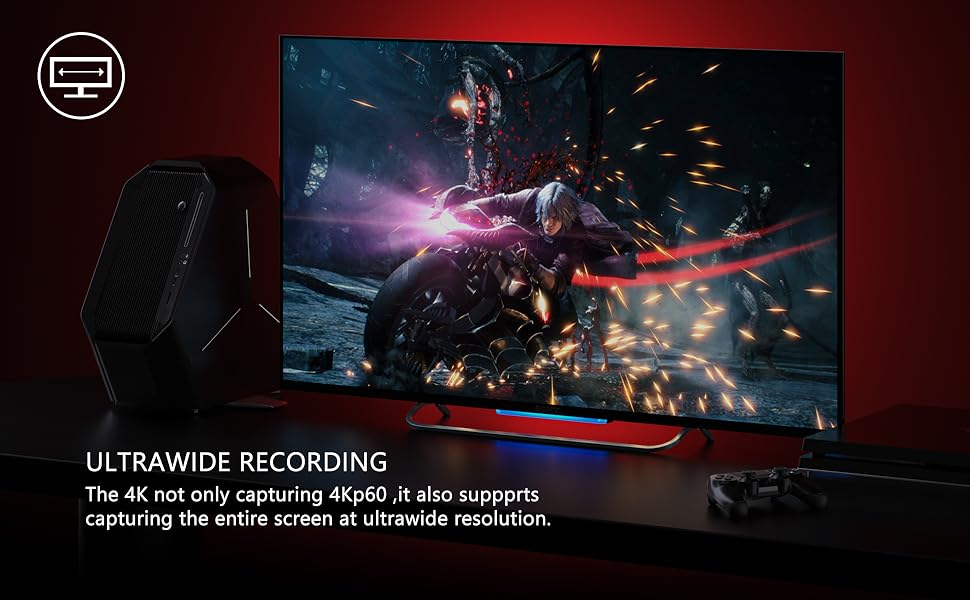
Figure 5: Advanced features for versatile streaming and recording.
7. Řešení problémů
If you encounter issues with your DIGITNOW PCIe Capture Card, consider the following:
- Žádný signál/Černá obrazovka:
- Ensure all HDMI cables are securely connected to the correct IN/OUT ports.
- Verify your gaming console's video output settings are compatible with the capture card's input (e.g., disable HDCP if necessary, adjust resolution).
- Check if the capture card drivers are correctly installed and updated.
- Zkuste jiný HDMI kabel.
- Žádný zvuk:
- Ensure audio input is correctly configured in your streaming software (e.g., OBS).
- Check your console's audio output settings.
- Verify that the correct audio device is selected in your computer's sound settings.
- Zpoždění/zasekávání:
- Ensure your PC meets the recommended system requirements.
- Close unnecessary background applications to free up CPU/GPU resources.
- Lower the capture resolution or frame rate in your streaming software.
- Aktualizujte ovladače grafické karty.
- Software Not Detecting Card:
- Reinstall the capture card drivers.
- Zkuste restartovat počítač.
- Ensure the card is properly seated in the PCIe slot.
8. Specifikace
| Funkce | Detail |
|---|---|
| Rozměry produktu | 3.98 x 2.28 x 0.59 palce |
| Hmotnost položky | 14.4 unce |
| Číslo modelu položky | K801 |
| Hardwarové rozhraní | HDMI, PCIE x 1 |
| Rozlišení záznamu videa | 1080p (up to 4K30Hz capture) |
| Operační systém | Windows 11/10/8/7 |
| Výrobce | DIGITNOW |
| Datum první dostupnosti | 12. července 2021 |
9. Záruka a podpora
The DIGITNOW PCIe Capture Card comes with a 1-year warranty. For any questions, technical assistance, or warranty claims, please contact our customer service. We offer 24-hour customer service to assist you with any issues.
For further support, please refer to the official DIGITNOW webwebu nebo se přímo obraťte na jejich zákaznický servis.