
1. Úvod
This manual provides detailed instructions for the setup, operation, and maintenance of your Novodesk Thermal Label Printer, Model AZ780. Please read this manual thoroughly before using the printer to ensure proper functionality and to prevent damage.
2. Konec produktuview

The Novodesk Thermal Label Printer in operation, printing a shipping label.

Key features of the Novodesk AZ780 printer: High Speed Printing, High Resolution Printing, One-Click Setup, and Auto Label Detection.
2.1. Obsah balení
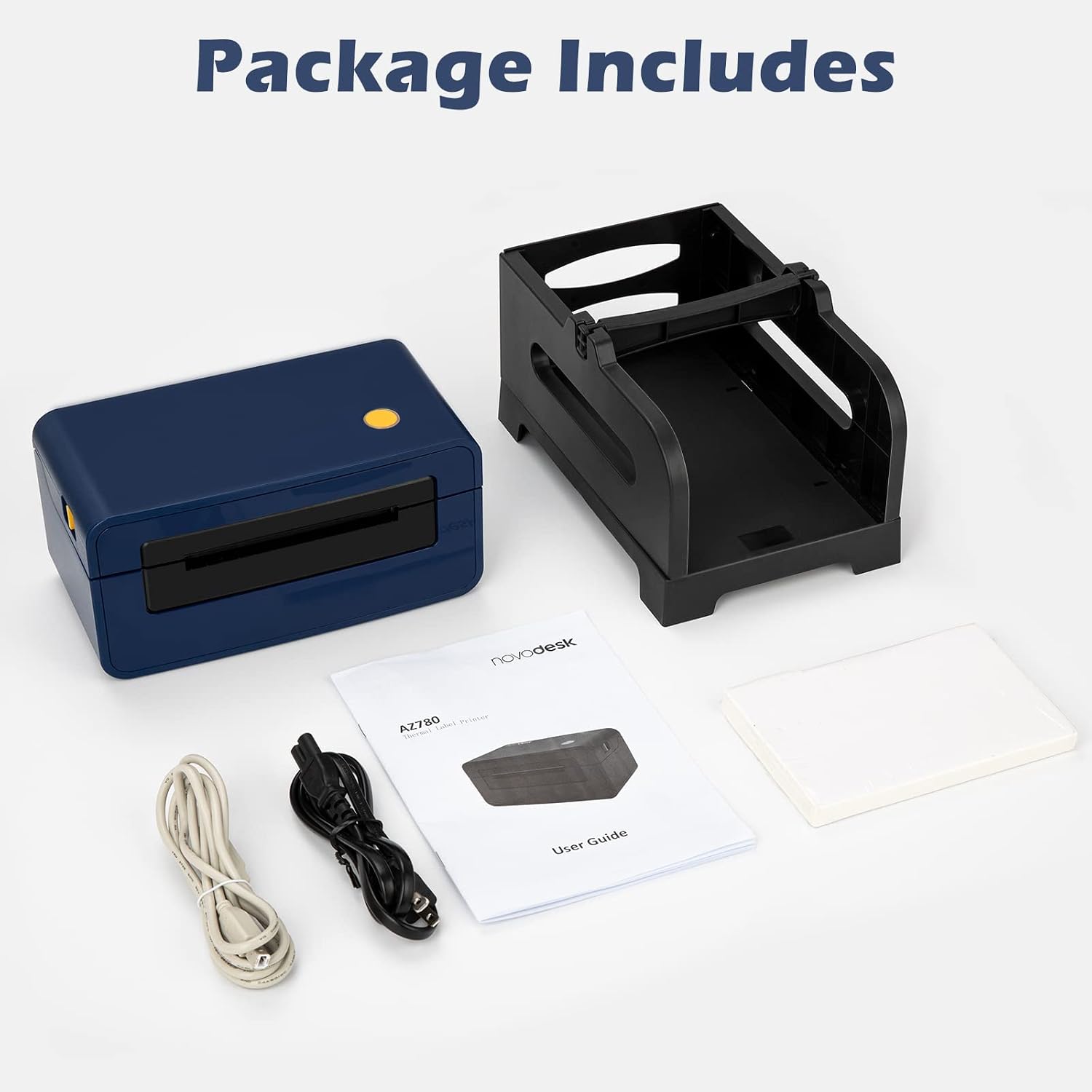
The package includes the thermal label printer, power cable, USB cable, user guide, and a starter set of labels with an external label holder.
- Novodesk Thermal Label Printer (Model AZ780)
- Napájecí adaptér a kabel
- USB kabel
- Uživatelská příručka
- External Label Holder
- Starter Labels (4x6 inches)
3. Nastavení
3.1. Hardwarové připojení
- Umístěte tiskárnu na stabilní, rovný povrch.
- Připojte napájecí adaptér k tiskárně a poté jej zapojte do elektrické zásuvky.
- Připojte kabel USB z tiskárny k počítači.
- Turn on the printer using the power button. The indicator light should illuminate.
3.2. Načítání štítků

The external label holder supports both fan-fold and roll labels, feeding them into the printer.
- Ensure the printer is powered off before loading labels.
- Otevřete horní kryt tiskárny.
- Place the labels into the external label holder. For fan-fold labels, ensure they are stacked neatly. For roll labels, place the roll on the spindle.
- Feed the leading edge of the labels into the printer's feed slot until the printer automatically detects them and adjusts.
- Zavřete horní kryt.

The printer features automatic label detection for various label sizes.

The printer supports multiple label sizes including 3"x1", 3"x2", 4"x2", 4"x6", and 4"x3".
3.3. Instalace ovladače
The Novodesk AZ780 printer requires specific drivers for optimal performance on different operating systems. Please follow the instructions for your respective OS.
3.3.1. Windows Driver Installation
Follow these steps to install the printer driver on a Windows operating system:
- Ujistěte se, že je tiskárna připojena k počítači a zapnutá.
- Insert the provided USB flash drive into your computer.
- Navigate to the "Driver" folder on the USB drive and select the "For Windows" folder.
- Run the driver software application.
- Follow the on-screen prompts to complete the installation. Choose "Install printer driver" when prompted.
- After installation, open Windows Settings > Devices > Printers & Scanners. Select "AZ780" and click "Manage" to view printer properties and adjust printing preferences as needed.
Video: Windows Driver Installation Tutorial for Novodesk AZ780 Thermal Label Printer.
3.3.2. Mac Driver Installation
Follow these steps to install the printer driver on a Mac operating system:
- Ensure the printer is connected to your Mac and powered on.
- Copy the driver package from the USB flash drive to a local folder and decompress it.
- Open System Settings > Security & Privacy. If the driver package is blocked, select "Open Anyway".
- Follow the on-screen prompts to install the driver. You may need to enter your Apple user name and password.
- After installation, open System Settings > Printers & Scanners. Click the "+" button to add a new printer. Select "deli-AZ780" and click "Add".
Video: Mac Driver Installation Instructions for Novodesk AZ780 Thermal Label Printer.
3.3.3. Linux Driver Installation
Follow these steps to install the printer driver on a Linux operating system:
- Ensure the printer is connected to your Linux machine and powered on.
- Insert the provided USB flash drive.
- Navigate to the "Driver" folder on the USB drive and select the "For Linux" folder.
- Uložte řidiče file to your local computer (e.g., Desktop).
- Unzip the package. Open the unzipped folder, right-click, and choose "Open in Terminal".
- In the terminal, type
chmod +x installa stiskněte Enter. - Then type
sudo ./installand press Enter. Enter your computer's password when prompted. - After successful installation, go to System Settings > Printers. Click "Add" to add the printer driver. The printer AZ780 should now be available.
Video: Linux Driver Installation Instructions for Novodesk AZ780 Thermal Label Printer.
4. Návod k obsluze
4.1. Tisk zkušební stránky
After installing the driver, it is recommended to print a test page to confirm the printer is working correctly.
- Windows: Go to Devices > Printers & Scanners, select "AZ780", click "Manage", then "Print a test page".
- Mac: Go to System Settings > Printers & Scanners, select "deli-AZ780", click "Options & Supplies...", then "Print Test Page".
- Linux: Go to System Settings > Printers, select "AZ780", then choose to print a test page from the printer properties.

The printer is compatible with Windows, Mac, and Linux systems, allowing for versatile use.
4.2. Adjusting Printing Preferences
You can adjust various settings such as paper size, orientation, and print density through your operating system's printer preferences. Refer to your OS's documentation for specific steps.

The Novodesk AZ780 offers high-speed printing at 150 mm/s and high resolution at 203 dpi, producing up to 72 labels per minute.
5. Údržba
- Čištění tiskové hlavy: Regularly clean the thermal print head with an alcohol swab to ensure clear print quality. Do this when the printer is off and cooled down.
- Čištění tiskového válce: Použijte měkký, damp cloth to clean the platen roller to prevent paper jams and ensure smooth label feeding.
- Skladování: Tiskárnu skladujte na chladném a suchém místě mimo dosah přímého slunečního záření a nadměrného prachu.
- Kvalita štítku: Use high-quality thermal labels to prevent damage to the print head and ensure optimal print results.
6. Řešení problémů
| Problém | Možná příčina | Řešení |
|---|---|---|
| Tiskárna nereaguje | Napájecí kabel uvolněný, USB kabel odpojený, tiskárna vypnutá. | Check all cable connections, ensure printer is powered on. Restart computer and printer. |
| Špatná kvalita tisku (vybledlý tisk, čáry) | Dirty print head, low-quality labels, incorrect print density settings. | Clean the print head. Use recommended thermal labels. Adjust print density in printer preferences. |
| Štítky se nepodávají správně | Labels improperly loaded, label path obstructed, platen roller dirty. | Reload labels correctly, ensuring they are aligned. Clear any obstructions. Clean the platen roller. |
| Driver installation issues | Incorrect driver version, security settings blocking installation. | Ensure you are using the correct driver for your OS. Temporarily disable antivirus/firewall if necessary. Refer to OS-specific installation videos. |

For additional questions, refer to the FAQ section or contact support.
7. Specifikace
| Funkce | Detail |
|---|---|
| Značka | Novodesk |
| Model | AZ780 |
| Technologie tisku | Tepelný |
| Technologie připojení | USB |
| Podporované velikosti médií | 4 x 6 inches (also supports 3x1, 3x2, 4x2, 4x7, 4x7.8 inches) |
| Maximální vstupní kapacita listu | 150 listů |
| Tiskový výstup | Monochromatický |
| Rychlost tisku | 150 mm/s (approx. 72 labels/minute for 4x6) |
| Rezoluce | 203 dpi |
| Kompatibilní zařízení | Laptops, PC (Windows, Mac, Linux) |
| Hmotnost položky | 5.43 libry |
| Rozměry balení | 11.69 x 8.43 x 6.61 palce |
8. Záruka a podpora
For warranty information, please refer to the warranty card included in your product packaging or visit the official Novodesk website. For technical support, troubleshooting assistance, or to inquire about replacement parts, please contact Novodesk customer service through the contact information provided with your purchase or on the official webmísto.