
Logitech 920-010389
Logitech MX Keys Mini for Mac User Manual
Model: 920-010389
Značka: Logitech
Zavedení
The Logitech MX Keys Mini for Mac is a minimalist wireless keyboard optimized for macOS, iPadOS, and iOS. It is designed to provide a comfortable and precise typing experience, featuring backlit keys, USB-C charging, and multi-device connectivity. This manual will guide you through the setup, operation, and maintenance of your MX Keys Mini for Mac.

Image: The Logitech MX Keys Mini for Mac keyboard, showcasing its compact design and pale grey finish.
Co je v krabici
- Klávesnice Logitech MX Keys Mini pro Mac
- USB-C Charging Cable (USB-C to USB-C)
- Uživatelská dokumentace

Image: The keyboard, its USB-C charging cable, and packaging, illustrating the items included in the product box.
Nastavení
1. Počáteční nabíjení
Before first use, it is recommended to fully charge your MX Keys Mini for Mac. Connect the provided USB-C charging cable to the keyboard's USB-C port and the other end to a power source (e.g., computer USB port or USB wall adapter).
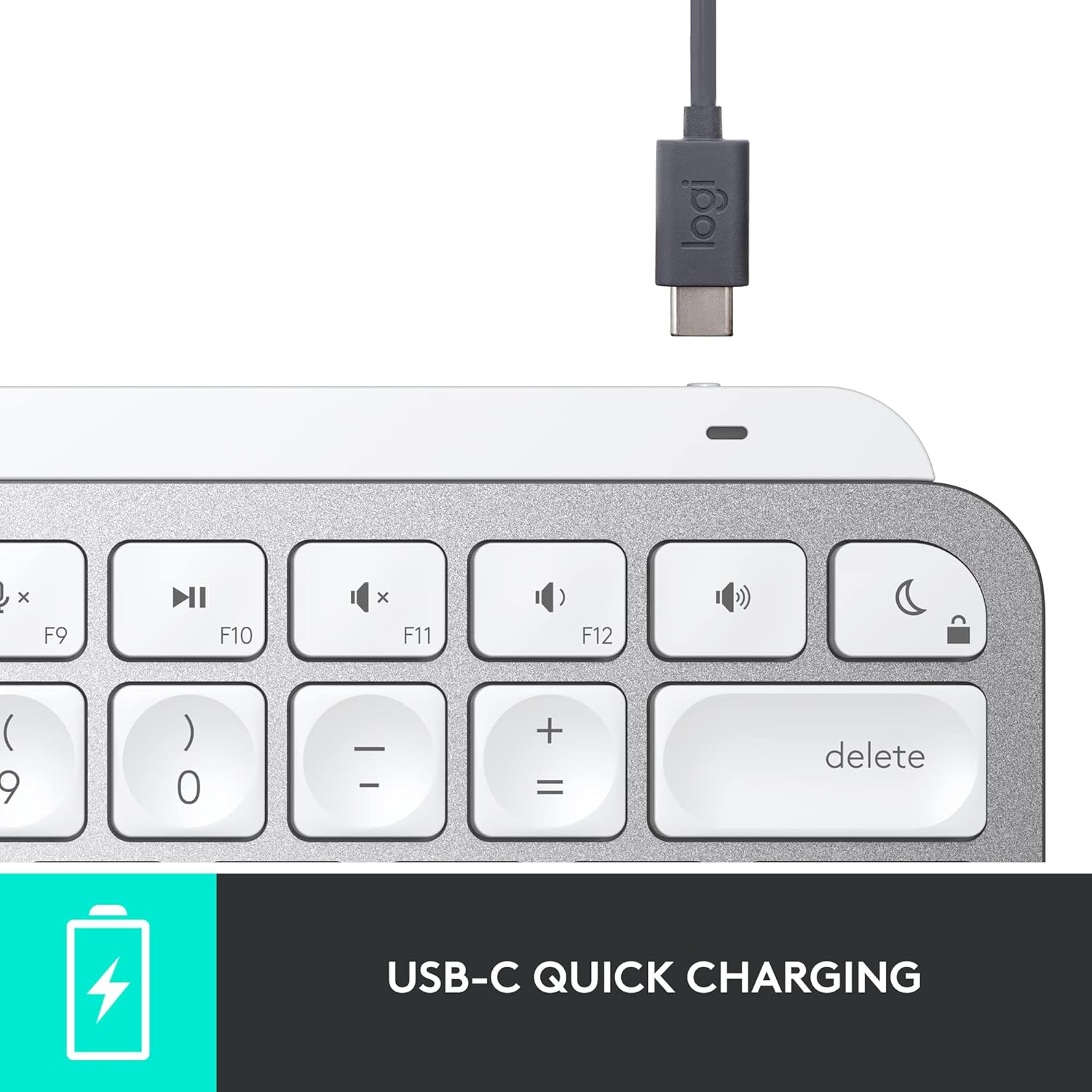
Obrázek: Detailní záběr view of the USB-C charging port on the keyboard, with the charging cable connected.
2. Párování s vaším zařízením
The MX Keys Mini for Mac connects via Bluetooth Low Energy. It can be paired with up to three Apple devices (macOS, iOS, iPadOS).
- Turn on the keyboard using the power switch located on the right side.
- Press and hold one of the Easy-Switch keys (F1, F2, or F3) for three seconds until the LED indicator above the key starts blinking rapidly. This indicates the keyboard is in pairing mode.
- On your Mac, iPad, or iPhone, go to Nastavení systému (nebo Předvolby systému) > Bluetooth.
- Select 'MX Keys Mini for Mac' from the list of available devices and follow the on-screen prompts to complete the pairing.
- Once paired, the LED indicator will glow solid for 5 seconds and then turn off.
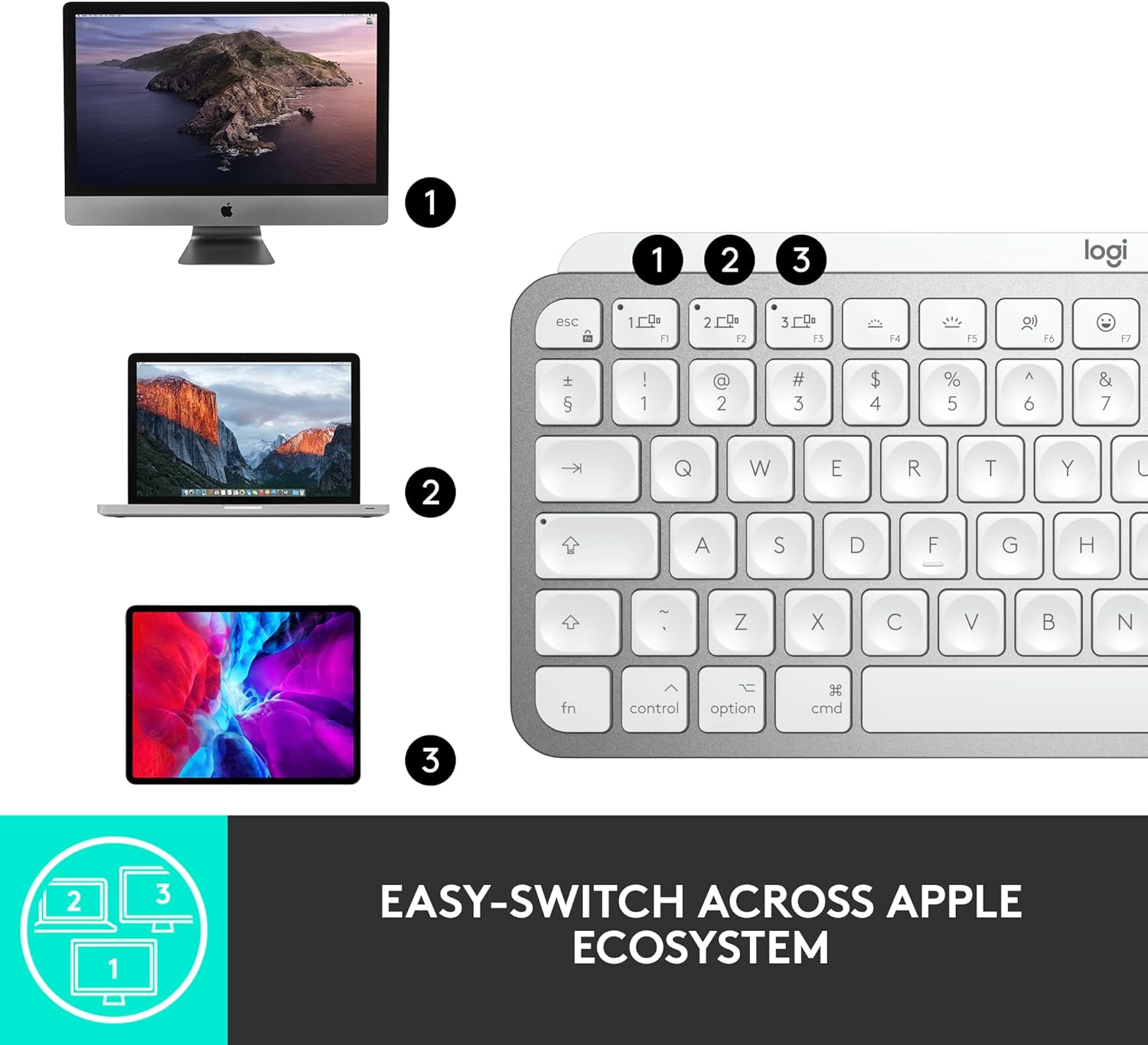
Image: The keyboard shown with an iMac, MacBook, and iPad, demonstrating its multi-device connectivity.
3. Installing Logitech Options Software (Optional but Recommended)
For full customization of Smart Keys and other advanced features, download and install the Logitech Options software from the official Logitech website. This software is available for macOS.
Ovládání klávesnice
Perfect Stroke Keys
The MX Keys Mini for Mac features spherically-dished keys designed to match the shape of your fingertips, providing a fluid, efficient, and responsive typing experience.

Obrázek: Podrobný view of the keyboard's keys, highlighting their unique concave design for comfortable typing.
Chytré klíče
The keyboard includes dedicated Smart Keys to enhance your workflow:
- Dictation Key: Press to activate talk-to-text functionality.
- Emoji Key: Instantly opens your emoji window.
- Mic Mute/Unmute Key: For seamless control during video calls.
Smart Illumination (Backlighting)
The keys light up the moment your hands approach and automatically adjust to suit changing lighting conditions, conserving battery life. You can manually adjust backlight brightness using the dedicated keys (F5 and F6).
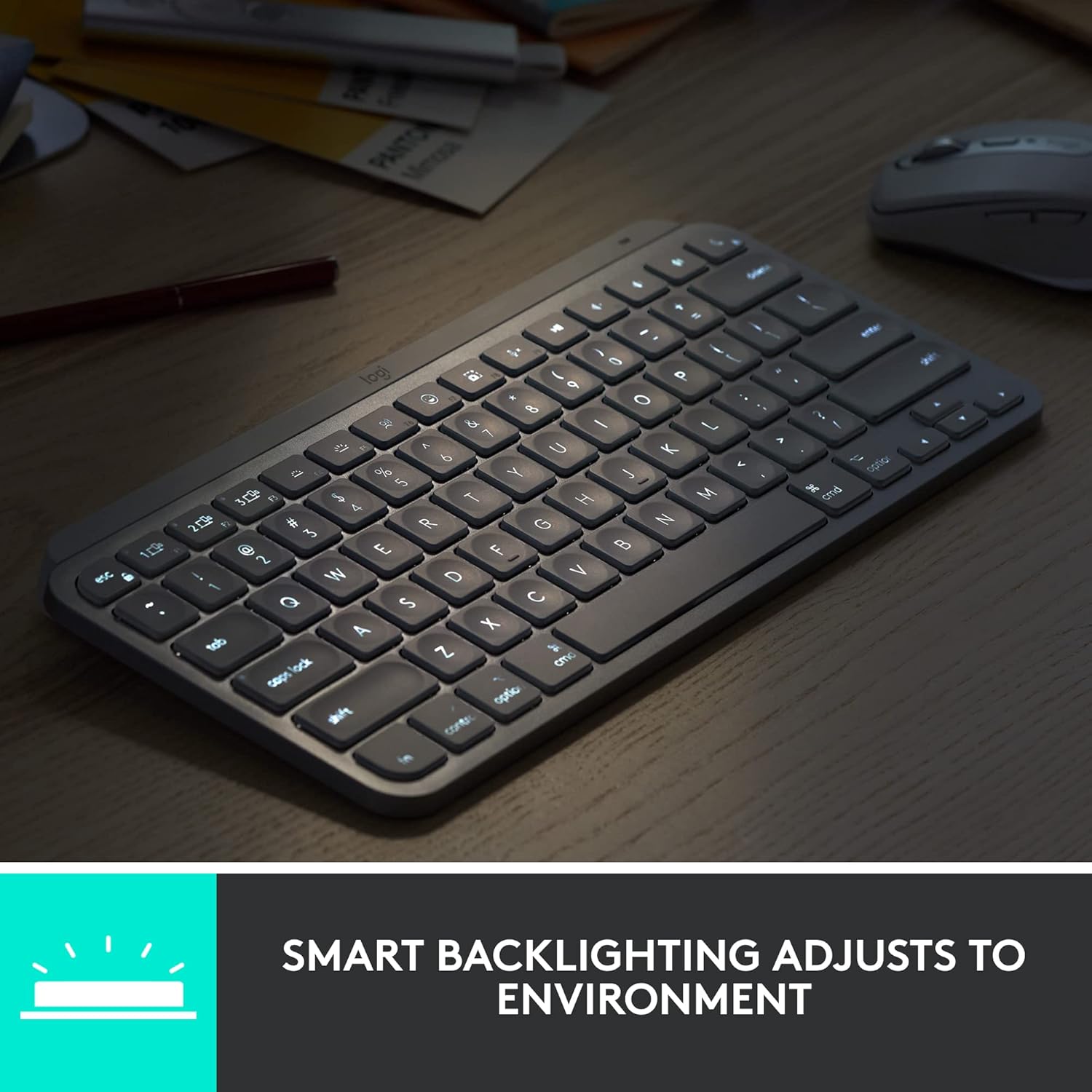
Image: The keyboard with its smart backlighting illuminated, demonstrating its visibility in low-light conditions.
Přepínání více zařízení
Easily switch between up to three paired devices by pressing the F1, F2, or F3 Easy-Switch keys. The keyboard will instantly connect to the selected device.
Kompatibilita s Logitech Flow
When paired with a Flow-enabled Logitech mouse (e.g., MX Master 3 for Mac or MX Anywhere 3 for Mac), you can type on multiple devices in one fluid workflow. This allows you to transfer files, documents, and images across Apple devices by simply moving your cursor from one screen to another.

Image: A user at a desk with the keyboard and mouse, illustrating a seamless multi-device creative workflow.
Údržba
Čištění
To clean your keyboard, use a soft, lint-free cloth. For stubborn dirt, slightly dampen the cloth with water or a mild, non-abrasive cleaner. Avoid excessive moisture and harsh chemicals.
Péče o baterie
The MX Keys Mini for Mac is equipped with a LiPo rechargeable battery. Battery life can last up to 10 days on a full charge with backlighting enabled, or up to 5 months with backlighting turned off. To prolong battery life, avoid extreme temperatures and store the keyboard in a cool, dry place when not in use for extended periods.
Odstraňování problémů
Klávesnice se nepřipojuje přes Bluetooth
- Ujistěte se, že je klávesnice zapnutá a plně nabitá.
- Ověřte, že je na vašem zařízení povoleno Bluetooth.
- Try re-pairing the keyboard by holding an Easy-Switch key until it blinks, then re-selecting it in your device's Bluetooth settings.
- Přesuňte klávesnici blíže k zařízení, abyste vyloučili problémy s dosahem.
- Restartujte klávesnici i zařízení.
Podsvícení nefunguje nebo je slabé
- Check the battery level; low battery can disable backlighting.
- Ensure the ambient light sensor is not obstructed.
- Manually adjust the brightness using the F5 (dimmer) and F6 (brighter) keys.
Klávesy nereagují
- Ensure the keyboard is connected to the correct device (check Easy-Switch key indicator).
- Vyčistěte okolí postižených kláves, abyste odstranili veškeré nečistoty.
- Restartujte klávesnici a připojené zařízení.
Specifikace
| Funkce | Detail |
|---|---|
| Číslo modelu | 920-010389 |
| Technologie připojení | Bluetooth Low Energy |
| Kompatibilní zařízení | MacBook Pro, MacBook Air, iMac, iPad (macOS, iOS, iPadOS) |
| Popis klávesnice | Membrána |
| Počet klíčů | 64 |
| Podsvícení | Smart Illumination (Single Color) |
| Zdroj napájení | Napájení z baterie (1 lithium-polymerová baterie, součástí balení) |
| Životnost baterie | Up to 10 days (with backlighting), up to 5 months (without backlighting) |
| Nabíjecí port | USB-C |
| Rozměry (DxŠxV) | 5.19 x 7.72 x 0.83 palce (131.95 x 295.99 x 20.97 mm) |
| Hmotnost položky | 1.5 libry (506.4 g) |
| Barva | Světle šedá |
| Materiál | Plastic parts include certified post-consumer recycled plastic (Pale Gray: 12%) |
Záruka a podpora
Logitech products are manufactured to high quality standards and are subject to a limited hardware warranty. Specific warranty details, including duration and terms, are typically provided in the user documentation included with your product or can be found on the official Logitech support webmísto.
For technical support, FAQs, and additional resources, please visit the Logitech support website. You can also find downloadable user manuals and software updates there.
Online podpora: support.logi.com