
1. Úvod
This manual provides detailed instructions for the setup, operation, maintenance, and troubleshooting of your Focusrite Scarlett 8i6 3rd Gen USB Audio Interface Studio Bundle. This comprehensive package is designed to provide a complete solution for professional-grade audio recording and production, combining a high-quality audio interface with essential studio accessories.
Před použitím produktu si prosím pečlivě přečtěte tento návod k použití, abyste zajistili optimální výkon a dlouhou životnost.
2. Konec produktuview
The Focusrite Scarlett 8i6 3rd Gen Studio Bundle includes the following components:
- Focusrite Scarlett 8i6 3rd Gen USB Audio Interface: An 8-in/6-out USB audio and MIDI interface.
- Mackie CR3-X Studio Monitors: A pair of active studio monitors for accurate sound reproduction.
- Kondenzátorový mikrofon: For vocal and instrument recording.
- Acoustic Foam Panels: For room sound treatment.
- Sluchátka: Pro monitorování zvuku.
- Kabely: Necessary cables for connectivity.
- Production Software Bundle: A suite of software tools for recording, mixing, and production.

Přední view of the Scarlett 8i6 3rd Gen audio interface, showing inputs, gain controls, and monitor knob.
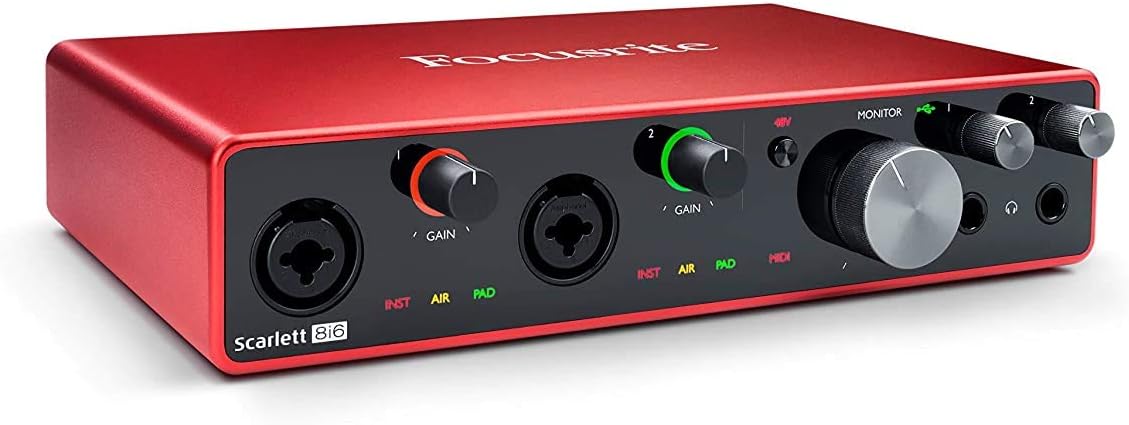
Úhlové view of the Scarlett 8i6 3rd Gen, highlighting its compact design and front panel controls.

Zadní view of the Scarlett 8i6 3rd Gen, displaying line inputs/outputs, MIDI I/O, S/PDIF, and USB connection.

The condenser microphone with its shock mount, designed for clear audio capture.

A visual representation of the various software and plugins included with the Scarlett 8i6 bundle.

The Focusrite Hitmaker Expansion, a collection of studio-grade plugins and virtual instruments.

Screenshots of Ableton Live Lite and Pro Tools First, two digital audio workstations included in the bundle.

Sonnox Toolbox plugins, offering advanced audio widening and thickening effects.
3. Nastavení
3.1. Scarlett 8i6 Audio Interface
- Instalace ovladače: Before connecting the Scarlett 8i6 to your computer, visit the official Focusrite webweb (focusrite.com/downloads) to download and install the latest drivers for your operating system (Windows or macOS).
- Připojení k počítači: Use the provided USB cable to connect the Scarlett 8i6 to an available USB port on your computer.
- Připojení napájení: Connect the included power adapter to the Scarlett 8i6 and then to a power outlet. The interface requires external power for operation.
3.2. Mackie CR3-X Studio Monitors
- Umístění: Position the monitors on a stable surface, equidistant from your listening position, forming an equilateral triangle. Ensure the tweeters are at ear level.
- Connect to Interface: Use appropriate cables (e.g., TRS to RCA or TRS to TRS, depending on your monitor inputs) to connect the main outputs of the Scarlett 8i6 (Line Outputs 1-2) to the inputs of the Mackie CR3-X monitors.
- Připojení napájení: Connect the power cable to the active monitor and plug it into a power outlet. The passive monitor connects to the active monitor via speaker wire.
3.3. Kondenzátorový mikrofon
- Montáž: Secure the microphone in its shock mount and attach it to a microphone stand.
- Connect to Interface: Use an XLR cable to connect the microphone to one of the combo inputs (Input 1 or 2) on the front of the Scarlett 8i6.
- Fantomová síla: Condenser microphones require 48V phantom power. Press the '48V' button on the Scarlett 8i6 to activate it for the connected input.
3.4. Sluchátka
- Connect your headphones to one of the headphone outputs on the front of the Scarlett 8i6.
3.5. Acoustic Foam Panels
- Strategically place the acoustic foam panels on walls at primary reflection points (e.g., behind monitors, side walls, ceiling) to reduce unwanted echoes and improve sound clarity.
3.6. Instalace softwaru
- Register your Scarlett 8i6 on the Focusrite website to gain access to the included software bundle, which typically includes Ableton Live Lite, Pro Tools First Focusrite Creative Pack, Softube’s Time and Tone Bundle, Focusrite’s Red Plug-in Suite, and XLN Audio’s Addictive Keys. Follow the instructions provided during registration to download and install these applications.
4. Návod k obsluze
4.1. Základní nahrávání
- Vyberte vstup: Ensure your microphone or instrument is connected to an input on the Scarlett 8i6.
- Nastavení zisku: Adjust the corresponding 'GAIN' knob for your input. The gain halo around the knob will illuminate green for a healthy signal, amber for approaching clipping, and red for clipping. Aim for a strong green signal without hitting red.
- INST/PAD: If connecting a guitar or bass directly, press the 'INST' button for instrument-level input. If the signal is too hot even with gain at minimum, press 'PAD' to attenuate the input.
- AIR Mode: Press the 'AIR' button to engage Focusrite's classic ISA 110 preamp emulation, adding brightness and openness to your recordings.
- Nastavení DAW: Open your Digital Audio Workstation (DAW) software (e.g., Ableton Live Lite, Pro Tools First). Go to your DAW's audio settings/preferences and select the Scarlett 8i6 as your audio input and output device.
- Sledování: Use the 'MONITOR' knob on the Scarlett 8i6 to control the overall output level to your studio monitors. Use the dedicated headphone volume knobs for headphone monitoring.
4.2. Přehrávání
- Ensure your studio monitors are powered on and connected.
- Adjust the 'MONITOR' knob on the Scarlett 8i6 to control the playback volume through your monitors.
- Adjust the headphone volume knobs for private listening.
4.3. MIDI konektivita
- Connect MIDI devices (e.g., MIDI keyboard, drum machine) to the 'MIDI IN' and 'MIDI OUT' ports on the rear of the Scarlett 8i6 using standard 5-pin DIN MIDI cables.
- Your DAW should automatically recognize the Scarlett 8i6's MIDI ports, allowing you to send and receive MIDI data.
5. Údržba
- Čištění: Use a soft, dry cloth to clean the exterior of the Scarlett 8i6 and monitors. Avoid using liquid cleaners or abrasive materials.
- Aktualizace softwaru: Regularly check the Focusrite website for driver and firmware updates for your Scarlett 8i6 to ensure compatibility and optimal performance.
- Správa kabelů: Keep cables organized and free from kinks or excessive bending to prevent damage and ensure reliable connections.
- Skladování: When not in use for extended periods, store the equipment in a clean, dry environment away from extreme temperatures and direct sunlight.
6. Řešení problémů
6.1. No Sound/Audio Issues
- Zkontrolujte připojení: Ensure all cables (USB, power, monitor, microphone, headphones) are securely connected.
- Úrovně zisku: Verify that input gain knobs are set appropriately and not at minimum.
- Fantomová síla: If using a condenser microphone, ensure 48V phantom power is activated.
- Hlasitost monitoru: Check the 'MONITOR' knob on the Scarlett 8i6 and the volume controls on your Mackie CR3-X monitors.
- Nastavení DAW: Confirm that the Scarlett 8i6 is selected as the input and output device in your DAW's audio preferences. Check track routing and arming for recording.
- Nastavení zvuku počítače: Ensure your computer's system sound output is set to the Scarlett 8i6.
6.2. Distortion or Clipping
- Snížení zisku: If the gain halo turns red, reduce the input 'GAIN' knob.
- Use PAD: For very loud sources, engage the 'PAD' button on the input.
- Check Software Levels: Ensure levels within your DAW are not clipping.
6.3. Connectivity Issues (USB)
- USB kabel: Zkuste jiný USB kabel nebo jiný USB port na počítači.
- Ovladače: Reinstall the latest drivers from the Focusrite webmísto.
- Restartovat: Restart your computer and the Scarlett 8i6.
6.4. Software Not Recognizing Interface
- Ujistěte se, že jsou ovladače správně nainstalovány a aktuální.
- Verify the Scarlett 8i6 is powered on and connected via USB.
- Check your DAW's audio device settings.
7. Specifikace
| Funkce | Specifikace |
|---|---|
| Značka | Focusrite |
| Model | Scarlett 8i6 3rd Gen |
| Technologie připojení | USB |
| Počet kanálů | 8 (inputs) / 6 (outputs) |
| Maximální S.ample Rate | 192 kHz |
| Kompatibilní zařízení | Osobní počítač |
| Operační systém | Windows, macOS |
| Podporovaný software | Ableton Live Lite, Pro Tools First Focusrite Creative Pack, Softube’s Time and Tone Bundle, Focusrite’s Red Plug-in Suite, XLN Audio’s Addictive Keys |
| Zvukový vstup | USB |
8. Informace o záruce
Focusrite products typically come with a manufacturer's warranty. Please refer to the warranty card included with your product or visit the official Focusrite webPodrobné informace o záručních podmínkách a postupech registrace naleznete na webových stránkách. Uschovejte si doklad o koupi pro případ reklamace.
9. Informace o podpoře
For further assistance, technical support, or to access FAQs and additional resources, please visit the official Focusrite support webmísto:
You can also find contact information for customer service on their webstránky, pokud potřebujete přímou pomoc.