
Logitech R500s
Logitech Wireless Presenter R500s User Manual
Model: R500s (910-006518) | Brand: Logitech
Zavedení
The Logitech Wireless Presenter R500s is designed to help you deliver impactful presentations with ease. Its intuitive controls and bright red laser pointer allow for seamless navigation and highlighting of key points, boosting your confidence during any presentation. With 2.4 GHz wireless connectivity, you can move freely up to 20 meters from the receiver, engaging with your audience without being tethered to your computer. The plug-and-play design ensures quick setup, making it ready for use whenever you are.
Klíčové vlastnosti
- Intuitivní ovládání: Easy-to-find touch-keys for smooth slideshow navigation (forward/backward).
- Bright Red Laser Pointer: Class 1 laser for clear highlighting against most backgrounds.
- Rozšířený bezdrátový dosah: Up to 20 meters (65 feet) for freedom of movement.
- Konektivita Plug-and-Play: No software installation required; simply plug the USB receiver into a port.
- Duální konektivita: Connects via USB-A receiver or Bluetooth.
- Ergonomický design: Pohodlné držení po delší dobu.
- Smart Automatic On/Off: Pomáhá šetřit životnost baterie.
- Storable USB Receiver: Conveniently stores inside the presenter.
- Dlouhá výdrž baterie: Up to 12 months on a single set of AAA batteries.
- Univerzální kompatibilita: Works with Windows 10, 11 or later, macOS, and iOS.
Průvodce nastavením
1. Nainstalujte baterie
The R500s requires two AAA batteries. Open the battery compartment, insert the batteries according to the polarity indicators, and close the compartment securely.

Image: The Logitech R500s Wireless Presenter shown with its accompanying USB receiver.

Image: The R500s presenter with the USB receiver detached, ready for connection.
2. Connect the USB Receiver
Remove the USB receiver from its storage slot within the presenter. Plug the USB receiver into an available USB-A port on your computer. The system will automatically detect and install the necessary drivers. No additional software is required for basic functionality.
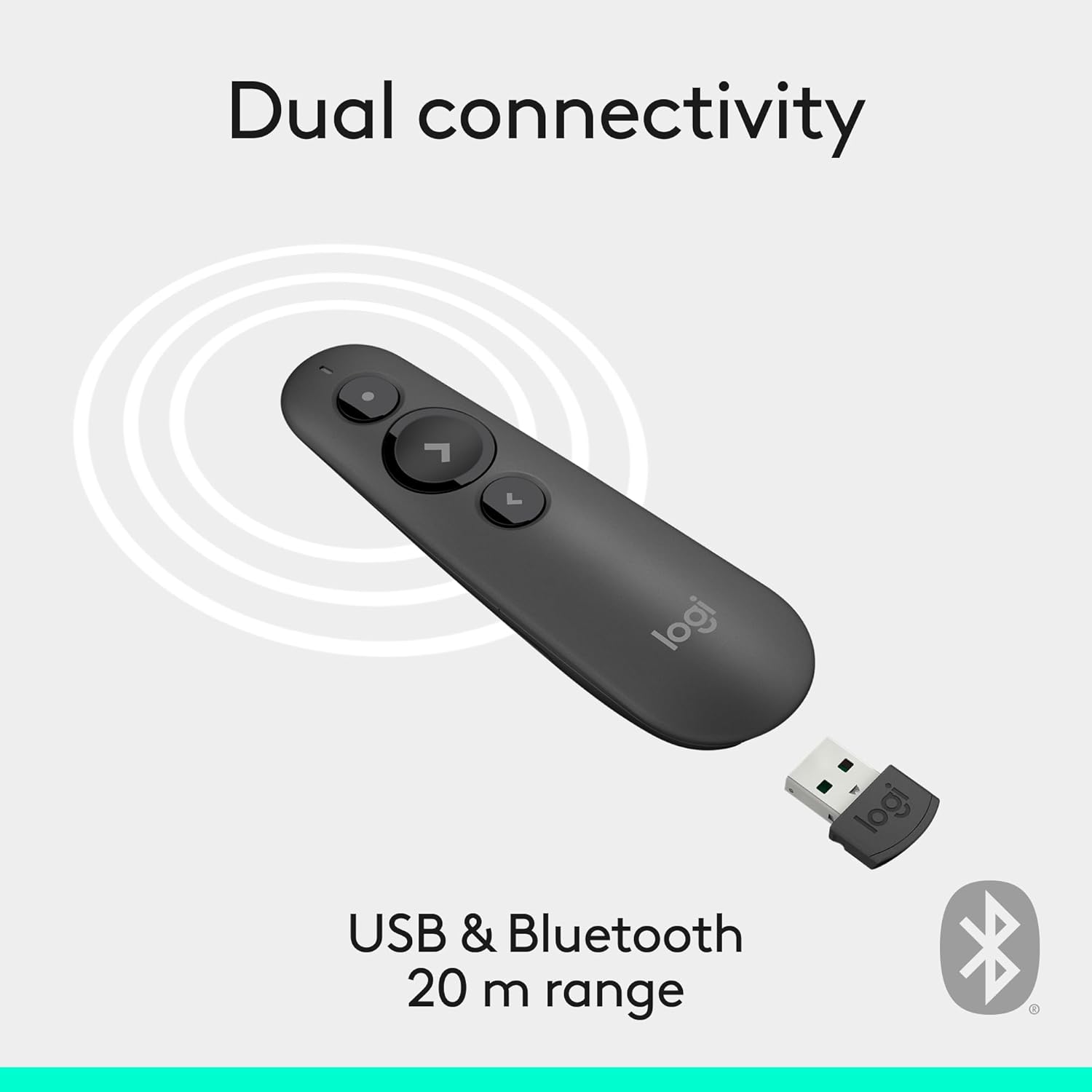
Image: Illustration of the R500s offering dual connectivity options: USB and Bluetooth.
3. Power On the Presenter
Locate the power switch on the side of the presenter and slide it to the 'On' position. The presenter is now ready for use.

Image: The R500s presenter positioned near a laptop, demonstrating its smart automatic on/off feature.
Návod k obsluze
Slide Navigation
The R500s features intuitive buttons for controlling your presentation slides:
- Forward Button (Large Arrow): Press to advance to the next slide.
- Backward Button (Small Arrow): Press to return to the previous slide.

Image: A hand comfortably holding the R500s presenter, highlighting its ergonomic design and button placement.
Laser Pointer Usage
To activate the red laser pointer, press and hold the dedicated laser button (usually a small dot icon). Release the button to turn off the laser.

Image: The R500s presenter projecting its red laser pointer onto a presentation graph, illustrating its use for highlighting.
Přizpůsobitelná tlačítka
The R500s offers customizable buttons for enhanced control. You can configure long-press actions for specific functions such as starting a presentation or blacking out the screen. Refer to the Logitech Presentation Software (available for download from the official Logitech website) for detailed customization options.

Image: A laptop screen displaying the Logitech software interface for customizing the R500s buttons and timer settings.
Údržba
Výměna baterie
When the battery indicator on the presenter or in the Logitech software shows low power, replace the two AAA batteries. Ensure correct polarity when inserting new batteries.
Čištění
Otřete prezentér měkkým, suchým hadříkem. Nepoužívejte abrazivní čisticí prostředky ani rozpouštědla.
Odstraňování problémů
- Presenter Not Responding:
- Ujistěte se, že je USB přijímač bezpečně zapojený do funkčního USB portu.
- Check if the presenter is powered on.
- Vyměňte baterie, pokud jsou vybité nebo vybité.
- Zkuste zapojit USB přijímač do jiného USB portu.
- For Bluetooth connection, ensure Bluetooth is enabled on your computer and the presenter is paired.
- Laser Pointer Not Working:
- Ensure the laser button is being pressed firmly.
- Zkontrolujte stav baterie.
- Note that laser visibility can vary on different screen types (e.g., some projection screens or large TVs may reduce visibility).
- Přerušované připojení:
- Ensure you are within the 20-meter wireless range.
- Minimize obstructions between the presenter and the receiver.
- Vyhněte se silnému elektromagnetickému rušení od jiných zařízení.
Specifikace
| Značka | Logitech |
| Název modelu | R500 |
| Číslo modelu položky | 910-006518 |
| Technologie připojení | 2.4GHz RF Wireless, Bluetooth |
| Bezdrátové Dosah | Až 20 metrů (65 stop) |
| Typ laseru | Červený laser třídy 1 |
| Typ baterie | 2 x AAA baterie (součástí balení) |
| Průměrná životnost baterie | 12 měsíců |
| Kompatibilita operačního systému | Windows 10, 11 or later; macOS; iOS |
| Hardwarová platforma | PC, Mac |
| Hmotnost položky | 0.2 unce |
| Rozměry produktu (DxŠxV) | 1 x 1.4 x 4.9 palce |
Záruka a podpora
Produkty Logitech se obvykle dodávají s omezenou zárukou na hardware. Podrobnosti o záruce, registraci a technické podpoře naleznete na oficiálních stránkách podpory Logitech. webnebo se podívejte na záruční list dodaný s vaším produktem. Často kladené otázky a průvodce řešením problémů najdete také online.
For additional assistance, visit the Obchod Logitech na Amazonu.