
Zavedení
This manual provides essential information for setting up, operating, maintaining, and troubleshooting your CyberpowerPC Gamer Xtreme Gaming PC. This system is designed for high-performance gaming and multitasking, featuring an AMD Ryzen 7 3700X processor, NVIDIA GeForce RTX 3060 graphics, 16GB DDR4 RAM, and a combination of SSD and HDD storage, running on Windows 10 Home 64-Bit.
1. Nastavení
1.1 Vybalení
Carefully remove the PC from its packaging. Ensure all accessories, including the power cable, keyboard, and mouse, are present. Retain the original packaging for future transport or service needs.

Obrázek 1: Přední strana view of the CyberpowerPC Gamer Xtreme, highlighting its design and RGB lighting.
1.2 Připojení periferních zařízení
Připojte monitor, klávesnici, myš a další periferní zařízení k příslušným portům na zadní a horní straně počítače. Ujistěte se, že jsou všechna připojení bezpečná.
- Monitor: Připojte monitor k výstupu HDMI nebo DisplayPort grafické karty.
- Klávesnice a myš: Connect to any available USB ports (USB 2.0 or USB 3.0).
- Moc: Connect the power cable to the PC's power supply unit (PSU) and then to a grounded electrical outlet.
- Síť: Pro kabelové připojení k internetu připojte ethernetový kabel k portu LAN. Pro bezdrátové připojení se ujistěte, že je připojena anténa Wi-Fi (pokud je součástí dodávky).

Obrázek 2: Úhlové view of the CyberpowerPC Gamer Xtreme, highlighting the front panel design and side ventilation.

Obrázek 3: Nahoře view of the PC, illustrating the accessible front I/O ports and top ventilation.
1.3 Počáteční zapnutí a nastavení systému Windows
Press the power button located on the top panel of the PC. The system will boot up. Follow the on-screen instructions to complete the Windows 10 Home setup, including language selection, network connection, and user account creation.
2. Návod k obsluze
2.1 Zapnutí/vypnutí
- Zapnutí: Press the power button on the top panel.
- Vypnout: V systému Windows klikněte na tlačítko Start a poté vyberte Napájení > Vypnout.
- Restartovat: Klikněte na tlačítko Start a poté vyberte Napájení > Restartovat.
- Spát: Klikněte na tlačítko Start a poté vyberte Napájení > Režim spánku.
2.2 Připojení k síti
Your PC supports both wired (Ethernet) and wireless (Wi-Fi) network connections.
- Kabelové: Connect an Ethernet cable from your router/modem to the LAN port on the rear of the PC.
- Bezdrátový: In Windows, click the network icon in the taskbar, select your Wi-Fi network, enter the password, and click Connect.
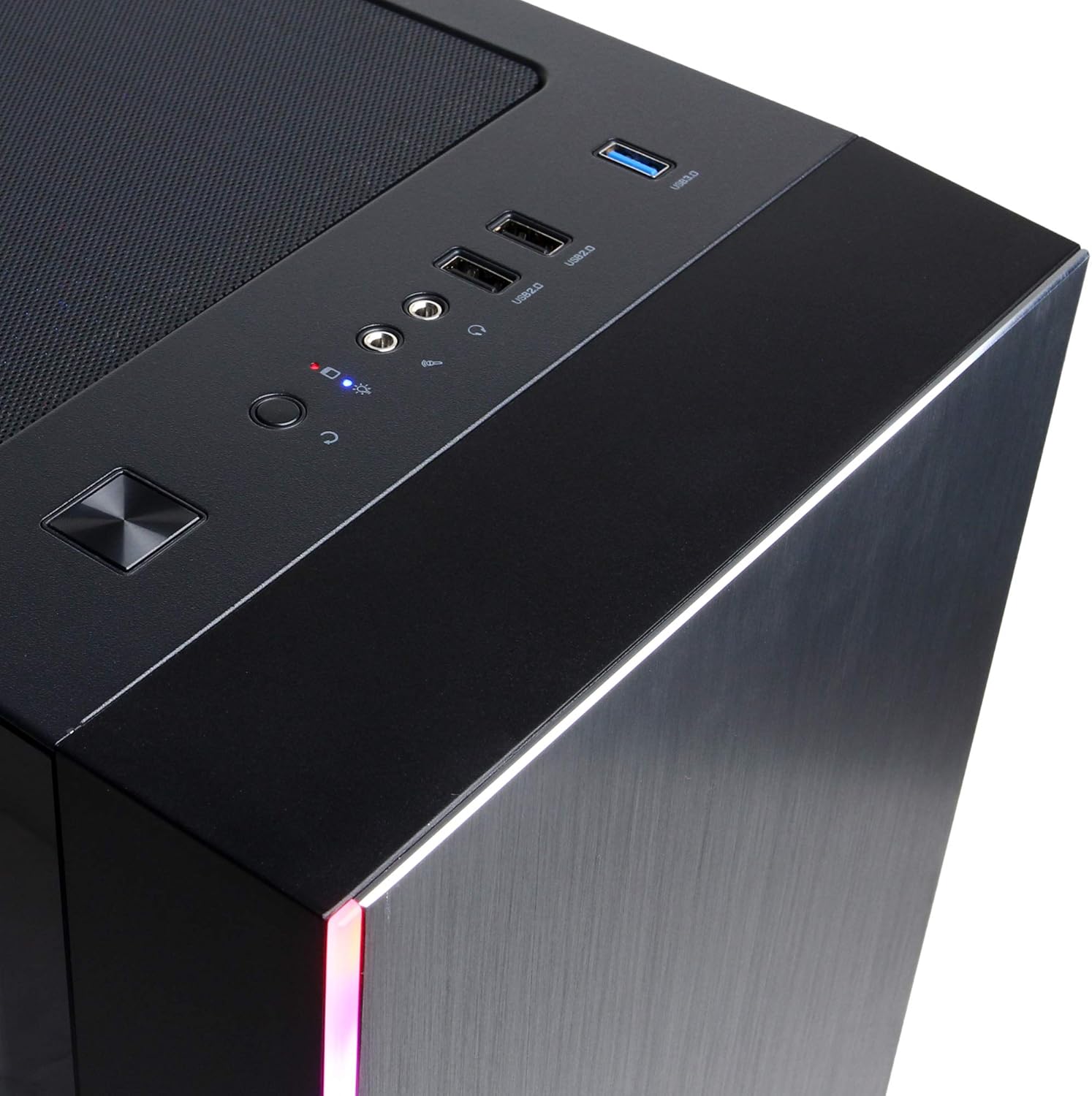
Figure 4: Detail of the top I/O panel, providing easy access to USB and audio connections.
3. Údržba
3.1 Čištění
Pravidelné čištění pomáhá udržovat optimální výkon a prodlužuje životnost vašeho počítače.
- Vnější: Použijte měkký, damp cloth to wipe down the exterior. Avoid harsh chemicals.
- Prach: Pravidelně používejte stlačený vzduch k odstranění prachu z větracích mřížek a vnitřních součástí. Před čištěním se ujistěte, že je počítač vypnutý a odpojený od sítě.
3.2 Aktualizace softwaru
Keep your operating system, drivers, and applications updated to ensure security, stability, and performance.
- Aktualizace systému Windows: Přejděte do Nastavení > Aktualizace a zabezpečení > Windows Update.
- Ovladače grafické karty: Download the latest drivers directly from NVIDIA's official webmísto.
4. Řešení problémů
4.1 Bez napájení
- Ujistěte se, že je napájecí kabel bezpečně připojen k počítači i k elektrické zásuvce.
- Ověřte funkčnost zásuvky zapojením jiného zařízení.
- Check the power switch on the PSU (if present) is in the 'On' position.
4.2 Žádný displej
- Confirm the monitor is powered on and connected to the graphics card's output, not the motherboard's integrated graphics ports (if applicable).
- Zkuste jiný kabel displeje nebo monitor, pokud je k dispozici.
- Ujistěte se, že je správně vybrán vstupní zdroj monitoru.
4.3 Zpomalení nebo zamrznutí systému
- Check Task Manager (Ctrl+Shift+Esc) for high CPU, RAM, or disk usage by specific applications.
- Ujistěte se, že systém Windows a ovladače jsou aktuální.
- Spusťte antivirovou a malwarovou kontrolu.
- Ensure adequate ventilation and check for excessive dust buildup.
5. Specifikace
| Funkce | Detail |
|---|---|
| Značka | CyberpowerPC |
| Název modelu | Gamer Xtreme |
| Operační systém | Windows 10 Home |
| Model CPU | AMD Ryzen 7 3700X |
| Rychlost CPU | 3.6 GHz (základní) |
| Grafický koprocesor | NVIDIA GeForce RTX 3060 |
| RAM grafické karty | 12 GB GDDR6 |
| Nainstalovaná paměť RAM | 16 GB DDR4 |
| Skladování | 240 GB SSD, 1 TB HDD |
| Konektivita | HDMI, Wi-Fi (802.11ab), USB 2.0, USB 3.0 |
| Rozměry položky (DxŠxV) | 18.6 x 17.4 x 8.9 palce |
| Způsob chlazení | Vzduch |
| UPC | 811842073769 |
6. Informace o záruce
Your CyberpowerPC Gamer Xtreme Gaming PC is covered by a manufacturer's limited warranty. Specific terms and conditions, including warranty duration and coverage details, are typically provided with your purchase documentation or can be found on the official CyberpowerPC webstránky. Uschovejte si prosím doklad o koupi pro případ reklamace.
7. Podpora
For technical assistance, troubleshooting, or further inquiries, please visit the official CyberpowerPC support website or contact their customer service. You may need your product model number (GMA3088W) and serial number for support.
- Oficiální Webmísto: www.cyberpowerpc.com
- Support Section: Look for a "Support" or "Contact Us" link on their webmísto.