
MELCAM B096WWPTJ4
Uživatelská příručka k videokameře MELCAM 4K
Model: B096WWPTJ4
Zavedení
This user manual provides detailed instructions for the MELCAM 4K Camcorder, Model B096WWPTJ4. Designed for capturing high-quality video and photos, this camcorder features 4K Ultra HD resolution, a 48MP sensor, Wi-Fi connectivity, and various advanced functions to enhance your recording experience. Please read this manual thoroughly before operating the device to ensure proper use and optimal performance.
Co je zahrnuto
Ověřte, zda jsou v balení přítomny všechny níže uvedené položky:
- MELCAM 4K Camcorder
- Externí mikrofon
- Ruční stabilizátor
- Sluneční clona objektivu
- Dálkové ovládání 2.4G
- USB nabíjecí kabel
- HDMI kabel
- USB adaptér
- 2 x Rechargeable Lithium Batteries
- Battery Charger (External)
- Taška pro divadelní účely
- User Manual (for Camera)
- User Manual (for Microphone)
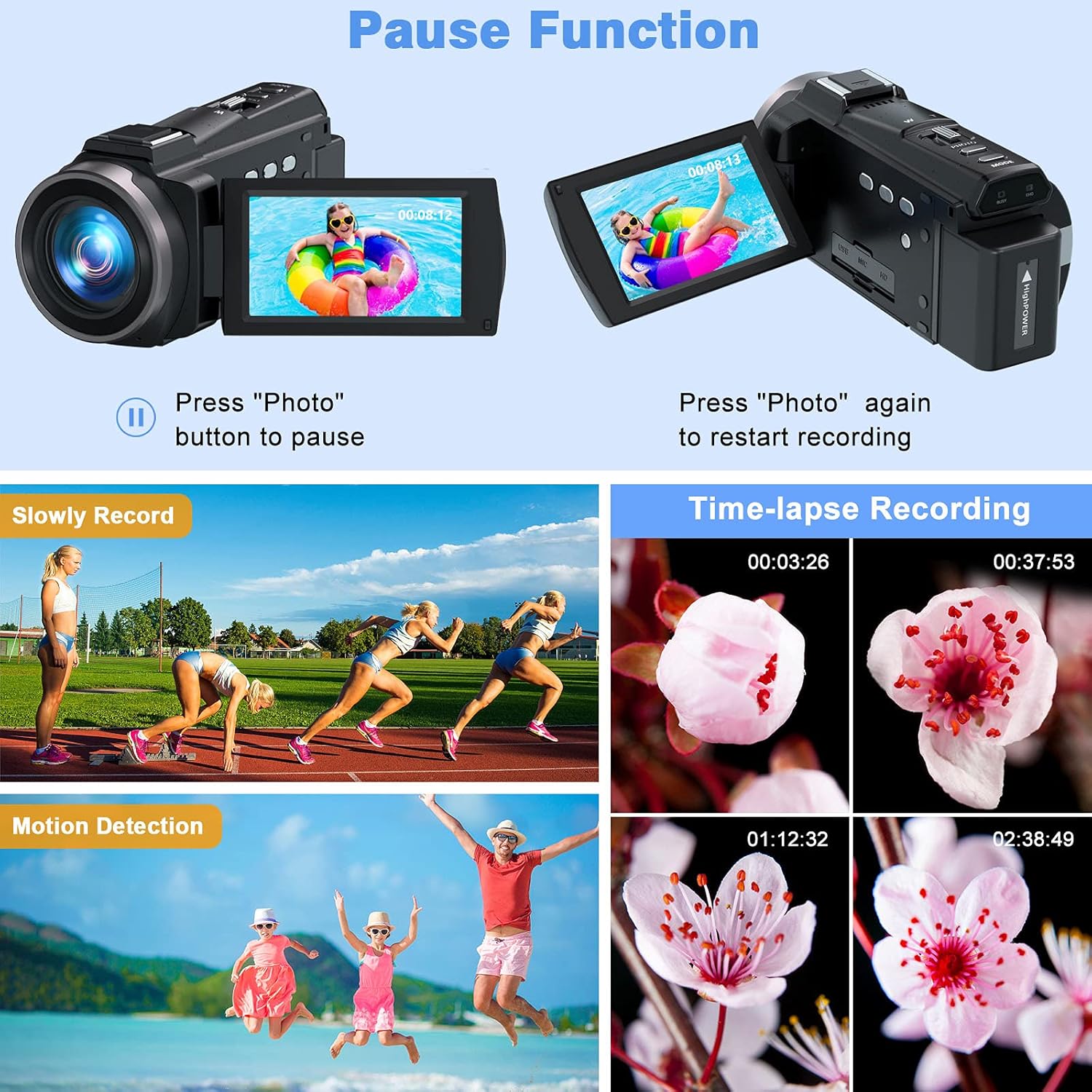
Figure 1: All components included with the MELCAM 4K Camcorder.
Nastavení
1. Instalace a nabíjení baterie
The camcorder uses rechargeable lithium batteries. Ensure batteries are fully charged before first use.
- Insert a charged battery into the battery compartment of the camcorder.
- To charge the battery, you can either charge it directly in the camcorder using the USB charging cable and adapter, or use the provided external battery charger.

Figure 2: The camcorder with its external battery charger and remote control.

Figure 3: Battery charging using the external charger.
2. Instalace SD karty
The camcorder supports 4-128 GB Class 10 SD cards (not included). For optimal performance, format the SD card using the camcorder before first use.
- Vyhledejte slot pro SD kartu na videokameře.
- Vložte SD kartu kovovými kontakty ve správném směru, dokud nezacvakne.
- To format, navigate to the 'Settings' menu on the camcorder and select 'Format SD Card'.
3. Připojení externího mikrofonu
The external stereo microphone enhances audio quality, providing clearer and brighter sound.
- Slide the external microphone onto the hot shoe mount on top of the camcorder.
- Connect the microphone's audio cable to the microphone input port on the camcorder.
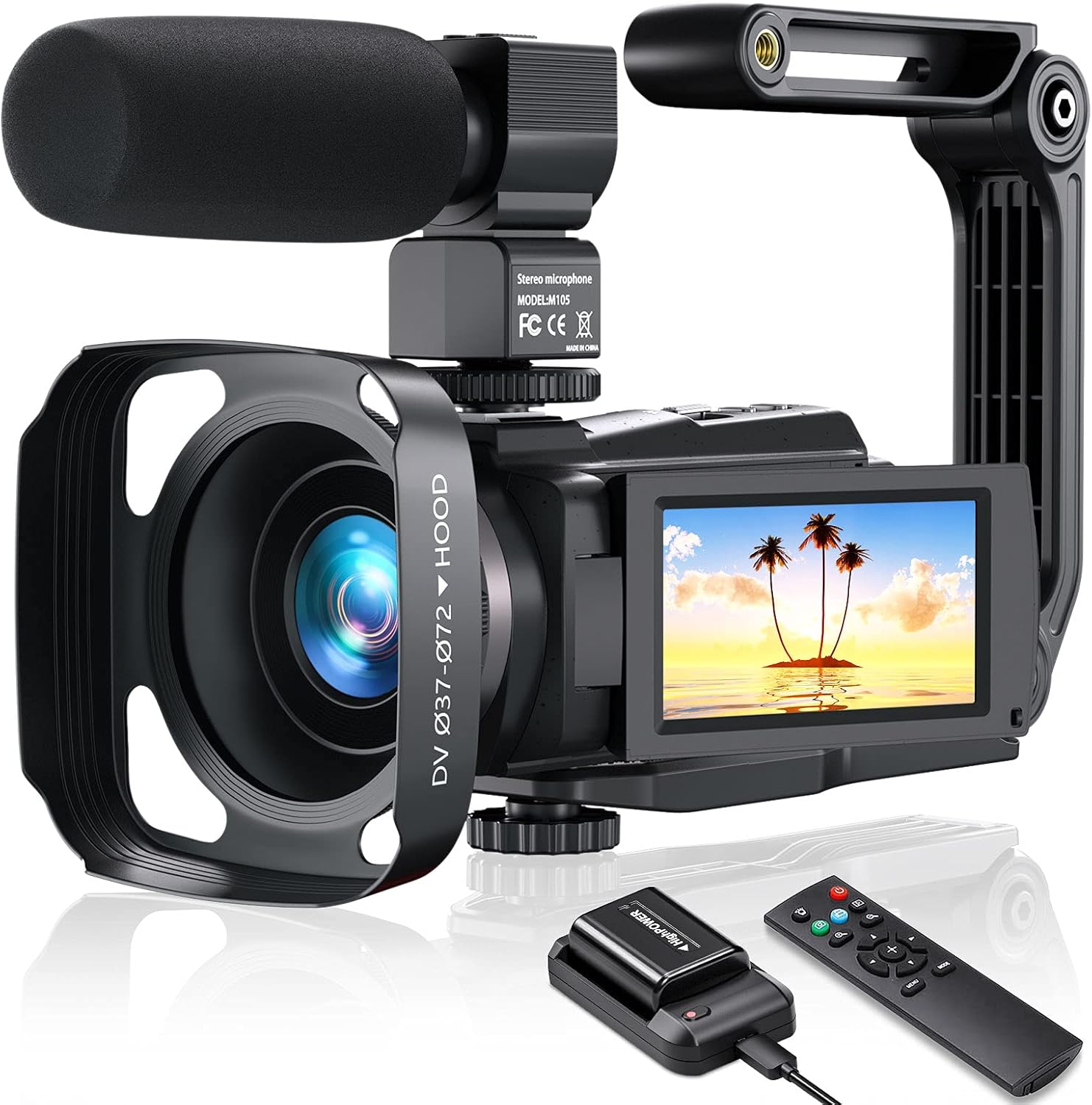
Figure 4: Camcorder with external microphone and handheld stabilizer attached.
4. Připevnění ručního stabilizátoru
The foldable handheld stabilizer helps reduce camera shake for smoother video recording.
- Attach the base of the handheld stabilizer to the tripod mount screw hole at the bottom of the camcorder.
- Adjust the stabilizer to a comfortable position for stable grip.

Figure 5: Handheld stabilizer in use, providing a stable grip.
5. Nasazení sluneční clony objektivu
The lens hood helps to reduce glare and lens flare, improving image contrast and quality.
- Zarovnejte sluneční clonu s přední částí objektivu videokamery.
- Twist gently to secure it in place.

Figure 6: Visual comparison demonstrating the effect of using the lens hood.
Návod k obsluze
1. Zapnutí/vypnutí
- Open the IPS touch screen display. The camcorder will automatically power on.
- To power off, close the IPS touch screen display or press and hold the 'POWER/DOWN' button.

Figure 7: The 3-inch IPS touch screen can rotate 270 degrees for versatile viewIng.
2. Nahrávání videí a pořizování fotografií
The camcorder supports 4K video recording at 60 frames per second (FPS) and 48 Megapixel still images.
- Press the 'MODE' button to select between 'Normal Record' (video) or 'Normal Picture' (photo) modes.
- To start recording video, press the 'Record' button. Press again to stop.
- To take a photo, press the 'Photo' button.
- Adjust resolution settings (e.g., 4K 60 FPS for video, 48MP for photos) via the 'MENU/WIFI' button.

Figure 8: The camcorder supports 4K UHD at 60FPS and 48MP photos.
3. Special Recording Features
- IR noční vidění: Activate IR Night Vision mode for clear recording in low-light or dark conditions. This mode records in black and white.
- Časosběrné nahrávání: Zachyťte události během delšího období a zhustěte je do krátkého videa.
- Zpomalený pohyb: Record video at a higher frame rate to play back in slow motion.
- Nahrávání ve smyčce: Continuously record video, overwriting the oldest files, když je paměťová karta plná.
- Detekce pohybu: The camcorder will automatically start recording when motion is detected in the frame.
- Funkce pauzy: Press the 'Photo' button during recording to pause, and press again to resume recording without creating a new file.

Figure 9: IR Night Vision provides clear black and white footage v tmavém prostředí.

Figure 10: Various recording modes including Pause, Slow Motion, Motion Detection, and Time-Lapse.
4. Wi-Fi připojení
Connect the camcorder to your smartphone or tablet via Wi-Fi to control recording, view živé footage a převod files.
- Download the dedicated app (refer to the camera's user manual for app name).
- On the camcorder, press the 'MENU/WIFI' button to activate Wi-Fi mode. The Wi-Fi name and password will appear on the screen.
- On your smart device, connect to the camcorder's Wi-Fi network using the provided password.
- Open the app to control the camcorder.
Figure 11: Wi-Fi connectivity allows remote control and file transfer via a smartphone app.
5. Pomocí dálkového ovládání
The 2.4G remote control allows for convenient operation from a distance (up to 60 feet, 360° control range).
- Point the remote control towards the camcorder.
- Use the buttons on the remote to start/stop recording, take photos, zoom, and navigate menus.

Figure 12: The 2.4G remote control provides convenient operation from a distance.
6. Připojení k externím zařízením
- HDMI výstup: Připojte videokameru k televizoru nebo monitoru pomocí dodaného kabelu HDMI view vaše nahrávky na větší obrazovce.
- WebFunkce vačky: Připojte videokameru k počítači přes USB, abyste ji mohli používat jako webkamera pro živé vysílání nebo videohovory.
- MSDC (Mass Storage Device Class): Connect to a computer via USB to transfer filepřímo z SD karty.
Figure 13: The camcorder supports HDMI output, webcam functionality, and direct file přenos do počítače.
Údržba
- Keep the camcorder and accessories clean and free from dust. Use a soft, dry cloth for cleaning.
- Avoid exposing the camcorder to extreme temperatures, humidity, or direct sunlight for prolonged periods.
- Store the camcorder in the provided DV bag when not in use to protect it from scratches and impacts.
- Pokud videokameru nebudete delší dobu používat, vyjměte baterie.
Odstraňování problémů
| Problém | Možná příčina | Řešení |
|---|---|---|
| Videokamera se nezapne. | Baterie není nabitá nebo není správně vložena. | Ensure battery is fully charged and correctly inserted. Try using the second battery. |
| Nelze nahrávat video/fotit. | SD card is full, not inserted, or not formatted. | Insert an SD card, ensure it's formatted, or delete old files pro uvolnění místa. |
| Špatná kvalita videa/zvuku. | Low light, dirty lens, microphone not connected, or external interference. | Clean the lens. Ensure microphone is securely connected. Use IR Night Vision in low light. Avoid shooting in very dark conditions without IR. |
| Problémy s připojením k Wi-Fi. | Incorrect password, app not installed, or distance too far. | Verify Wi-Fi password. Ensure the correct app is installed. Stay within the recommended Wi-Fi range. |
| No user manual available online. | This is a common user concern. | Refer to the physical user manuals included in the package for detailed instructions. This digital manual provides a comprehensive overview. |
Specifikace
| Funkce | Detail |
|---|---|
| Značka | MELCAM |
| Rozlišení záznamu videa | 4K (UHD) |
| Velikost obrazovky | 3 palců (8 cm úhlopříčka) |
| Technologie připojení | Infračervené, Wi-Fi |
| Typ videokamery | Videokamera |
| Typ objektivu | Přiblížení |
| Form Factor | Handheld, Rotating |
| Baterie jsou součástí dodávky | Yes (2 Lithium Ion batteries required, included) |
| Režimy fotografování | Night, Time-Lapse, Slow Motion, Loop Recording, Motion Detection |
| Hmotnost položky | 2.07 libry |
| První dostupný termín | 9. června 2021 |
Záruka a podpora
For warranty information and technical support, please refer to the documentation included with your product or contact MELCAM customer service directly. Keep your purchase receipt as proof of purchase for any warranty claims.
Ask a question about this manual
Ask about setup, troubleshooting, compatibility, parts, safety, or missing instructions. Manuals+ will review the question and use this page’s manual context to help answer it.