
Zavedení
Thank you for choosing the VizGiz Micro SD Card Reader. This compact and portable device allows you to easily transfer data between your Micro SD (TF) cards and various devices such as computers, laptops, and other compatible electronics. Designed for convenience and efficiency, it supports USB 2.0 for fast data transfer.
This manual provides essential information on setting up, operating, and maintaining your card reader to ensure optimal performance and longevity.
Obsah balení
- 6 x VizGiz Micro SD Card Readers (Random Colors)

Image: A pack of six VizGiz Micro SD Card Readers, each in a different vibrant color, showcasinjejich kompaktní design.
Vlastnosti produktu
- Mini a přenosný design: Compact size (approximately 4.8cm x 2cm x 0.6cm) for easy carrying.
- Rozhraní USB 2.0: Ensures fast data transfer rates and supports hot-plugging.
- Široká kompatibilita: Compatible with Windows ME, 2000, XP, Vista, WIN 7, and Mac OS.
- Provoz bez nutnosti řidiče: Pro většinu operačních systémů není nutná instalace žádných dalších ovladačů.
- Podpora TF karet: Specifically designed for Micro SD (TF) cards.

Obrázek: Vedlejší profesionálfile view of the six card readers, illustrating their compact dimensions, with a ruler indicating a length of 4.8 cm.
Průvodce nastavením
- Vložte Micro SD kartu: Gently insert your Micro SD (TF) card into the designated slot on the card reader. Ensure the card is inserted correctly with the gold contacts facing down, as shown in the diagram.
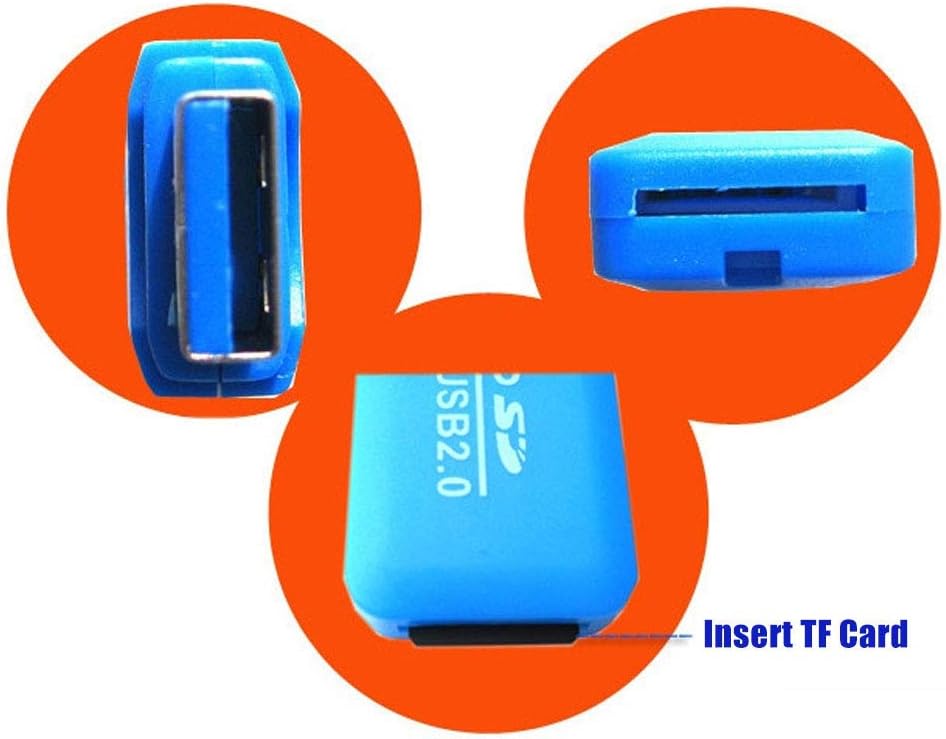
Obrázek: Podrobný view of the blue card reader, highlighting the slot where the TF (Micro SD) card is to be inserted.
- Připojit k zařízení: Plug the USB end of the card reader into an available USB 2.0 port on your computer, laptop, or other compatible device.
- Automatické rozpoznání: Your operating system (Windows, Mac OS) should automatically detect the card reader and the inserted Micro SD card. A new drive letter will typically appear in "My Computer" or "Finder."
Návod k obsluze
Once the card reader is connected and recognized by your device, you can begin transferring files.
- Přístup Files: Open "My Computer" (Windows) or "Finder" (Mac OS) and locate the new removable disk drive corresponding to your Micro SD card.
- Přenos Files:
- Kopírovat files z the Micro SD card to your device: Drag and drop files from the card reader's drive to a folder on your computer.
- Kopírovat files na the Micro SD card from your device: Drag and drop files from your computer's folders to the card reader's drive.
- Bezpečné odstranění: Before disconnecting the card reader, always safely eject the device from your operating system to prevent data corruption.
- Windows: Click the "Safely Remove Hardware and Eject Media" icon in the system tray, then select the card reader.
- Operační Systém Mac: Drag the drive icon of the Micro SD card to the Trash or right-click (Control-click) the drive icon and select "Eject."
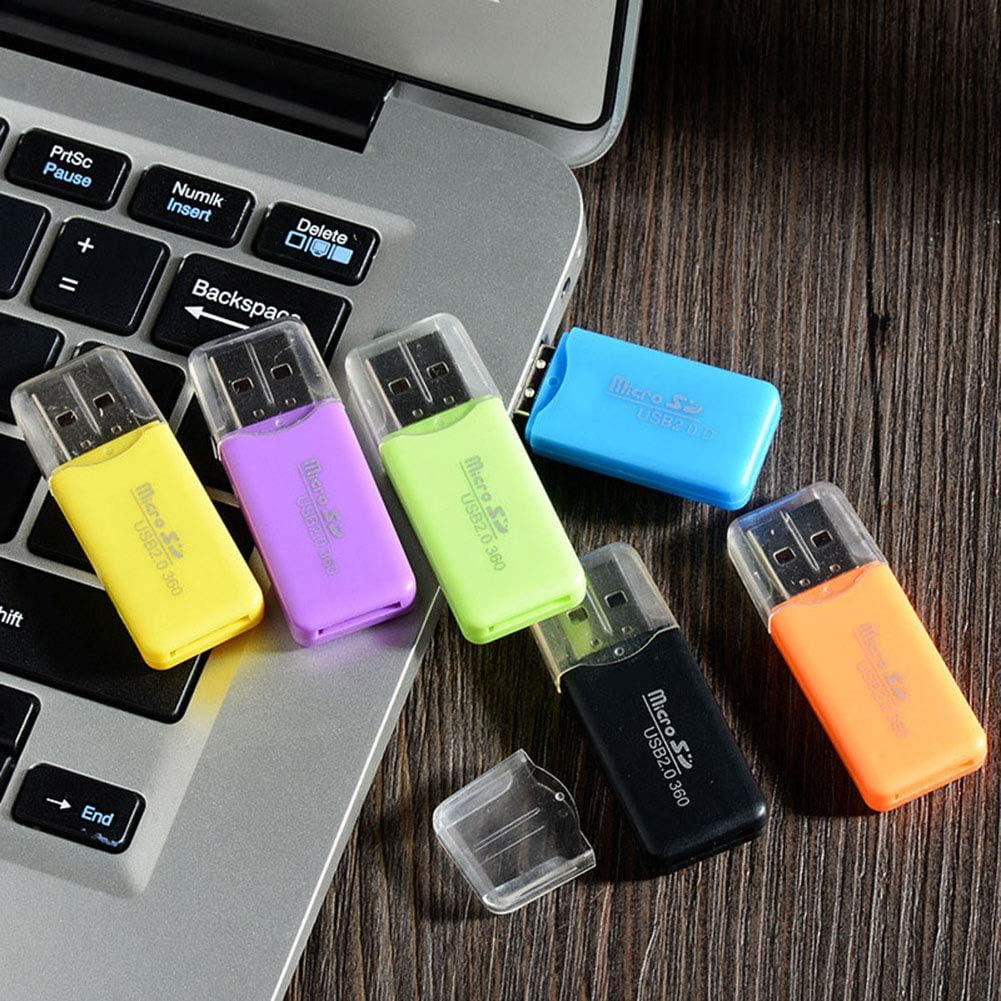
Image: Several card readers connected to a laptop, illustrating how they can be used simultaneously for data transfer.
Údržba a péče
- Udržujte v čistotě: K čištění vnější strany čtečky karet použijte měkký, suchý hadřík. Nepoužívejte tekuté čisticí prostředky ani rozpouštědla.
- Chraňte konektory: Keep the USB connector and the Micro SD card slot free from dust and debris. Use the included cap to protect the USB connector when not in use.
- Vyhněte se extrémním podmínkám: Do not expose the card reader to extreme temperatures, humidity, or direct sunlight.
- Zacházejte jemně: Avoid dropping or subjecting the card reader to strong impacts.
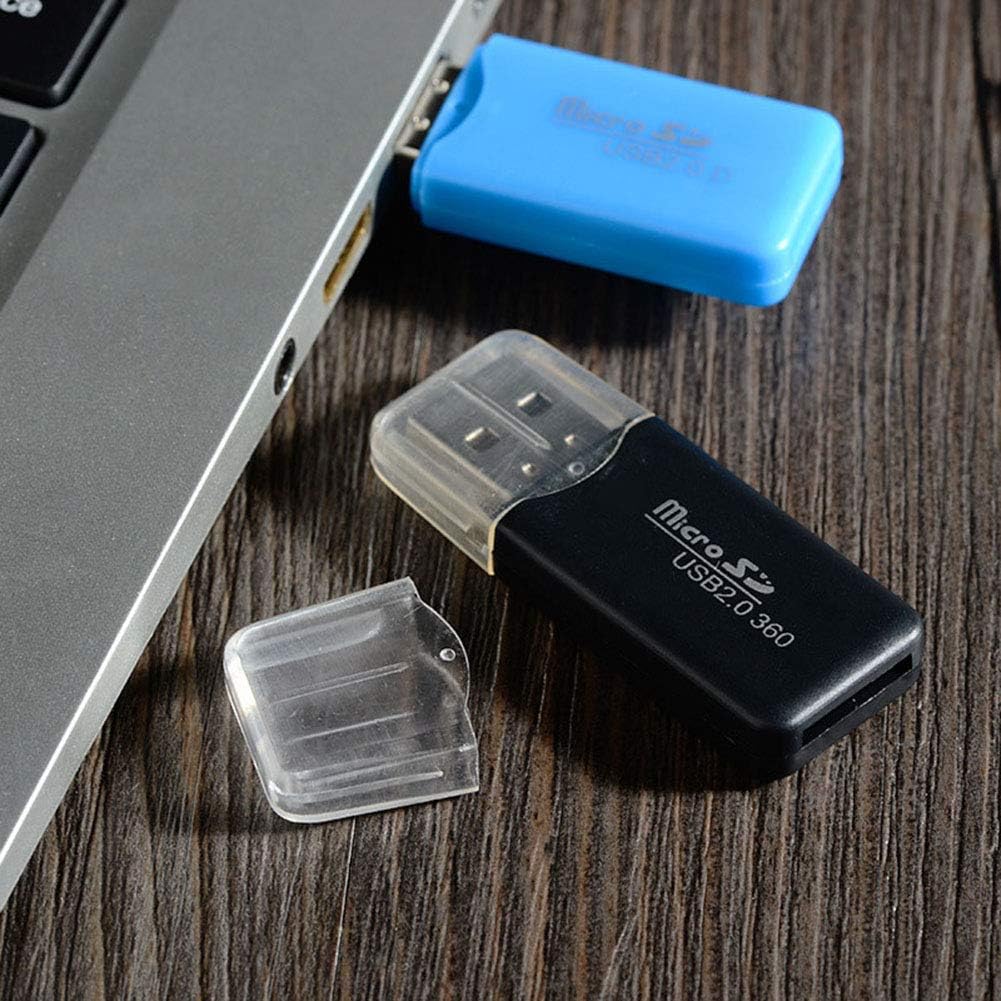
Image: A black card reader with its protective cap, demonstrating the removable cap feature for maintenance and protection.
Odstraňování problémů
- Problem: Card reader not recognized by computer.
- Řešení:
- Ensure the card reader is fully inserted into the USB port.
- Zkuste jiný port USB na počítači.
- Test the card reader on another computer to rule out a computer-specific issue.
- Ujistěte se, že máte aktuální operační systém.
- Problem: Micro SD card not detected.
- Řešení:
- Ensure the Micro SD card is correctly and fully inserted into the card reader slot.
- Try a different Micro SD card to check if the issue is with the card itself.
- Check if the Micro SD card is damaged or corrupted.
- Problem: Slow data transfer speeds.
- Řešení:
- Ensure you are using a USB 2.0 port on your computer. While backward compatible, USB 1.1 ports will result in slower speeds.
- The speed of the Micro SD card itself can affect transfer rates. Use a high-speed card for faster transfers.
- Vyhněte se spouštění více náročných aplikací během velkých file převody.
Specifikace
| Název produktu | VizGiz Micro SD Card Reader |
| Model | USB 2.0 TF Card Reader |
| Technologie připojení | USB 2.0 |
| Podporovaný typ média | Karta Micro SD (TF) |
| Rozměry (D x Š x V) | 4.8 cm x 2 cm x 0.6 cm (Approx.) |
| Hmotnost | 18 g (for the pack of 6, individual weight not specified) |
| Materiál | Plast |
| Barva | Multicolor (Random Colors in pack) |
| Kompatibilita operačního systému | Windows ME/2000/XP/Vista/WIN 7, Mac OS |
Informace o záruce
VizGiz products are designed for reliability and performance. While specific warranty details for this product are not provided in the general product description, standard consumer rights and return policies apply. For detailed warranty information, please refer to the purchase platform or contact the seller directly.
Poznámka: The product description mentions an optional "2-Year Extended Warranty by Salama Care" available for purchase. This is a third-party service and not directly provided by VizGiz.
Zákaznická podpora
For any questions, technical assistance, or support regarding your VizGiz Micro SD Card Reader, please contact the seller or the customer service department of the platform where you purchased the product. Please have your order number and product details ready when contacting support.
For general inquiries about VizGiz products, you may visit the official VizGiz brand page on the respective e-commerce platform.