
Zavedení
This manual provides detailed instructions for the assembly, operation, and maintenance of your KEDIERS ATX Mid Tower PC Case. This case features a tempered glass side panel, an open frame design, and seven pre-installed Addressable RGB (ARGB) fans to enhance your computing experience. Please read this manual thoroughly before beginning installation to ensure proper setup and safe operation.

Přední strana view of the KEDIERS ATX Mid Tower PC Case, showcasing the tempered glass side panel and the three front-mounted ARGB fans.
Nastavení a instalace komponent
Follow these steps to install your computer components into the KEDIERS ATX Mid Tower PC Case.
1. Vybalení a příprava
- Opatrně vyjměte skříň počítače z obalu.
- Umístěte pouzdro na stabilní, rovný povrch.
- Remove the tempered glass side panel by unscrewing the thumb screws. Set it aside on a soft, non-abrasive surface to prevent scratches.
2. Instalace základní desky
- The KEDIERS ATX Mid Tower PC Case supports ATX, Micro ATX, and Mini ITX motherboards.
- Nainstalujte kryt I/O (pokud je k dispozici) do zadního otvoru skříně.
- Align your motherboard with the standoffs inside the case. Ensure all standoffs match the motherboard's mounting holes.
- Zajistěte základní desku dodanými šrouby.

An illustration of the internal layout of the KEDIERS PC case, indicating maximum clearances for a CPU cooler (160mm), PSU (200mm), GPU (300mm), and compatibility with ATX, Micro ATX, and Mini ITX motherboards.
3. Instalace napájecího zdroje (PSU)
- Mount the PSU in the designated compartment at the bottom rear of the case.
- Zajistěte zdroj šrouby ze zadní strany skříně.
4. Instalace úložného disku
- Install 3.5-inch hard drives (HDDs) or 2.5-inch solid-state drives (SSDs) into the available drive bays.
- Zajistěte pohony příslušnými šrouby.
5. Instalace grafické karty (GPU) a rozšiřující karty
- Odstraňte potřebné kryty slotů PCI ze zadní strany skříně.
- Insert your graphics card or other expansion cards into the motherboard's PCI-E slots.
- Secure the cards with screws. The case provides 7 expansion slots.
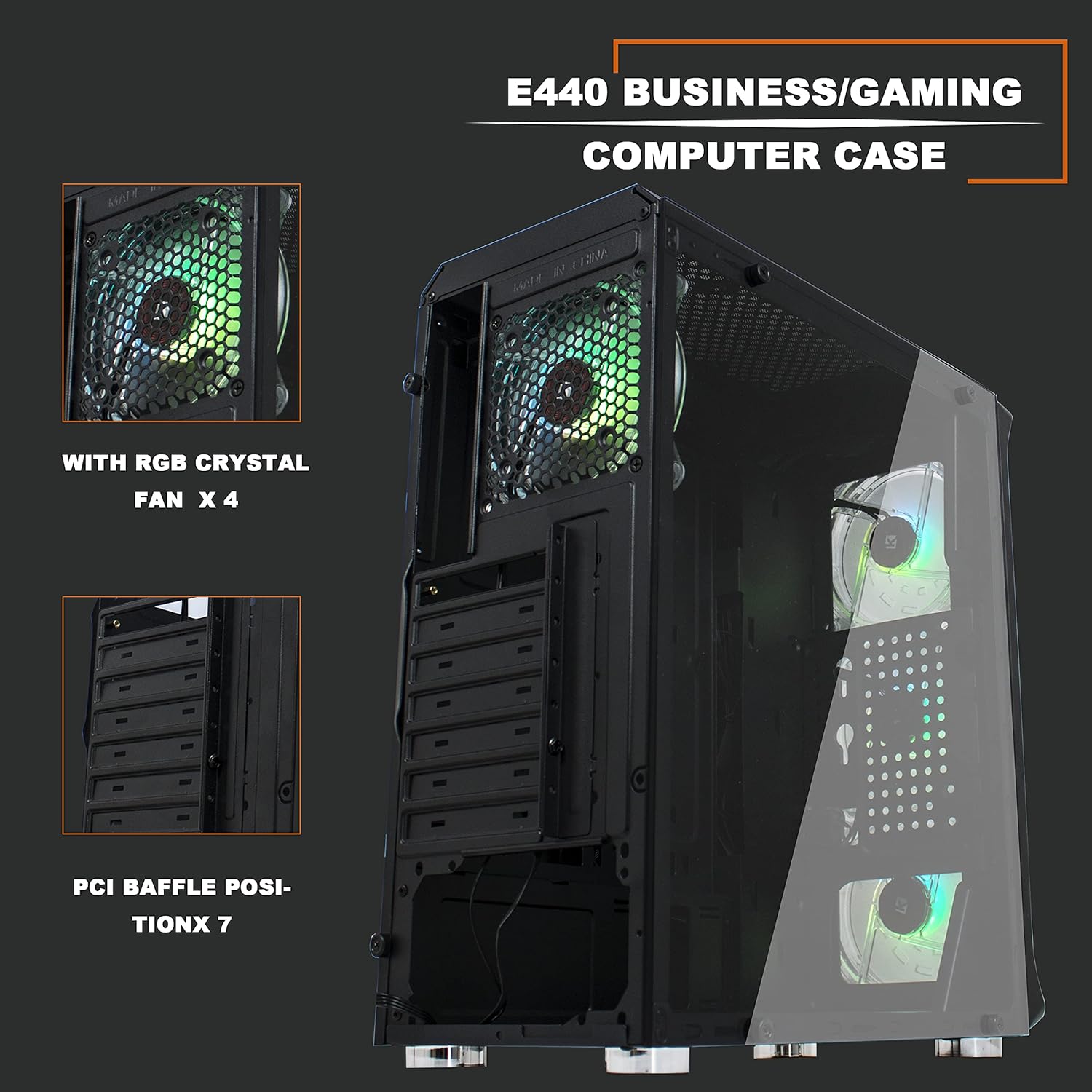
Vnitřní view of the KEDIERS PC case, highlighting the seven PCI expansion slots and the pre-installed rear ARGB fan.
6. Připojení I/O na předním panelu
- Connect the front panel cables (USB 3.0, USB 2.0, HD Audio, Power Switch, Reset Switch, Power LED, HDD LED) to the corresponding headers on your motherboard. Refer to your motherboard manual for exact header locations.
- Connect the ARGB fan controller to the power supply via SATA power and to the motherboard's 5V 3-pin D-RGB header for software control, if desired.

A close-up of the top-front control panel, featuring the power switch, RGB switch, USB 2.0 port, USB 3.0 port, and audio jack.
Návod k obsluze
1. Zapnutí systému
- Ensure all internal components are securely installed and all cables are connected.
- Connect your monitor, keyboard, mouse, and power cable to the rear of your PC.
- Flip the power switch on your PSU to the 'ON' position.
- Press the power button on the top-front panel of the case to start your computer.
2. Ovládání ventilátoru ARGB
The KEDIERS PC Case includes seven pre-installed ARGB fans. These can be controlled via the included remote or synchronized with your motherboard's ARGB software.
- Dálkové ovládání: Use the provided remote to cycle through various lighting modes, adjust brightness, change colors, and control fan speed. Refer to the remote control diagram for specific button functions.
- Synchronizace základní desky: If your motherboard has a 5V 3-pin D-RGB header, connect the ARGB controller cable to it. This allows you to control the fan lighting effects through your motherboard's RGB software (e.g., ASUS Aura Sync, MSI Mystic Light Sync, Gigabyte RGB Fusion). Note that 12V 4-pin RGB headers are not compatible with this system.
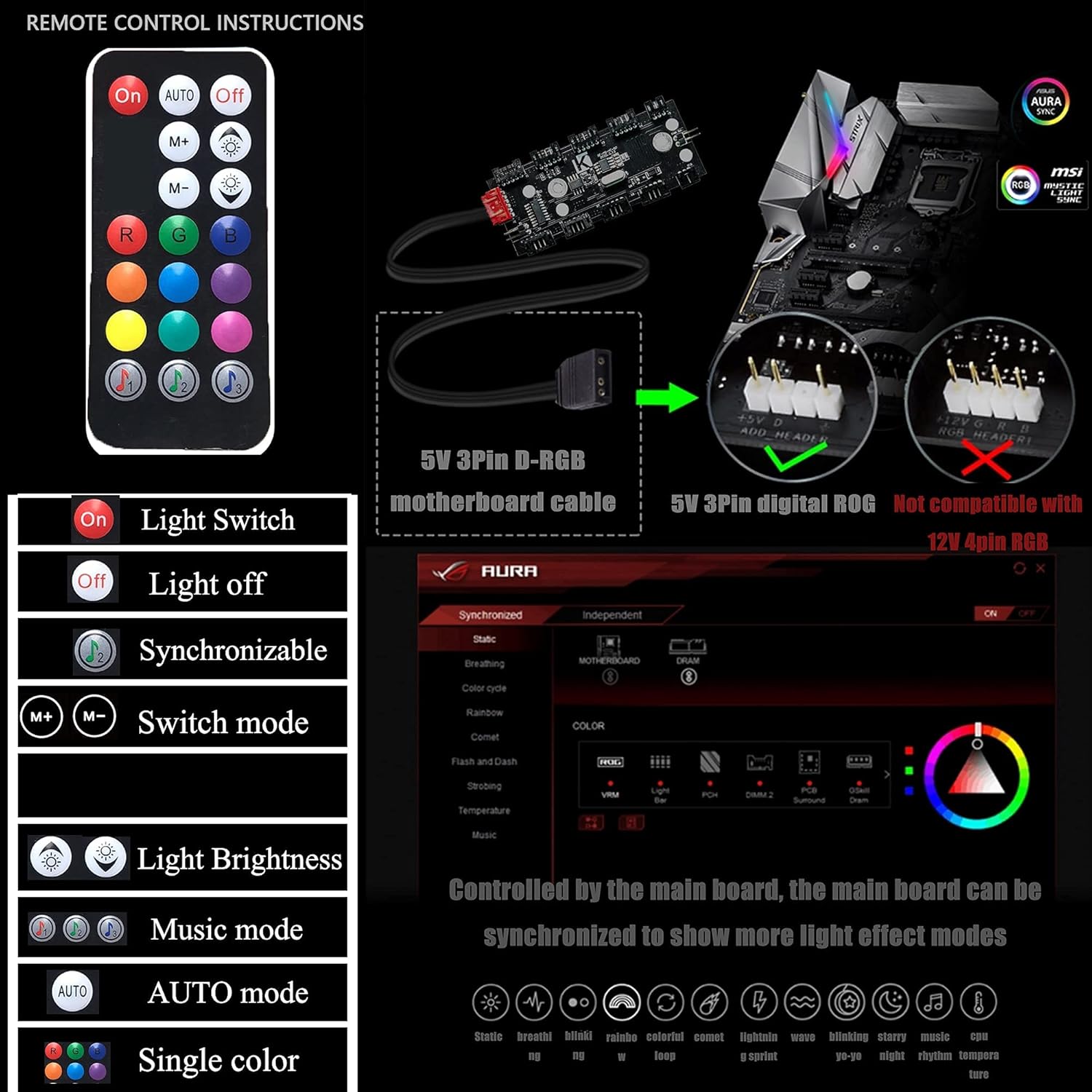
An image detailing the functions of the ARGB fan remote control and illustrating the 5V 3-pin D-RGB motherboard cable connection for synchronization, noting incompatibility with 12V 4-pin RGB headers.
Údržba
Pravidelná údržba pomáhá zajistit optimální výkon a dlouhou životnost komponent vašeho počítače.
1. Čištění prachových filtrů
- The case features a detachable dust filter on the top panel. Regularly remove and clean this filter to prevent dust buildup and maintain optimal airflow.
- Gently brush or rinse the filter with water. Ensure it is completely dry before reattaching.

The top panel of the KEDIERS PC case, showing the ventilation grille and the removable magnetic dust filter designed for easy cleaning and improved airflow.
2. Čištění exteriéru a interiéru
- Použijte měkký, damp cloth to wipe down the exterior surfaces of the case, including the tempered glass panel. Avoid abrasive cleaners.
- For interior cleaning, use compressed air to remove dust from fans, heatsinks, and other components. Ensure the system is powered off and unplugged before cleaning the interior.
Odstraňování problémů
If you encounter issues with your KEDIERS PC Case, refer to the following common troubleshooting steps:
- Systém se nezapíná:
- Zkontrolujte, zda je zdroj zapnutý a správně připojený k elektrické zásuvce.
- Verify that the power switch cable from the front panel is correctly connected to the motherboard header.
- Ujistěte se, že všechny napájecí kabely k základní desce a jejím součástem jsou bezpečně připojeny.
- ARGB Fans Not Lighting Up/Spinning:
- Confirm the ARGB controller is receiving power from the PSU (SATA power connector).
- If using motherboard synchronization, ensure the 5V 3-pin D-RGB cable is correctly connected to the motherboard.
- Check if the fans are properly connected to the ARGB controller.
- Test the remote control by ensuring its battery is functional.
- USB/audio na předním panelu nefunguje:
- Verify that the USB 3.0, USB 2.0, and HD Audio cables from the front panel are correctly connected to their respective motherboard headers.
- Ujistěte se, že máte aktuální ovladače základní desky.
Specifikace
| Funkce | Specifikace |
|---|---|
| Typ pouzdra | Střední věž |
| Rozměry (D x Š x V) | 15.35 x 7.48 x 16.93 palce (390 x 190 x 430 mm) |
| Hmotnost položky | 10.98 libry (4.98 kg) |
| Materiál | Tvrzené sklo, ocel, plast |
| Kompatibilita základní desky | ATX, Micro ATX, Mini ITX |
| Rozšiřující sloty | 7 |
| Předinstalované ventilátory | 7 x 120mm ARGB ventilátory |
| Přední I / O porty | 2 x USB 3.0, 1 x USB 2.0, HD Audio (Mic/Headphone), Power Button, RGB Control Button |
| Maximální výška chladiče CPU | 160 mm |
| Maximální délka GPU | 300 mm |
| Maximální délka PSU | 200 mm |
| Způsob chlazení | Vzduch |
| Pevný disk Form Factor | 3.5 Inches (HDD) / 2.5 Inches (SSD) |
Záruka a podpora
For warranty information or technical support, please contact KEDIERS customer service through their official webnebo prodejce, u kterého byl produkt zakoupen. Uschovejte si doklad o koupi pro případ reklamace.