
1. Úvod
Thank you for choosing the NEC E438 43-inch LCD 4K UHD Commercial-Grade Monitor. This manual provides detailed instructions for the safe and efficient use of your display. Please read this manual thoroughly before operating the product and retain it for future reference.
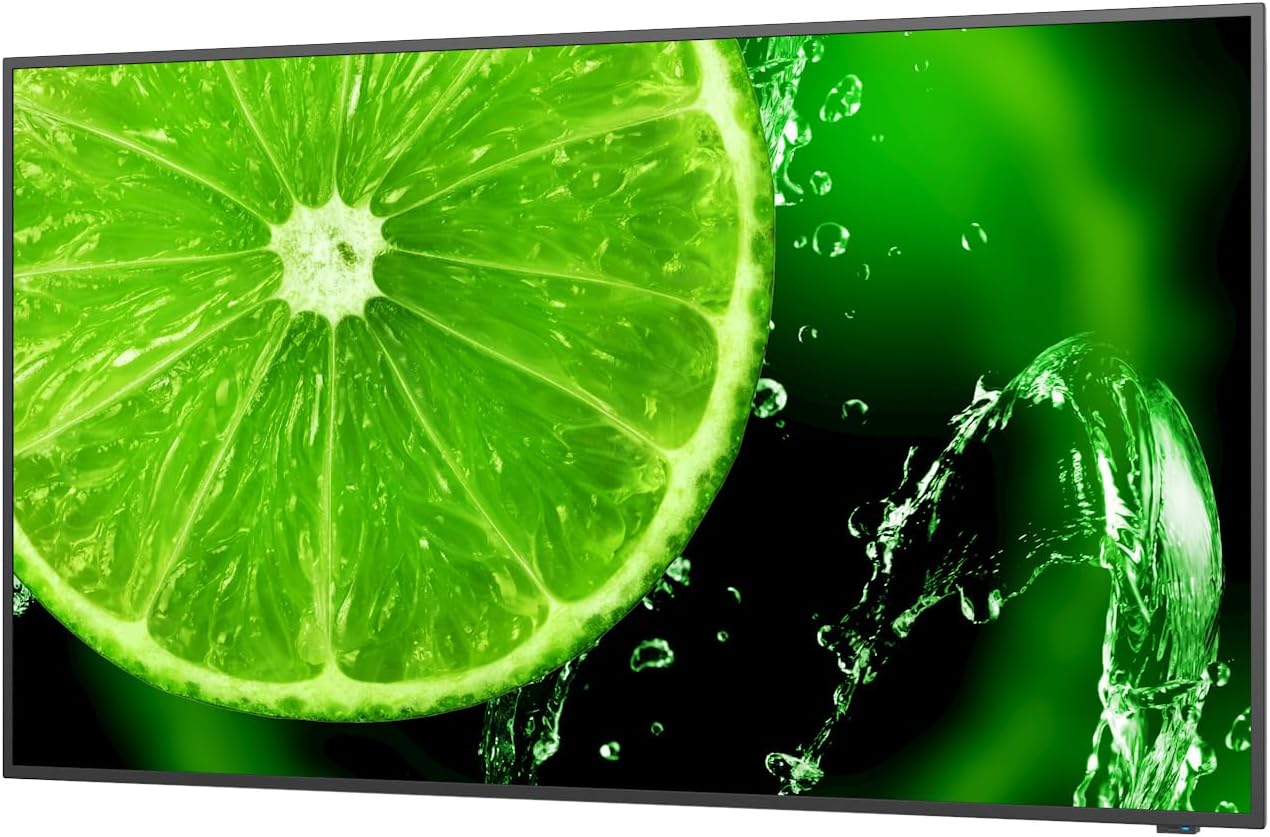
Obrázek 1: Přední strana view of the NEC E438 43-inch 4K UHD monitor.
2. Bezpečnostní informace
Observe the following safety precautions to prevent damage to the product and to ensure your safety:
- Nevystavujte monitor dešti ani vlhkosti, abyste předešli požáru nebo úrazu elektrickým proudem.
- Neotevírejte monitor casing. Veškerý servis svěřte kvalifikovanému servisnímu personálu.
- Zajistěte dostatečné větrání. Neblokujte větrací otvory.
- Používejte pouze napájecí kabel dodaný s monitorem nebo vhodnou náhradu.
- Place the monitor on a stable, level surface or mount it securely according to VESA standards.
- Pokud monitor nebudete delší dobu používat, odpojte napájecí kabel ze zásuvky.
3. Obsah balení
Ověřte, zda jsou v balení přítomny všechny položky:
- NEC E438 43-inch LCD 4K UHD Monitor
- Napájecí kabel
- HDMI kabel
- USB-C kabel
- Dálkové ovládání (s bateriemi)
- Uživatelská příručka (tento dokument)
- Stručný návod k obsluze
4. Nastavení
4.1 Fyzické umístění
Place the monitor on a sturdy, flat surface or mount it using a VESA-compatible wall mount or stand. Ensure adequate space around the monitor for ventilation.
4.2 Propojovací kabely
Connect the necessary cables to the corresponding ports on the monitor and your source device (e.g., computer, media player).

Obrázek 2: Zadní view of the monitor showing connection ports and mounting points.

Obrázek 3: Strana view of the monitor illustrating the input port cluster.
- Moc: Connect the power cord to the monitor's AC input and then to a grounded electrical outlet.
- Video vstup: Use an HDMI, VGA, or USB-C cable to connect your source device to the monitor. The monitor supports multiple HDMI inputs.
- LAN: Connect an Ethernet cable to the LAN port for network connectivity.
- USB-C: For video, data, and power delivery (if supported by the source device).
5. Návod k obsluze
5.1 Zapnutí/vypnutí
Press the power button located on the monitor or on the remote control to turn the display on or off. The power indicator light will illuminate when the monitor is on.
5.2 Výběr vstupu
Use the 'Input' button on the remote control or the monitor's control panel to cycle through available input sources (HDMI 1, HDMI 2, HDMI 3, VGA, USB-C, etc.).
5.3 Nabídka na obrazovce (OSD)
Access the OSD menu to adjust various display settings such as brightness, contrast, color temperature, aspect ratio, and audio settings. Navigate the menu using the directional buttons on the remote or monitor and confirm selections with the 'Enter' button.
5.4 zvuk
The monitor includes integrated speakers. Adjust the volume using the remote control or through the OSD menu. You can also connect external audio devices if desired.
6. Údržba
6.1 Čištění monitoru
- Před čištěním monitor vždy odpojte.
- Použijte měkký hadřík, který nepouští vlákna dampvodou nebo jemným, neabrazivním čističem obrazovek.
- Nestříkejte čisticí prostředek přímo na obrazovku.
- Vyhněte se používání agresivních chemikálií, rozpouštědel nebo abrazivních materiálů.
6.2 Obecná péče
- Chraňte monitor před přímým slunečním zářením a zdroji tepla.
- Zajistěte správné větrání, aby nedošlo k přehřátí.
- Nepokládejte na monitor ani na jeho kabely těžké předměty.
7. Řešení problémů
Pokud narazíte na problémy s monitorem, postupujte podle následujících běžných kroků pro řešení potíží:
| Problém | Možné řešení |
|---|---|
| Žádná síla | Zkontrolujte, zda je napájecí kabel bezpečně připojen k monitoru i k elektrické zásuvce. Ujistěte se, že je elektrická zásuvka funkční. |
| Žádný signál | Verify that the video cable (HDMI, VGA, USB-C) is correctly connected to both the monitor and the source device. Select the correct input source using the 'Input' button. |
| Obraz je zkreslený nebo nejasný | Adjust resolution and refresh rate settings on your source device. Check cable connections for looseness or damage. Perform an auto-adjustment via the OSD menu if using VGA. |
| Žádný zvuk z reproduktorů | Check the volume settings on the monitor and your source device. Ensure the audio output is correctly configured on your source device. |
If the problem persists after trying these steps, please contact NEC customer support.
8. Specifikace
Key technical specifications for the NEC E438 monitor:
- Velikost obrazovky: 43 palce
- Rezoluce: 3840 x 2160 (4K UHD)
- Poměr stran: 16:9
- Typ panelu: IPS (přepínání v rovině)
- Jas obrázku: 350 cd/m² (NITS)
- Video vstupy: HDMI (multiple), VGA, USB-C
- Další porty: LAN, Total 2 USB Ports
- Řečníci: Integrovaný
- Rozměry produktu: 2.8 x 38.2 x 22.04 palce
- Hmotnost položky: 19.58 libry
- svtage: 240 voltů
- Číslo modelu: 60005045

Figure 4: Excerpt from the product data sheet.
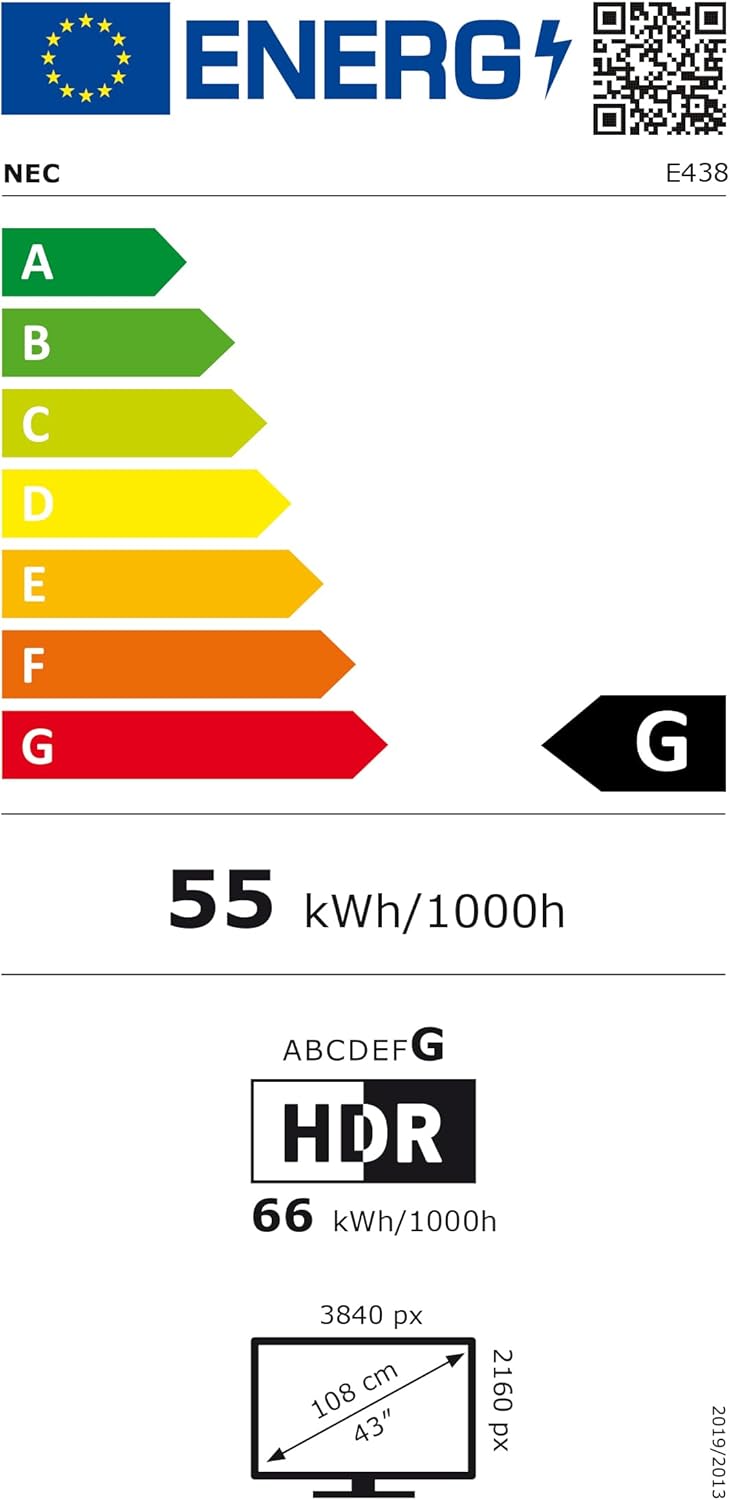
Figure 5: EU Energy Label for the NEC E438 monitor.
Pro podrobnější informace o energii navštivte databázi EPREL: https://eprel.ec.europa.eu/qr/429363
9. Záruka a podpora
9.1 Informace o záruce
This NEC E438 monitor comes with a 3-year limited warranty. Please refer to the warranty card included in your package for specific terms and conditions. Keep your proof of purchase for warranty claims.
9.2 Zákaznická podpora
For technical assistance, service, or further inquiries, please contact NEC customer support. Visit the official NEC webstránky s kontaktními údaji a zdroji podpory.