
eero eero Pro 6E (3-pack)
Uživatelská příručka k systému Wi-Fi Mesh eero Pro 6E
Model: eero Pro 6E (3-pack)

Image: eero Pro 6E system branding and PCMag Choice award.
Zavedení
The eero Pro 6E mesh Wi-Fi system is designed to provide fast, reliable, and secure internet coverage throughout your home. Utilizing Wi-Fi 6E technology, it supports internet plans up to 2.5 Gbps, offering lower latency and increased bandwidth for a seamless online experience across multiple devices.
This manual provides essential information for setting up, operating, maintaining, and troubleshooting your eero Pro 6E system to ensure optimal performance.

Image: A three-pack of eero Pro 6E devices, showcasinelegantní design.
Co je v krabici
Your eero Pro 6E (3-pack) system includes the following components:
- Three (3) eero Pro 6E devices
- Tři (3) napájecí adaptéry
- Jeden (1) ethernetový kabel
- Stručný průvodce (tato příručka slouží jako komplexní průvodce)
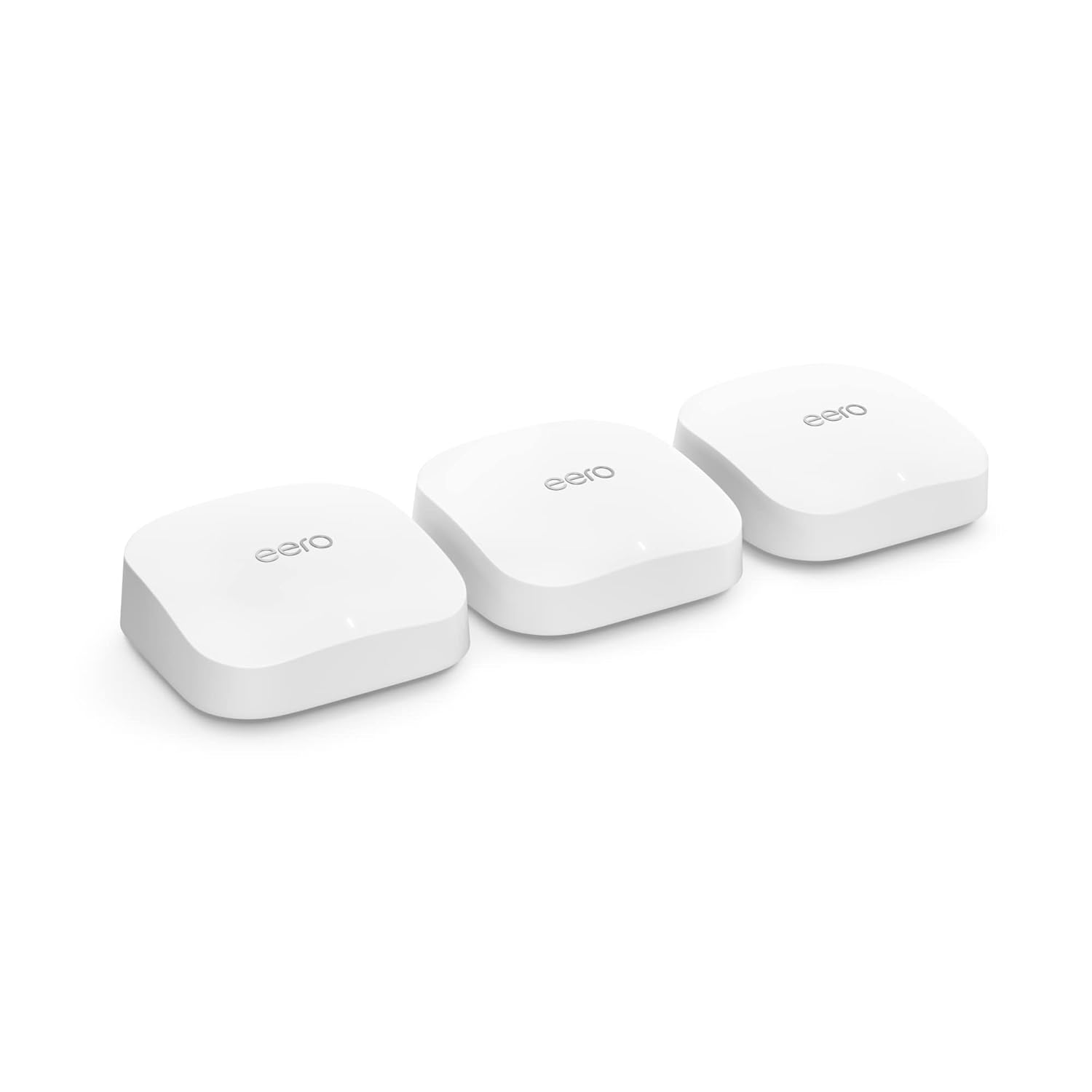
Image: The three eero Pro 6E devices included in the package.
Nastavení
Setting up your eero Pro 6E system is a straightforward process guided by the eero app. Follow these steps for a quick and easy installation:
- Download the eero App: Hledat "eero" in your mobile device's app store (iOS or Android) and download the application.
- Vytvořit účet: Open the eero app and follow the on-screen prompts to create a new eero account or log in if you already have one.
- Connect Your First eero:
- Unplug your existing modem and router (if you have a separate router).
- Connect one eero Pro 6E device to your modem using the provided Ethernet cable. Use either Ethernet port on the eero.
- Plug in the power adapter to the eero device and then into a power outlet.
- Plug your modem back in and wait for it to fully power on and connect to the internet (indicator lights on your modem will confirm this).
- Postupujte podle pokynů v aplikaci: The eero app will detect your connected eero and guide you through naming your network and setting a password.
- Add Additional eero Devices: Once your first eero is online, the app will prompt you to add the remaining eero devices. Place them strategically throughout your home to maximize coverage.
- Plug in each additional eero device to a power outlet.
- Ensure they are within range of another eero device to form a strong mesh network.
- The app will confirm when each eero is successfully added to your network.
- Připojte svá zařízení: Once the setup is complete, connect your Wi-Fi enabled devices (smartphones, tablets, computers, smart home devices) to your new eero network using the Wi-Fi name and password you created.

Image: The eero app simplifies the setup process, guiding users step-by-step.
Operating Your eero Pro 6E System
The eero Pro 6E system operates as a unified mesh network, intelligently managing your Wi-Fi to provide optimal performance for all connected devices.
Klíčové vlastnosti a výhody:
- Wi-Fi 6E Technology: Supports the new 6 GHz band, providing dedicated, interference-free channels for Wi-Fi 6E compatible devices. This results in significantly lower latency and faster speeds, even for non-6E devices on the network.
- TrueMesh Technology: eero's patented TrueMesh intelligently routes traffic to reduce drop-offs and dead spots, ensuring consistent coverage throughout your home.
- Gigabit+ Speeds: Capable of supporting network speeds up to 2.3 Gbps, including wired speeds up to 1 Gbps and wireless speeds up to 1.6 Gbps. The 2.5 Gb Ethernet port enables full utilization of gigabit+ internet plans.
- Rozsáhlé pokrytí: A 3-pack system provides coverage up to 6,000 sq. ft., supporting over 100 connected devices simultaneously.
- Optimized for High-Bandwidth Activities: Ideal for 8K streaming, AR/VR applications, and competitive online gaming due to its high bandwidth and low latency capabilities.
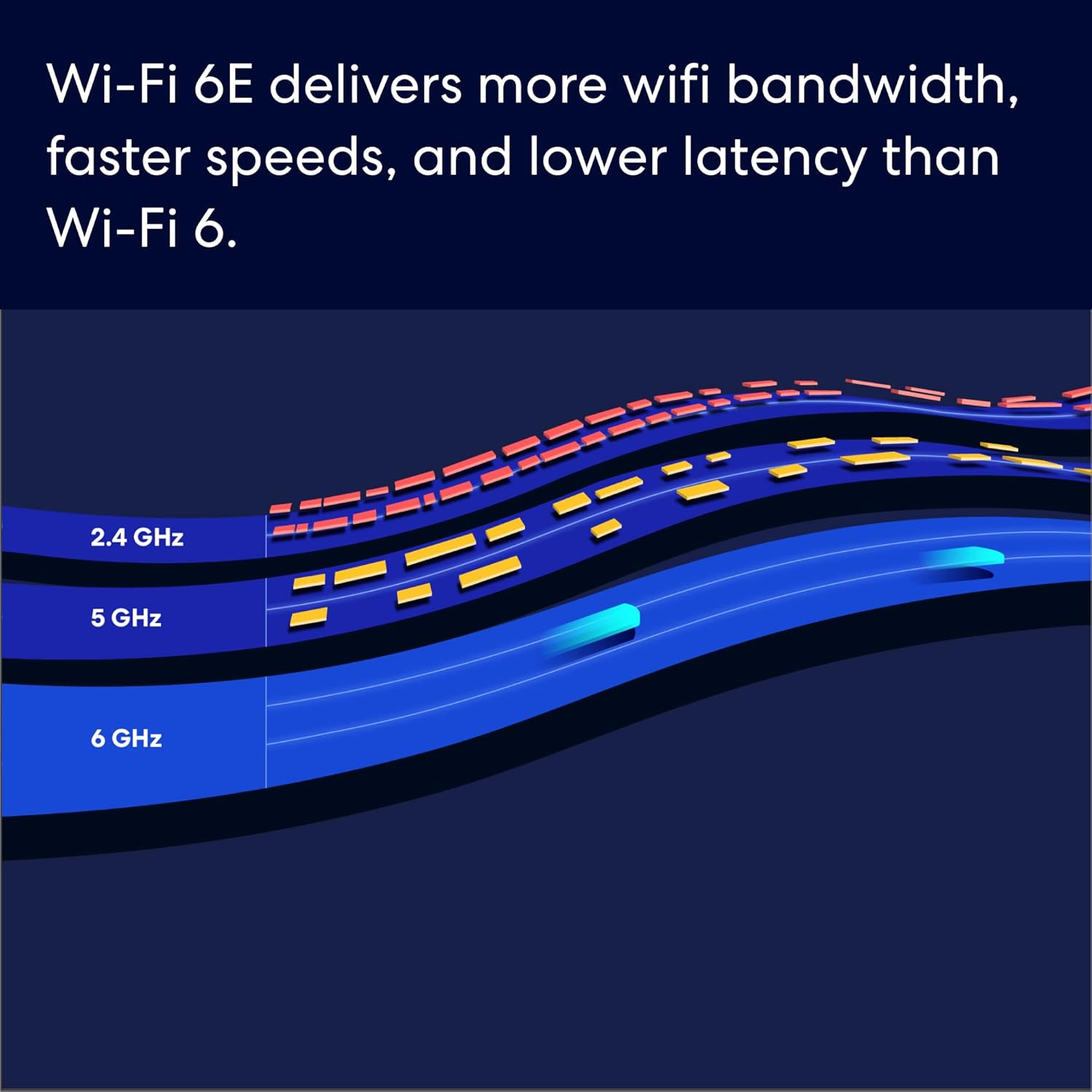
Image: The eero Pro 6E supports gigabit+ internet plans, enabling smooth streaming and work for the whole family.

Image: Wi-Fi 6E introduces the 6 GHz band for increased bandwidth and lower latency compared to Wi-Fi 6.

Image: The system is built for demanding applications like 8K streaming, AR/VR, and gaming.
Image: Illustrates how multiple eero devices provide extensive Wi-Fi coverage throughout a home, supporting over 100 devices.
Údržba
To ensure the longevity and optimal performance of your eero Pro 6E system, consider the following maintenance guidelines:
- Automatické aktualizace: Your eero system automatically receives software updates to improve performance, add new features, and enhance security. Ensure your eero devices are always connected to the internet to receive these updates.
- Optimální umístění: Avoid placing eero devices in enclosed spaces, near large metal objects, or close to other electronics that might cause interference (e.g., microwaves, cordless phones). For best coverage, place them in open areas, ideally at eye level.
- Čištění: Gently wipe the exterior of your eero devices with a soft, dry cloth. Do not use liquid cleaners or abrasive materials. Ensure the devices are unplugged before cleaning.
- Větrání: Ensure that the ventilation holes on your eero devices are not obstructed to prevent overheating.
Odstraňování problémů
If you encounter issues with your eero Pro 6E system, try the following common troubleshooting steps:
- Žádné internetové připojení:
- Check if your modem is working correctly. Try restarting your modem by unplugging it for 30 seconds and plugging it back in.
- Ensure the Ethernet cable connecting your main eero to the modem is securely plugged in.
- Restart your main eero device by unplugging its power adapter for 30 seconds and plugging it back in.
- Slow Speeds or Poor Coverage:
- Check the placement of your eero devices. Ensure they are not too far apart and are in open areas.
- Run a speed test using the eero app to diagnose network performance.
- Restart all eero devices in your network via the eero app or by unplugging them.
- Ensure your eero software is up to date.
- Zařízení se nepřipojuje:
- Ujistěte se, že zadáváte správné heslo Wi-Fi.
- Restartujte zařízení, které se pokoušíte připojit.
- Move the device closer to an eero node to check for signal strength issues.
- eero App Issues:
- Ensure your mobile device has a stable internet connection (cellular or another Wi-Fi network).
- Try force-closing and reopening the eero app.
- Zkontrolujte aktualizace aplikací v obchodě s aplikacemi ve vašem zařízení.
For more advanced troubleshooting or persistent issues, please refer to the Support Information section.
Specifikace
| Funkce | Popis |
|---|---|
| Wi-Fi standard | Wi-Fi 6E (802.11ax) |
| Frekvenční pásma | 2.4 GHz, 5 GHz, 6 GHz |
| Max Network Speed | Up to 2.3 Gbps (wired + wireless combined) |
| Rychlost bezdrátového připojení | Až 1.6 Gbps |
| Ethernetové porty | 2.5 Gb Ethernet port (1), 1.0 Gb Ethernet port (1) per eero device |
| Krytí (balení po 3 ks) | Až 6,000 čtverečních stop. |
| Připojená zařízení | Podporuje více než 100 zařízení |
| Zabezpečení | WPA3, automatic security updates |
| Smart Home Hub | Built-in Zigbee smart home hub |
Informace o záruce
For detailed warranty information regarding your eero Pro 6E system, please refer to the warranty card included with your product packaging or visit the official eero support webZáruční podmínky se mohou lišit v závislosti na regionu a místě nákupu.
Zákaznická podpora
If you require further assistance or have questions not covered in this manual, please contact eero customer support:
- Telefon (USA): +1-877-659-2347
- E-mail: podpora@eero.com
- eero App: Utilize the in-app support features for quick access to help articles and direct contact options.
- Online zdroje: Visit the official eero website for FAQs, community forums, and additional support documentation.
Ask a question about this manual
Ask about setup, troubleshooting, compatibility, parts, safety, or missing instructions. Manuals+ will review the question and use this page’s manual context to help answer it.