
Zavedení
The HP DeskJet 4155e is a versatile all-in-one wireless color inkjet printer designed for home use. It offers print, scan, and copy functionalities, along with mobile printing capabilities and an auto document feeder. This manual provides essential information for setting up, operating, maintaining, and troubleshooting your printer.
Nastavení
Rozbalení a počáteční umístění
Carefully remove the printer from its packaging. Ensure all protective tapes and materials are removed. Place the printer on a stable, flat surface.

Image: HP DeskJet 4155e printer, white, with a sheet of paper showing "3 MONTHS INSTANT INK INCLUDED" in the output tray.
Připojení napájení
Connect the power cord to the printer and then to a wall outlet. Do not connect the USB cable to your computer yet.
Obrázek: Zadní view of the HP DeskJet 4155e printer, highlighting the power cord connection port and the 60-sheet rear input tray.
Instalace inkoustové kazety
Open the ink cartridge access door. Wait for the print carriage to move to the center. Install the HP 67 Setup Black Cartridge and HP 67 Setup Tri-Color Cartridge into their respective slots. Close the access door.

Obrázek: Detail view of the HP DeskJet 4155e printer with the ink cartridge access door open, showing the installation of black and tri-color HP 67 ink cartridges.
Video: A user demonstrating the installation of ink cartridges into the HP DeskJet 4155e printer, followed by a print quality test.
Software Installation and Wireless Setup (HP Smart App)
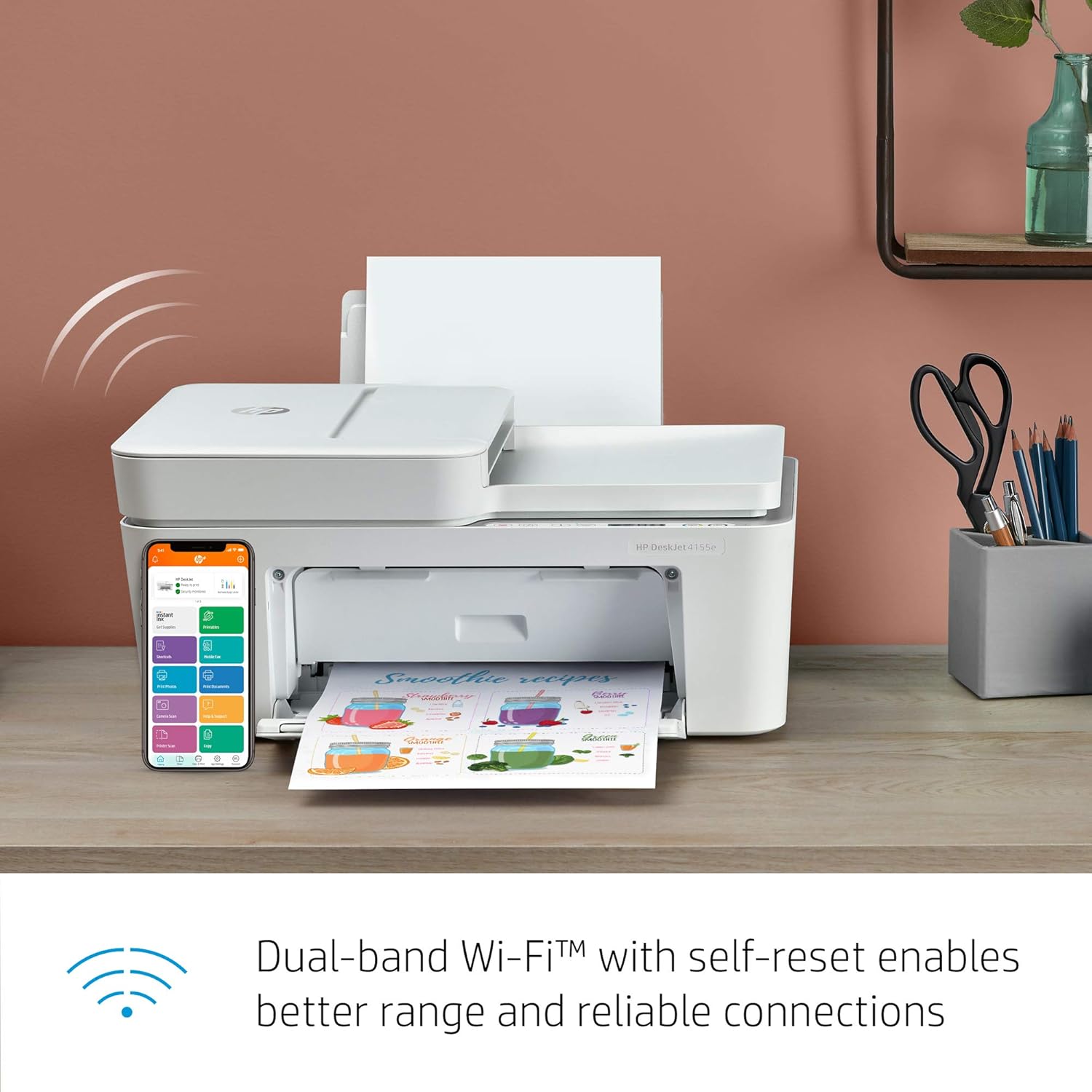
Download the HP Smart app on your mobile device (smartphone or tablet) or computer. Follow the step-by-step guided setup within the app to connect your printer to your dual-band Wi-Fi network. The app facilitates mobile printing, security features, and automatic updates.

Image: A smartphone displaying the HP Smart app interface next to the HP DeskJet 4155e printer, illustrating mobile printing and management features.
Video: A user demonstrating the ease of use and features of the HP Smart app for managing and printing with HP DeskJet printers.
Obsluha tiskárny
Tisk dokumentů
Load paper into the 60-sheet rear input tray. From your computer or mobile device, select the document or image you wish to print. Choose your HP DeskJet 4155e from the available printers and adjust print settings as needed (e.g., color, black and white, paper size). Initiate the print job.

Image: The HP DeskJet 4155e printer actively printing a document with a purple "3 MONTHS INSTANT INK INCLUDED" graphic, showcasing the output tray.

Image: The HP DeskJet 4155e printer with paper loaded in the rear input tray and a document being printed, illustrating the paper path.
Skenování dokumentů
Place the document face-down on the flatbed scanner glass or load multiple pages into the 35-sheet auto document feeder (ADF). Open the HP Smart app or scanning software on your computer. Select the scan function, choose your desired settings (e.g., resolution, file type), and start the scan.

Image: The HP DeskJet 4155e printer's auto document feeder in use, scanning multiple pages of a recipe document.

Image: The flatbed scanner of the HP DeskJet 4155e printer with the lid open, ready for scanning documents or photos.
Video: A user demonstrating the scanning capabilities of the HP DeskJet 4155e printer, highlighting its ease of use.
Kopírování dokumentů
Place the original document on the scanner glass or in the ADF. On the printer's control panel, press the Copy button (usually indicated by a copy icon). Select the number of copies and whether you want color or black and white. Press the Start Copy button.

Image: Close-up of the HP DeskJet 4155e printer's control panel, showing buttons for power, information, Wi-Fi, and copy functions.
Mobilní fax
Utilize the HP Smart app to send secure mobile faxes directly from your smartphone, tablet, or PC.

Image: A smartphone screen showing a "Fax Delivered!" notification from the HP Smart app, demonstrating the mobile fax feature.
Údržba
Výměna inkoustové kazety
The HP DeskJet 4155e uses HP 67 ink cartridges. When ink levels are low, the HP Smart app can notify you, and with HP Instant Ink service, new cartridges can be delivered to your door before you run out. Always use original HP ink cartridges for optimal performance and to maintain printer warranty.

Image: An HP Instant Ink box containing black and tri-color ink cartridges, illustrating the ink delivery service.
Čištění tiskárny
Regularly clean the exterior of the printer with a soft, lint-free cloth. For print quality issues, refer to the HP Smart app or the printer's reference guide for instructions on cleaning printheads or aligning cartridges.
Odstraňování problémů
Problémy s připojením
If the printer loses Wi-Fi connection, ensure your router is working and the printer is within range. The dual-band Wi-Fi with self-reset feature is designed to automatically detect and resolve connectivity problems. For persistent issues, re-run the wireless setup through the HP Smart app.
Problémy s kvalitou tisku
If prints are faded, streaky, or incorrect colors, check ink levels in the HP Smart app. Perform printhead cleaning and alignment procedures as instructed in the printer's software or documentation.
Zaseknutý papír
If a paper jam occurs, carefully remove any jammed paper from the input tray, output tray, or inside the printer. Refer to the printer's reference guide for specific instructions on clearing paper jams.
Specifikace
The following table outlines key specifications for the HP DeskJet 4155e:
| Funkce | Specifikace |
|---|---|
| Rozměry produktu | 13.07"H x 16.85"Š x 7.87"V |
| Technologie tisku | Inkoustové |
| Technologie připojení | USB, wireless |
| Funkce | Tisk, kopírování, skenování, mobilní fax |
| Maximální rychlost tisku (černobíle) | 8.5 ppm |
| Maximální rychlost tisku (barevně) | 5.5 ppm |
| Maximální velikost média | 8.5 x 14 palce |
| Kapacita vstupních listů | 60 listů |
| Výstupní kapacita listů | 25 listů |
| Typ skeneru | Flatbed, Auto Document Feeder (35-sheet) |
| Maximální rozlišení barevného tisku | 4800 x 1200 dots_per_inch |
| Maximální rozlišení černobílého tisku | 1200 x 1200 bodů na palec |
| Oboustranný tisk | Manuál |
| Zahrnuté komponenty | HP DeskJet 4155e All-in-One Printer, HP 67 Setup Black Cartridge, HP 67 Setup Tri-Color Cartridge, Regulatory flyer, Setup guide, Reference guide, Power cord. |
Záruka a podpora
The HP DeskJet 4155e comes with a limited warranty. For detailed warranty information and support, please refer to the regulatory flyer and reference guide included with your product, or visit the official HP support webmísto.
HP+ Smart Printing System activation may include an extended HP warranty and advanced Smart app features. This requires an HP account, internet connection, and use of Original HP Ink for the life of the printer.