
1. Úvod
The KuWFi AC1200 Dual Band Wireless USB Adapter provides high-speed Wi-Fi connectivity for your desktop or laptop PC. This adapter supports both 2.4GHz and 5GHz frequency bands, offering flexible and reliable wireless performance. Its compact design ensures portability and ease of use.

Image 1.1: The KuWFi AC1200 adapter highlighting its dual-band capabilities with speeds of 867Mbps on 5GHz and 300Mbps on 2.4GHz.
2. Vlastnosti produktu
- Dvoupásmové připojení: Podporuje frekvence 2.4 GHz (až 300 Mb/s) a 5 GHz (až 867 Mb/s) pro kombinovanou rychlost až 1200 Mb/s.
- Vysokorychlostní výkon: Ideal for online gaming, HD video streaming, and large file převody.
- Široká kompatibilita: Compatible with Windows 10 (32/64bit), Windows 8, and Windows 7 operating systems.
- Instalace bez ovladačů: Plug-and-play functionality for Windows 10 (32/64bit) systems.
- Pokročilé zabezpečení: Supports WEP, WPA-PSK, WPA2-PSK, and WPA/WPA2 64/128bit encryption protocols.
- Mini & Portable Design: Compact size for easy carrying and convenient use.
- AP Mode Support: Can function as a Wi-Fi hotspot (SimulationAP).

Image 2.1: Key features of the KuWFi AC1200 adapter, including its compact size and AP mode capability.

Image 2.2: The adapter's mini size, making it highly portable.
3. Systémové požadavky
- Operating System: Windows 10 (32/64bit), Windows 8, Windows 7
- Available USB Port (USB 2.0 or higher recommended)
- CD-ROM drive (for driver installation on Windows 7/8, not required for Windows 10)
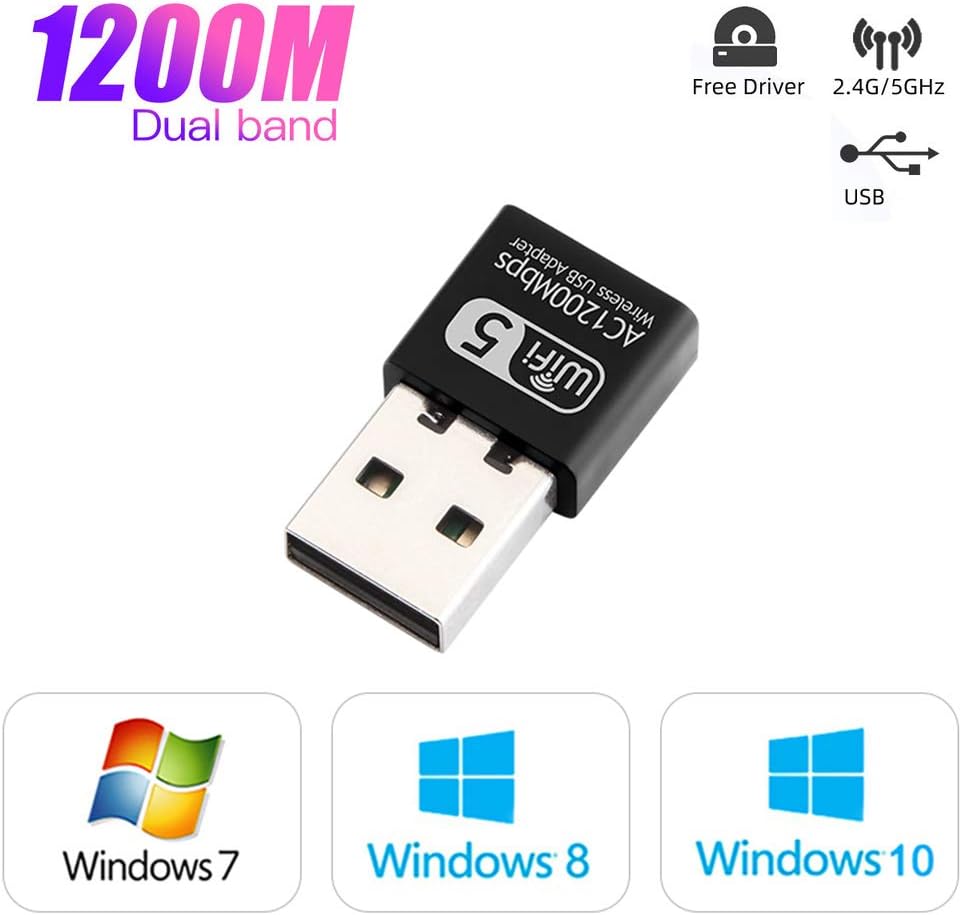
Image 3.1: Operating system compatibility and driver-free support for Windows 10.
4. Obsah balení
- 1 x KuWFi AC1200 Dual Band Wireless USB Adapter
- 1 x Driver CD (for Windows 7/8)
5. Instalační příručka
Step 1: Insert the USB Adapter
Carefully insert the KuWFi AC1200 Wireless USB Adapter into an available USB port on your desktop or laptop computer.

Image 5.1: Inserting the USB adapter into a computer's USB port.
Krok 2: Instalace ovladače
For Windows 10 (32/64bit): The adapter is designed for plug-and-play functionality. The system should automatically detect and install the necessary drivers. If not, proceed with the CD driver installation steps.
Pro systém Windows 7 / 8:
- Vložte dodaný disk CD s ovladači do mechaniky CD-ROM počítače.
- Open 'My Computer' or 'This PC'.
- Double-click on the CD Driver icon to open it.
- Locate and double-click the setup or install file.
- Dokončete instalaci ovladače podle pokynů na obrazovce.

Image 5.2: Visual guide for installing drivers from the CD.
Step 3: Connect to a Wi-Fi Network
Once the drivers are installed, your computer will detect available Wi-Fi networks. Select your desired network and enter the password to connect.
6. Návod k obsluze
Dvoupásmový provoz
The KuWFi AC1200 adapter supports both 2.4GHz and 5GHz Wi-Fi bands. You can choose the band that best suits your needs:
- Pásmo 2.4 GHz: Offers wider coverage and better penetration through walls, suitable for general internet browsing and tasks that do not require very high speeds.
- Pásmo 5 GHz: Provides faster speeds and less interference, ideal for online gaming, HD video streaming, and large file downloads. This band typically has a shorter range.
Your computer's Wi-Fi settings will display available networks. Networks operating on the 5GHz band often have '5G' or '5GHz' in their name (e.g., 'MyWiFi_5G'). Select the appropriate network based on your requirements.
AP Mode (Soft AP)
The adapter can function as a Wi-Fi hotspot (Soft AP) if your computer has an internet connection via Ethernet. This allows other devices to connect to your computer's internet through the adapter. Refer to your operating system's network settings for instructions on enabling mobile hotspot or Soft AP functionality.
7. Údržba
- Udržujte adaptér čistý a bez prachu.
- Nevystavujte adaptér extrémním teplotám nebo vlhkosti.
- Do not shake or plug/unplug the adapter excessively to prevent damage to the USB port or the adapter itself.
- Store the adapter in a safe place when not in use.
8. Řešení problémů
No Wi-Fi Networks Detected
- Ujistěte se, že je adaptér bezpečně zapojený do portu USB.
- Ověřte, zda jsou ovladače správně nainstalovány. Zkontrolujte Správce zařízení (Windows), zda se vedle síťového adaptéru nenacházejí žluté vykřičníky.
- Restartujte počítač.
- Zkuste zapojit adaptér do jiného USB portu.
Pomalá rychlost připojení
- Ujistěte se, že jste připojeni k pásmu 5 GHz, pokud ho váš router podporuje a jste v jeho dosahu.
- Reduce the distance between your computer and the Wi-Fi router.
- Minimize obstacles (walls, large metal objects) between the adapter and the router.
- Zkontrolujte, zda jiná zařízení nezpůsobují rušení (např. mikrovlnné trouby, bezdrátové telefony).
- Aktualizujte firmware routeru.
Spojení často vypadává
- Ensure the adapter is not loose in the USB port.
- Check for driver updates from the manufacturer's webmísto, pokud je k dispozici.
- Adjust the position of your computer or router to improve signal strength.
- Disable power-saving features for the USB port or network adapter in your computer's settings.
9. Specifikace
| Model | AC1200 |
| Hardwarové rozhraní | USB |
| Rychlost přenosu dat | Až 1200 Mb/s (867 Mb/s na 5 GHz, 300 Mb/s na 2.4 GHz) |
| Frekvenční pásma | 2.4 GHz, 5 GHz |
| Kompatibilní zařízení | Stolní počítač, notebook |
| Operační systémy | Windows 10 (32/64bit), Windows 8, Windows 7 |
| Podpora šifrování | WEP, WPA-PSK, WPA2-PSK, WPA/WPA2 64/128bit |
| Hmotnost položky | 0.634 unce (cca 18 gramů) |
| Rozměry balení | 3.78 x 3.35 x 0.47 palce |