
Coolpad Coolpad Tasker Tablet 3667AT 10IN WiFi
Uživatelská příručka k tabletu Coolpad Tasker 10" HD s Androidem 10
Model: Coolpad Tasker Tablet 3667AT 10IN WiFi
Zavedení
Welcome to the user manual for your new Coolpad Tasker 10" HD Android 10 Tablet. This guide provides essential information to help you set up, operate, maintain, and troubleshoot your device. Designed for both entertainment and productivity, your tablet features a vibrant 10-inch HD display, a powerful Qualcomm 64-bit processor, 3GB RAM, and 32GB of internal storage, expandable up to 128GB with a Micro SD card. It also includes a 6000mAh battery with Quick Charge 3.0 support and comes with a shock-absorbing protective case for enhanced durability.

Obrázek 1: Přední a zadní strana View of the Coolpad Tasker Tablet. The tablet features a sleek design with a camera on the rear and a large display on the front.
Co je v krabici
Upon unboxing your Coolpad Tasker Tablet, please ensure all the following items are present:
- Coolpad Tasker 10" HD Android 10 Tablet
- USB-C kabel
- Cestovní nabíječka
- Coolpad Tasker Shock Protection Case

Figure 2: Coolpad Tasker Tablet and its Shock Protection Case. The image displays the tablet alongside its durable protective case, highlighting the included accessory.
Průvodce nastavením
1. Počáteční nabíjení
Before first use, it is recommended to fully charge your tablet. Connect the provided USB-C cable to the tablet's charging port and the travel charger, then plug it into a power outlet. The tablet supports Quick Charge 3.0 for faster charging.
2. Zapnutí/vypnutí
- Zapnutí: Press and hold the Power button (usually located on the side or top edge) until the Coolpad logo appears.
- Vypnutí: Stiskněte a podržte tlačítko Napájení, dokud se nezobrazí nabídka možností napájení, poté vyberte „Vypnout“.
3. Počáteční nastavení systému Android
Upon first power-on, you will be guided through the Android 10 setup process. Follow the on-screen prompts to select your language, connect to a Wi-Fi network, set up your Google account, and configure basic settings.
4. Vložení karty Micro SD (volitelné)
To expand your tablet's storage, you can insert a Micro SD card (up to 128GB). Locate the SIM/SD card tray on the side of the tablet. Use the provided tool (if any) or a paperclip to eject the tray, place the Micro SD card into the designated slot, and reinsert the tray firmly.

Figure 3: Micro SD Card Slot. The image shows the tablet with its Micro SD card slot open, ready for memory expansion.
Ovládání tabletu
Základní navigace
Your Coolpad Tasker Tablet uses a capacitive touchscreen for navigation. Use gestures such as tapping, swiping, pinching, and spreading to interact with apps and content. The Android 10 operating system provides an intuitive user experience.

Figure 4: Android 10 Interface. This image illustrates the clean and secure interface of Android 10 on the Coolpad tablet.
Wi-Fi připojení
To connect to the internet, navigate to Nastavení > Síť a internet > Wi-Fi. Select your desired network from the list and enter the password if prompted. The tablet supports 802.11ac wireless standards for fast and reliable connections.

Figure 5: Wi-Fi Connectivity. The tablet is shown with a Wi-Fi signal icon, indicating active wireless internet connection.
Použití fotoaparátu
Your tablet is equipped with a 5MP HDR rear-facing camera and a 2MP front-facing camera. Open the Camera app to capture photos, selfies, or record videos. Tap the screen to focus and press the shutter button to take a picture.
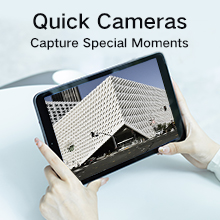
Figure 6: Capturing Moments with the Camera. The image shows the tablet's camera in use, ready to capture special moments.
Správa baterie
The 6000mAh battery provides extended usage time. To optimize battery life, reduce screen brightness, close unused applications, and disable Wi-Fi or Bluetooth when not in use. Utilize the Quick Charge 3.0 feature for rapid recharging.

Figure 7: 6000mAh Battery Capacity. This image highlights the tablet's large battery, designed for extended productivity.
Instalace aplikace
Download and install applications from the Google Play Store. Ensure you have a stable internet connection and a Google account logged in to access the store.
Údržba
Čištění vašeho tabletu
K čištění obrazovky a těla tabletu použijte měkký hadřík, který nepouští vlákna. V případě odolných šmouh lehceampOmyjte hadřík vodou nebo roztokem na čištění obrazovky. Nepoužívejte agresivní chemikálie ani abrazivní materiály.
Aktualizace softwaru
Pravidelně kontrolujte aktualizace systému, abyste se ujistili, že váš tablet má nejnovější funkce a bezpečnostní záplaty. Přejděte na Nastavení > Systém > Aktualizace systému zkontrolovat a nainstalovat dostupné aktualizace.
Péče o baterie
To prolong battery lifespan, avoid extreme temperatures and do not let the battery completely drain frequently. It is best to keep the battery charge between 20% and 80% for optimal long-term health.
Ochranné pouzdro
The included shock protection case is designed to safeguard your tablet from accidental drops and impacts. It is recommended to keep the case on your tablet during daily use.
Odstraňování problémů
Tablet se nezapíná
- Ujistěte se, že je tablet dostatečně nabitý. Připojte jej k nabíječce a před opětovným zapnutím počkejte několik minut.
- Try holding the Power button for an extended period (10-15 seconds) to force a restart.
Problémy s připojením k Wi-Fi
- Restartujte Wi-Fi router a tablet.
- Zapomeňte na síť v nastavení Wi-Fi a znovu se připojte.
- Ujistěte se, že jste v dosahu signálu Wi-Fi.
Aplikace padá nebo zamrzávají
- Zavřete a znovu otevřete aplikaci.
- Vymažte mezipaměť a data aplikace v Nastavení > Aplikace a oznámení > [Název aplikace] > Úložiště a mezipaměť.
- Ujistěte se, že je aplikace aktualizována na nejnovější verzi z Obchodu Google Play.
Obnovení továrního nastavení
Pokud se setkáváte s přetrvávajícími problémy, obnovení továrního nastavení může vyřešit mnoho problémů souvisejících se softwarem. Varování: Tímto smažete všechna data v tabletu. Před pokračováním si zálohujte důležitá data. Přejít na Nastavení > Systém > Možnosti resetování > Vymazat všechna data (obnovení továrního nastavení) a postupujte podle pokynů.
Specifikace
Below are the key technical specifications for the Coolpad Tasker Tablet 3667AT 10IN WiFi:
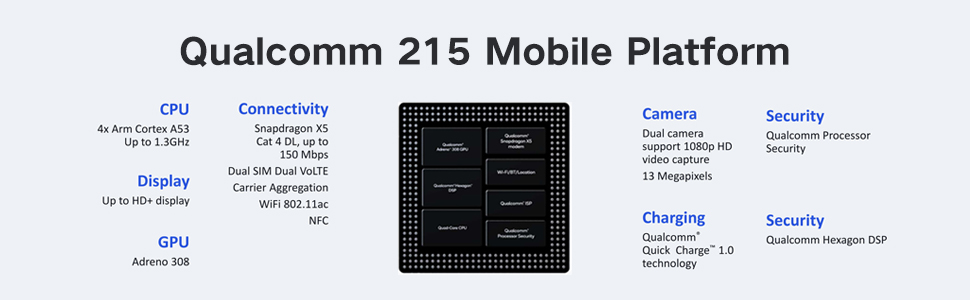
Figure 8: Qualcomm 215 Mobile Platform. This diagram details the capabilities of the Qualcomm 215 processor, including CPU, GPU, connectivity, camera, charging, and security features.
| Funkce | Specifikace |
|---|---|
| Název modelu | Coolpad Tasker Tablet 3667AT 10IN WiFi |
| Operační systém | Android 10 |
| Velikost displeje | 10 palců |
| Rozlišení obrazovky | 1280 x 800 pixelů (HD) |
| Procesor | Qualcomm 64-bit Processor (QM215 Quad-Core) |
| BERAN | 3 GB DDR3 SDRAM |
| Interní úložiště | 32 GB eMMC |
| Rozšiřitelné úložiště | Micro SD až 128 GB |
| Zadní kamera | 5 MP HDR |
| Přední kamera | 2 MP |
| Kapacita baterie | 6000 XNUMX mAh |
| Nabíjení | Rychlé nabíjení 3.0 |
| Bezdrátový typ | 802.11ac |
| Hmotnost položky | 2.07 libry (přibližně 939 gramů) |
| Rozměry produktu | 10 x 6 x 0.35 palce (254 x 152 x 9.2 mm) |

Figure 9: Tablet Dimensions and Weight. This image illustrates the physical dimensions (254*152*9.2mm) and weight (526.8 Gram) of the tablet, noting it is 15% lighter than comparable devices.

Figure 10: 10" IPS TFT WXGA 1280*800 Display. The image showcases the tablet's high-definition display, emphasizing its vibrant and clear visual quality.
Záruka a podpora
Your Coolpad Tasker Tablet comes with a standard manufacturer's warranty. For detailed warranty information, including terms and conditions, please refer to the warranty card included with your product or visit the official Coolpad website. For technical support, troubleshooting assistance beyond this manual, or service inquiries, please contact Coolpad customer support through their official channels.
Více informací a podpůrných zdrojů naleznete na adrese Coolpad Store on Amazon.
Ask a question about this manual
Ask about setup, troubleshooting, compatibility, parts, safety, or missing instructions. Manuals+ will review the question and use this page’s manual context to help answer it.