
Zavedení
This manual provides essential instructions for setting up, operating, maintaining, and troubleshooting your Surfans K7 Kids Tablet. Please read this guide thoroughly to ensure proper use and to maximize the tablet's features for a safe and engaging experience for children.
Konec produktuview
Klíčové vlastnosti
- Operační systém Android 10.0: Provides a secure and fast user experience.
- 7-inch IPS FHD Display: Features a 1920 x 1200 resolution eye-care touchscreen with a 178-degree wide viewúhel.
- Čtyřjádrový procesor: Ensures smooth performance for apps and games.
- 2GB RAM, 32GB ROM: Sufficient memory for multitasking and storage, expandable via MicroSD card.
- Duální fotoaparáty: Equipped with 2MP front and 5MP rear cameras for photos and video calls.
- Konektivita: Includes Wi-Fi and Bluetooth for wireless connections.
- Pre-installed iWAWA App: Offers updated educational content including games, videos, e-books, drawing, puzzles, and creative arts.
- Přístup k Obchodu Google Play: Allows downloading additional applications like YouTube Kids, Netflix, and Hulu.
- Režim rodičovské kontroly: Enables parents to manage content, set time limits, and customize child profiles.
- Durable Kid-Proof Case: Comes with a colorful, soft, and high-quality silicone case with an integrated 360-degree adjustable stand, suitable for children aged 2 to 10 years.

Image: The Surfans K7 Kids Tablet showcasing its GMS Certified Android 10.0 operating system and access to various applications via Google Play Store.

Image: The Surfans K7 Kids Tablet in use, illustrating its key features including quad-core processor, Android 10.0, 2GB RAM, 32GB ROM, WiFi, and Parent Mode.
Součásti tabletu
Seznamte se s fyzickými součástmi tabletu:
- Vypínač: Typically located on the side, used to turn the tablet on/off or put it to sleep/wake it up.
- Tlačítka hlasitosti: Upravte úroveň zvukového výstupu.
- Port USB-C: For charging the tablet and connecting to a computer for data transfer.
- 3.5mm audio jack: Pro připojení sluchátek nebo externích reproduktorů.
- Slot pro microSD kartu: Allows for memory expansion using a compatible MicroSD card.
- Přední kamera: Used for video calls and taking selfies.
- Zadní kamera: Pro pořizování fotografií a videí.
- Reproduktor: Provides audio output for media and notifications.
Nastavení
1. Nabíjení tabletu
Before first use, fully charge the tablet. Connect the provided USB cable to the tablet's USB-C port and the other end to the power adapter. Plug the adapter into a wall outlet. The battery indicator on the screen will show the charging status.
2. Zapnutí/vypnutí
- Zapnutí: Press and hold the Power Button until the screen lights up and the Surfans logo appears.
- Vypnutí: Press and hold the Power Button until a menu appears on the screen. Select "Power off" and confirm.
- Spánek/probuzení: Krátkým stisknutím tlačítka napájení tablet uspíte nebo probudíte.
3. Počáteční nastavení
Upon first power-on, follow the on-screen prompts to configure basic settings:
- Vyberte preferovaný jazyk.
- Connect to a Wi-Fi network (see next step).
- Set up your Google account or create a new one. This is necessary for downloading apps from the Google Play Store.
- Review a přijměte obchodní podmínky.
4. Připojení k Wi-Fi
To connect your tablet to the internet:
- Přejít na Nastavení.
- Klepněte na Síť a internet.
- Vybrat Wi-Fi a zapněte jej.
- The tablet will scan for available networks. Select your desired network from the list.
- Pokud se zobrazí výzva, zadejte heslo k Wi-Fi a poté klepněte na Připojit.
Návod k obsluze
1. Základní navigace
The Surfans K7 tablet uses a touchscreen for interaction:
- Klepněte na: Jedním dotykem obrazovky vyberete položku, otevřete aplikaci nebo stisknete tlačítko.
- Výpad: Drag your finger across the screen to scroll through pages, lists, or switch between home screens.
- Přiblížení/zvětšení prsty: Položte dva prsty na obrazovku a jejich přiblížením nebo oddálením můžete obraz přiblížit nebo oddálit.
- Oznámení a rychlé nastavení: Přejetím prstem od horního okraje obrazovky dolů zobrazíte oznámení a přepínače rychlého nastavení (Wi-Fi, Bluetooth atd.).
2. Downloading Apps from Google Play Store
With a Google account set up, you can download a wide variety of applications:
- Klepněte na Obchod Play ikonu na domovské obrazovce nebo v liště s aplikacemi.
- Browse or search for apps, games, movies, and books.
- Select an item and tap Instalovat stáhnout a nainstalovat.
3. Using Pre-installed iWAWA App
The iWAWA app provides a safe and engaging environment for children:
- Vyhledejte a klepněte na iWAWA ikona.
- Explore the various categories such as games, videos, e-books, and creative activities.
- Content within iWAWA is curated to be age-appropriate and educational.
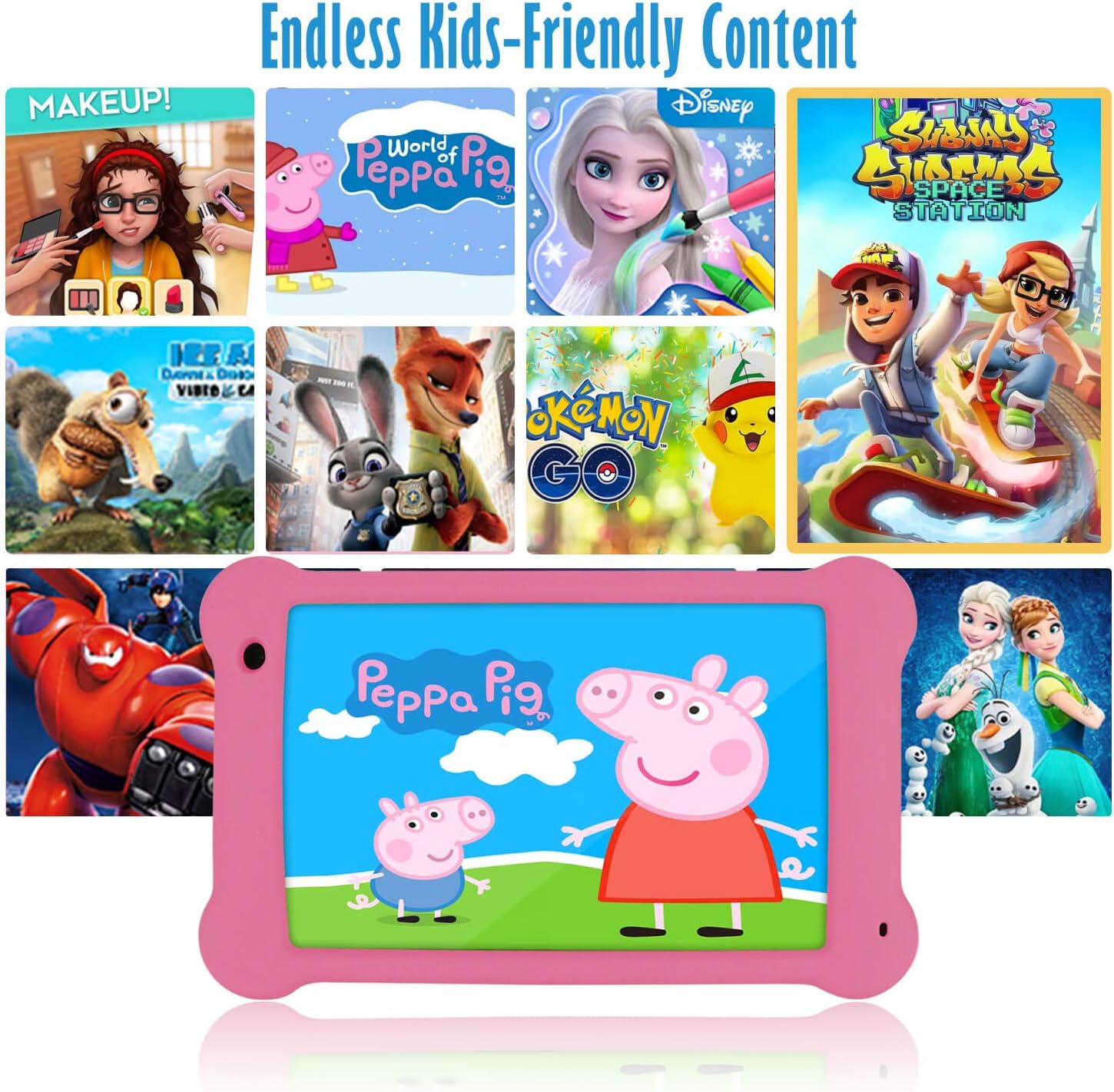
Image: The Surfans K7 Kids Tablet showcasing a variety of popular kid-friendly content, accessible through pre-installed apps and Google Play Store.
Režim rodičovské kontroly
The Surfans K7 tablet includes a dedicated Parental Control Mode to manage your child's usage and ensure a safe digital environment.
1. Accessing Parental Mode
To access and configure parental controls:
- Najděte a otevřete Mateřská Mode or iWAWA Parent aplikace na tabletu.
- You will be prompted to set up a password or PIN for secure access. Remember this password.
2. Setting Time Limits
Manage how long your child can use the tablet:
- Configure daily usage limits for the tablet.
- Set specific time blocks during which the tablet can or cannot be used (e.g., bedtime restrictions).
3. Content Filtering
Ensure your child accesses only appropriate content:
- Select and approve specific applications, websites, and media content that your child is allowed to access.
- Block inappropriate content categories or specific webstránky.
4. Managing Child Profiles
Create personalized experiences for each child:
- Vytvořte si individuálního profesionálafilepro více dětí.
- Customize settings, content access, and time limits for each profile based on age and preferences.

Image: A parent and child using the Surfans K7 Kids Tablet, demonstrating the ease of setting up and managing parental controls for time limits, child lock, and content filtering.
Údržba
1. Čištění tabletu
Aby byl váš tablet čistý a funkční:
- Use a soft, lint-free cloth (e.g., microfiber cloth) to gently wipe the screen and tablet body.
- Na odolné šmouhy lehce otřeteamphadřík vodou. Nepoužívejte agresivní chemikálie, abrazivní čisticí prostředky ani nadměrnou vlhkost, protože by mohly poškodit obrazovku nebo vnitřní součásti.
- Před čištěním se ujistěte, že je tablet vypnutý a odpojený od sítě.
2. Péče o baterie
Proper battery care extends the tablet's lifespan:
- Avoid fully discharging the tablet frequently. Charge the tablet when the battery level is low (e.g., below 20%).
- Do not expose the tablet to extreme temperatures (hot or cold), as this can degrade battery performance.
- Používejte pouze dodanou nabíječku nebo certifikovanou kompatibilní nabíječku.
3. Aktualizace softwaru
Keep your tablet's software up-to-date for optimal performance and security:
- Periodically check for system updates by going to Nastavení > Systém > Aktualizace systému.
- Před zahájením aktualizace se ujistěte, že je tablet připojen k Wi-Fi a má dostatečně nabitou baterii.
4. Protective Case Care
The included kid-proof silicone case offers protection:
- Vyčistěte pouzdro reklamouamp hadříkem, pokud se zašpiní.
- Ensure the case is properly fitted around the tablet to provide maximum protection against drops and bumps.

Obrázek: Podrobný view of the Surfans K7 Kids Tablet's durable kid-proof case, highlighting its soft silicone material and anti-drop corner design for enhanced protection.
Odstraňování problémů
This section addresses common issues you might encounter with your Surfans K7 Kids Tablet.
Tablet se nezapne
- Zkontrolujte baterii: Ensure the tablet is charged. Connect it to the charger for at least 30 minutes, then try powering it on again.
- Vynutit restart: Press and hold the Power Button for about 10-15 seconds until the tablet restarts.
Screen is Black but Audio is Playing
This can sometimes occur:
- Briefly press the Power Button to put the screen to sleep, then press it again to wake it up.
- If the issue persists, perform a force restart by pressing and holding the Power Button for 10-15 seconds.
Problémy s připojením Wi-Fi
- Povolit Wi-Fi: Přejít na Nastavení > Síť a internet > Wi-Fi and ensure Wi-Fi is turned on.
- Restartujte router: Restartujte Wi-Fi router a modem.
- Zapomeňte na síť: Go to Wi-Fi settings, tap on your network, and select "Forget network." Then, reconnect to the network and re-enter the password.
- Síla signálu: If the signal is weak, move closer to your Wi-Fi router.
Apps Are Slow or Crashing
- Zavřít nepoužívané aplikace: Swipe up from the bottom of the screen (or tap the square navigation button) to view recent apps, then swipe them away to close.
- Restartujte tablet: A simple restart can often resolve performance issues.
- Vymazat mezipaměť aplikace: Přejít na Nastavení > Aplikace > [Název aplikace] > Úložiště a mezipaměť > Vymazat mezipaměť.
Tablet is Unresponsive
If the tablet freezes and does not respond to touch:
- Perform a force restart by pressing and holding the Power Button for approximately 10-15 seconds until the device powers off and restarts.
Obnovení továrního nastavení (poslední možnost)
If all other troubleshooting steps fail, a factory reset may be necessary. Warning: This will erase all data on the tablet, including apps, photos, and user settings. Back up any important data before proceeding.
- Přejít na Nastavení > Systém > Možnosti resetování.
- Klepněte Vymazat všechna data (obnovení továrního nastavení).
- Potvrďte své rozhodnutí a postupujte podle pokynů na obrazovce.
Specifikace

Image: Visual comparison highlighting the superior clarity of the 1920x1200 FHD IPS display with a 178-degree wide viewing angle on the Surfans K7 Kids Tablet.
| Funkce | Specifikace |
|---|---|
| Značka | Surfaři |
| Název modelu | K7 |
| Operační systém | Android 10.0 |
| Velikost obrazovky | 7 palce |
| Maximální rozlišení obrazovky | 1920 x 1200 pixelů |
| Značka procesoru | ARM (Quad-core 1.6GHz) |
| Instalovaná paměť RAM | 2 GB |
| Kapacita paměti | 32 GB |
| Rozšiřitelné úložiště | MicroSD Card Slot |
| Front Photo Sensor Resolution | 2 MP |
| Max WebRozlišení obrazu kamery | 5 MP |
| Rozlišení záznamu videa | FHD 1080p |
| Technologie připojení | Bluetooth, USB, Wi-Fi |
| Bezdrátová kompatibilita | 802.11a/b/g/n |
| Připojení k hardwaru | 3.5 mm Audio Jack, USB-C Port |
| Typ baterie | Lithium Polymer |
| Kapacita baterie | 3000 XNUMX mAh |
| Průměrná životnost baterie | 8 hodiny |
| Hmotnost položky | 450 gramů |
| Barva | Růžový |
| Popis věkového rozmezí | Baby, Children (2-10 years) |
Záruka a podpora
The Surfans K7 Kids Tablet comes with a standard manufacturer's warranty. For specific warranty terms, conditions, and duration, please refer to the warranty card included in the product packaging or contact Surfans customer support.
For technical assistance, troubleshooting beyond this manual, or further inquiries, please visit the official Surfans website or contact their customer service department through the contact information provided with your purchase or on their webmísto.